
BooBar
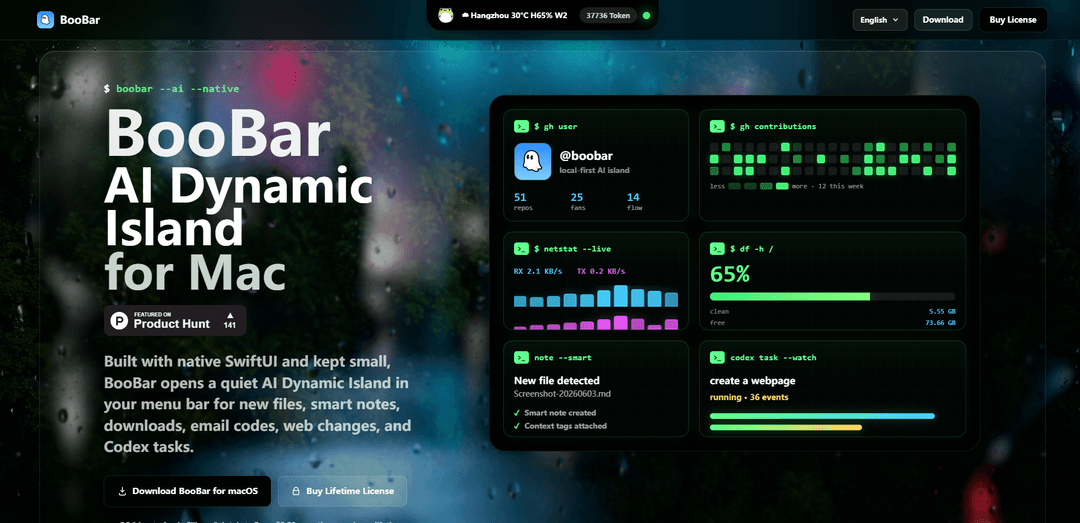
BooBar is an AI Dynamic Island for macOS that quietly surfaces file organization, smart notes (with OCR and summaries), download/email-code/web-change alerts, and Codex task updates in your menu bar with local-first controls.
https://boobar.app/?ref=producthunt
Product Information
Updated:Jun 15, 2026
What is BooBar
BooBar is a Mac app that turns your menu bar into a calm, always-available “AI Dynamic Island” for the kinds of workflow events that usually interrupt you—new files, downloads, screenshots, verification codes, pinned web-page changes, and long-running coding tasks. Instead of scattering these signals across apps and notifications, BooBar consolidates them into a compact top-screen island and builds searchable “File Cards” and smart notes with context like summaries, keywords, OCR clues, and source links. It supports macOS 14+ on Apple Silicon and Intel, offers a free trial, and is sold as a one-time purchase with device-based licensing.
Key Features of BooBar
BooBar is an “AI Dynamic Island” for macOS that lives in the menu bar and quietly tracks workflow signals like new files (Downloads/Desktop/screenshots), download progress, pinned web-page changes, email verification codes, and long-running Codex tasks. It turns captured items into searchable “File Cards” and smart notes with summaries, OCR clues, keywords, and source context, then suggests names/tags/destinations using local rules and optional OpenAI-compatible models—surfacing confirmations only when needed. The product emphasizes local-first processing, traceable action logs, and natural-language search to recover what happened to files and automations.
Menu-bar AI Dynamic Island: A calm, top-screen island that surfaces progress and alerts (downloads, web changes, task status) without interrupting the active app.
Watched folders + stability detection: Monitors Downloads, Desktop, screenshots, and custom folders; waits for content to stabilize before creating structured entries.
Smart Notes & File Cards: Automatically generates searchable notes/cards with summaries, OCR-derived clues, keywords, and source links/context for captured items.
AI-assisted naming, tagging, and archiving: Uses local rules and optionally Codex or OpenAI-compatible models to suggest filenames, categories, and destinations, with confirmation for important actions.
Natural-language recovery search: Ask what happened to a file/screenshot/download/bookmark and search across File Cards, archive history, and move/rename records.
Local-first privacy controls: Defaults to local processing; when cloud AI is used, it sends only required snippets (not whole files), stores API keys in Keychain, and supports sensitive-folder confirmation/disablement.
Use Cases of BooBar
Knowledge work & research capture: Pin key web pages and collect screenshots/downloads into summarized, OCR-searchable notes so research stays organized and retrievable.
Operations/admin download triage: Auto-detect incoming invoices, forms, and exports in Downloads; propose consistent naming and filing into the right folders with an audit trail.
Engineering task monitoring (Codex): Track long-running Codex coding sessions and confirmations in the menu bar, reducing context switching while builds/agents run.
Compliance-aware document handling: Keep sensitive folders manual/confirmation-only while still benefiting from local summaries, logs, and traceable moves/renames.
Marketing/competitive monitoring: Watch pinned web pages for changes (pricing, landing pages, docs) and receive quiet change signals without constant tab checking.
Pros
Local-first design with configurable privacy controls and Keychain-stored API keys
Reduces interruptions by consolidating file/download/web/task signals into a single menu-bar surface
Improves findability via File Cards, OCR clues, summaries, and natural-language search across action history
Flexible automation: local rules plus optional OpenAI-compatible models with confirmation gates
Cons
Full capability may depend on optional cloud model access/API keys for best summarization and categorization
macOS 14+ requirement may exclude older Macs/environments
File watching/automation may require careful rule tuning to avoid unwanted renames/moves (even with confirmations)
How to Use BooBar
1) Install BooBar: Download and install BooBar (macOS 14+). You can start with the free trial DMG from the official site, then move BooBar to Applications and launch it.
2) Grant required macOS permissions: When prompted, allow BooBar the permissions it needs to work (e.g., file/folder access for watched folders, and any menu bar/background permissions). This enables local-first monitoring and File Card creation.
3) Choose what BooBar should watch: Configure watched locations such as ~/Downloads, Desktop, and your screenshots folder. BooBar monitors these folders and waits until new content “stabilizes” before creating a File Card/smart note.
4) Turn on Smart Notes for captured items: Enable Smart Notes so that screenshots, downloads, pinned web pages, and files become searchable notes with summaries, OCR clues (for images), keywords, and source context links.
5) (Optional) Connect a browser extension for downloads + web changes: Install the BooBar browser/Chrome extension (if you want) to send download progress and pinned-page/web-change signals into BooBar’s menu bar “Dynamic Island” queue.
6) (Optional) Enable Email Code collection: Turn on the email assistant feature so verification codes and important email signals appear in BooBar’s calm menu bar prompts instead of requiring inbox searching.
7) Configure AI providers and privacy controls: Decide whether to use local-only processing or connect an OpenAI-compatible provider (or Codex). API keys are stored in Keychain. BooBar is local-first by default and, when cloud AI is used, it should send only required File Card snippets (not full files).
8) Set rules for naming, tagging, and destinations: Create local rules (and/or use Codex/OpenAI-compatible models) to suggest file names, tags, and archive destinations. Configure categories, ignore rules, watched folders, and archive roots.
9) Choose confirmation vs automation for actions: Set which actions require confirmation (recommended for sensitive folders or uncertain classifications). High-confidence tasks can be set to archive automatically; sensitive/uncertain items should wait for your approval in the island.
10) Use the menu bar “AI Dynamic Island” queue: Watch the top-screen/menu bar island for calm status updates: download progress/completion, web-change alerts, email codes, and long-running Codex task states. Open the island to review queued items when you’re ready.
11) Review File Cards and apply suggestions: For each new file/screenshot/web pin, open its File Card to see the summary, OCR clues, keywords, and source context. Accept or edit suggested names/tags/destinations, then confirm moves/archives when prompted.
12) Track Codex tasks in the island (if enabled): Run longer coding tasks via Codex integration and monitor progress, confirmations, and completion states directly in BooBar’s compact island prompts.
13) Find things later with Natural-Language Search: Use BooBar search to ask questions like “invoice”, “what happened to my screenshot”, or “where did that download go”. Search across File Cards, smart notes, archive history, and move/rename records.
14) Audit and recover with traceable history: When you rename or archive items, BooBar keeps action logs and move records. Use search and history to trace what changed and recover context/source links.
15) Purchase and activate (optional): If you want to keep using BooBar beyond the trial, buy a one-time license (1/2/3 Macs). You’ll receive a license by email; activate on your Mac. If you change devices, deactivate an old device as needed.
BooBar FAQs
BooBar is an AI Dynamic Island for macOS that surfaces smart notes, file organization, downloads, email codes, web changes, Codex task updates, and natural-language search in a quiet menu bar island.
Popular Articles

Atoms: A Multi-Agent AI Platform That Transforms Ideas into Launch-Ready Products
May 22, 2026

Nano Banana SBTI: What It Is, How It Works, and How to Use It in 2026
Apr 15, 2026

Atoms Review — The AI Product Builder Redefining Digital Creation in 2026
Apr 10, 2026

Kilo Claw: How to Deploy and Use a True "Do‑It‑For‑You" AI Agent(2026 Update)
Apr 3, 2026
Latest AI Tools Similar to BooBar
Ticknotes
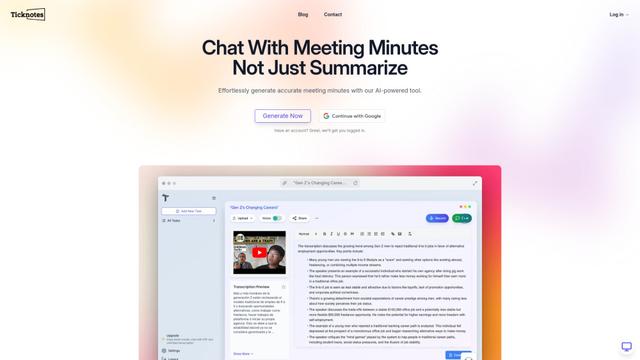
Ticknotes is an AI-powered meeting assistant that automatically records, transcribes, and generates personalized meeting summaries, action items, and key insights from audio, video, and text content.

Feta
Feta is an AI-powered meeting tool that helps product and engineering teams run efficient meetings by capturing discussions, automating tasks, and providing actionable insights through smart summaries and integrations.

Aimeet
Aimeet is a comprehensive AI-powered communication platform that combines real-time translation, transcription, screen sharing, and unlimited meeting capabilities for effective virtual collaboration.
MinutesLink
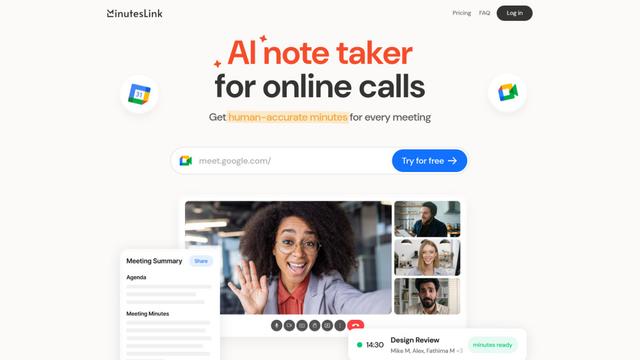
MinutesLink is an advanced AI-powered note-taking assistant that automatically records, transcribes, summarizes and organizes virtual meetings while building personalized digital avatars from meeting data.
Popular AI Tools Like BooBar
Second Brain for AI
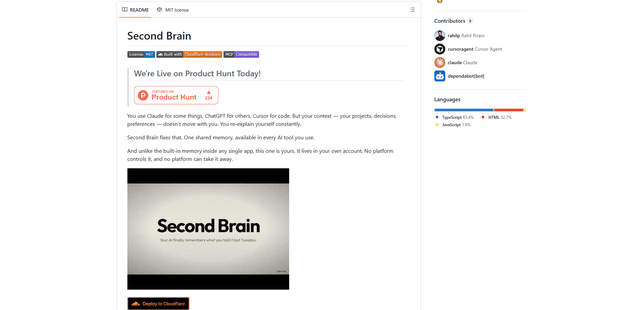
Second Brain for AI is a self-hosted, MCP-compatible persistent memory layer on Cloudflare that lets Claude, ChatGPT, Cursor, and other AI clients store and semantically recall shared context across sessions.
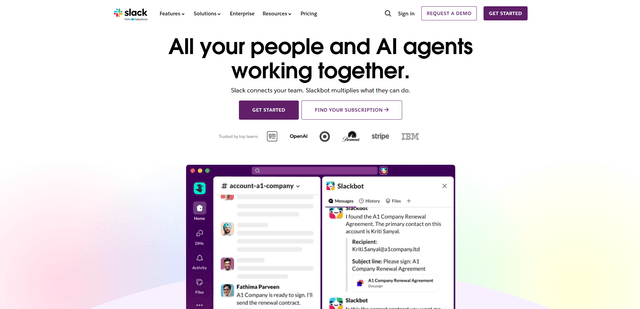
Slack
Slack is an AI-powered work platform that brings team communication, channels, files, automation, and app integrations into one conversational workspace.
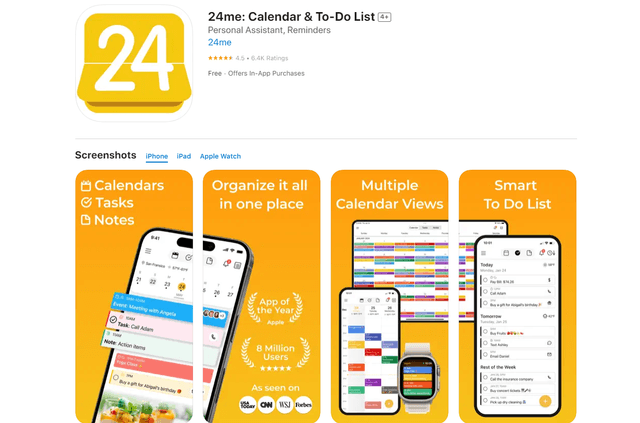
24me Smart Personal Assistant
24me is an award-winning smart personal assistant app that combines calendar, to-do lists, notes, and personal accounts in one unified platform to help boost productivity and time management.
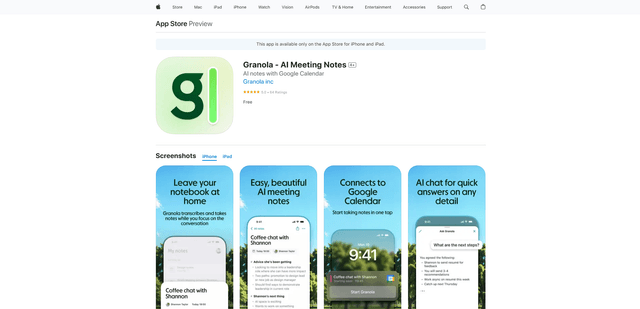
Granola for iOS
Granola for iOS is an AI-powered notepad app that helps users effortlessly capture, transcribe and summarize meeting conversations through intelligent note-taking and one-tap recording capabilities.