audiOS
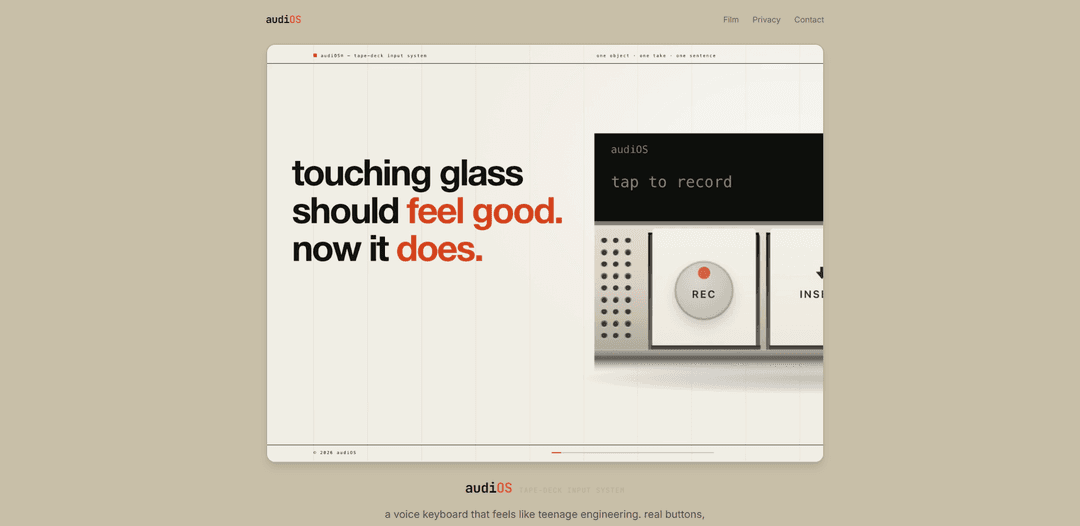
audiOS is an iPhone voice keyboard that replaces the system keyboard with a tape-deck-style interface—REC to dictate live, “unsay” to undo, and a log wheel to send and save takes instantly.
https://audios.luisg.net/?ref=producthunt
Product Information
Updated:Jun 16, 2026
What is audiOS
audiOS (styled “audi OS”) is a “terminal keyboard” for iPhone that turns voice input into a tactile, hardware-like experience inspired by tape decks and Teenage Engineering-style controls. Instead of using the standard iOS keyboard, it presents a dedicated dictation UI with real-button metaphors (REC, unsay rocker, log wheel) that streams transcription word-by-word as you speak, then lets you send and archive what you said. It’s available on the App Store for iOS 17+, offers a 14-day trial, and then costs $4.99/month (with an early-access offer for the first 100 users).
Key Features of audiOS
audiOS is an iPhone voice keyboard with a tape-deck-inspired interface that replaces the system keyboard and lets you dictate while seeing live, word-by-word transcription. It focuses on “one-take” capture with tactile-style controls—REC to start, an “unsay” rocker to undo recent speech, and a “log wheel” to send and automatically save everything into a take log—so you can scrub back to past takes and avoid losing drafts (“no dropped takes”).
System keyboard replacement: Designed to “eject” the default iOS keyboard and insert a dedicated voice-input deck UI for dictation-first typing.
Live streaming transcription: As you speak, the transcript appears in real time, word by word, enabling fast capture and immediate correction.
REC button workflow: A simple record-first interaction: tap REC, talk, and focus on getting thoughts out quickly without traditional typing friction.
Unsay rocker (instant undo): If you misspeak, you can “unsay” the last bit via a dedicated control, making voice editing feel quick and intentional.
Log wheel + take log history: Send your dictated text with the log wheel and automatically save it to a take log you can scrub back through later—nothing gets lost.
One-take capture philosophy: Built around the idea of capturing complete takes reliably (“no dropped takes”) and revisiting them instead of rewriting from scratch.
Use Cases of audiOS
On-the-go writing and journaling: Capture thoughts, journal entries, or drafts while walking/commuting, using live transcription plus take history to refine later.
Business messaging and email drafting: Dictate emails, Slack/Teams messages, and quick updates faster than typing, with “unsay” for quick corrections.
Customer support and sales follow-ups: Rapidly dictate call notes, follow-up messages, and CRM snippets, relying on the take log to avoid losing important phrasing.
Content creation for social and scripts: Draft captions, threads, outlines, and short scripts in a single flow, then scrub your take log to reuse the best lines.
Accessibility and reduced typing strain: Use voice as the primary input method to reduce reliance on manual typing, while keeping control via undo and saved takes.
Pros
Fast dictation-first input with live transcription feedback
Built-in “unsay” undo makes voice editing more practical
Take log preserves drafts and reduces the chance of losing work (“no dropped takes”)
Polished, hardware-inspired UI that emphasizes simple, repeatable actions (REC → speak → send)
Cons
iPhone-only and requires iOS 17+
Subscription pricing after trial ($4.99/month)
Voice-first workflow may not suit noisy environments or users who prefer traditional typing
How to Use audiOS
1. Install audiOS: Open the App Store link on the audiOS site and download/install “audiOS Terminal Keyboard” on an iPhone running iOS 17+.
2. Open any app where you can type: Go to a text field (messages, notes, email, etc.) so the system keyboard would normally appear.
3. Bring up the audiOS keyboard: When the system keyboard appears, switch to the audiOS keyboard so the “deck” interface replaces the default keyboard.
4. Start a take (record/transcribe): Tap the REC button, then speak. audiOS transcribes live and streams the text in word-by-word as you talk.
5. Correct mistakes with Unsay: If you said something wrong, use the “unsay” rocker to undo/remove the last bit of dictated text.
6. Send and save the take: Use the log wheel to “send” the text, and it will also be saved to the take log.
7. Review past takes: Scrub back through the take log to revisit any previous take—nothing gets lost.
8. Manage your usage/trial: If you’re not in the “first 100 free forever” group, use the 14-day trial and then continue via the $4.99/month subscription if desired.
audiOS FAQs
audiOS is a tape-deck-style voice keyboard/input system for iPhone that lets you speak to transcribe live and then send the text.
audiOS Video
Popular Articles

Vosko AI: Localize and Dub Videos for Global Audiences
Oct 14, 2026

Atoms: A Multi-Agent AI Platform That Transforms Ideas into Launch-Ready Products
Oct 13, 2026

Nano Banana SBTI: What It Is, How It Works, and How to Use It in 2026
Apr 15, 2026

Atoms Review — The AI Product Builder Redefining Digital Creation in 2026
Apr 10, 2026
Latest AI Tools Similar to audiOS
Heartbeat
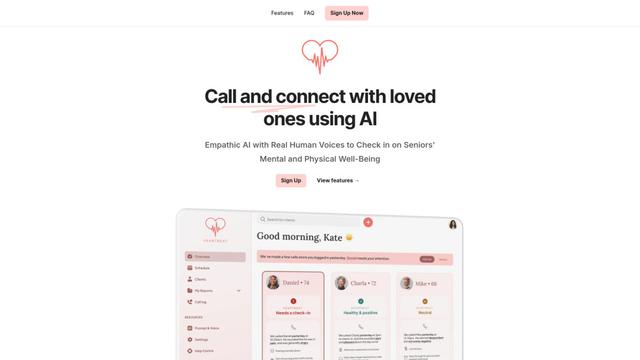
Heartbeat is a versatile platform that offers both an online community-building solution and an AI-powered wellness calling system for seniors and at-risk individuals, featuring customizable spaces, real-time communication, and health monitoring capabilities.
SongleAI
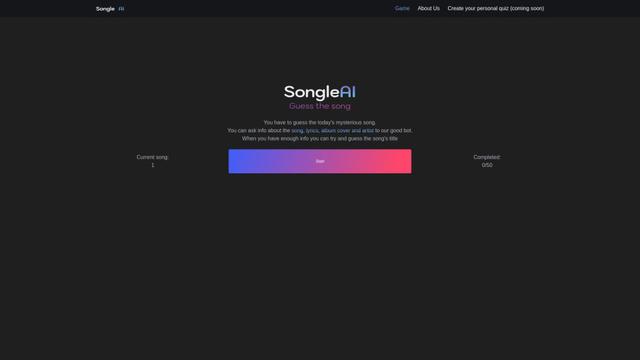
SongleAI is an interactive music guessing game where users try to identify mysterious songs by asking questions about lyrics, album covers, and artists to an AI bot.
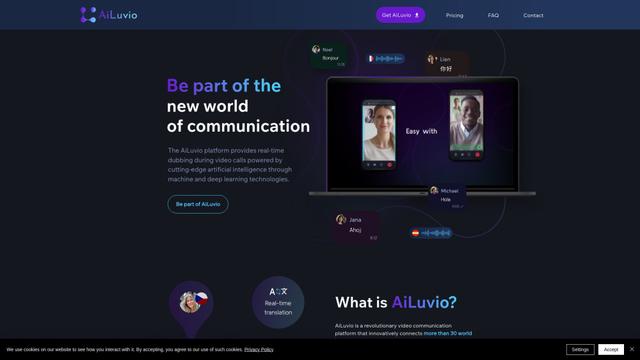
AiLuvio
AiLuvio is a revolutionary video communication platform that enables real-time dubbing across 30+ languages during video calls, breaking language barriers with AI technology.
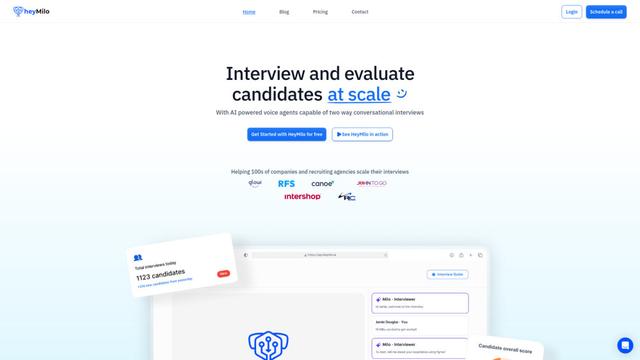
HeyMilo AI
HeyMilo AI is a generative AI-powered voice agent platform that conducts two-way conversational interviews to streamline and scale the recruitment process.
Popular AI Tools Like audiOS
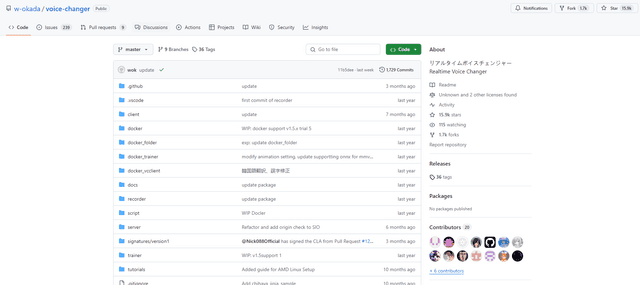
W-Okada Voice Changer
W-Okada Voice Changer is an open-source real-time voice conversion software that uses AI to transform voices with high quality and low latency.
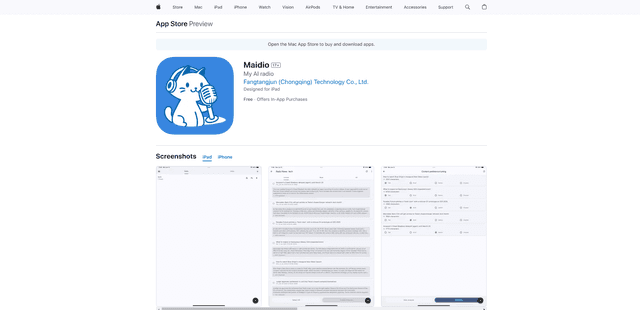
Maidio
Maidio is an innovative AI-powered app that automatically converts RSS news feeds into engaging podcast-style conversations between a host and assistant.
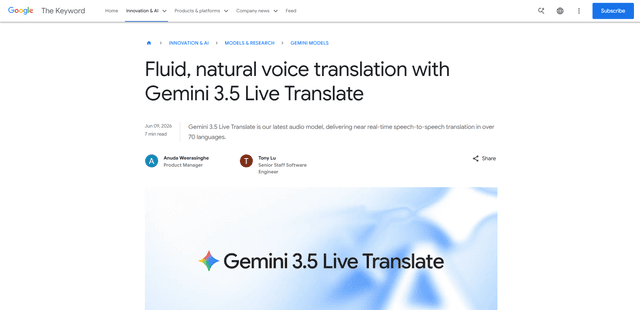
Gemini 3.5 Live Translate
Gemini 3.5 Live Translate is Google’s low-latency, streaming speech-to-speech translation audio model that auto-detects 70+ languages and produces smooth, natural-sounding translated speech while preserving the speaker’s intonation, pacing, and pitch.
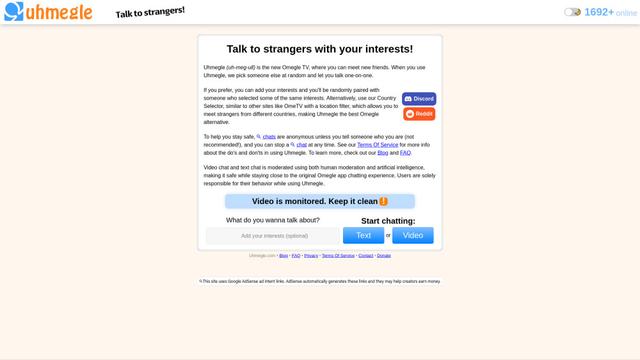
Uhmegle
Uhmegle is a modern Omegle alternative offering free, anonymous, and moderated video and text chat services that connects users with strangers worldwide based on shared interests.