OwnClip
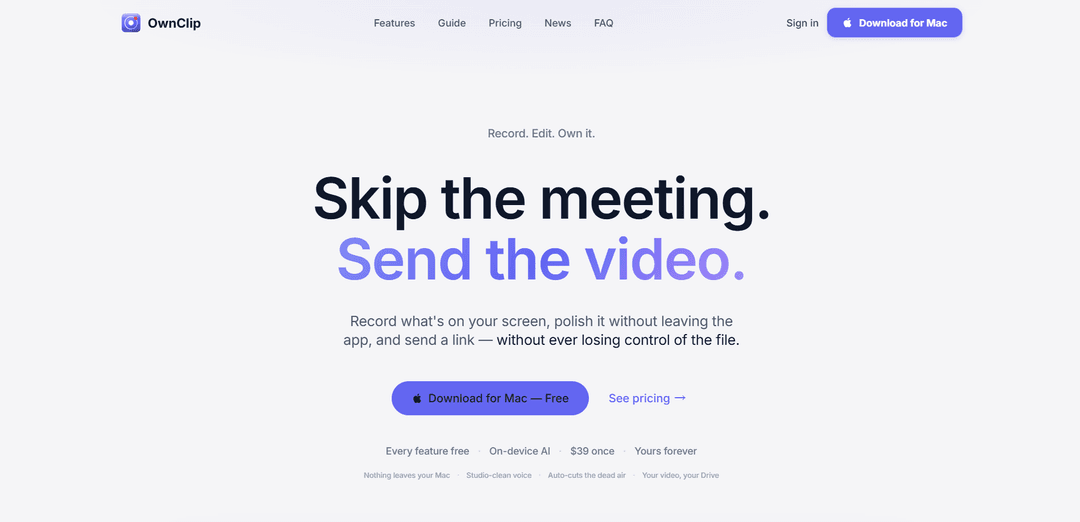
OwnClip is a native macOS screen recorder and editor with on-device AI camera effects, noise/echo removal, auto-cut pauses, transcripts, and Google Drive sharing—available for a $39 one-time purchase.
https://ownclip.io/?ref=producthunt
제품 정보
업데이트됨:Jun 15, 2026
OwnClip이란?
OwnClip is a built-for-macOS app designed to help you record your screen, polish the result, and share it quickly without relying on a browser-based recorder or a subscription. It combines lightweight recording controls (webcam bubble, system audio, live drawing) with a full in-app editor and AI-assisted enhancements, so you can go from “hit record” to a presentable video in one place. A core promise of OwnClip is ownership and privacy: recording, editing, transcription, and AI effects run locally on your Mac, and when you share, the video file stays in your own storage (e.g., Google Drive).
OwnClip의 주요 기능
OwnClip is a native macOS screen recorder that combines one-keystroke recording with an integrated editor and on-device AI for camera effects, noise/echo cleanup, auto-cutting pauses, and searchable transcriptions. It emphasizes privacy (everything runs locally), ownership (a $39 one-time purchase, no subscription), and workflow speed by letting you record, polish, and share without leaving the app—while keeping the actual video file in your own storage (e.g., Google Drive) rather than on OwnClip’s servers.
One-shortcut screen recording: Start recording from any app with floating controls, webcam bubble, system audio capture, and live on-screen drawing/annotation—no setup or countdown.
Built-in editor with smart automation: Edit in-app with features like cinematic zoom, auto-cutting dead air/pauses, and one-pass face blur—while keeping the original recording untouched.
Auto-zoom that follows your clicks: Automatically zooms into where you click and smoothly tracks cursor movement so key actions are emphasized and recordings look “directed.”
On-device AI camera effects: Apply live background blur/virtual scenes, smart framing, and auto-light while recording—works offline and runs locally on your Mac.
Clean Voice + captions & transcript search: Removes room noise/echo during recording and generates searchable captions/transcripts locally, enabling quick navigation to specific moments.
Screenshots + OCR + beautify tools: Capture regions or scrolling pages, extract text with OCR, annotate/sign PDFs, and quickly style screenshots with backdrops, device frames, and palettes.
OwnClip의 사용 사례
Product demos & customer support: Record guided walkthroughs with auto-zoom and clean audio, then share a link while keeping the file in your own Drive for better control and privacy.
Remote team updates & async meetings: Replace meetings with polished screen recordings; auto-cut pauses and searchable transcripts help teammates consume updates quickly.
Agency/client review workflows: Deliver branded share pages (logo/colors/domain) for client feedback, with view tracking and watermarks for a professional handoff experience.
Education & training content: Create tutorials with live annotations, smart framing, and captions; transcript search helps instructors and learners jump to key sections.
Marketing & social content creation: Turn raw captures into share-ready assets using cinematic zoom and screenshot beautify tools (frames/backdrops) without extra design software.
Live streaming with effects: Stream to YouTube/Twitch with camera effects enabled while aiming to keep the Mac cool/quiet during longer sessions.
장점
Privacy-first: recording, AI, editing, and transcription run on-device; nothing leaves your Mac unless you choose to share.
Ownership pricing: $39 one-time purchase with no subscription; free to try with caps removed by Pro.
All-in-one workflow: recording, editing, captions/transcripts, and screenshot/OCR tools in a single native macOS app.
단점
macOS-only: positioned as a native Mac app, limiting use for Windows/Linux teams.
Sharing workflow depends on your storage: it emphasizes “Bring Your Own Storage” (e.g., Google Drive), which may not fit every organization’s hosting/compliance preferences.
OwnClip 사용 방법
1) Install OwnClip and launch it: Download OwnClip for macOS, open the app, and grant any requested macOS permissions (screen recording, microphone, camera) so it can capture your screen, audio, and webcam.
2) Start a screen recording instantly (no setup): Use OwnClip’s single global shortcut to begin recording from any app. Use the floating controls to manage the session while you work.
3) Enable key recording options: Turn on system sound capture if you need app audio. Add your webcam bubble if you want a face-cam overlay. Use the draw-on-screen tool to annotate live while you talk.
4) Record with Auto-Zoom for “directed” motion: As you click around, OwnClip can auto-zoom into the area of interest and glide with your cursor so important moments fill the frame instead of staying tiny on a full-screen capture.
5) Improve your camera look with on-device Camera AI (live): Enable effects like background blur, virtual scenes, smart framing, and auto-light while recording so your webcam looks polished without needing post-production.
6) Clean up audio while you record: Enable Clean Voice to reduce room noise and echo in real time so your voice sounds studio-clean without extra editing steps.
7) Finish the recording and open the built-in editor: Stop recording from the floating controls. Open the recording in OwnClip’s editor to polish the video without leaving the app.
8) Auto-cut dead air and filler pauses: Use the auto-cut feature to remove dead air and “umm” pauses automatically, producing tighter pacing while keeping the original recording untouched.
9) Add cinematic zoom and blur faces (if needed): Apply cinematic zoom where emphasis is needed. Use Face Blur to obscure faces quickly in a single pass for privacy or compliance.
10) Search and jump to moments using the local transcript: Use the automatically generated on-device transcript to search by word and jump directly to the relevant moment in your recording.
11) Export for pro editors (optional): If you want to finish in Final Cut or Premiere, open/export the footage at full quality without conversion so it’s ready for professional editing.
12) Share without uploading to OwnClip (Bring Your Own Storage): When you share, OwnClip sends the file from your Mac directly to your Google Drive. OwnClip generates a share page while the video file remains in your Drive (not OwnClip’s cloud).
13) Brand the client/viewer experience (optional): Customize the share page with your domain, colors, and logo. Use templates and watermarks so recipients see your brand rather than OwnClip’s.
14) Capture screenshots and mark them up: Use the screenshot tools to capture a region or full page (including scroll capture). Use OCR Capture to grab on-screen text, then annotate, fill forms, or sign PDFs—everything stays on your Mac until you choose to share.
15) Beautify screenshots for posting: Drop a screenshot onto a backdrop, add device frames, and apply custom palettes to make raw captures look designed in a couple of clicks.
16) Use the “recent shots” overlay to stay in flow: Open the floating overlay to access your most recent captures instantly. Mark up, swap between shots, pin important ones, or drag them directly into chats without digging through folders.
17) Go live (optional): Use OwnClip’s live streaming feature to stream to YouTube, Twitch, or any destination while keeping effects enabled and performance optimized for long sessions.
OwnClip 자주 묻는 질문
OwnClip is a native macOS screen recorder with a built-in editor and on-device AI features (camera effects, noise/echo removal, transcription). It’s designed to record, edit, and share without sending your content to a third-party cloud by default.




OwnClip와(과) 유사한 최신 AI 도구
EzVideos
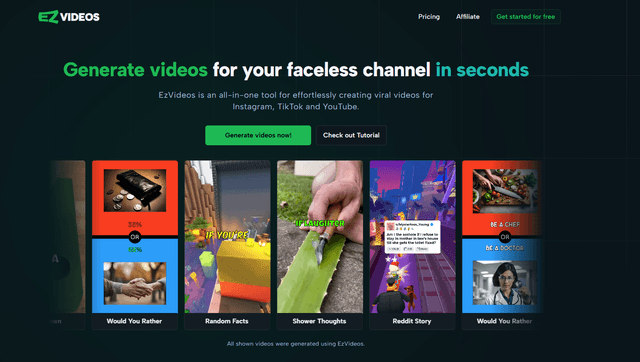
EzVideos는 자동화된 편집 기능과 내장 리소스를 통해 사용자가 Instagram, TikTok 및 YouTube와 같은 소셜 미디어 플랫폼을 위한 바이럴 비디오를 생성하는 데 도움을 주는 올인원 비디오 제작 도구입니다.

Blanc AI
Blanc AI는 원래 음성, 감정 및 입술 동기화를 유지하면서 47개 이상의 언어로 비디오 콘텐츠 번역 및 더빙을 가능하게 하는 혁신적인 AI 솔루션입니다.
Wink Mody
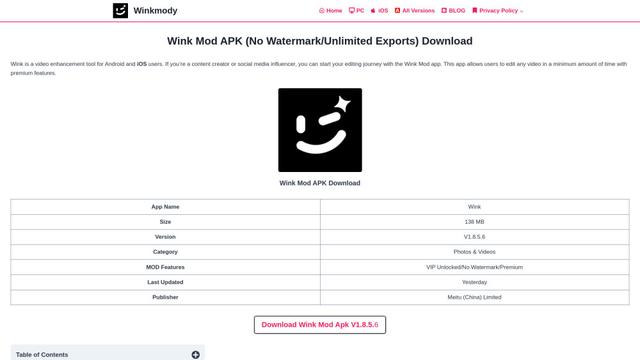
Wink Mody는 AI 기반 리터칭, 4K 내보내기 및 워터마크 없는 편집과 같은 프리미엄 기능을 완전히 무료로 제공하는 수정된 Wink 비디오 편집 앱입니다.
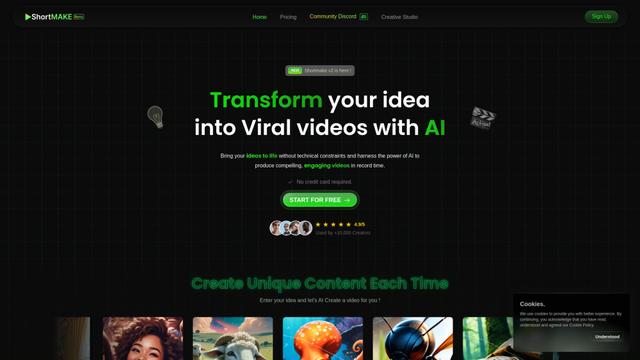
Shortmake AI
ShortMake는 아이디어를 TikTok 및 YouTube Shorts와 같은 플랫폼에 최적화된 스크립트, 음성 오버, 시각 자료 및 자막을 자동으로 생성하여 바이럴 준비가 된 비디오로 변환하는 AI 기반 비디오 제작 플랫폼입니다.
OwnClip와(과) 유사한 인기 AI 도구
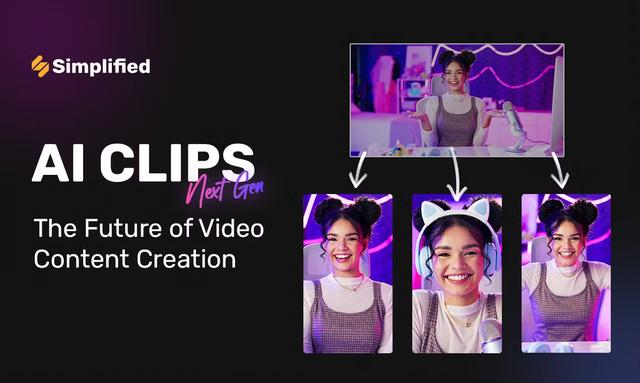
AI Clips - New Gen
AI Clips - New Gen은 긴 비디오에서 YouTube Shorts, TikTok, Instagram Reels 등 여러 소셜 미디어 플랫폼을 위한 매력적인 짧은 형식의 콘텐츠를 자동으로 생성하는 AI 기반 비디오 클리핑 도구입니다.
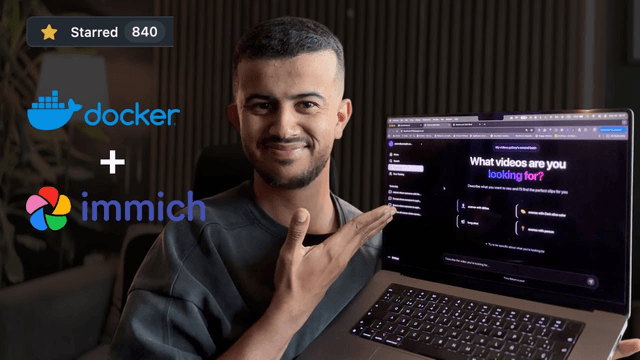
Edit Mind
Edit Mind는 오픈 소스 AI 기반 비디오 인덱싱 및 시맨틱 검색 플랫폼으로, 사용자가 텍스트 변환, 프레임 분석, 얼굴 인식 및 객체 감지를 포함한 기능을 통해 자연어 쿼리를 사용하여 비디오 콘텐츠를 분석하고 검색할 수 있습니다.
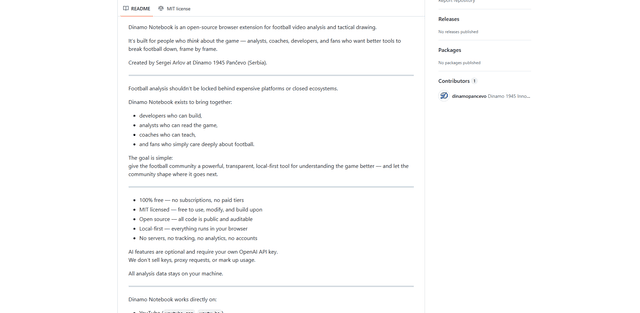
Dinamo Notebook
FreeAI Video Editing
Dinamo Notebook은 YouTube/Dailymotion/Twitch 영상에 전술 주석을 그릴 수 있고 선택적으로 AI(자체 OpenAI API 키 사용)를 사용하여 전술적 통찰력을 얻을 수 있는 무료 MIT 라이선스 로컬 우선 축구 비디오 분석 브라우저 확장 프로그램입니다.
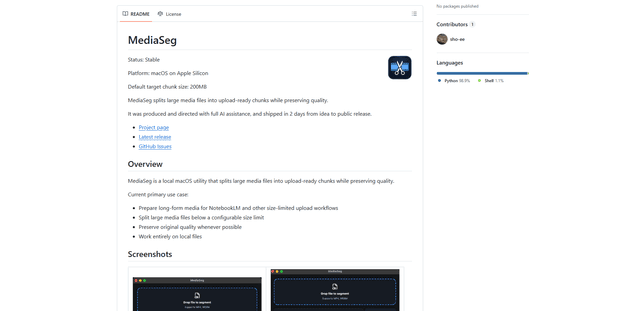
MediaSeg
MediaSeg는 AI 기반의 대상 기반 크기 조정 전략과 ffmpeg/ffprobe를 사용하여 품질을 유지하면서 대용량 MP4/WEBM 미디어 파일을 구성 가능한 크기 제한 내에서 업로드 준비된 청크로 분할하는 안정적인 로컬 우선 macOS 유틸리티입니다.