
VTT for Mac
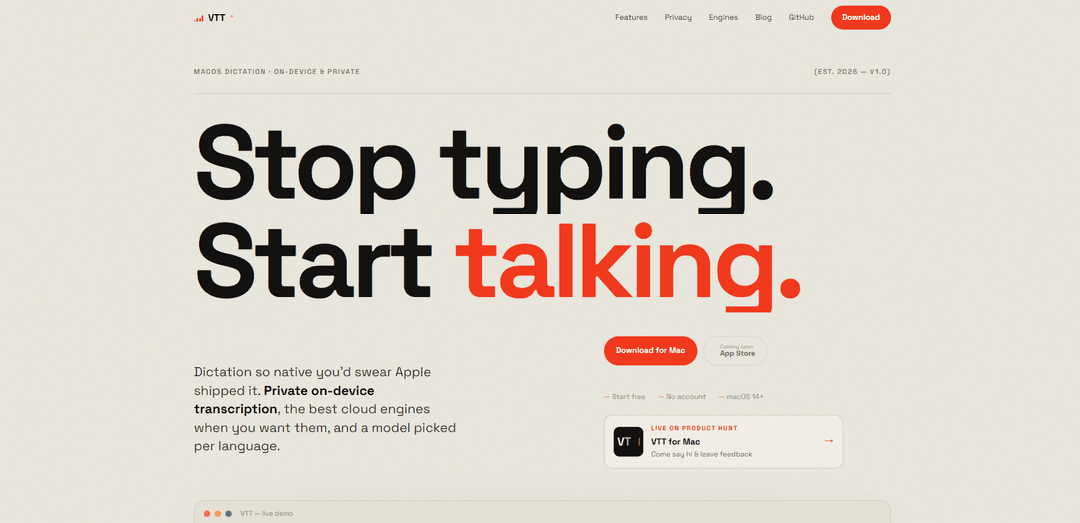
VTT for Mac is a native menu-bar dictation app that transcribes privately on-device by default, optionally uses top cloud speech engines with your own API key, and lets you choose models per language with a global hotkey, auto-insert, and local transcript history.
https://vtt.the-ihor.com/?ref=producthunt
Product Information
Updated:Jul 8, 2026
What is VTT for Mac
VTT for Mac is a macOS-only voice-to-text dictation app designed to feel like a built-in system feature. It runs from the menu bar and focuses on privacy-first transcription: by default it uses Apple’s on-device Speech engine (including newer macOS speech models), so your audio can stay on your Mac with no account, no sign-in, and no tracking. When you want higher accuracy or better handling of accents, VTT can also connect to cloud providers—Deepgram, OpenAI, or ElevenLabs—using your own API key, keeping control in your hands.
Key Features of VTT for Mac
VTT for Mac is a native macOS menu-bar dictation app focused on privacy-first voice-to-text. By default it transcribes fully on-device using Apple’s Speech engine (including newer macOS Speech models), keeping audio and transcript history on your Mac with no account, sign-in, or analytics. When you want higher accuracy or better accent handling, you can optionally route dictation to cloud engines (Deepgram, OpenAI, ElevenLabs) using your own API key, and even choose different engines per language. It supports a global hotkey, auto-inserts text into any app, can follow your keyboard input language, and allows downloading language models for faster offline startup.
On-device & private dictation: Transcribes locally with Apple’s on-device Speech engine so audio doesn’t have to leave your Mac; no account, no sign-in, and no tracking by default.
Optional cloud engines via your own API key: Supports Deepgram, OpenAI, and ElevenLabs for improved accuracy when needed, sending audio directly to the provider using your personal key (pay-as-you-go with the provider).
Per-language engine routing: Choose the best engine per language (automatic or manual), so multilingual users can optimize accuracy language-by-language.
Keyboard-driven language selection: Can follow your current macOS keyboard/input source to determine dictation language, enabling fast switching without digging through menus.
Menu-bar workflow with global hotkey: Lives in the menu bar with a global shortcut, live waveform, and auto-insert into whatever app you’re typing in for a fast, system-like experience.
Local transcript history & downloadable models: Keeps a local history of dictations for easy re-paste and recovery, and supports downloading on-device language models for instant dictation and offline use.
Use Cases of VTT for Mac
Private workplace dictation (legal/finance/HR): Use on-device transcription to dictate sensitive notes, emails, or case documentation without uploading audio to third-party servers.
Multilingual writing & communication: Switch languages using your keyboard input source and route each language to the engine that performs best, ideal for bilingual teams and international users.
Accessibility and reduced typing strain: Hands-free dictation with a global hotkey and auto-insert helps users with RSI, mobility challenges, or anyone who prefers speaking over typing.
Creators and podcasters drafting scripts quickly: Rapidly dictate outlines, show notes, and drafts; use cloud engines for higher accuracy when needed while keeping a recoverable local transcript history.
Non-native speakers and strong accents: When built-in dictation struggles, switch to cloud models (e.g., OpenAI/Deepgram) trained on broad voice datasets for improved accent robustness.
Offline dictation for travel or restricted networks: On-device dictation works fully offline; internet is only required for cloud engines or downloading additional language models.
Pros
Strong privacy by default: on-device transcription with no account, sign-in, or analytics.
Flexible accuracy options: optional cloud engines (Deepgram/OpenAI/ElevenLabs) with per-language routing.
Fast, native macOS UX: menu-bar app, global hotkey, and auto-insert into any app.
Offline-capable with downloadable language models and local transcript history.
Cons
Best accuracy may require paid third-party cloud usage (and managing your own API keys).
macOS-only (not a cross-platform solution).
Requires macOS 14+; some features depend on downloading language models or having internet for cloud engines.
How to Use VTT for Mac
1) Check requirements: Make sure your Mac is running macOS 14 or later (Apple Silicon or Intel).
2) Download the correct build: Go to https://vtt.the-ihor.com/?ref=producthunt and download the build that matches your Mac (the site recommends the right one automatically).
3) Install and launch VTT: Install the app you downloaded, then open VTT. It runs as a native macOS menu-bar app.
4) Confirm it’s running in the menu bar: Look for VTT in the macOS menu bar. This is where you’ll access quick actions like dictation status and pasting the latest transcript.
5) Use the global hotkey to start dictation: Place your cursor in any app where you want text inserted, then press VTT’s global hotkey to begin dictation. You should see a live waveform while it listens.
6) Speak and auto-insert text into your current app: Talk normally. VTT transcribes and inserts the text directly into the active app you’re typing in.
7) Use on-device mode for maximum privacy (default): By default, VTT uses Apple’s on-device Speech engine, so your audio stays on your Mac. No account, no sign-in, and no analytics are required.
8) Dictate offline when using on-device speech: Use VTT without internet when you’re using on-device dictation. Internet is only needed if you choose a cloud engine or download additional language models.
9) Download on-device language models (optional): If you want dictation to start instantly for specific languages, pre-fetch/download the on-device language models in VTT so they’re ready when you press the hotkey.
10) Control dictation language via your keyboard input source: Switch your macOS keyboard/input language (the same way you switch typing languages). VTT follows your keyboard: speak in that language and you’ll get text in that language, without silently translating.
11) Set per-language engines (optional): Configure VTT to route each language to the engine that handles it best—either automatically or manually—so different languages can use different transcription engines.
12) Enable a cloud engine for higher accuracy or strong accents (optional): If Apple’s built-in dictation struggles with your accent or you want different accuracy/behavior, enable a cloud engine (Deepgram, OpenAI, or ElevenLabs) and select the exact model you want per provider.
13) Add your own API key for cloud engines (optional): When enabling a cloud engine, enter your own provider API key. Audio is then sent directly to that provider using your key (cloud usage is pay-as-you-go through the provider).
14) Review and re-use transcripts from History: Open VTT’s History to see every dictation saved locally (newest first). If you pasted into the wrong window or need an older result, re-paste any recent transcript from History.
15) Paste the latest transcript quickly from the menu bar: Use the VTT menu-bar controls to grab/paste the most recent transcript without digging through other windows.
16) Manage privacy by staying on-device or clearing history: For maximum privacy, keep using on-device speech. If you use History, remember it’s stored locally on your Mac and you can clear it whenever you like.
VTT for Mac FAQs
By default, VTT transcribes on-device using Apple’s Speech engine, so your audio never leaves your Mac. There’s no account and no analytics. If you enable a cloud engine, audio is sent directly to that provider using your own API key.
VTT for Mac Video
Popular Articles

Atoms: A Multi-Agent AI Platform That Transforms Ideas into Launch-Ready Products
May 22, 2026

Nano Banana SBTI: What It Is, How It Works, and How to Use It in 2026
Apr 15, 2026

Atoms Review — The AI Product Builder Redefining Digital Creation in 2026
Apr 10, 2026

Kilo Claw: How to Deploy and Use a True "Do‑It‑For‑You" AI Agent(2026 Update)
Apr 3, 2026
Latest AI Tools Similar to VTT for Mac
Ticknotes
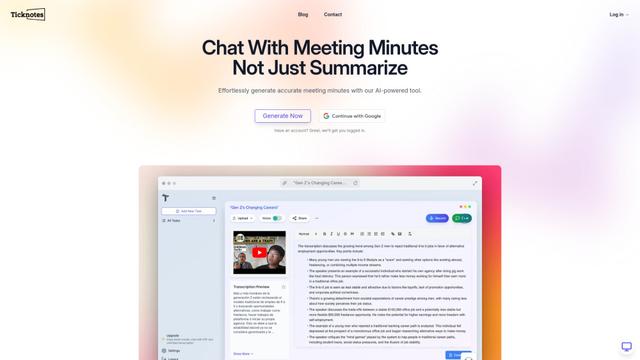
Ticknotes is an AI-powered meeting assistant that automatically records, transcribes, and generates personalized meeting summaries, action items, and key insights from audio, video, and text content.

Feta
Feta is an AI-powered meeting tool that helps product and engineering teams run efficient meetings by capturing discussions, automating tasks, and providing actionable insights through smart summaries and integrations.
TranscriptionPlus
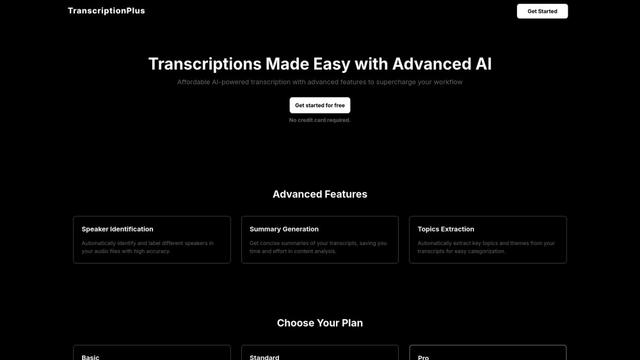
TranscriptionPlus is an AI-powered transcription service that offers accurate speech-to-text conversion with advanced features like speaker identification, summary generation, and multi-language support at affordable pricing tiers.
AudioScribe.io
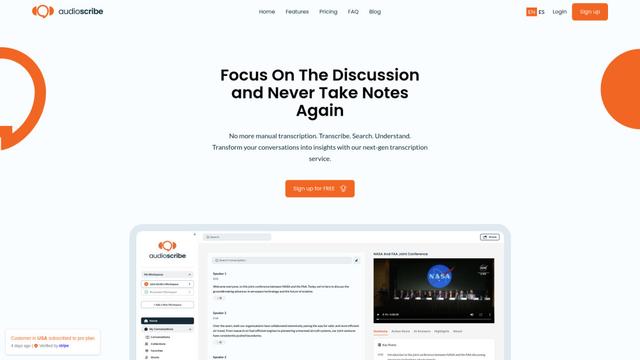
AudioScribe.io is a revolutionary AI-powered transcription service that converts audio and video content into accurate text while offering advanced features like automated meeting recording, full-text search, and multi-language support.
Popular AI Tools Like VTT for Mac
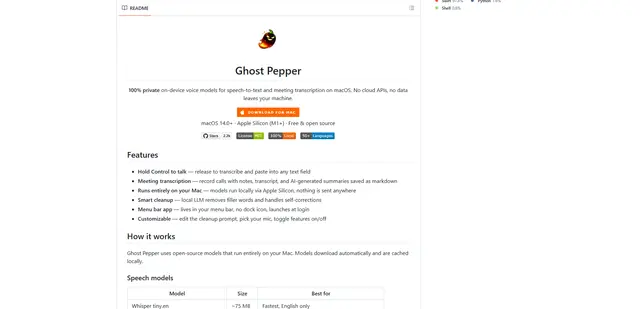
Ghost Pepper 🌶️
Ghost Pepper is a 100% local, privacy-focused speech-to-text and meeting transcription app for macOS that runs entirely on your Mac using open-source AI models, featuring hold-to-talk recording, intelligent text cleanup, and multi-language support without sending any data to the cloud.
Whisper AI
Whisper is an open-source automatic speech recognition system from OpenAI that approaches human-level accuracy and robustness for transcribing and translating speech in multiple languages.

Youtube to transcript
Youtube to Transcript is a Chrome extension that allows users to easily convert YouTube videos into text transcripts with features like multi-language support, AI-powered summarization, and downloadable formats.
inFin
inFin is a lightweight, user-friendly AI-powered voice notes app that offers unlimited recording, real-time transcription, and translation between Chinese and English, with offline capabilities and local storage for enhanced privacy.