
VoiceX
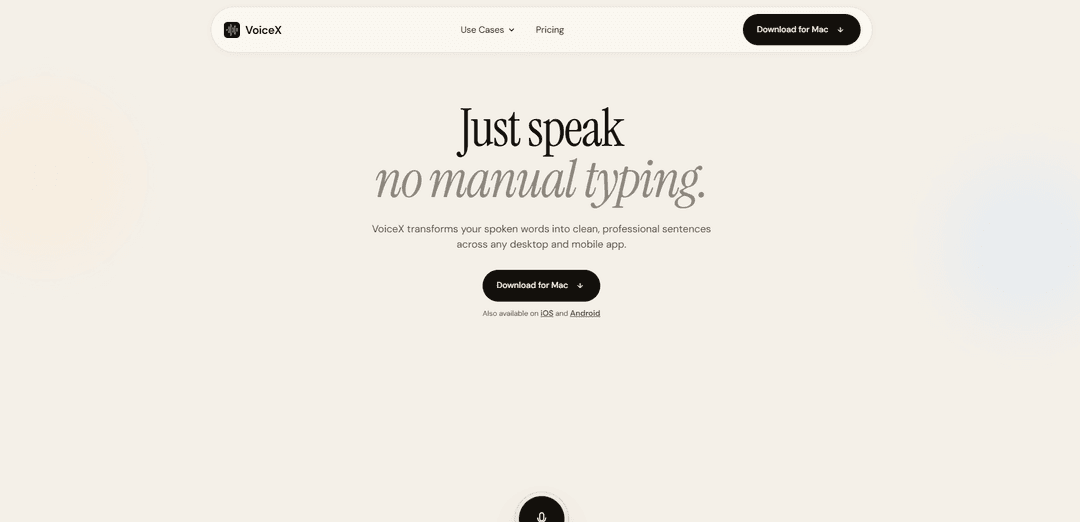
VoiceX is a cross-app dictation tool that turns speech into clean, professional text anywhere your cursor is—activated with a simple hotkey and built with privacy-first, on-device processing.
https://heyvoicex.com/?ref=producthunt
Product Information
Updated:Jul 8, 2026
What is VoiceX
VoiceX is a voice-to-text productivity app designed to replace manual typing with fast, polished dictation across desktop and mobile. It works in virtually any app where you can type—email, chat, documents, AI prompts, and more—so you can speak naturally and have VoiceX produce clear, professional sentences in real time. Available on Mac, iOS, and Android, VoiceX focuses on frictionless capture (speak instead of type) while emphasizing privacy with on-device processing and secure encryption.
Key Features of VoiceX
VoiceX is a cross-app voice dictation tool that turns spoken words into clean, professional text wherever your cursor is—across desktop and mobile apps like email, chat, docs, and AI prompts. It’s designed to reduce typing friction with a simple hotkey workflow (press Fn, speak, text appears), while using AI-powered grammar and structure polishing to convert casual speech into well-formatted writing. VoiceX emphasizes privacy with on-device processing (no stored recordings, not used for training) and encrypted transport, and supports multilingual dictation for global teams and workflows.
Works in any app with a cursor: Dictate directly into email, chat, docs, code editors, and AI prompt boxes—VoiceX inserts polished text wherever you’re typing.
Hotkey-first dictation flow (Fn to talk): Open any app, press the Fn key to activate the mic, speak naturally, and VoiceX writes the output into the active text field.
AI grammar polishing & professional rewrite: Transforms rough, casual speech (fillers, errors, awkward phrasing) into clear, professional sentences with improved punctuation and readability.
Privacy-first, on-device processing: Designed so voice data doesn’t leave your computer; recordings aren’t stored and audio is treated as “use and throw,” with TLS 1.3 encryption for transport.
Cross-platform availability: Available on macOS, plus mobile support on iOS and Android for consistent dictation across devices.
Multilingual support: Supports 100+ languages so users can dictate comfortably across different regions and accents.
Use Cases of VoiceX
Fast workplace messaging & email: Draft polished Slack/Teams messages and emails hands-free, reducing time spent typing while improving clarity and tone.
Product management documentation: Create PRDs, sprint notes, stakeholder updates, and meeting follow-ups at the speed of speech, with automatic cleanup for professional output.
Developer writing workflows: Dictate PR descriptions, design docs, commit messages, and code comments directly in tools like VS Code and web-based apps.
AI prompting and knowledge work: Speak prompts into ChatGPT/Claude/other AI tools to iterate faster on drafts, summaries, and analyses without manual typing.
Mobile, on-the-go dictation: Capture and refine thoughts while commuting or between meetings, then paste clean text into any mobile app that accepts typing input.
Writing and content drafting: Generate outlines, first drafts, newsletters, and notes quickly by speaking naturally and letting VoiceX convert it into clean prose.
Pros
Works across virtually any app/text field, reducing workflow switching
Produces cleaner, more professional text than raw dictation via AI polishing
Privacy-focused approach with on-device processing and no stored recordings
Simple, fast activation via a single-key (Fn) workflow
Cons
Best experience depends on device OS/hotkey support (e.g., Fn-based flow is highlighted for Mac)
AI polishing may not always match a user’s preferred writing style without customization
Requires microphone access and a quiet-enough environment for optimal accuracy
How to Use VoiceX
1. Install VoiceX on your device: Download and install VoiceX for your platform (Mac desktop app, iOS, or Android) from the official VoiceX site or your mobile app store.
2. Open the app you want to write in: Go to any app where a cursor blinks—email, chat, docs, code editors, or AI prompts (e.g., Mail, Slack, Notion, Linear, VS Code, ChatGPT, WhatsApp).
3. Place your cursor where you want text to appear: Click or tap into the exact text field or document location where you want VoiceX to insert the dictated text.
4. Activate VoiceX dictation: On desktop, press the Fn key once to turn on the microphone (VoiceX activates with one tap on Fn).
5. Speak naturally: Talk the way you normally would—even if you include filler words or rough phrasing. VoiceX is designed to capture speech as input and turn it into clean, professional sentences.
6. Watch VoiceX write polished text at your cursor: As you speak, VoiceX outputs refined text directly into the active app, cleaning up grammar and phrasing in real time (e.g., turning casual speech into professional prose).
7. Use it anywhere you can’t (or don’t want to) type: Repeat the same flow across apps and situations—at your desk, between meetings, in a cab, or walking—since VoiceX works wherever you can place a cursor.
8. Continue dictating across different work tasks: Use the same voice-to-polished-text workflow for common outputs like emails, chat updates, meeting notes, PRDs, sprint notes, stakeholder updates, PR descriptions, commits, design docs, code comments, drafts, and outlines.
9. Rely on the built-in privacy approach while dictating: Use VoiceX with its stated privacy-first behavior: on-device processing, voice recordings not stored, and voice/data not used for training, with TLS 1.3 encryption in transit.
VoiceX FAQs
VoiceX is a voice-to-text app that turns your spoken words into clean, professional sentences and inserts the text into whatever app you’re using.
VoiceX Video
Popular Articles

Atoms: A Multi-Agent AI Platform That Transforms Ideas into Launch-Ready Products
May 22, 2026

Nano Banana SBTI: What It Is, How It Works, and How to Use It in 2026
Apr 15, 2026

Atoms Review — The AI Product Builder Redefining Digital Creation in 2026
Apr 10, 2026

Kilo Claw: How to Deploy and Use a True "Do‑It‑For‑You" AI Agent(2026 Update)
Apr 3, 2026
Latest AI Tools Similar to VoiceX

MicVoice.Ai
MicVoice.Ai is an all-in-one AI voice generator platform that transforms written text into high-quality, natural-sounding speech with over 5000 realistic AI voices supporting 17+ languages.

Narrai
Narrai is an AI-powered mobile app that instantly creates voice narration and background music for short videos by automatically generating relevant scripts and offering multiple narrator personas.

Vagent
Vagent is a lightweight voice interface that enables users to interact with custom AI agents through voice commands, providing a natural and intuitive way to control automations with support for 60+ languages.

F5 TTS
F5-TTS is a state-of-the-art, non-autoregressive text-to-speech system that uses Flow Matching and Diffusion Transformer techniques to generate highly natural and expressive speech with zero-shot voice cloning capabilities.
Popular AI Tools Like VoiceX
FnKey
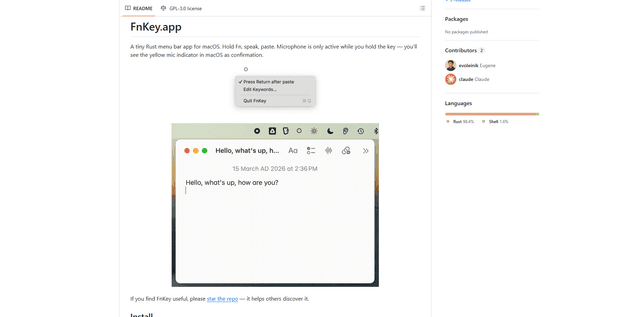
FnKey is a lightweight macOS menu bar application that enables quick voice-to-text transcription by holding the Fn key to speak and automatically pastes the transcribed text when released.
Audio player for ChatGPT
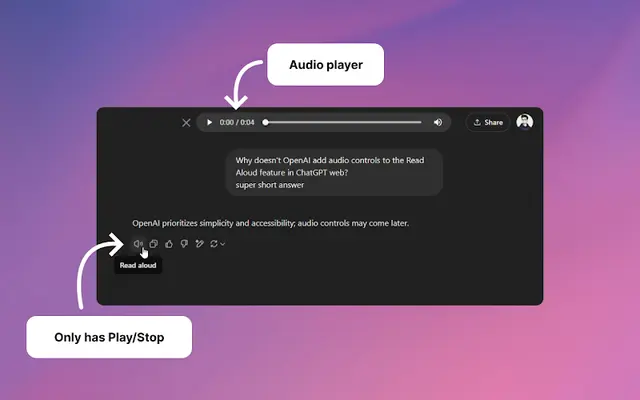
A Chrome extension that enhances ChatGPT's Read Aloud feature by adding a user-friendly audio player with basic controls like play/pause, seek bar, and duration display.
VoiSistant
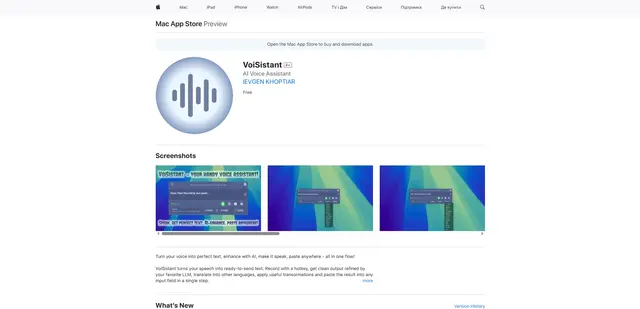
VoiSistant is a comprehensive voice-to-text application that combines speech recognition, AI enhancement, translation, and text-to-speech capabilities in one seamless workflow.
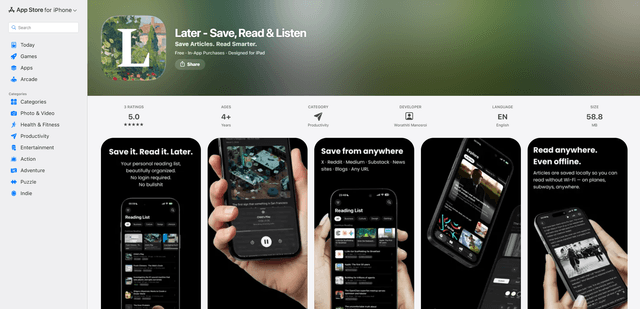
LaterAI
Later is an AI-powered read-it-later app that lets you save articles, read them in a distraction-free environment, and listen to them with natural-sounding AI voices - all while maintaining complete privacy with on-device processing.