VoicePad AI

VoicePad AI

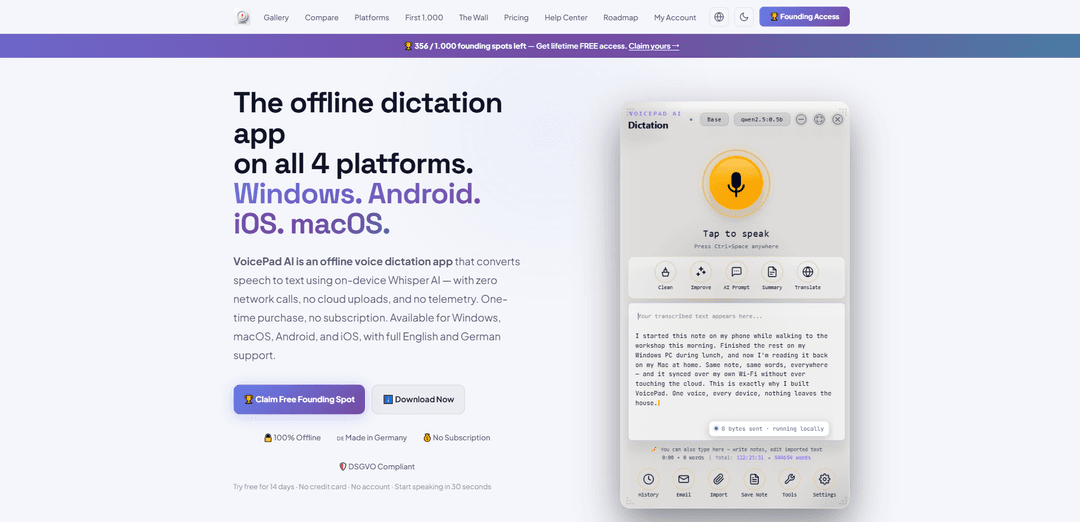
VoicePad AI is a 100% offline, privacy-first voice dictation app for Windows, macOS, iOS, and Android that runs Whisper on-device to type into any app via a floating Orb or system keyboard—no cloud, no telemetry, and no subscription.
https://voicepad.tech/?ref=producthunt
VoicePad AI

Product Information

Updated:Jul 6, 2026

What is VoicePad AI

VoicePad AI is an offline voice dictation application that converts speech to text using on-device Whisper AI, designed to replace (or drastically reduce) keyboard typing across Windows, macOS, iOS, and Android. It focuses on privacy by architecture: your audio is processed locally on your device with zero network calls, no cloud uploads, and no usage tracking. VoicePad supports English and German out of the box (and more languages via Whisper), offers a fast “dictate anywhere” workflow, and is sold as a one-time purchase (with a 21‑day free trial) rather than a subscription.

Key Features of VoicePad AI

VoicePad AI is an offline voice dictation app for Windows, macOS, Android, and iOS that converts speech to text using on-device Whisper (no cloud processing, no accounts, no telemetry, and works even in airplane mode). It offers system-wide dictation via a floating “Orb” and real-time “Direct” text injection/keyboard input, supports English and German (plus many more via Whisper), and includes practical accuracy layers like VAD, hallucination filtering, punctuation, and a custom dictionary. It’s sold as a one-time purchase per platform (with a bundle option) and provides WiFi/USB sync across devices; on desktop, optional local “AI Tools” can run via Ollama for rewriting, summarizing, translating, and formatting—still without sending data to the internet.
100% on-device Whisper dictation: Runs speech-to-text locally (whisper.cpp on mobile; faster-whisper/CTranslate2 on desktop) with zero network calls, no server uploads, and no telemetry—usable offline and in airplane mode.
Dictate into any app (Orb + Direct): Use the floating Orb to dictate and paste anywhere, or enable Direct mode for real-time text injection into the active field (desktop) and a system keyboard experience on mobile.
Quality layers for real-world accuracy: Adds VAD, hallucination filtering, punctuation and post-processing, plus a custom dictionary for consistent corrections (e.g., proper nouns and technical terms).
Cross-platform with local sync: Available on Windows, macOS, Android, and iOS with feature parity; supports WiFi sync (desktop can host) and USB/WiFi transfer to keep dictations aligned across devices.
Local AI text tools (desktop, optional): If you install Ollama locally, VoicePad can trigger voice-driven operations like summarizing, translating EN⇄DE, rewriting tone, fixing grammar, and formatting (still offline).
One-time pricing + trial: 21-day free trial with no credit card; afterward it’s a one-time purchase per platform (or bundle), marketed as “buy once, own forever,” including future updates.

Use Cases of VoicePad AI

Hands-busy field work notes (workshops, maintenance, logistics): Capture parts lists, diagnostics, and job notes while your hands are occupied—dictate on phone or PC without relying on connectivity.
Privacy-sensitive documentation (healthcare, legal, journalism): Create notes and drafts without sending audio/text to third-party servers—useful for environments requiring strong privacy-by-design (e.g., GDPR/HIPAA-minded workflows).
Knowledge work drafting (emails, reports, long-form writing): Dictate directly into Word, Gmail, Outlook, or any editor; optionally use local AI tools to clean up, summarize, or reformat dictated text.
Software development workflows: Dictate commit messages, documentation, tickets, and comments in IDEs like VS Code/Cursor or in AI chats—no plugin required, works system-wide.
Education and study capture: Quickly record and transcribe lecture notes or study ideas on-device, then sync to desktop for editing and exporting.

Pros

Strong privacy posture: on-device processing with zero cloud uploads, no account requirement, and no telemetry.
Works across all four major platforms with system-wide dictation (Orb/Direct) and local sync options.
One-time purchase model with a free trial; no subscription dependency for core dictation.

Cons

AI Tools on desktop require installing and running Ollama locally (extra setup and local compute).
License is sold per platform (or via bundle), which may be less convenient than a single universal purchase for some users.
Mobile recommended model sizes and on-device processing can consume significant storage/compute depending on model choice.

How to Use VoicePad AI

1) Install VoicePad AI on your device: Download and install the correct version for your platform: Windows/macOS from voicepad.tech, Android from Google Play, iOS from the App Store. (Each install starts with a 21-day free trial; no card/account required.)
2) Run the first-time onboarding: Open VoicePad AI and follow the setup wizard to choose your dictation language (English/German UI supported; more languages available via Whisper) and select a Whisper model. Recommended: Base on iOS/Android; Small/Medium on Windows/macOS.
3) Start dictating with the VoicePad Orb (works in any app): Bring up the floating VoicePad Orb, tap it to start recording, speak naturally, then stop. Your text is produced offline and is ready to use (commonly via clipboard paste, depending on mode).
4) Use VoicePad Direct for real-time typing into fields: Click into any text field (Gmail, Word, Teams, browser, IDE). Activate the Orb and speak—text flows into the active field in real time, character by character, until you end the session.
5) Use the global hotkey on desktop (Windows/macOS): On desktop, enable and use the global hotkey (Ctrl+Shift+V) to start dictation from anywhere, even when VoicePad is in the background.
6) Keep VoicePad ready in the background (desktop): Use the system tray mode so VoicePad can stay always-on and quickly available for dictation sessions without reopening the main window.
7) Improve accuracy with the Custom Dictionary: Open Settings → Tools → Custom Dictionary and add correction rules for names, brands, and terms Whisper often mishears. This post-processing can improve results for consistent errors.
8) Proofread by listening (Windows text-to-speech): Enable Speech Output in Settings → Speech Output to have VoicePad read transcriptions back to you using Windows TTS for quick proofreading.
9) Enable AI Tools (optional, desktop only) with Ollama: If you want local AI text operations (clean, improve, summarize, translate), install Ollama from ollama.com, then enable AI Tools in VoicePad settings. Note: dictation works fully offline without Ollama; only AI Tools require it.
10) Export your dictations: From your dictation/history, export in supported formats. Mobile supports WAV/TXT/PDF. Desktop supports additional exports such as DOCX, SRT, VTT, and JSON (plus WAV/TXT/PDF).
11) Set up cross-device WiFi sync (optional): Use VoicePad’s WiFi sync to keep dictations aligned across devices (phone ⇄ computer) on your local network. Follow the WiFi sync setup guide in the Help Center (voicepad.tech/help/#wifi-sync).
12) Manage your license devices (if needed): To view active devices and free up slots, open VoicePad → Settings → License → Copy Token, then paste it into voicepad.tech/account.
13) Re-run onboarding if you want to change initial choices: If you need to change language, theme, or model selection later, use the option in Settings to run the onboarding wizard again.
14) Troubleshoot installation prompts on Windows (SmartScreen): If Windows shows 'Windows protected your PC', click 'More info' → 'Run anyway'. The installer is code-signed and the publisher should show as 'VoicePad AI'.
15) Contact support with version + steps to reproduce (if stuck): Use Settings → Feedback to email support (Windows: [email protected]; Mobile: [email protected]). Include your platform, VoicePad version (Settings → About), and clear reproduction steps.

VoicePad AI FAQs

No. VoicePad AI runs Whisper speech recognition entirely on your device. It makes zero network calls for dictation—no cloud uploads, no telemetry, no analytics, and no accounts required.

Latest AI Tools Similar to VoicePad AI

MicVoice.Ai
MicVoice.Ai
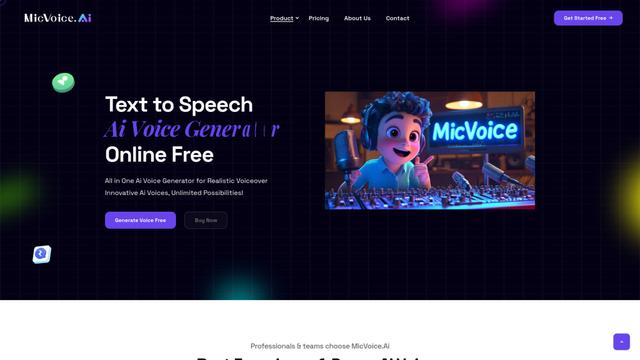
MicVoice.Ai is an all-in-one AI voice generator platform that transforms written text into high-quality, natural-sounding speech with over 5000 realistic AI voices supporting 17+ languages.
Narrai
Narrai
Narrai is an AI-powered mobile app that instantly creates voice narration and background music for short videos by automatically generating relevant scripts and offering multiple narrator personas.
Vagent
Vagent
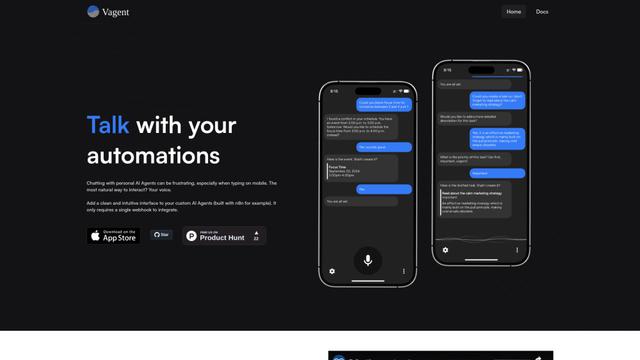
Vagent is a lightweight voice interface that enables users to interact with custom AI agents through voice commands, providing a natural and intuitive way to control automations with support for 60+ languages.
F5 TTS
F5 TTS
F5-TTS is a state-of-the-art, non-autoregressive text-to-speech system that uses Flow Matching and Diffusion Transformer techniques to generate highly natural and expressive speech with zero-shot voice cloning capabilities.