
VocalVia
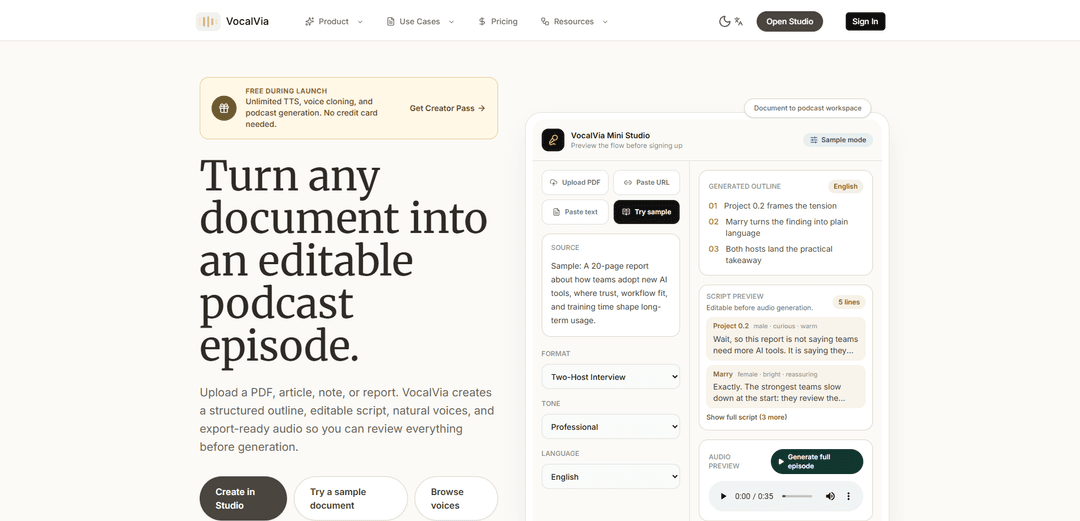
VocalVia is an AI podcast generator that converts PDFs, articles, and notes into editable, format-aware podcast scripts (with roles, pacing, and tone tags) and then produces polished audio using a previewable voice library.
https://www.vocalvia.com/?ref=producthunt
Product Information
Updated:Jul 16, 2026
What is VocalVia
VocalVia is a document-to-podcast workspace designed for creators, educators, and teams who want more than basic text-to-speech. Instead of simply reading a document aloud, it turns source material—such as PDFs, articles, reports, or notes—into a structured podcast episode plan and script you can review and edit before generating audio. It supports multiple script formats (e.g., Single Narrator, Two-Host Interview, Study Tutor, Business Briefing, Research Breakdown) and provides a “Mini Studio” experience with script previews and production-style controls.
Key Features of VocalVia
VocalVia is an AI podcast generator that converts source materials like PDFs, articles, notes, and reports into a structured, editable podcast plan and script before generating audio. Rather than simple text-to-speech, it emphasizes producer-style control with format-aware script templates (e.g., single narrator or two-host interview), role and expression tags for pacing and tone, voice preview and selection from a library, and a review-first workflow designed for careful handling of documents, including the ability to delete sources and iterate on drafts before spending credits.
Document-to-podcast drafting: Transforms PDFs, articles, and notes into a structured episode outline and script, making dense sources easier to consume as audio.
Format-aware script templates: Generates scripts in selectable styles (Single Narrator, Two-Host Interview, Study Tutor, Business Briefing, Research Breakdown) to match the intended audience and context.
Edit-before-audio workflow: Lets users review and edit the generated outline and script before synthesizing audio, maintaining editorial control and reducing wasted generations.
Producer controls with tags and roles: Supports host roles, section markers, pacing cues, summaries, and expression/emotion tags to shape delivery and structure prior to audio generation.
Voice library with preview: Browse and preview realistic voices by language, gender, age, and speaking style, then choose voices when ready to generate in the studio.
Privacy and iteration controls: Positions itself as a private source workflow where documents are not used for model training, with options to delete sources and iterate on drafts and project history.
Use Cases of VocalVia
Research and insights recaps: Turn academic papers, research reports, or internal findings into a listenable “research breakdown” episode for faster stakeholder consumption.
Business briefings for teams: Convert strategy docs, memos, or market updates into short audio briefings that employees can review during commutes or between meetings.
Education and study support: Transform lecture notes or reading assignments into a “study tutor” script format to reinforce learning with structured explanations and summaries.
Content repurposing for creators: Repurpose long-form articles or newsletters into podcast episodes with a two-host or narrator format, keeping the script editable before publishing.
Training and enablement audio: Convert onboarding documents, SOPs, or product guides into audio modules to help teams absorb material in a more accessible format.
Pros
Strong editorial control: generates an outline and script first, allowing review and edits before audio generation.
Multiple script formats and producer-style tags help tailor structure, pacing, and roles beyond basic TTS.
Voice preview and browsing make it easier to pick an appropriate cast before generating final audio.
Privacy-oriented positioning with no model-training on uploaded documents and the ability to delete sources.
Cons
Audio quality and output still depend on selected synthetic voices; may not match human-recorded podcasts for all use cases.
Best results likely require manual script editing, which adds time compared with one-click TTS tools.
Feature set implies a studio workflow that may be more complex than simple read-aloud apps for casual users.
How to Use VocalVia
1) Get access and open the studio: Go to https://www.vocalvia.com/ and start the VocalVia Mini Studio/workspace. If available, claim the Creator Pass/free access and enter the document-to-podcast workspace.
2) Start a new document-to-podcast project: Create a new project in the workspace where you will convert a source (PDF/article/notes/report) into a podcast episode draft.
3) Upload or add your source material: Upload a PDF, paste an article, or add notes/reports as the input source. This is the material VocalVia will turn into an episode plan and script.
4) Choose your output format settings: Select the script style/format you want (e.g., Single Narrator, Two-Host Interview, Study Tutor, Business Briefing, or Research Breakdown). Set tone and language to match your audience.
5) Generate the outline (episode plan): Run generation to produce a structured outline with roles, pacing, and key points—so the result is more than a simple text-to-speech readout.
6) Review the script preview before audio: Open the script preview and check the flow, sections, and takeaways. Use this review step to ensure the episode is accurate and listenable before spending credits on audio generation.
7) Edit the script for clarity and pacing: Tighten narration, adjust wording, reorder sections, and refine transitions. Add or revise role labels (e.g., Host A/Host B/Expert) and pacing cues so it sounds like a real episode.
8) Add direction tags (roles/section markers/expression tags): Use role tags and expression/emotion tags (and section markers) to direct delivery—e.g., [Host A][curious], [Expert][calm], [Host B][summary]—to shape structure and speaking style.
9) Preview and select voices from the voice library: Browse the voice library by language, gender, age, and speaking style. Preview voices first, then choose the voice(s) for each role when you are ready to generate audio.
10) Generate the audio: After the script is approved, generate the podcast audio using your selected voices and language settings.
11) Export or share the finished episode: Download/export the generated audio for listening, distribution, or sharing, depending on your workflow.
12) Iterate and manage your projects (optional): If needed, revise the outline/script and regenerate audio. Manage project history and delete drafts/audio/source files when you want; the workflow supports review, iteration, and deletion.
VocalVia FAQs
VocalVia is an AI podcast generator that converts source material (like PDFs, articles, notes, and reports) into a structured, editable podcast draft—then lets you generate audio from that script.
VocalVia Video
Popular Articles

Vosko AI: Localize and Dub Videos for Global Audiences
Oct 15, 2026

Atoms: A Multi-Agent AI Platform That Transforms Ideas into Launch-Ready Products
Oct 13, 2026

Nano Banana SBTI: What It Is, How It Works, and How to Use It in 2026
Apr 15, 2026

Atoms Review — The AI Product Builder Redefining Digital Creation in 2026
Apr 10, 2026
Latest AI Tools Similar to VocalVia

PodExtra AI
PodExtra AI is an advanced AI-powered podcast tool that transforms podcast content into digestible formats through transcripts, summaries, mind maps, outlines, highlights and takeaways.
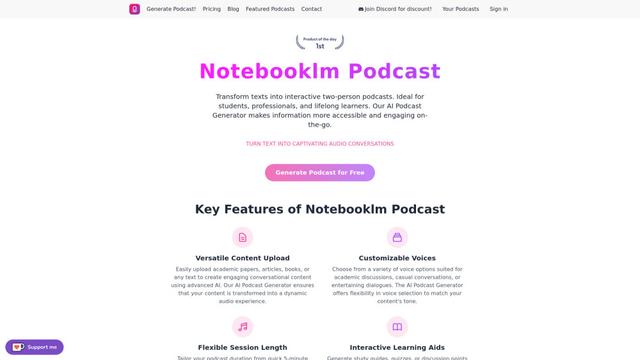
AIdeaflow Podcast
AIdeaflow Podcast is an AI-powered platform that transforms text into engaging podcast content with natural conversations across 120+ voices and multiple languages.
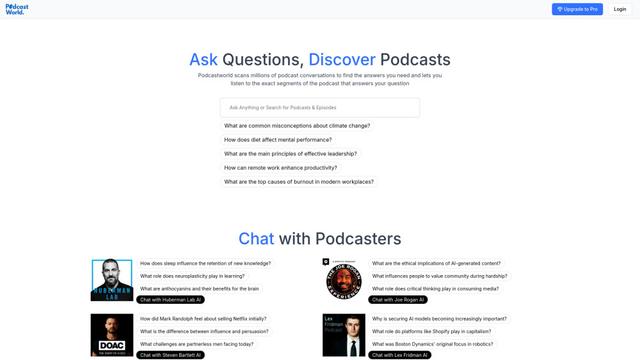
PodcastWorld
PodcastWorld is an AI-powered conversational search engine that scans millions of podcast conversations to find specific answers, provide audio segments, and enable direct interaction with podcasters.
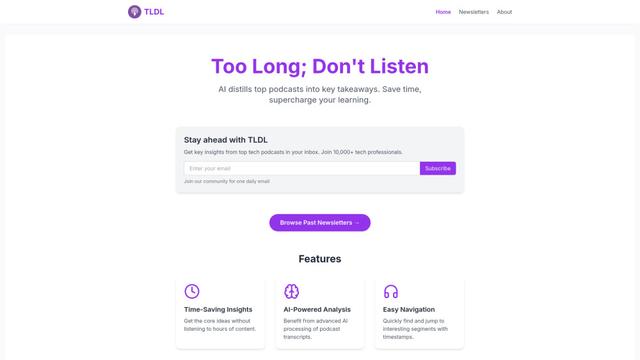
TLDL - Too Long; Don't Listen
TLDL is an AI-powered podcast app and service that distills top podcasts into key insights and summaries, making podcast listening more efficient and social.
Popular AI Tools Like VocalVia
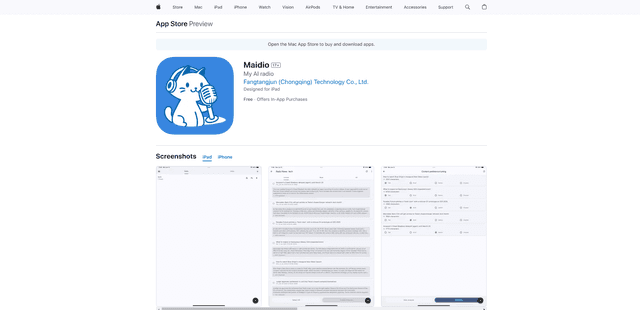
Maidio
Maidio is an innovative AI-powered app that automatically converts RSS news feeds into engaging podcast-style conversations between a host and assistant.
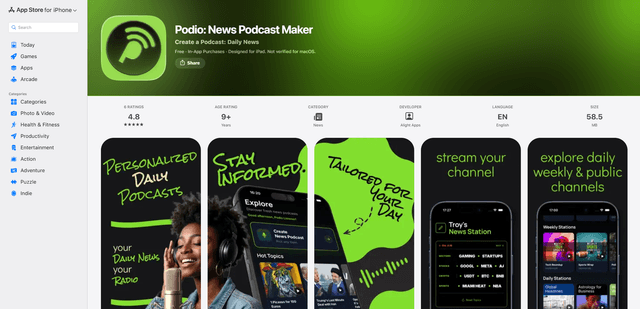
Podio
Podio is an AI-powered news audio app that instantly streams a personalized radio-style podcast channel from your chosen topics, with daily updates, custom episode creation, and natural-sounding AI narration.
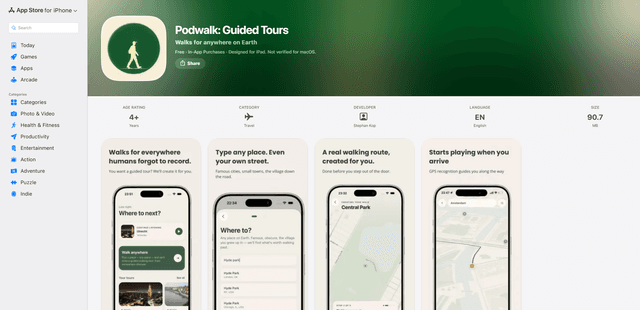
PodWalk: Guided Tours
PodWalk: Guided Tours is an audio walking tour app that generates custom, geofenced, hands-free narrated routes for virtually any place on Earth, with offline downloads, live transcripts, and multiple tour lengths and themes.
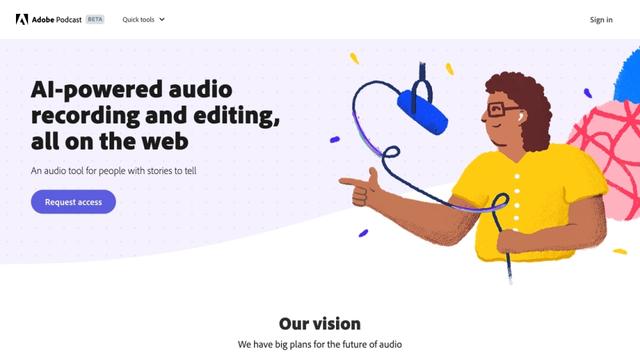
Adobe Podcast
Adobe Podcast is an AI-powered web-based audio toolset that allows users to record, enhance, edit, and share high-quality podcasts and voiceovers with professional-sounding results.