
Uncluttr - Clean up your tabs
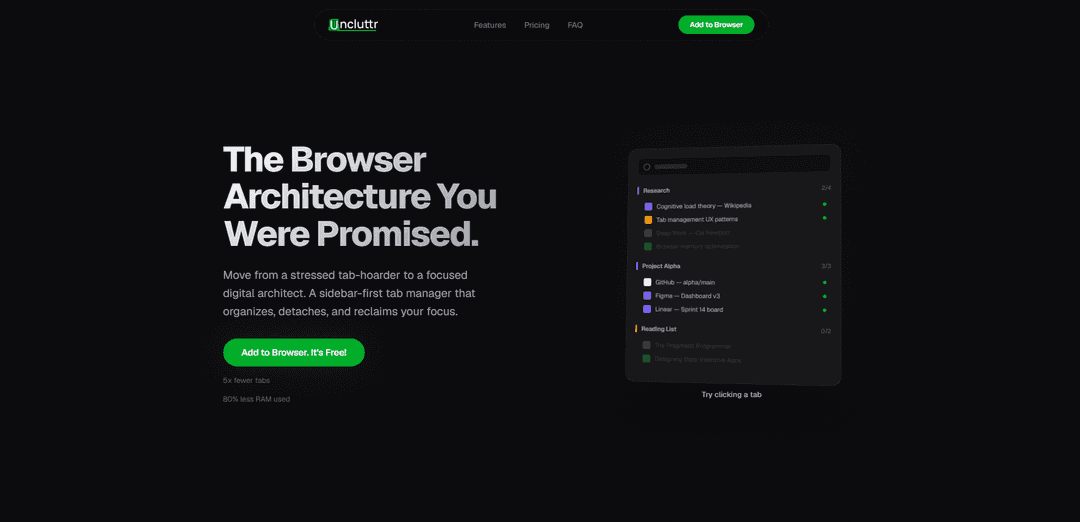
Uncluttr is an AI-powered Chrome tab manager with a vertical sidebar that auto-groups, searches, and “detaches” tabs (zero-memory saved tabs) to reduce clutter and reclaim focus.
https://www.uncluttr.net/?utm_source=aipure&utm_medium=launch&utm_campaign=launch_may2026&ref=producthunt
Product Information
Updated:May 19, 2026
What is Uncluttr - Clean up your tabs
Uncluttr - Clean up your tabs is a sidebar-first tab management extension for Chrome designed for people who live in the browser—developers, researchers, and heavy multitaskers. Instead of relying on Chrome’s horizontal tab bar, Uncluttr organizes your browsing into calm, searchable structures with tab groups, multi-window workspaces, and a command-center style search. It builds on Chrome’s native tab groups rather than replacing them, bridging the gap between basic built-in grouping and a more complete tab management system that helps you stay organized without losing anything.
Key Features of Uncluttr - Clean up your tabs
Uncluttr is an AI-powered tab manager for Chrome and other Chromium browsers that replaces tab chaos with a sidebar-first workflow. It automatically groups related tabs, makes everything searchable, and lets you “close without losing” by detaching tabs into a persistent sidebar that uses zero RAM until reopened. It also supports multi-window workspaces for context switching, duplicate detection, and automation like auto-closing unused tabs and auto-collapsing groups—helping heavy tab users reduce cognitive load and improve browser performance without sacrificing their research trail.
Vertical sidebar tab management: Moves tab organization into a calm, readable sidebar with grouped, searchable tabs—designed to scale for users with dozens of tabs.
Detach tabs (close any tab, lose none): Closed tabs are saved to the sidebar for one-click restore, while detached tabs use zero memory—reducing RAM pressure without losing context.
AI-powered auto-grouping & smart naming: Automatically clusters related tabs (even across domains) and suggests descriptive group names based on content and browsing context.
Command-center search across everything: Quickly surface any tab across windows, groups, and workspaces via keyboard-first search for fast switching and retrieval.
Multi-window workspaces & session restore: Create dedicated, crash-resilient workspaces and restore entire sessions to keep projects separated and easy to resume.
Automation & hygiene tools: Includes duplicate detection plus automatic behaviors like auto-close unused tabs and auto-collapse groups to keep clutter from returning.
Use Cases of Uncluttr - Clean up your tabs
Software development & debugging: Group docs, GitHub issues, Stack Overflow threads, and tickets into project workspaces; detach rarely-needed references to save memory while keeping them instantly recoverable.
Academic research & literature review: Auto-cluster papers, citations, and topic threads; use search to retrieve sources quickly and detach long reading lists without losing your trail.
Product/design workflows: Organize Figma files, design systems, inspiration boards, and specs into named groups; switch contexts via workspaces during sprints or reviews.
Operations/project management: Keep Jira/Linear boards, docs, dashboards, and meeting links grouped per initiative; restore sessions for recurring rituals like standups or incident reviews.
Sales/marketing & competitive research: Cluster competitor pages, ad libraries, analytics, and campaign tools; detach background research to stay focused while maintaining quick access.
Pros
Reduces RAM usage and tab overload via detaching (zero-memory stored tabs) and automation.
AI grouping + smart naming cuts manual tab management and improves findability with global search.
Sidebar-first organization and workspaces support deep work and fast context switching.
Cons
Best fit is Chromium browsers; Firefox/Safari use different tab models and aren’t the focus of the described workflow.
Unlimited AI auto-grouping is paid (limited smart grouping in the free plan).
Some advanced capabilities are listed as “coming soon” (e.g., cross-device sync, rule-based grouping, insights).
How to Use Uncluttr - Clean up your tabs
1) Install Uncluttr: Open the Chrome Web Store listing for Uncluttr and click “Add to Chrome” to install it. It works on Chrome and other Chromium browsers (e.g., Edge, Brave).
2) Pin Uncluttr for quick access: Click the Extensions (puzzle) icon in your browser toolbar and pin Uncluttr so it’s always visible.
3) Open the Uncluttr sidebar: Click the Uncluttr icon to open its vertical, sidebar-first tab manager. This is where your tabs, groups, and workspaces are organized and searchable.
4) Create or use Workspaces (multi-window sessions): In Uncluttr, create a Workspace for a project (e.g., “Sprint 14”, “Research”, “Personal”). Use Workspaces to keep sets of tabs separated and restore entire sessions quickly if you switch contexts or restart.
5) Run one-click organization (auto-grouping): Use Uncluttr’s “Organize All” / one-click organize action to automatically cluster related tabs into groups based on context (even across different domains).
6) Review and refine groups: Scan the groups Uncluttr created in the sidebar. Move tabs between groups as needed to match your mental model (e.g., “Frontend Research”, “Design”, “Docs”, “Tickets”).
7) Use Smart Naming (AI group names): Let Uncluttr suggest descriptive group names based on tab content and context, then accept or edit the names so groups are easy to recognize later.
8) Collapse groups to reduce clutter: Collapse groups when you’re not actively using them to keep the interface calm and compact. Collapsing is a key habit for staying organized at scale.
9) Detach tabs to reclaim memory (close without losing): Close tabs you don’t need right now—Uncluttr saves them into the sidebar as “detached” tabs. Detached tabs use zero active memory but remain one click away from reopening.
10) Restore any detached tab when needed: When you want something back, click the detached tab in the sidebar to reopen it instantly—no more “what was that tab?” panic.
11) Search across everything (Command Center): Use Uncluttr’s global search/command center to find any tab across any window, group, or workspace. Use the provided keyboard shortcuts (as shown in-app) to open search quickly and jump to the right tab.
12) Enable duplicate detection and clean duplicates: Turn on duplicate detection in Uncluttr settings (if not enabled by default). Review flagged duplicates and close extras to reduce clutter and wasted resources.
13) Turn on auto-close unused tabs (optional): Enable Uncluttr’s auto-close feature to automatically close tabs you haven’t used recently. Those tabs are still preserved in the sidebar as detached tabs.
14) Turn on auto-collapse groups (optional): Enable auto-collapse so groups you’re not actively using collapse automatically, keeping your workspace tidy without manual upkeep.
15) Keep your data local-first: Use Uncluttr normally knowing it’s designed to keep your data on your device (local-first architecture), per the product’s stated privacy approach.
16) (Optional) Upgrade for unlimited AI grouping and upcoming features: If you hit the free plan’s “Limited Smart Grouping” or want more AI automation, upgrade in-app to the paid plan for unlimited AI auto-grouping and additional features listed (e.g., priority support; upcoming analytics, rule-based grouping, cross-device sync, smart group renaming).
Uncluttr - Clean up your tabs FAQs
Yes. Core features are free with no limits (unlimited tabs, groups, and workspaces). Some AI “smart” features (like unlimited AI auto-grouping) require an upgrade.
Popular Articles

Atoms: A Multi-Agent AI Platform That Transforms Ideas into Launch-Ready Products
May 22, 2026

Nano Banana SBTI: What It Is, How It Works, and How to Use It in 2026
Apr 15, 2026

Atoms Review — The AI Product Builder Redefining Digital Creation in 2026
Apr 10, 2026

Kilo Claw: How to Deploy and Use a True "Do‑It‑For‑You" AI Agent(2026 Update)
Apr 3, 2026
Latest AI Tools Similar to Uncluttr - Clean up your tabs

GPT Engineer
GPT Engineer is an AI-powered software development tool that enables anyone to build web applications by chatting with an AI engineer.
Lucky Robots
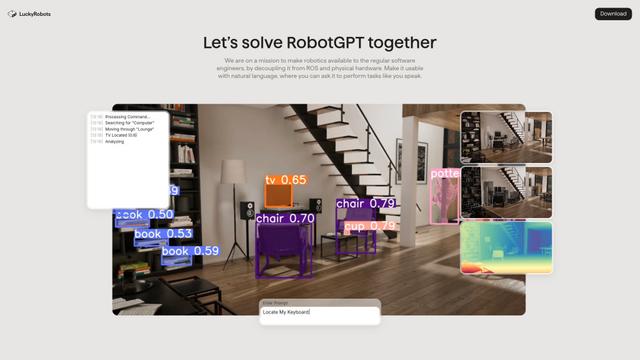
Lucky Robots is a premier virtual training boot camp for robots, offering a simulation platform to rapidly iterate, train, and test robot models using cutting-edge technologies.
Popular AI Tools Like Uncluttr - Clean up your tabs
GPT Engineer
GPT Engineer is an AI-powered software development tool that enables anyone to build web applications by chatting with an AI engineer.
IBM
IBM (International Business Machines Corporation) is a leading multinational technology company that pioneered the computer industry and continues to innovate in areas like AI, cloud computing, consulting, and enterprise solutions.