Photo to Video
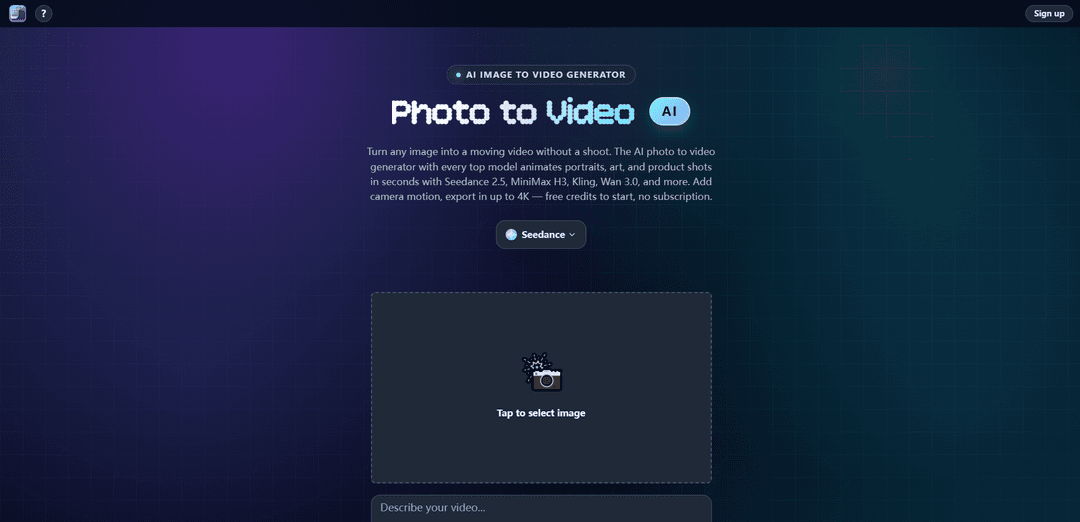
Photo to Video is an AI image-to-video generator that animates a single photo into a polished clip with prompt-guided motion, camera moves, and up to 4K export—powered by multiple top video models and available with free credits and no subscription.
https://photo2video.ai/?utm_source=aipure
Product Information
Updated:Sep 7, 2026
What is Photo to Video
Photo to Video (photo2video.ai) is a web-based AI tool that turns a still image—such as a portrait, artwork, or product shot—into a short, share-ready video. Instead of requiring filming or timeline editing, you upload one image (or start from a prompt), describe the motion you want, and the platform generates realistic animation with cinematic camera movement and lighting. It positions itself as an all-in-one workflow for animating, directing, restyling, upscaling, and exporting, offering free credits to start and a pay-per-video approach rather than a mandatory subscription.
Key Features of Photo to Video
Photo to Video is an AI image-to-video generator that animates a single photo (or image + prompt) into a finished MP4 clip with natural motion and cinematic camera moves like pan, push-in, and orbit. It bundles multiple leading video models (e.g., Seedance 2.5, MiniMax H3, Kling, Wan 3.0, Veo, Sora 2) in one workflow so users can switch models per shot, compare results, and export up to 4K. The platform focuses on keeping subjects sharp while adding realistic movement to faces, hair, water, backgrounds, and lighting—without requiring a shoot, timeline editing, or a subscription (pay-per-video with free credits to start).
One image in, video out: Upload a single photo/illustration (or start from a prompt) and generate a short animated video clip with smooth motion and a “real camera” feel.
Cinematic camera direction: Direct camera movement such as pan, push-in, hero close-up, or orbit to highlight specific details and add professional-looking motion.
Multi-model generation in one place: Access and switch between top video models (Seedance 2.5, MiniMax H3, Kling, Wan 3.0, and more) per shot to compare styles and results.
Portrait and scene realism: Designed to keep subjects sharp while adding lifelike micro-motions (blink, smile, subtle turns) and natural movement in elements like hair and water.
Specialized animation modes: Includes options such as 360° spin loops for products, background animation/swaps with clean edges, and lifestyle scene transformations with matched lighting/perspective.
Export-ready workflow (up to 4K): Handles common image inputs and outputs share-ready video (MP4) with upscaling/export options up to 4K, without timeline editing.
Use Cases of Photo to Video
E-commerce product showcases: Turn product photos into animated promos or 360° spin loops for listings, ads, and landing pages without filming.
Social media short-form content: Create scroll-stopping motion from stills—ideal for TikTok/Instagram-style posts, teasers, and quick story visuals.
Photography and portrait revival: Animate headshots and old portraits with subtle expressions (blink/smile/turn) to make still images feel alive.
Marketing and creative advertising: Convert brand visuals and campaign key art into cinematic clips with controlled camera movement for faster creative iteration.
Concepting and pre-visualization: Transform storyboard frames or reference images into motion previews to communicate mood, framing, and movement before a full production.
Art and illustration animation: Bring artwork to life with stylized motion and scene lighting changes, useful for portfolios, music visuals, or digital exhibitions.
Pros
Multiple leading AI video models in one tool, making it easy to compare outputs per shot
Simple workflow (single image + optional prompt) with cinematic camera controls and realistic motion
No subscription required; free credits to start and pay-per-video positioning
High-quality export options including up to 4K
Cons
Output quality and style consistency can vary depending on which underlying model you choose
Like many image-to-video tools, certain inputs (e.g., illustrated/hand-drawn images) may drift in style or animate unpredictably compared to the original
How to Use Photo to Video
1) Open Photo to Video: Go to https://photo2video.ai/ to access the Photo to Video AI Generator.
2) Start a new image-to-video generation: Choose the Photo to Video / Image to Video workflow (one image in, video out).
3) Upload your image: Upload a clear, well-lit photo (portraits, product shots, art/illustrations all work). The uploaded image acts as the visual anchor for the generated motion.
4) Write a motion prompt: Describe how you want the image to move (e.g., slow push-in, pan, orbit/360 spin, subtle hair/water movement). If you need a specific look, also describe color palette, texture, and lighting in the prompt instead of relying on the image alone.
5) Pick a model for the shot: Select an AI video model for generation (the tool offers multiple leading models such as Seedance, MiniMax H3, Kling, Wan, Vidu, Hailuo, LTX, Veo, Sora, and more). You can switch models per shot to compare results.
6) Choose your output settings: Set the aspect ratio for your platform and select export quality (up to 4K is supported).
7) Generate the video: Run the generation to animate the still image into a short video clip with smooth motion and camera movement.
8) Review and iterate if needed: If motion drifts or the style changes (common with illustrated/hand-drawn images), refine your prompt to explicitly restate the desired style, lighting, and textures, then regenerate. Real photos typically hold style more naturally.
9) Try specialized use cases (optional): Use built-in approaches like portrait animation (blink/smile/turn), 360 spin for products, background animation/swaps, or lifestyle scene motion depending on your goal.
10) Export and share: Export the final clip (e.g., MP4) in your chosen resolution and use it in ads, listings, social posts, or other projects.
Photo to Video FAQs
Photo to Video is an AI image-to-video generator that turns a single still image into a moving video clip. It can animate portraits, art, and product shots, adding natural motion and camera movement from one input image.
Popular Articles

Proferex: A Cloud-Based Ad Tracking and Campaign Optimization Platform
Nov 4, 2026
How to Create Viral Talking Baby Podcast Videos with AI: Step-by-Step Guide
Nov 2, 2026

Vosko AI: Localize and Dub Videos for Global Audiences
Oct 15, 2026

Atoms: A Multi-Agent AI Platform That Transforms Ideas into Launch-Ready Products
Oct 13, 2026
Latest AI Tools Similar to Photo to Video
VisionStory AI
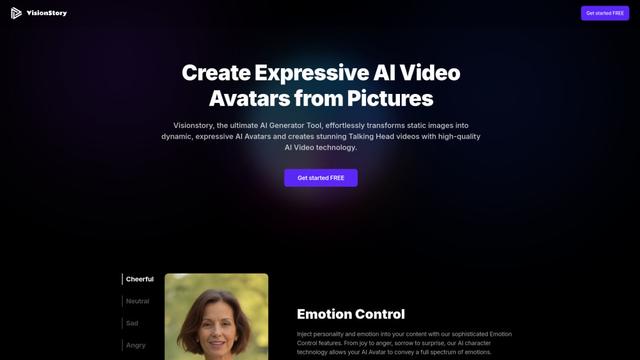
VisionStory AI is an advanced AI tool that transforms static images into dynamic, expressive talking avatars with high-quality video and audio capabilities.

Shortd
Shortd is an AI-powered app that transforms PDFs and images into concise, engaging video reels to boost productivity and learning.
Chromox
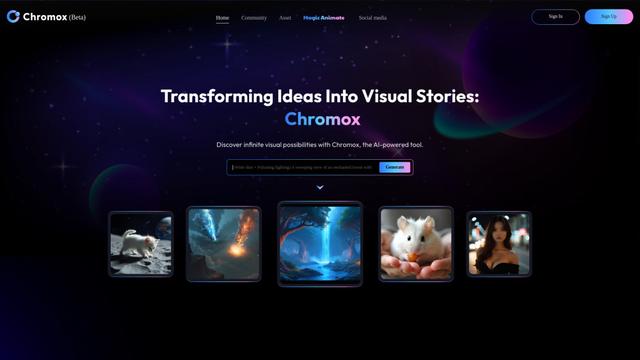
Chromox is an AI-powered platform that transforms ideas into captivating visual stories and videos using advanced text-to-image and image-to-video generation.

Vidu Studio AI
Vidu Studio AI is a cutting-edge AI-powered platform that quickly transforms text and images into high-quality, professional videos.
Popular AI Tools Like Photo to Video
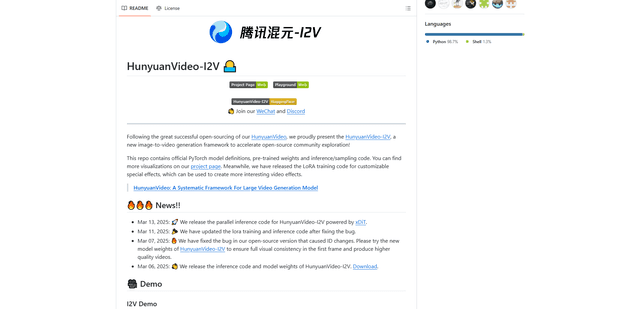
HunyuanVideo-I2V
HunyuanVideo-I2V is an open-source AI framework developed by Tencent that transforms static images into high-quality, dynamic videos with customizable motion effects and exceptional visual consistency.
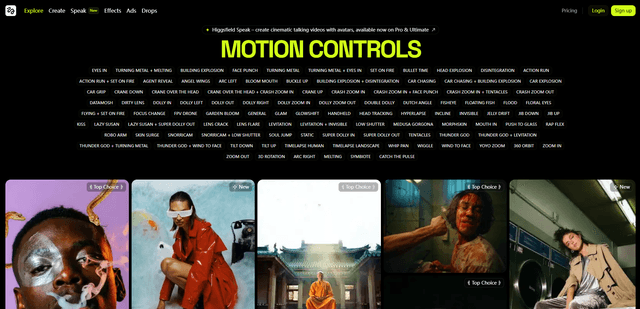
Higgsfield
Higgsfield is an AI-powered video generation platform that offers cinematic camera control and motion effects, enabling creators to produce high-quality, stylized video content with professional-grade camera movements from a single image.
PixVerse V6
PixVerse V6 is an advanced AI video generation platform that can create multi-shot short films with native audio from a single prompt, featuring precise camera control, expressive character performance, and seamless multilingual text integration.
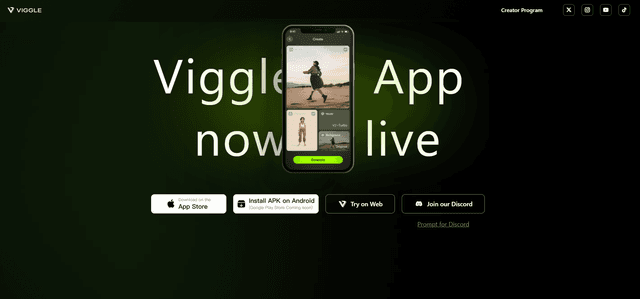
VIGGLE
Viggle AI is an innovative AI-powered platform that transforms static images into lively, customizable video animations with humor and creativity.