
Phantom
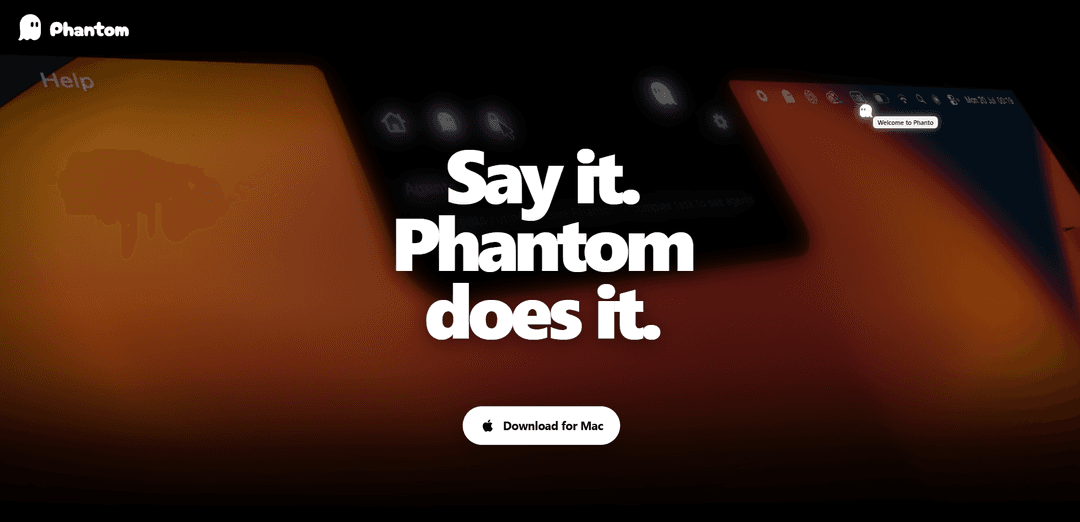
Phantom is a voice- and text-driven AI assistant for macOS that can use on-demand screen context to plan, execute, and verify tasks across your apps with permissions you control.
https://www.heyphantom.app/?ref=producthunt
Product Information
Updated:Aug 8, 2026
What is Phantom
Phantom is an AI assistant built specifically for macOS that helps you get things done by turning an outcome you describe (by voice or text) into completed actions on your computer. It can work across multiple apps and services, using Mac-specific system capabilities and the permissions you grant to interact with your screen and apps. Phantom is offered with a free Starter plan and paid Pro and Max plans that increase usage capacity, with no automatic overages and monthly capacity resets.
Key Features of Phantom
Phantom is a voice-first AI assistant built specifically for macOS that can plan and execute multi-step, “agentic” workflows across your computer. Using on-demand screen context (e.g., screenshots and Accessibility data) and only the permissions you grant, it can interact with apps by typing, clicking, scrolling, launching apps, running shortcuts, working with files, and taking actions in connected services. Phantom combines on-device processing with cloud processing when a task uses cloud-backed features, does not continuously watch your screen, and lets you restrict what it can do via an in-app Action Policy and macOS permission controls.
Voice-first task execution: Speak (or type) an outcome and Phantom helps carry it out, emphasizing hands-free control and quick dictation-driven workflows.
Agentic workflows (plan → act → verify): Phantom can break down an outcome into steps, execute them across apps, and verify results rather than only answering questions.
Cross-app macOS automation: With granted permissions, it can type, click, scroll, launch apps, use macOS Shortcuts, and coordinate actions across multiple applications.
File and service actions: Phantom can work with files on your Mac and send actions to supported connected services, depending on what you connect and allow.
On-demand context with permission controls: It does not continuously monitor your screen; it uses screenshots and Accessibility context only when needed and only with the permissions you grant, which can be adjusted in System Settings.
Action Policy safety controls: An in-app Action Policy lets you limit or control computer actions, providing a configurable boundary for what Phantom is allowed to do.
Use Cases of Phantom
Executive/admin productivity: Draft emails, compile meeting notes via dictation, open relevant documents, and perform repetitive cross-app steps (e.g., gather info from one app and paste into another).
Operations and back-office workflows: Standardize routine Mac tasks like pulling data from internal tools, updating spreadsheets, organizing files, and running Shortcuts-based procedures.
Customer support and service teams: Speed up ticket handling by navigating support tools, templating responses, and collecting on-screen context when needed to complete actions.
Sales and CRM hygiene: Automate follow-ups and record updates by moving between email, calendar, and CRM-style apps—typing, clicking, and verifying updates with user-approved permissions.
Personal knowledge work on macOS: Use voice commands to manage daily tasks like organizing files, launching apps, summarizing on-screen content on demand, and executing multi-step personal workflows.
Pros
Hands-free, outcome-driven automation: voice-first design plus agentic planning helps complete real tasks, not just provide answers.
Strong user control over access: uses on-demand screenshots/Accessibility context and can be constrained via macOS permissions and an in-app Action Policy.
Works across many macOS apps: can interact with standard UI controls and coordinate steps across apps, files, and connected services.
Cons
macOS-only: requires a Mac and relies on Mac-specific permissions and system features.
Capability depends on permissions and app support: actions vary based on what apps expose standard controls and what the user allows/connects.
Some tasks may invoke cloud processing: certain features use cloud-backed processing when submitted tasks require it.
How to Use Phantom
1. Install Phantom on your Mac: Download and install Phantom for macOS from the official Phantom site, then open the app.
2. Start a task using voice or text: Tell Phantom what you need by speaking or typing an outcome (e.g., “Draft an email reply and send it,” or “Organize these files into folders”).
3. Grant macOS permissions when prompted (only as needed): When a task requires it, Phantom may request macOS permissions (e.g., to use screenshots or Accessibility context). Approve only what you’re comfortable with; you can change these later in System Settings.
4. Configure Phantom’s in-app Action Policy: In Phantom, set your Action Policy to control what it’s allowed to do (e.g., type, click, scroll, launch apps, use shortcuts, work with files, or send actions to connected services). Limit actions if you want more manual control.
5. Let Phantom plan and execute the workflow across apps: After you provide the outcome, Phantom will plan steps, work across macOS apps (where standard controls are available), and carry out actions according to the permissions and Action Policy you chose.
6. Provide on-demand screen context when required: Phantom does not continuously watch your screen. It uses screenshots and Accessibility context only when the task needs them and only with the permissions you granted.
7. Verify the result: Phantom is designed to verify outcomes. Review what it did (e.g., text entered, files moved, actions taken in apps) and confirm the task is completed correctly.
8. Connect supported services (optional): If you want Phantom to act in connected services, connect only the services you choose. Available actions depend on the service, the app, and the permissions you grant.
9. Adjust privacy and permissions anytime: If you want to tighten or expand access, update macOS permissions in System Settings and refine Phantom’s Action Policy inside the app.
10. Choose a plan and manage usage: Use the free Starter plan to try it. If you need more capacity, upgrade to Pro or Max. Capacity resets monthly; there are no automatic overages, no rollover, and no top-ups.
11. Cancel if needed: If you’re on a paid plan, cancel before renewal via the Stripe billing portal; cancellation typically takes effect at the end of the current paid period.
Phantom FAQs
Phantom is an AI assistant for macOS. You tell it what you need by voice or text, and it can use relevant screen context on demand to help carry out the task.
Phantom Video
Popular Articles

Vosko AI: Localize and Dub Videos for Global Audiences
Oct 15, 2026

Atoms: A Multi-Agent AI Platform That Transforms Ideas into Launch-Ready Products
Oct 13, 2026

Nano Banana SBTI: What It Is, How It Works, and How to Use It in 2026
Apr 15, 2026

Atoms Review — The AI Product Builder Redefining Digital Creation in 2026
Apr 10, 2026
Latest AI Tools Similar to Phantom
Ticknotes
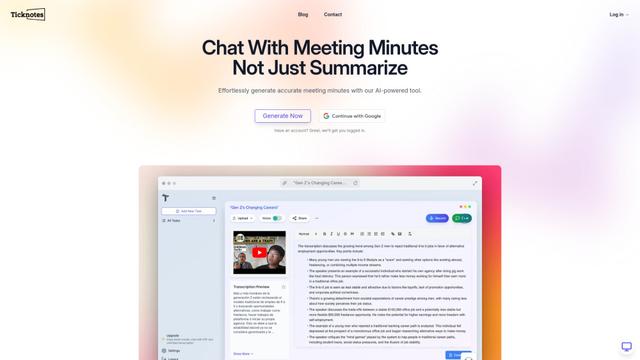
Ticknotes is an AI-powered meeting assistant that automatically records, transcribes, and generates personalized meeting summaries, action items, and key insights from audio, video, and text content.

Feta
Feta is an AI-powered meeting tool that helps product and engineering teams run efficient meetings by capturing discussions, automating tasks, and providing actionable insights through smart summaries and integrations.
TranscriptionPlus
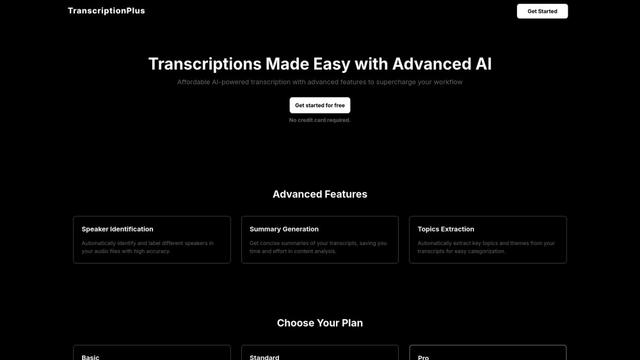
TranscriptionPlus is an AI-powered transcription service that offers accurate speech-to-text conversion with advanced features like speaker identification, summary generation, and multi-language support at affordable pricing tiers.
AudioScribe.io
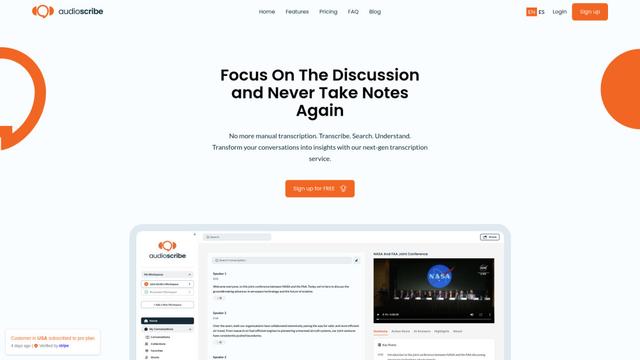
AudioScribe.io is a revolutionary AI-powered transcription service that converts audio and video content into accurate text while offering advanced features like automated meeting recording, full-text search, and multi-language support.
Popular AI Tools Like Phantom
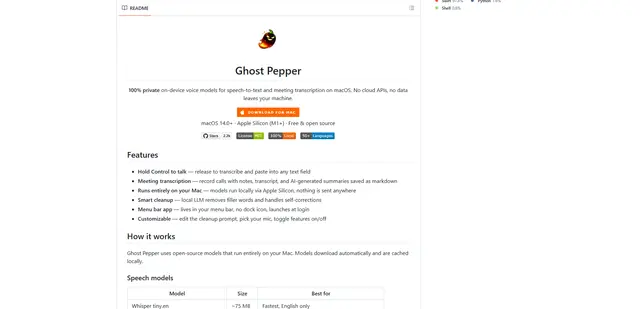
Ghost Pepper 🌶️
Ghost Pepper is a 100% local, privacy-focused speech-to-text and meeting transcription app for macOS that runs entirely on your Mac using open-source AI models, featuring hold-to-talk recording, intelligent text cleanup, and multi-language support without sending any data to the cloud.
Whisper AI
Whisper is an open-source automatic speech recognition system from OpenAI that approaches human-level accuracy and robustness for transcribing and translating speech in multiple languages.

Youtube to transcript
Youtube to Transcript is a Chrome extension that allows users to easily convert YouTube videos into text transcripts with features like multi-language support, AI-powered summarization, and downloadable formats.
inFin
inFin is a lightweight, user-friendly AI-powered voice notes app that offers unlimited recording, real-time transcription, and translation between Chinese and English, with offline capabilities and local storage for enhanced privacy.