
Notta Desktop - Privacy Mode
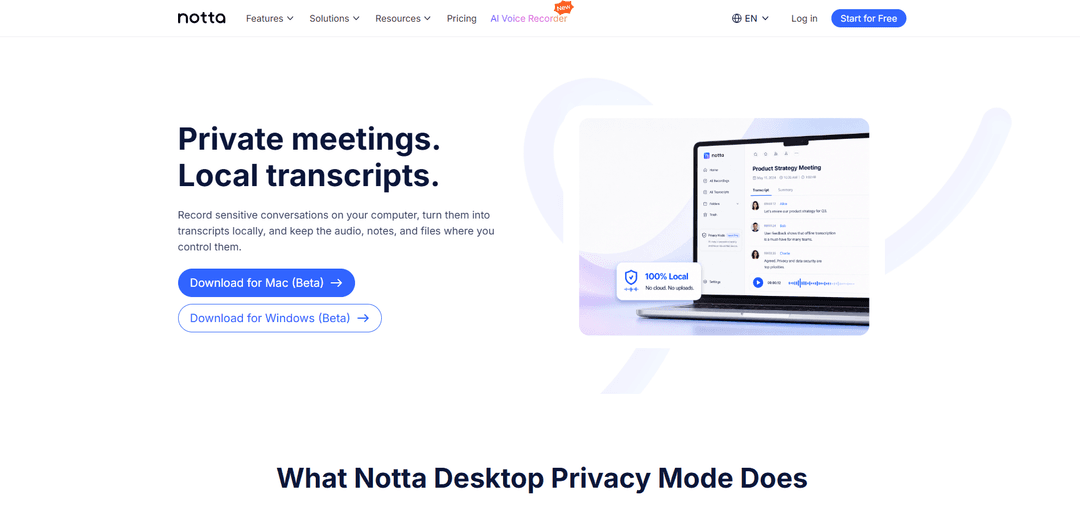
Chế độ Riêng tư của Notta Desktop là một quy trình ghi âm cuộc họp cục bộ không bot và ghi chép ngoại tuyến, giữ âm thanh, bản chép lời và các tệp liên quan trên máy tính của bạn để kiểm soát tốt hơn trong các cuộc trò chuyện nhạy cảm.
https://www.notta.ai/en/features/privacy-mode?utm_source=aipure&utm_medium=referral&utm_campaign=privacy_mode_20260703&ref=producthunt
Thông tin Sản phẩm
Đã cập nhật:Jul 8, 2026
Xu hướng Lưu lượng Truy cập Hàng tháng của Notta Desktop - Privacy Mode
Notta Desktop - Privacy Mode đã nhận được 3.6m lượt truy cập trong tháng trước, thể hiện mức Suy giảm Nhẹ -2.4%. Dựa trên phân tích của chúng tôi, xu hướng này phù hợp với động lực thị trường điển hình trong lĩnh vực công cụ AI.
Xem lịch sử lưu lượng truy cậpNotta Desktop - Privacy Mode là gì
Notta Desktop – Chế độ Riêng tư là một chế độ ghi chép cục bộ được thiết kế cho các nhóm và cá nhân cần kiểm soát chặt chẽ hơn cách dữ liệu cuộc họp được xử lý. Thay vì gửi âm thanh lên đám mây để xử lý, Chế độ Riêng tư ghi âm và ghi chép trực tiếp trên máy tính của bạn và lưu trữ các bản ghi, bản chép lời và thư mục trong bộ nhớ cục bộ mà bạn kiểm soát. Chế độ này được định vị cho các cuộc họp nhạy cảm (ví dụ: phỏng vấn pháp lý, tài chính, nghiên cứu) hoặc các môi trường mà chính sách công ty hạn chế các công cụ ghi chép đám mây hoặc bot cuộc họp, đồng thời vẫn cho phép người dùng chuyển về quy trình làm việc đám mây tiêu chuẩn khi cần độ chính xác cao hơn hoặc chia sẻ dễ dàng hơn.
Các Tính năng Chính của Notta Desktop - Privacy Mode
Notta Desktop – Chế độ Riêng tư là một quy trình làm việc ghi âm và phiên âm cuộc họp ưu tiên cục bộ, không có bot, được thiết kế cho các cuộc trò chuyện nhạy cảm. Nó ghi lại âm thanh hệ thống và micrô trực tiếp trên máy tính của bạn, phiên âm trên thiết bị (không yêu cầu tải lên phiên âm đám mây) và lưu trữ các bản ghi, bản phiên âm và các tệp liên quan trong một thư mục cục bộ mà bạn kiểm soát. Sau khi thiết lập ban đầu (bao gồm tải xuống công cụ ASR ngoại tuyến), nó có thể hoạt động ngoại tuyến và được định vị là một tùy chọn khi quyền riêng tư và kiểm soát xử lý dữ liệu quan trọng hơn độ chính xác tối đa của đám mây hoặc chia sẻ không gian làm việc dễ dàng.
Phiên âm cục bộ (không xử lý đám mây): Phiên âm chạy trên máy tính của bạn nên âm thanh cuộc họp không cần phải tải lên đám mây để xử lý—hữu ích khi các chính sách hoặc độ nhạy yêu cầu xử lý dữ liệu chặt chẽ hơn.
Âm thanh + bản phiên âm vẫn ở trên thiết bị: Các bản ghi, bản phiên âm, thư mục và dữ liệu liên quan được lưu trữ trong một thư mục cục bộ trên máy tính của bạn, giữ các tạo tác cuộc họp nhạy cảm dưới sự kiểm soát của bạn.
Ghi âm không có bot thông qua thu âm thanh: Ghi lại các cuộc họp trực tuyến mà không thêm người tham gia bot bằng cách thu âm thanh hệ thống và âm thanh micrô trực tiếp từ máy của bạn, hỗ trợ các nền tảng như Zoom, Google Meet, Microsoft Teams, Slack, Webex và các nền tảng khác.
Hoạt động ngoại tuyến sau khi thiết lập: Sau khi được cấu hình và công cụ ASR ngoại tuyến được cài đặt, Chế độ Riêng tư có thể phiên âm mà không cần kết nối internet (internet vẫn có thể cần thiết để đăng nhập, cập nhật hoặc quy trình làm việc đám mây).
Sử dụng phiên âm cục bộ không giới hạn: Được thiết kế cho các cuộc họp dài và các phiên kéo dài; phiên âm cục bộ tránh giới hạn phút đám mây (giới hạn thực tế vẫn phụ thuộc vào CPU, RAM, bộ nhớ và độ ổn định của thiết bị).
Nhiều tùy chọn ngôn ngữ trên thiết bị: Mô hình cục bộ mặc định hỗ trợ tự động phát hiện ngôn ngữ cộng với tiếng Anh, tiếng Nhật, tiếng Hàn, tiếng Quảng Đông và tiếng Trung giản thể; trên macOS 26.0+ Apple Speech Analyzer mở rộng các ngôn ngữ được hỗ trợ (ví dụ: tiếng Đức, tiếng Pháp, tiếng Tây Ban Nha, tiếng Ý, tiếng Bồ Đào Nha, tiếng Trung phồn thể) và được định vị là nhanh hơn/chính xác hơn khi có sẵn.
Các Trường hợp Sử dụng của Notta Desktop - Privacy Mode
Đánh giá pháp lý & tài chính: Giữ các đánh giá hợp đồng, thảo luận về giá cả, kiểm toán và cập nhật trường hợp cục bộ trong khi vẫn tạo ra các bản phiên âm có thể tìm kiếm để theo dõi công việc.
Phỏng vấn nghiên cứu và nghiên cứu định tính: Ghi âm và phiên âm các cuộc phỏng vấn nhạy cảm cục bộ để dữ liệu thô có thể được giữ riêng tư cho đến khi được làm sạch, mã hóa hoặc phê duyệt để chia sẻ.
Các nhóm có hạn chế ghi âm/đám mây nghiêm ngặt: Sử dụng quy trình làm việc phiên âm cục bộ khi chính sách của tổ chức giới hạn các bot cuộc họp bên ngoài, trình ghi đám mây hoặc công cụ phiên âm đám mây.
Các cuộc họp nội bộ bí mật: Ghi lại các cuộc thảo luận nhạy cảm của lãnh đạo, nhân sự hoặc chiến lược trên thiết bị và tạo tóm tắt/mục hành động từ các bản phiên âm được lưu trữ cục bộ mà không gửi âm thanh lên đám mây.
Các cuộc gọi của khách hàng trong các ngành được quản lý hoặc nhạy cảm với quyền riêng tư: Hỗ trợ các ngành mà việc lưu trữ và bảo mật dữ liệu là rất quan trọng bằng cách giữ các bản ghi và bản phiên âm trên máy tính của người dùng để lưu giữ và chia sẻ có kiểm soát.
Ưu điểm
Kiểm soát quyền riêng tư tốt hơn: xử lý trên thiết bị có nghĩa là âm thanh không cần phải tải lên để phiên âm đám mây.
Quy trình làm việc không có bot: ghi lại các cuộc họp mà không thêm người tham gia bot hiển thị, giảm ma sát và rào cản quyền hạn.
Khả năng ngoại tuyến: có thể phiên âm mà không cần internet sau khi thiết lập ban đầu.
Tốt cho các phiên dài: phiên âm cục bộ tránh giới hạn phút đám mây và hỗ trợ ghi âm kéo dài (trong giới hạn của thiết bị).
Nhược điểm
Đánh đổi độ chính xác so với đám mây: Notta định vị Chế độ Riêng tư cho các trường hợp mà quyền riêng tư quan trọng hơn độ chính xác phiên âm tối đa và quy trình làm việc chia sẻ đám mây.
Hiệu suất phụ thuộc vào thiết bị: chất lượng/tốc độ ghi âm và phiên âm dài phụ thuộc vào CPU, RAM, bộ nhớ và điều kiện âm thanh (tiếng ồn, giọng điệu, từ vựng).
Hạn chế thiết lập/hệ điều hành để có kết quả tốt nhất: hỗ trợ ngôn ngữ mở rộng và hiệu suất được cải thiện có thể phụ thuộc vào macOS 26.0+ (Apple Speech Analyzer) và tải xuống công cụ ASR ngoại tuyến.
Cách Sử dụng Notta Desktop - Privacy Mode
1. Tải xuống và cài đặt Notta Desktop (beta): Tải Notta Desktop cho hệ điều hành của bạn (các bản dựng mới nhất được ghi chú: Mac 1.2.0, Windows 1.2.1) và hoàn tất cài đặt.
2. Đăng nhập (hoặc tạo tài khoản Notta): Mở Notta Desktop và đăng nhập vào tài khoản Notta của bạn. Có thể cần internet để đăng nhập, cập nhật hoặc các quy trình làm việc đám mây Notta tiêu chuẩn.
3. Chuyển từ Chế độ Đám mây sang Chế độ Riêng tư: Ở góc trên cùng bên trái của Notta Desktop, nhấp vào “Chế độ Đám mây” và chuyển sang “Chế độ Riêng tư” để bật tính năng ghi chép ưu tiên cục bộ.
4. Tải xuống Công cụ ASR ngoại tuyến khi được nhắc: Khi bạn vào Chế độ Riêng tư, hãy tải xuống Công cụ ASR ngoại tuyến (công cụ nhận dạng giọng nói cục bộ) để quá trình ghi chép có thể chạy trên máy tính của bạn mà không cần xử lý đám mây.
5. Xác nhận kỳ vọng xử lý chỉ cục bộ: Trong Chế độ Riêng tư, quá trình ghi chép được xử lý cục bộ trên máy tính của bạn – âm thanh cuộc họp của bạn không cần phải tải lên đám mây để ghi chép.
6. Chọn mô hình ghi chép cục bộ của bạn (tùy chọn macOS nếu có): Hỗ trợ ngôn ngữ phụ thuộc vào mô hình cục bộ bạn sử dụng. Mô hình Ghi chép Cục bộ mặc định hỗ trợ tự động phát hiện ngôn ngữ cộng với tiếng Anh, tiếng Nhật, tiếng Hàn, tiếng Quảng Đông và tiếng Trung giản thể. Trên macOS 26.0+, bạn có thể sử dụng Apple Speech Analyzer, hỗ trợ tiếng Anh, tiếng Nhật, tiếng Hàn, tiếng Đức, tiếng Pháp, tiếng Tây Ban Nha, tiếng Ý, tiếng Bồ Đào Nha, tiếng Quảng Đông, tiếng Trung phồn thể và tiếng Trung giản thể (đối với ghi chép tệp, hãy chọn một ngôn ngữ cụ thể thay vì tự động phát hiện).
7. Bắt đầu ghi âm ở Chế độ Riêng tư (quy trình không bot): Trong khi vẫn ở Chế độ Riêng tư, hãy bắt đầu ghi âm cuộc họp của bạn. Notta Desktop có thể ghi âm các cuộc họp trực tuyến mà không cần thêm bot cuộc họp bằng cách thu âm thanh hệ thống và âm thanh micrô trực tiếp từ máy tính của bạn (hoạt động với Zoom, Google Meet, Microsoft Teams, Slack, Webex và các công cụ hội nghị khác).
8. Ghi chép cục bộ trong/sau khi ghi âm: Tạo bản chép lời cục bộ trên thiết bị của bạn. Chế độ Riêng tư được thiết kế cho các cuộc trò chuyện nhạy cảm mà việc xử lý đám mây có thể không phù hợp.
9. Tìm và quản lý các tệp cục bộ của bạn: Chế độ Riêng tư lưu trữ các bản ghi, bản chép lời, thư mục và dữ liệu liên quan trong một thư mục cục bộ trên máy tính của bạn, giữ cho các tệp cuộc họp của bạn được sắp xếp và dưới sự kiểm soát của bạn.
10. Sử dụng Chế độ Riêng tư ngoại tuyến (sau khi thiết lập): Sau khi Công cụ ASR ngoại tuyến được cài đặt, Chế độ Riêng tư có thể ghi chép mà không cần kết nối internet. Bạn vẫn có thể cần internet để đăng nhập, cập nhật ứng dụng hoặc chuyển về các quy trình làm việc đám mây tiêu chuẩn.
11. Hiểu "ghi chép cục bộ không giới hạn": Chế độ Riêng tư hỗ trợ sử dụng ghi chép cục bộ không giới hạn mà không tiêu tốn phút ghi chép đám mây (được ghi chú cho Pro). Giới hạn thực tế vẫn phụ thuộc vào CPU, bộ nhớ, dung lượng lưu trữ và độ ổn định của ứng dụng trên máy tính của bạn đối với các bản ghi dài.
12. Chuyển về Chế độ Đám mây khi cần: Nếu bạn muốn độ chính xác cao hơn, chia sẻ không gian làm việc dễ dàng hơn hoặc các quy trình làm việc đám mây Notta tiêu chuẩn, hãy chuyển từ Chế độ Riêng tư trở lại Chế độ Đám mây và sử dụng ghi chép đám mây cho các cuộc họp ít nhạy cảm hơn.
Câu hỏi Thường gặp về Notta Desktop - Privacy Mode
Chế độ Riêng tư là một chế độ phiên âm cục bộ trong Notta Desktop, ghi âm và phiên âm trên máy tính của bạn, giữ các bản ghi, bản phiên âm và các tệp liên quan trong bộ nhớ cục bộ dưới sự kiểm soát của bạn.
Bài viết phổ biến

Cách tạo video podcast em bé biết nói viral bằng AI: Hướng dẫn từng bước
Nov 2, 2026

Proferex: Nền tảng theo dõi quảng cáo và tối ưu hóa chiến dịch dựa trên đám mây
Nov 2, 2026

Vosko AI: Bản địa hóa và Lồng tiếng Video cho Khán giả Toàn cầu
Oct 15, 2026

Atoms: Nền tảng AI đa tác nhân biến ý tưởng thành sản phẩm sẵn sàng ra mắt
May 22, 2026
Phân tích Trang web Notta Desktop - Privacy Mode
Lưu lượng truy cập & Xếp hạng của Notta Desktop - Privacy Mode
3.6M
Lượt truy cập hàng tháng
#13818
Xếp hạng Toàn cầu
#28
Xếp hạng Danh mục
Xu hướng Lưu lượng truy cập: Jul 2024-Jun 2025
Thông tin chi tiết về Người dùng Notta Desktop - Privacy Mode
00:03:48
Thời lượng Truy cập Trung bình
4.04
Số trang mỗi lần Truy cập
40.68%
Tỷ lệ Thoát của Người dùng
Khu vực Hàng đầu của Notta Desktop - Privacy Mode
JP: 43.81%
US: 8.14%
BR: 4.66%
IN: 3.81%
PE: 2.55%
Others: 37.03%
Công cụ AI Mới nhất Tương tự Notta Desktop - Privacy Mode
Ticknotes
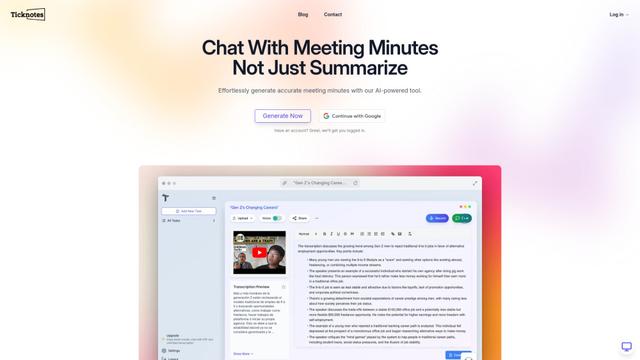
Ticknotes là một trợ lý cuộc họp được hỗ trợ bởi AI tự động ghi lại, phiên âm và tạo ra các tóm tắt cuộc họp cá nhân hóa, các mục hành động và những hiểu biết chính từ nội dung âm thanh, video và văn bản.
Feta
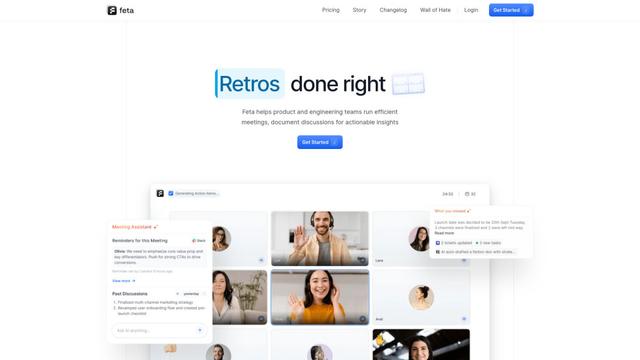
Feta là một công cụ cuộc họp được hỗ trợ bởi AI giúp các nhóm sản phẩm và kỹ thuật tổ chức các cuộc họp hiệu quả bằng cách ghi lại các cuộc thảo luận, tự động hóa các nhiệm vụ và cung cấp các thông tin có thể hành động thông qua các tóm tắt thông minh và các tích hợp.
TranscriptionPlus
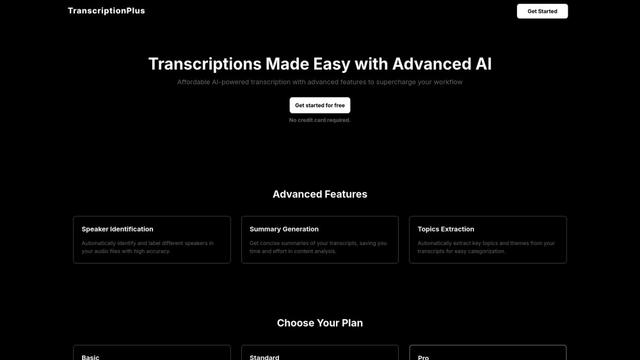
TranscriptionPlus là dịch vụ chuyển đổi văn bản được hỗ trợ bởi AI cung cấp chuyển đổi giọng nói thành văn bản chính xác với các tính năng nâng cao như nhận diện người nói, tạo tóm tắt và hỗ trợ đa ngôn ngữ với mức giá phải chăng.
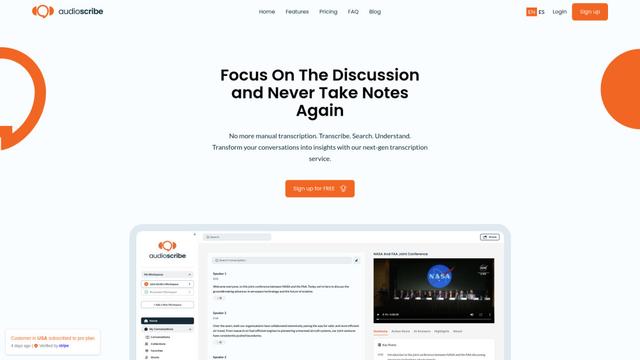
AudioScribe.io
AudioScribe.io là một dịch vụ chuyển đổi lời nói thành văn bản được hỗ trợ bởi AI cách mạng, chuyển đổi nội dung âm thanh và video thành văn bản chính xác trong khi cung cấp các tính năng tiên tiến như ghi âm cuộc họp tự động, tìm kiếm toàn văn và hỗ trợ đa ngôn ngữ.
Công cụ AI Phổ biến Giống Notta Desktop - Privacy Mode
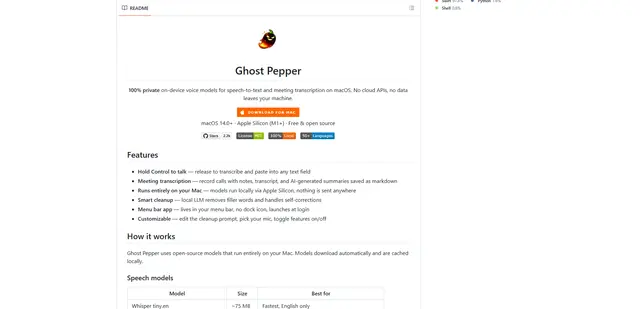
Ghost Pepper 🌶️
Ghost Pepper là một ứng dụng phiên âm cuộc họp và chuyển giọng nói thành văn bản tập trung vào quyền riêng tư, cục bộ 100% cho macOS, chạy hoàn toàn trên máy Mac của bạn bằng các mô hình AI mã nguồn mở, có tính năng ghi âm giữ để nói, dọn dẹp văn bản thông minh và hỗ trợ đa ngôn ngữ mà không cần gửi bất kỳ dữ liệu nào lên đám mây.
Whisper AI
Whisper là một hệ thống nhận dạng giọng nói tự động mã nguồn mở từ OpenAI có độ chính xác và độ mạnh mẽ gần đạt mức con người trong việc phiên âm và dịch giọng nói sang nhiều ngôn ngữ.

Youtube to transcript
Youtube to Transcript is a Chrome extension that allows users to easily convert YouTube videos into text transcripts with features like multi-language support, AI-powered summarization, and downloadable formats.
inFin
inFin là một ứng dụng ghi chú giọng nói nhẹ, thân thiện với người dùng, được hỗ trợ bởi AI, cung cấp khả năng ghi âm không giới hạn, phiên âm theo thời gian thực và dịch thuật giữa tiếng Trung và tiếng Anh, với khả năng ngoại tuyến và lưu trữ cục bộ để tăng cường quyền riêng tư.