
Navi+ Menu Builder
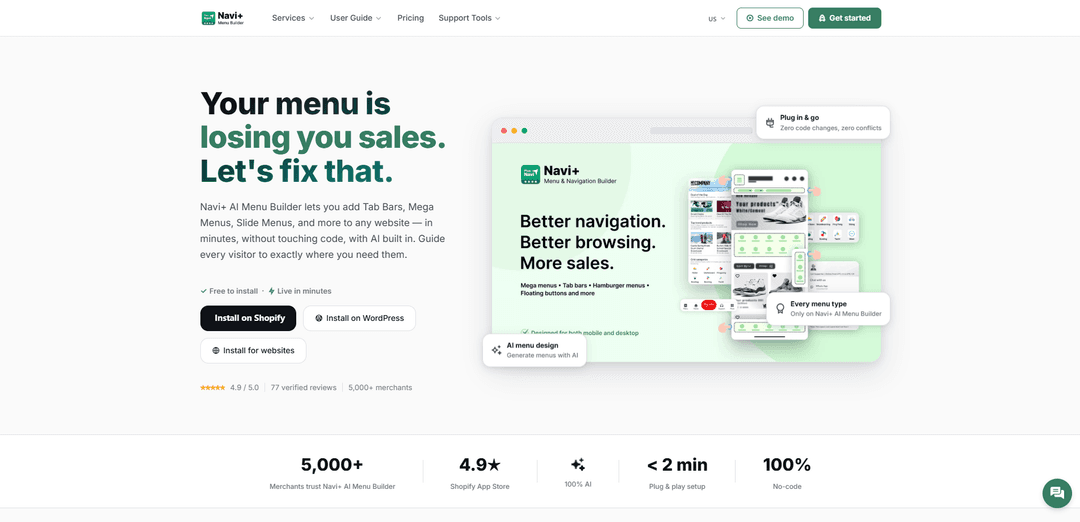
Navi+ Menu Builder is a no-code, AI-powered navigation layer that lets you add and customize tab bars, mega menus, slide menus, floating buttons, and more on any website in minutes—mobile-first, multilingual, and optimized for speed via global CDN delivery.
https://naviplus.io/?ref=producthunt
Product Information
Updated:Jun 8, 2026
What is Navi+ Menu Builder
Navi+ Menu Builder (Navi+ AI Menu Builder) is a drag-and-drop tool for creating modern website navigation without redesigning your theme or writing code. It works on Shopify (via the official app) and on other platforms like WordPress, Wix, Webflow, Squarespace, WooCommerce, or any custom site via a simple embed snippet. With 20+ pre-designed layouts and multiple menu types—such as Bottom/Tab Bars, Mega Menus, Slide (Drawer/Hamburger) Menus, Grid menus, and FAB (floating action buttons)—Navi+ helps you guide visitors to key pages, products, campaigns, and utilities (search, support, chat) with a cleaner, more app-like experience.
Key Features of Navi+ Menu Builder
Navi+ Menu Builder is a no-code, drag-and-drop navigation builder that lets you add and customize multiple menu types (Tab Bar, Mega Menu, Slide Menu, sticky/nav bars, floating buttons, grid layouts) across Shopify and other platforms via an embed snippet. It’s designed to be lightweight and theme-safe (pure HTML5/CSS3), supports mobile-first and separate mobile/desktop configurations, and includes AI-assisted workflows such as generating menu designs, importing existing menus, and auto-translating into multiple languages. Menus are delivered via a global CDN for fast performance, and advanced users can optionally extend with custom CSS/HTML/JavaScript.
Multi-type navigation system: Build Tab Bars, Mega Menus, Slide Menus, dropdown/grid layouts, sticky navbars, and floating action buttons—use one or combine several for different UX jobs (mobile quick access vs. desktop discovery).
No-code drag-and-drop builder + templates: Start from pre-designed templates, then customize colors, icons, layout, and structure with a visual editor—no design or technical skills required.
AI-assisted creation and optimization: Generate or redesign menus with AI, scan/import an existing site menu to recreate it in Navi+, and auto-translate menu content into multiple languages.
Mobile-first with separate desktop configuration: Configure mobile and desktop experiences independently (e.g., Tab Bar on mobile and Mega Menu on desktop) for better usability across devices.
Fast, lightweight, and theme-safe delivery: Built with pure HTML5/CSS3 to avoid theme/app conflicts and served via a global CDN with edge servers across 6 continents for low-latency performance.
Extensible for advanced users: Optionally add custom CSS/HTML/JavaScript and export/reuse menu configurations (e.g., JSON export) to iterate faster across sites or themes.
Use Cases of Navi+ Menu Builder
Ecommerce storefront navigation (Shopify/WooCommerce): Improve product discovery and conversion by combining a mobile Tab Bar for key destinations (Shop, Search, Cart, Support) with a desktop Mega Menu for category browsing, promos, and featured collections.
Content-heavy sites (blogs/news/magazines): Use Mega Menus and slide menus to organize deep topic trees, highlight trending articles, and guide readers to key sections without overwhelming the header.
Multi-language / international sites: Auto-translate menus and maintain language variants to help global visitors navigate quickly, especially for stores expanding into new regions.
Service businesses and lead generation: Create app-like navigation with prominent action items (Call, WhatsApp, Book, Contact) using floating buttons or bottom bars to increase inquiries and bookings.
Campaign and seasonal promotion hubs: Spin up temporary navigation layouts for sales events (e.g., Black Friday) by featuring campaign tiles/banners and routing visitors to priority landing pages.
Cross-platform websites (WordPress, Wix, Webflow, Squarespace): Embed a single snippet to add modern navigation without rebuilding the theme—useful for teams that want a consistent menu system across different site builders.
Pros
Truly no-code setup with templates and drag-and-drop editing; optional advanced customization when needed.
Mobile-first, multi-menu approach enables better UX than a single “mega menu that collapses on mobile.”
Designed to be lightweight and conflict-free (HTML5/CSS3) and delivered via a global CDN for speed.
Free plan available with lifetime usage, core features, and a generous monthly view limit.
Cons
Some advanced capabilities (e.g., richer templates/features, multiple menus) may require upgrading from the free/Starter tier.
AI-assisted import may still need manual adjustments after scanning an existing menu.
Certain platform-specific features (e.g., full multi-language workflows) may be more mature on Shopify than on other platforms.
How to Use Navi+ Menu Builder
1) Install or connect Navi+ to your website: Shopify: install the official app from the Shopify App Store. Other platforms (WordPress/Wix/Webflow/Squarespace/custom): go to naviplus.io, create a free account, log in at dash.naviplus.app, and follow the connect instructions.
2) Choose where the menu will appear (embed method): Decide whether you want the menu on all pages (site-wide) or only in specific sections/pages. In Shopify, you can embed via theme/sections (common) or per-page/section embeds depending on your theme setup.
3) Create a new menu in the Navi+ dashboard: In dash.naviplus.app, create a menu and pick the menu type you need (e.g., Bottom/Tab Bar for mobile, Mega Menu for desktop, Slide/Drawer menu, FAB, Grid).
4) Pick a template: Select from the pre-designed layouts (20+ templates). Templates are fully customizable and designed for different devices and use cases.
5) Build your menu structure (drag & drop): Add menu items, organize them into groups/levels, and configure links. Keep depth reasonable (often 2 levels is enough) to maintain usability.
6) Customize the design: Adjust colors, fonts, spacing, icons/images, and layout options. If you need deeper control, use custom CSS (Navi+ supports advanced customization via CSS).
7) Configure mobile vs desktop behavior (mobile-first): Set up separate menus for mobile and desktop if desired (e.g., Bottom/Tab Bar on mobile and Mega Menu on desktop). Navi+ is designed to optimize each device type rather than relying on a single responsive menu.
8) (Optional) Use AI features to speed up setup: Use AI to redesign menu colors/structure/content, convert/import your existing site menu into Navi+, and auto-translate your menu into multiple languages.
9) (Optional) Enable multi-language menus: Add additional languages for your menu directly in Navi+ (no extra plugin required). Configure language settings as instructed in the dashboard/docs.
10) Embed the menu on non-Shopify sites (paste the snippet): Copy the provided embed code from Navi+ and paste it into your site where you want the menu to load. Example includes a script tag loading Navi+ from the CDN plus the container element and optional settings like shop, embed_id, and sticky behavior.
11) Publish the menu: Click publish in the Navi+ dashboard. Your menu goes live and is delivered via CDN edge for fast loading.
12) Test safely before rolling out to live traffic: If your site has regular traffic, duplicate your Shopify theme (or staging environment) and test Navi+ there first. You can turn menus on/off anytime.
13) Troubleshoot common issues (theme/app conflicts): If the menu overlaps other sticky elements, adjust z-index. If you can’t insert the menu in Shopify, common causes include non-OS2.0 themes, heavily modified themes, or page builder apps that override Shopify sections.
14) Reduce perceived delay when replacing a Shopify default menu (optional): When replacing/insert-before/after the theme’s default menu, Shopify may render the default menu first, causing a slight delay. Best practice: hide the default theme menu with CSS in the theme so the change is instant.
15) Reuse or transfer menu items between menus (quick method): Open the Navi+ app in two browser tabs and copy menu items from one menu to another.
16) Stay within plan limits (Starter plan tip): On the Starter plan (1 menu slot), remove items marked with red (i) warnings if they require unavailable features (e.g., image uploads/advanced interactions), or upgrade to Business/Elite to unlock more menus and features (often with a trial).
Navi+ Menu Builder FAQs
Navi+ AI Menu Builder is a no-code navigation builder that lets you add Tab Bars, Mega Menus, Slide Menus, and other menu types to a website in minutes, with AI features for designing, converting existing menus, and translating.
Popular Articles

Vosko AI: Localize and Dub Videos for Global Audiences
Oct 15, 2026

Atoms: A Multi-Agent AI Platform That Transforms Ideas into Launch-Ready Products
Oct 13, 2026

Nano Banana SBTI: What It Is, How It Works, and How to Use It in 2026
Apr 15, 2026

Atoms Review — The AI Product Builder Redefining Digital Creation in 2026
Apr 10, 2026
Latest AI Tools Similar to Navi+ Menu Builder
GPT Easy Web
GPT Easy Web is a user-friendly AI-powered platform that enables users to easily build, customize and manage websites through natural language interactions and automated tools without requiring coding knowledge.
AI Website Tool
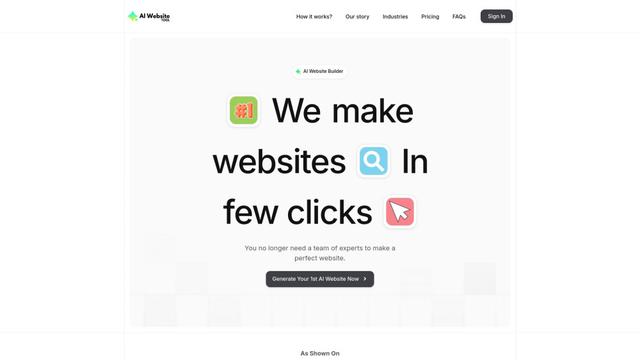
AI Website Tool is an AI-powered website builder that creates professional websites in minutes by automatically generating business-focused copy, custom visuals, and responsive designs with just a few clicks.
Softgen
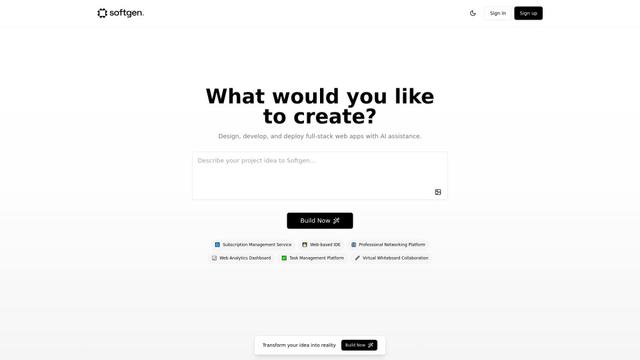
Softgen.ai is an AI-powered full-stack project generator platform that enables users to transform their ideas into functional web applications without coding requirements.
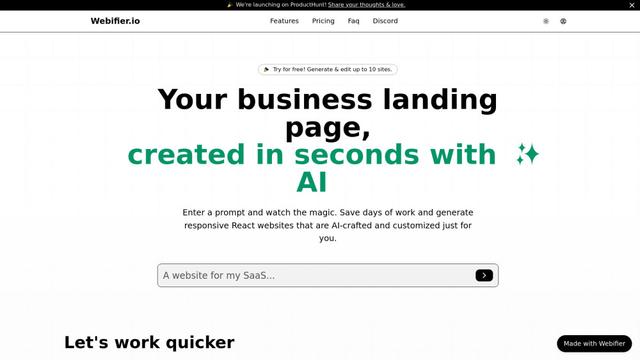
Webifier
Webifier is an AI-powered tool that transforms text prompts into fully functional React landing pages with clean, exportable code using NextJS14, TailwindCSS, and Shadcn components.
Popular AI Tools Like Navi+ Menu Builder
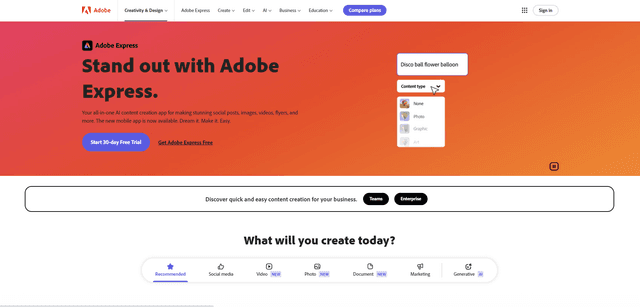
Adobe Express
Adobe Express is an all-in-one AI-powered content creation app for easily making stunning social posts, images, videos, flyers, and more with professionally designed templates and assets.
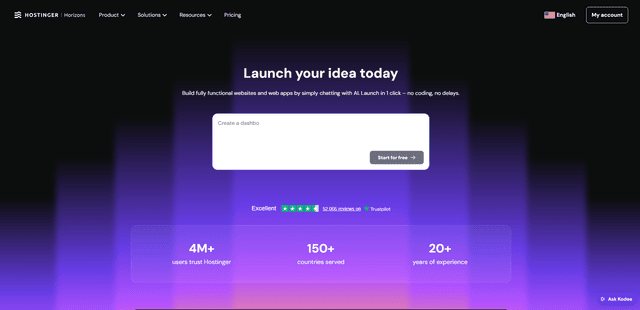
Hostinger
Hostinger is a web hosting and domain service provider offering AI-powered tools like Horizons that enables anyone to build, edit, and publish custom web apps and websites without coding through a simple chat interface.
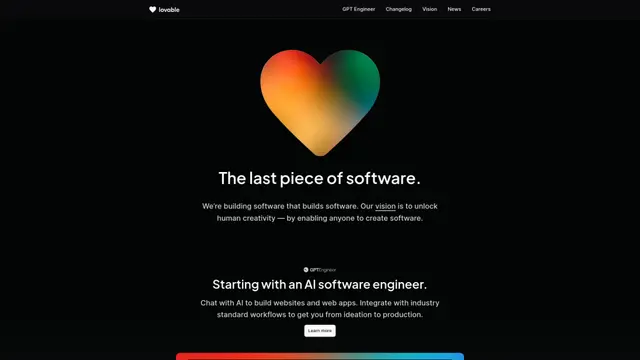
GPT Engineer
GPT Engineer is an AI-powered software development tool that enables anyone to build web applications by chatting with an AI engineer.
Manus Shopify Connector
Manus Shopify Connector lets you build a Shopify-backed storefront, manage your catalog, and generate data-driven campaigns from a single chat—using Shopify APIs with OAuth-scoped access and Shopify checkout.