
Ludr AI — Understand Any Screen
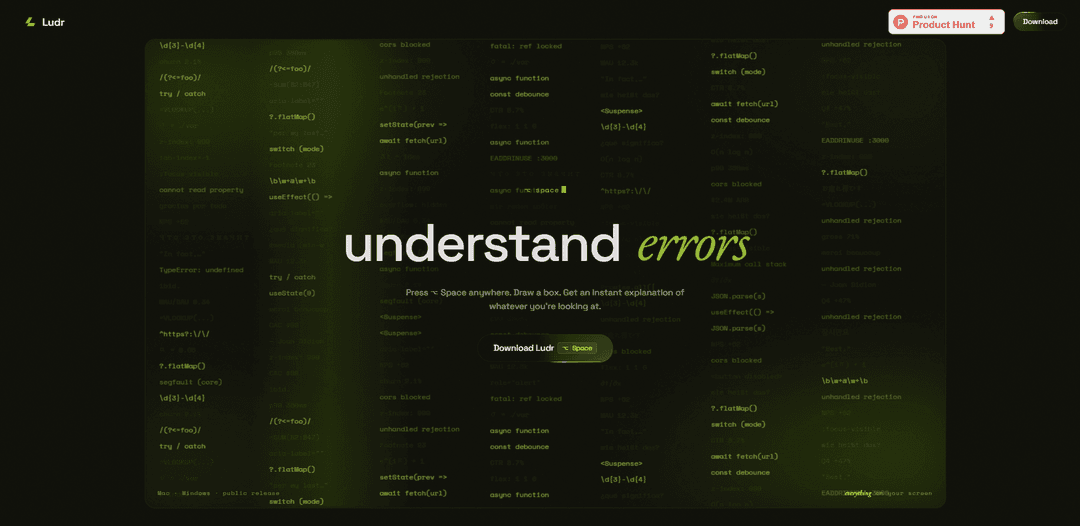
Ludr AI is a cross-app screen assistant for macOS and Windows that lets you press a hotkey, select anything on your screen, and get instant AI explanations—plus follow-up threads, inline edits, text extraction, voice input, and visual grounding.
https://www.ludr.dev/?ref=producthunt
Product Information
Updated:Jun 8, 2026
What is Ludr AI — Understand Any Screen
Ludr AI — Understand Any Screen is a desktop tool designed to help you quickly understand and act on whatever you’re viewing—code, charts, UI issues, error messages, documents, or images—without switching apps or digging through tabs. Triggered from anywhere with a single hotkey (notably ⌥ Space for screen selection), Ludr opens an overlay that lets you draw a box around content and receive a streamed AI response in a side thread. It supports macOS (12+) and Windows 10/11, and emphasizes an “on-screen to answer” workflow with features like chat history, quick prompt hotkeys, voice-to-text, and inline rewriting directly where you work.
Key Features of Ludr AI — Understand Any Screen
Ludr is a macOS/Windows “screen assistant” that lets you press a hotkey (Option+Space), draw a box around anything on your screen (code, charts, errors, UI), and get a streamed AI explanation with follow-up chat in persistent threads. It adds productivity actions like inline rewriting, text extraction, voice-to-text input, and (on macOS) a selection hotkey that reads highlighted text via Accessibility without taking a screenshot. Ludr emphasizes privacy by storing history, screenshots, prompts, and settings locally on-device with no analytics/telemetry, while sending the captured content directly to the chosen AI model for answers.
One-hotkey screen capture + instant explanation: Press ⌥ Space from any app, freeze the screen, draw a region, and receive a streamed AI explanation of what you selected (images, charts, code, error dialogs, UI).
macOS selection hotkey (no screenshot): Use ⌘⇧L on selected text to have Ludr read it via macOS Accessibility APIs—avoiding screenshot/clipboard steps and asking instantly.
Inline Edit (rewrite in place): Rewrite the selected text directly where it lives (e.g., Slack/WhatsApp/browser/editors) for grammar, tone, or code fixes.
Quick hotkeys with custom prompts: Bind up to 10 shortcuts to fixed prompts (e.g., “translate,” “summarize,” “find issues”) and apply them anywhere by dragging a region.
Voice → text input: Tap the mic, speak your question, and auto-stop on silence; the transcribed text becomes your prompt for fast hands-free queries.
Threaded chat history + visual grounding: Each ask becomes a reusable thread with full context for follow-ups; visual grounding can point to specific on-screen elements (e.g., contrast failures, misalignment, missing focus states).
Use Cases of Ludr AI — Understand Any Screen
Software debugging & code comprehension: Select stack traces, compiler errors, or code snippets from any app and get explanations, likely causes, and suggested fixes with follow-up Q&A.
Design & UI accessibility review: Capture a UI screen and ask what’s wrong—use grounding to identify contrast issues, alignment problems, and missing focus-visible states.
Business analysis from dashboards: Box-select charts or KPI dashboards and ask for plain-language summaries, anomaly detection ideas, or executive-ready interpretations.
Customer support & operations triage: Grab screenshots of user-reported issues or internal tools and generate step-by-step troubleshooting guidance or response drafts via inline edit.
Translation and writing workflows: Use quick hotkeys to translate on-screen text or rewrite messages/emails in a chosen tone directly in the original app.
Document/receipt text extraction: Select an image (e.g., receipt screenshot) and extract structured text like totals, item counts, or key fields for logging and reporting.
Pros
Fast, universal workflow: works from any app via a single hotkey + drag selection.
Privacy-first local storage: history, screenshots, prompts, and settings stay on-device; no analytics/tracking/telemetry.
Multiple input and action modes (inline edit, voice, quick hotkeys, threads) reduce context switching.
Cons
Selection-text hotkey is macOS-only (depends on macOS Accessibility APIs).
Free tier is capped (e.g., 25 asks/week after launch), and Pro has fair-use limits.
Although Ludr stores locally, selected content is still sent to the AI model for processing (not fully offline).
How to Use Ludr AI — Understand Any Screen
1) Install and launch Ludr: Download Ludr for macOS (12+) or Windows (10/11), open the app, and ensure it’s running in the background so the hotkeys work from any application.
2) Use the main overlay selection (classic mode): Press ⌥ Space (Option+Space) from anywhere. Your screen freezes instantly, then click-and-drag to draw a box around what you want help with (code, charts, errors, UI, images). Release to submit.
3) Read the streamed explanation and ask follow-ups: Ludr streams an answer in a side thread. Ask follow-up questions to dig deeper; the thread keeps context so you can iterate without re-explaining.
4) Use the macOS text selection hotkey (no screenshot): On macOS, select text in any app, then press ⌘⇧L. Ludr reads the selected text via Accessibility (no screenshot and no clipboard noise) and immediately answers.
5) Create and use Quick Hotkeys (custom fixed prompts): Bind up to 10 shortcuts to fixed prompts (e.g., “translate”, “summarize”, “explain this error”). Press your quick hotkey anywhere, drag a region, and Ludr runs that same prompt every time.
6) Use Inline Edit to rewrite text in place: Select text (or capture it via a region), choose Inline Edit, and have Ludr rewrite it (grammar, tone, code fixes). Apply the edited result back in the original app (works in apps like Slack, WhatsApp, browsers, editors).
7) Use Voice → Text to ask hands-free: Tap the mic in Ludr’s input bar, speak your question, and pause—recording auto-stops. The transcribed text appears in the input so you can submit it with your selection or as a standalone question.
8) Use Text Extraction for images (e.g., receipts/screenshots): Capture a region containing text (like a receipt or dialog), then choose Text Extraction to pull the text out (e.g., totals, item lines) for copying or follow-up questions.
9) Use Visual Grounding to pinpoint issues on-screen: When analyzing UI/visuals, use Visual Grounding so Ludr can reference specific regions (e.g., contrast failures, misalignment, missing focus states) and point to exactly what’s wrong.
10) Re-open Chat History threads to continue work: Open Ludr’s history to revisit any prior thread (each ask is saved as a thread). Continue the conversation with full context, add follow-ups, and favorite important threads.
Ludr AI — Understand Any Screen FAQs
Ludr is a screen assistant for macOS and Windows that lets you press a hotkey, select any region of your screen, and get an instant AI explanation with the ability to ask follow-up questions in the same thread.
Ludr AI — Understand Any Screen Video
Popular Articles

Vosko AI: Localize and Dub Videos for Global Audiences
Oct 15, 2026

Atoms: A Multi-Agent AI Platform That Transforms Ideas into Launch-Ready Products
Oct 13, 2026

Nano Banana SBTI: What It Is, How It Works, and How to Use It in 2026
Apr 15, 2026

Atoms Review — The AI Product Builder Redefining Digital Creation in 2026
Apr 10, 2026
Latest AI Tools Similar to Ludr AI — Understand Any Screen
MultipleWords
MultipleWords is a comprehensive AI platform offering 16 powerful tools for content creation and manipulation across audio, video, and image editing with cross-platform accessibility.
Athena AI
Athena AI is a versatile AI-powered platform offering personalized study assistance, business solutions, and life coaching through features like document analysis, quiz generation, flashcards, and interactive chat capabilities.

Taidai.io
Taidai.io is an AI-powered tool that automatically converts notes, emails, and text content into actionable todo lists.

Repliio
Repliio is an AI-powered email assistant Chrome extension that helps users generate professional, context-aware email responses quickly with customizable tones and multi-language support.
Popular AI Tools Like Ludr AI — Understand Any Screen
Microsoft Excel: Spreadsheets
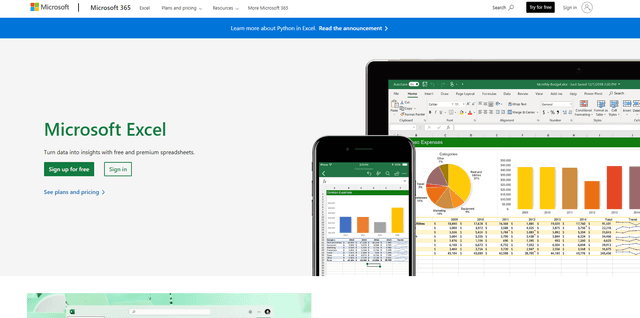
Microsoft Excel is the industry-leading spreadsheet software that allows users to organize, analyze, and visualize data through powerful features like formulas, charts, and AI-powered insights.
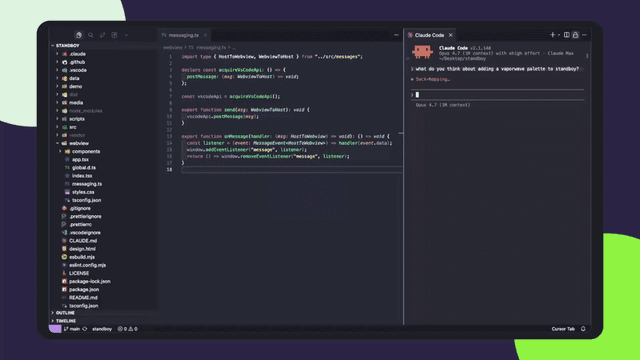
Standboy
Standboy is a VS Code/Cursor extension that auto-expands a Game Boy (GB/GBC/GBA) emulator in the sidebar during AI agent activity, then auto-hides and pauses—resuming mid-frame next time—while keeping a persistent ROM library, saves, and cover art.
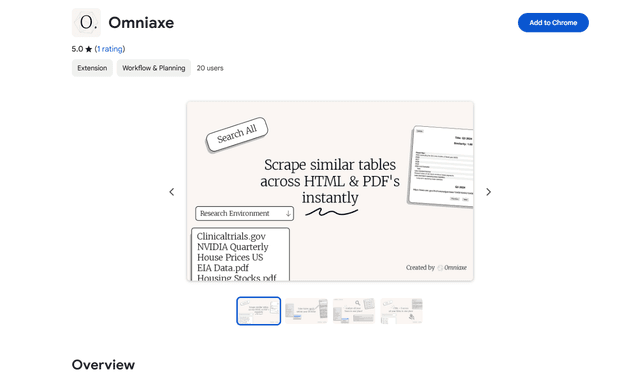
Omniaxe
Omniaxe is an all-in-one Chrome extension research tool that combines seamless data extraction, AI-powered analysis, and centralized note-taking capabilities designed specifically for analysts, researchers and students.
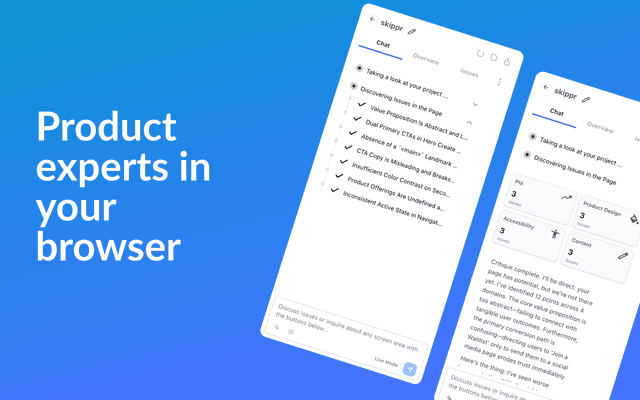
Finesse by Skippr AI
Finesse by Skippr AI is a browser extension that provides instant, expert-level product feedback and critiques across design, content strategy, accessibility, and product direction through specialized AI reviewers.