
LeadDelta
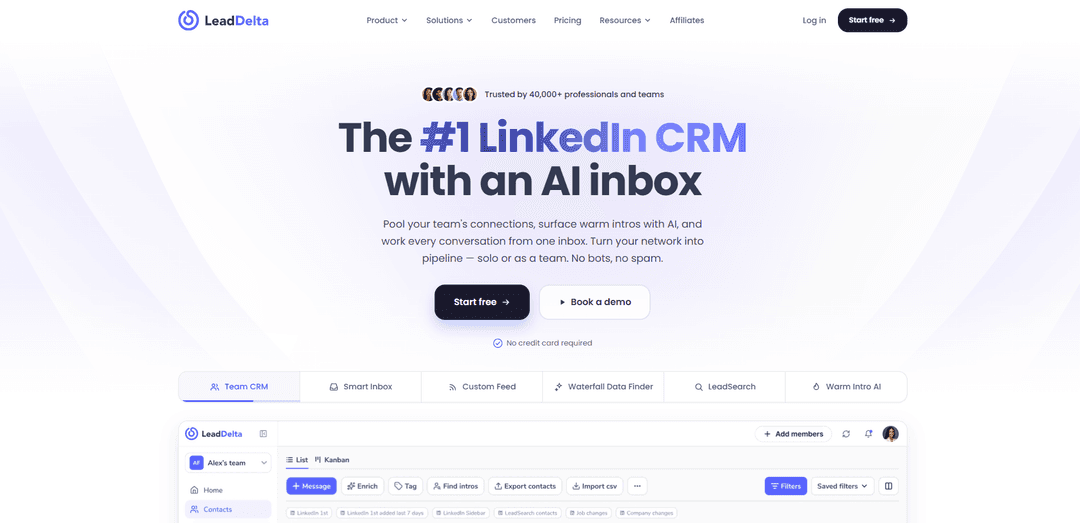
LeadDelta is a LinkedIn CRM for individuals and teams that centralizes your network with tagging/notes, a Smart AI Inbox, contact enrichment (email/phone), lead search, and AI-powered warm intro path finding.
https://leaddelta.com/?ref=producthunt
Product Information
Updated:Jul 8, 2026
What is LeadDelta
LeadDelta is a lightweight web app and Chrome extension that turns your LinkedIn connections into an organized, searchable relationship database you can use to drive sales, recruiting, partnerships, and community growth. Built for founders, sales teams, marketers, and recruiters who rely on LinkedIn, it brings contact management, team collaboration, and messaging into one workspace—so your network becomes a system, not a feed. It’s designed to help you capture and maintain your connections, enrich contact data, and manage LinkedIn conversations more effectively, without relying on spammy automation.
Key Features of LeadDelta
LeadDelta is a LinkedIn-focused CRM and AI inbox that helps individuals and teams turn their LinkedIn network into an organized, searchable relationship system. It centralizes connections and conversations, supports tagging/notes/tasks and powerful filtering, and adds team collaboration features like pooled networks and warm-intro mapping. It also offers lead capture from LinkedIn pages/searches via a Chrome sidebar, contact enrichment (verified emails/phone numbers) with credit-based usage, custom LinkedIn feeds to track key people, and integrations/sync to tools like CRMs plus automation connectors (e.g., Zapier/Make). It emphasizes safe, non-bot workflows rather than outreach automation.
Team CRM for LinkedIn connections: Imports and continuously syncs LinkedIn connections into a CRM-like view where users can search, filter, sort, and manage relationships with tags, notes, and lists—turning a large network into an actionable database.
AI Smart Inbox: Brings LinkedIn messages into a single inbox with organization features (tagging, filtering, pinning, templates) and AI assistance for drafting replies and surfacing conversations that need attention.
Warm Intro AI & shared network visibility: Pools a team’s connections to reveal who knows a prospect and suggests warm intro paths, helping teams coordinate outreach and avoid duplicated or conflicting outreach (“collision prevention”).
Chrome extension & sidebar lead capture: Works directly inside LinkedIn/Sales Navigator to capture leads from profiles, searches, and company pages, and to view/edit LeadDelta data without leaving LinkedIn.
Waterfall data enrichment (email/phone): Enriches contacts with verified business/personal emails and phone numbers in-app or via CSV import, using a credit-based model (credits deducted only when a valid result is found).
Custom Feeds & relationship signals: Creates personalized LinkedIn feeds based on tags/groups to track updates from key contacts and reduce noise from the standard LinkedIn home feed.
Use Cases of LeadDelta
Sales prospecting & pipeline building: Sales teams can segment connections with tags, build targeted lists from LinkedIn searches, manage follow-ups in the AI inbox, and prioritize warm introductions to improve reply rates.
Recruiting & talent pipeline management: Recruiters can organize candidates and referral sources with notes/tags, track conversations in a unified inbox, and use team network visibility to find the best internal path for outreach.
Marketing & community/partner nurturing: Marketers can maintain relationship context (notes), monitor key stakeholders via custom feeds, and coordinate team outreach for events, partnerships, and community initiatives.
VC/BD sourcing and warm outreach: Investors and BD teams can map warm paths to founders/targets, maintain structured relationship history, and enrich contact details to support multi-channel follow-up.
Agencies and client relationship ops: Agencies can centralize team connections, prevent overlapping outreach, and maintain account-level relationship notes/tags to support renewals, referrals, and expansion.
Pros
Strong LinkedIn-native organization: tagging, notes, filters, and CRM-like views make large networks manageable.
Team collaboration: pooled networks and warm-intro mapping improve coordination and leverage shared relationships.
Inbox productivity: mirrored LinkedIn messaging with templates/filters and AI assistance streamlines follow-up.
Integrated enrichment and lead capture: find emails/phones and capture leads from LinkedIn pages/searches in one workflow.
Cons
Limited outreach automation: no drip/sequence automation; bulk messaging is manual and capped (e.g., batches of 25).
Reporting/analytics can be basic compared to full CRMs or advanced sales intelligence platforms.
Mobile experience is more limited than desktop (not all functionality is equally available).
How to Use LeadDelta
1) Sign up (or log in) to LeadDelta: Go to https://app.leaddelta.com/signup to create an account (free trial available, no credit card required) or https://app.leaddelta.com/signin to log in using the credentials you used when signing up.
2) Install the LeadDelta Chrome extension (recommended): Install the LeadDelta extension from the Chrome Web Store (works on any Chromium-based browser). Click “Add to Chrome” → confirm “Add extension”.
3) Pin the extension for quick access: In Chrome, click the puzzle icon (Extensions) → find LeadDelta → click the pin icon so it stays visible in the toolbar.
4) Open the LeadDelta web app: Use the standalone web app in any browser at https://app.leaddelta.com. Note: some features (e.g., Sync, Update, Inbox) require the extension installed.
5) Connect LinkedIn and initiate the first sync: The first time you access your LeadDelta account, start the sync flow and grant LeadDelta permission to sync with your LinkedIn account. If you are not logged into LinkedIn, you will be prompted to log in to LinkedIn first.
6) (Optional) Import contacts via CSV: When prompted after login, upload a CSV to import existing contacts into LeadDelta so you can manage them alongside your LinkedIn connections.
7) (Teams) Invite teammates to a shared workspace: From the onboarding/home experience, invite team members so everyone’s connections can be pooled into one shared workspace and deduplicated for collaboration.
8) Create and manage Tags to organize your network: Go to the “Tags” tab in the top navigation bar. Use “Add New Tag” to create tags and assign colors (including hex codes). Use “Manage Tags” to edit or delete tags later.
9) Understand Auto-Tags: LeadDelta automatically labels new connections based on the source of the connection. Review these auto-tags to speed up organization.
10) Apply tags and notes while browsing LinkedIn (Sidebar/Extension): Use the extension/sidebar directly inside LinkedIn (and Sales Navigator) to add tags, notes, and enrich contacts in real time while viewing profiles, search results, followers, connections, or Sales Nav lists.
11) Use Templates for faster, personalized outreach: Create templates (message drafts) and personalize them with dynamic fields such as First Name, Last Name, Company, and Sender Name. You can edit/delete templates anytime, and you can also use default templates provided by LeadDelta.
12) Send messages in batches (within LinkedIn limits): Use LeadDelta’s messaging tools to send personalized messages in batches (e.g., batches of 25) using templates and dynamic fields.
13) Use the AI Inbox / Smart Inbox for message management: Work LinkedIn conversations from LeadDelta’s inbox: pin important conversations, filter messages, and use AI features (e.g., AI-drafted replies) to reduce noise and respond faster.
14) Use keyboard shortcuts in Inbox (where available): In the inbox, use shortcuts such as Ctrl+Shift+G to AI-draft a reply, and use navigation shortcuts (e.g., jump to the next conversation with a draft waiting) to speed up triage.
15) Enrich contacts with emails and phone numbers (Waterfall Data Finder): From a contact/profile in LeadDelta, run enrichment to find verified business/personal emails and phone numbers. Enrichment is credit-based; some plans include free credits, and you can top up credits in Settings → Billing (Buy credits).
16) Find warm introductions (Warm Intro AI): In a team workspace, use Warm Intro AI to see who on your team has the strongest connection to a prospect and identify the warmest path for an intro instead of cold outreach.
17) Use Custom Feeds to bypass algorithmic noise: Create personalized engagement feeds based on tags or connection groups to track posts from selected people and engage quickly without relying on the standard LinkedIn home feed.
18) Use the Dashboard for a 360° view of your network: Open the LeadDelta dashboard to view network analytics and breakdowns (e.g., tagged vs untagged, contacts with notes, and other connection insights) to guide outreach and network maintenance.
19) Export your network data for CRM or reporting: Export contacts (including enriched fields) to CSV, optionally filtered by tags/criteria, for use in CRMs, outreach tools, or internal reporting.
20) Sync to external tools via integrations (Zapier/Make): Connect LeadDelta to other tools (e.g., HubSpot/Salesforce) using Zapier or Make so data can flow from LinkedIn → LeadDelta → your CRM.
21) Keep your data current with sync/updates: Use LeadDelta sync/update features to keep new connections and profile changes current. Some sync/update/inbox capabilities require the extension.
22) Track connection cleanup actions (e.g., removals): If you remove contacts, you can track progress from the Home page by clicking the “Number of Contacts” and reviewing the “total removed contacts” details and statuses.
23) Reset your password if needed: On the LeadDelta login screen, click “Forgot Password”, enter the Google email used for your premium account, request a reset, and follow the instructions sent to that email.
24) Use official onboarding and release notes to stay current: For the latest step-by-step onboarding, use https://help.leaddelta.com/en/article/onboarding-leaddelta-manual-1ah5tl2/. Since features ship frequently, check the changelog at https://roadmap.leaddelta.com/changelog (or the Releases page) for updates.
LeadDelta FAQs
LeadDelta is a LinkedIn CRM with an AI inbox. It helps individuals and teams organize LinkedIn connections, manage conversations in one place, find warm intro paths across a team’s combined network, and enrich contacts with emails and phone numbers.
Popular Articles

Vosko AI: Localize and Dub Videos for Global Audiences
Oct 15, 2026

Atoms: A Multi-Agent AI Platform That Transforms Ideas into Launch-Ready Products
Oct 13, 2026

Nano Banana SBTI: What It Is, How It Works, and How to Use It in 2026
Apr 15, 2026

Atoms Review — The AI Product Builder Redefining Digital Creation in 2026
Apr 10, 2026
Latest AI Tools Similar to LeadDelta
Pulp Sense
Pulp Sense is an AI-driven agency that leverages smart process automation and custom solutions to optimize business operations and drive unlimited growth.
Vuepak
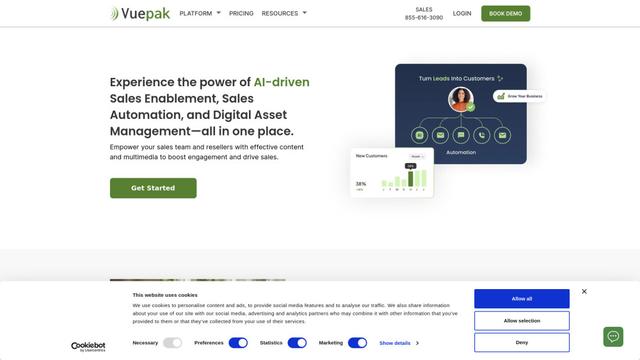
Vuepak is an AI-powered sales and marketing platform that combines sales enablement, automation, and digital asset management to help teams organize media assets into dynamic presentations for enhanced customer engagement.
Beyond AIO
Beyond AIO is an all-in-one AI-powered marketing platform that delivers smart, data-driven insights and solutions through predictive analytics, cross-channel integration, and real-time optimization capabilities.
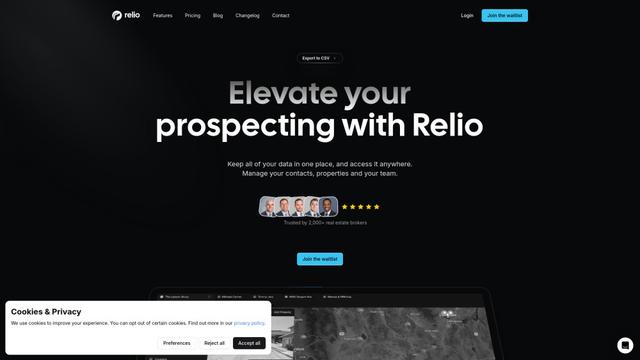
Relio CRM
Relio CRM is a comprehensive customer relationship management platform designed specifically for real estate professionals, offering contact management, pipeline tracking, and AI-powered data enrichment capabilities all in one centralized solution.
Popular AI Tools Like LeadDelta
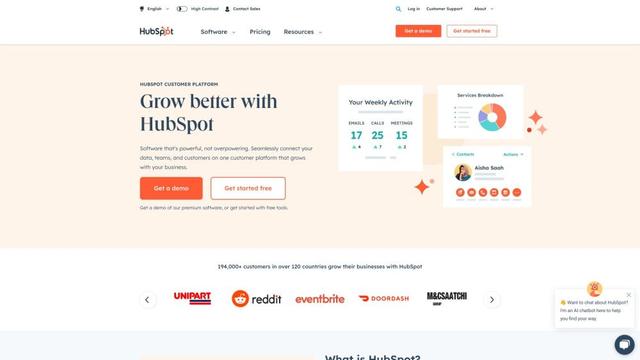
HubSpot
HubSpot is an all-in-one AI-powered customer platform that provides marketing, sales, service, operations, and website-building software to help businesses grow.
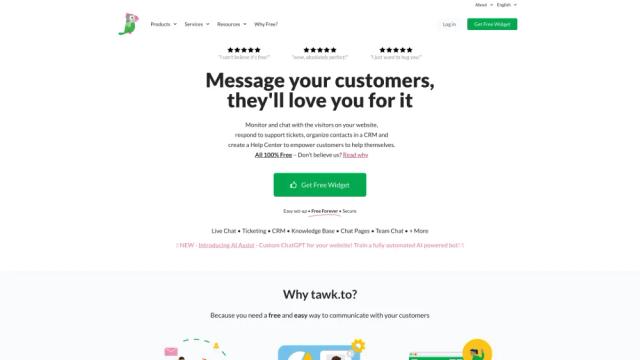
tawk.to
tawk.to is a 100% free live chat software that allows businesses to monitor and chat with visitors on their website or from a customizable page.
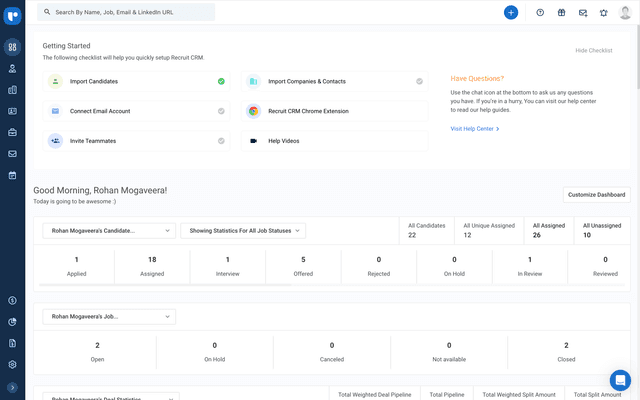
Recruit CRM
Recruit CRM is an all-in-one, AI-powered Applicant Tracking System (ATS) and Customer Relationship Management (CRM) software designed to streamline and automate the recruitment process for agencies.
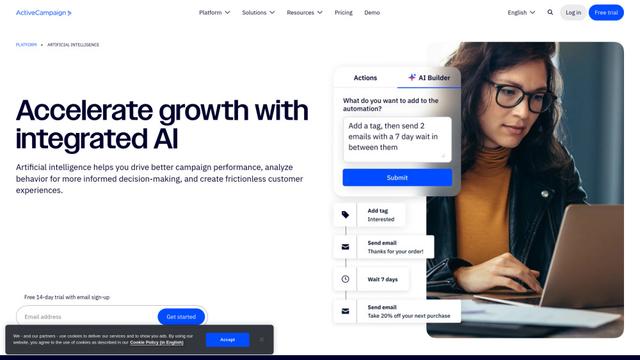
ActiveCampaign AI
ActiveCampaign AI is an integrated artificial intelligence solution that helps businesses drive better campaign performance, analyze customer behavior, and create personalized experiences across marketing automation, email marketing, and CRM.