
Domo
Domo is a cloud-based data experience and business intelligence platform that connects to hundreds of data sources, transforms data with user-friendly ETL, and delivers interactive dashboards, reporting, and collaboration from any browser or device.
https://howto.plow.co/domo?ref=producthunt
Product Information
Updated:Aug 8, 2026
What is Domo
Domo is a SaaS, cloud-based data experience platform built to help organizations bring data together, prepare it for analysis, and share insights through visualizations and dashboards. It is designed as an all-in-one environment for data integration, transformation, analysis, and reporting—making it easier for teams to move from raw data to decision-ready insights. With browser-based access and strong mobility support, Domo is commonly used for business analytics, visualization, reporting, and operational decision-making across teams.
Key Features of Domo
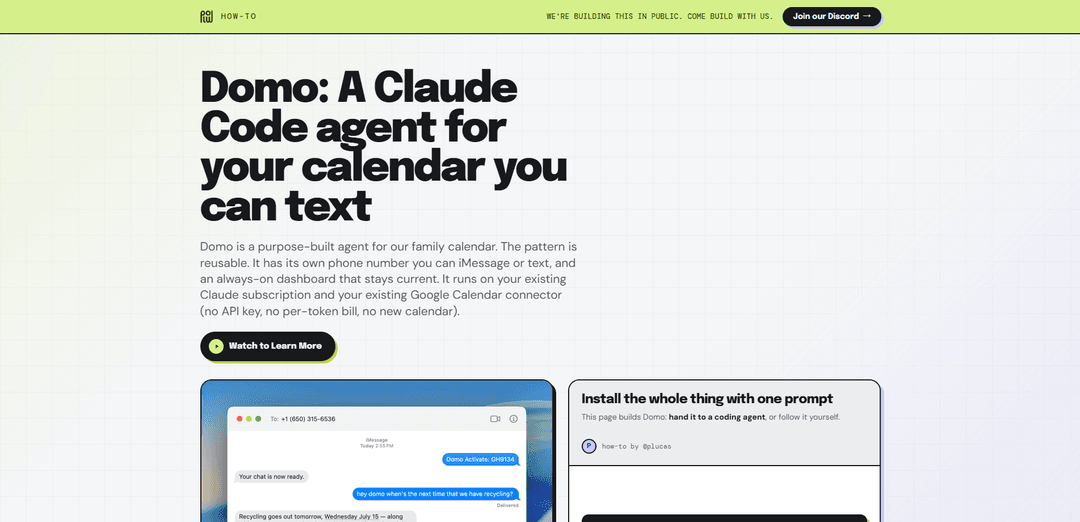
Domo is a cloud-based data and analytics platform that helps organizations connect and unify data from many sources, prepare and transform it with low-code tools, and deliver real-time dashboards, reporting, and embedded analytics for collaboration and decision-making. It emphasizes fast time-to-value through prebuilt connectors, drag-and-drop ETL, and secure sharing/governance, while also supporting app creation, workflow automation, and AI-assisted analysis to help teams act on insights. Separately, “Domo” is also used as the name of a purpose-built calendar agent pattern (from Plow) that you can text via iMessage/SMS to manage a family calendar, powered by an existing Claude subscription and a Google Calendar connector without new API keys.
Broad data connectivity (1,000+ connectors): Connects to a wide range of cloud apps, databases, files, APIs, and warehouses (e.g., Salesforce, Google Analytics, Snowflake, Redshift, BigQuery) to unify data quickly without lengthy custom engineering.
Low-code ETL & data preparation: Drag-and-drop transformation tools (filtering, merging, pivoting, calculated fields) make data manipulation accessible to non-technical users while still supporting advanced needs.
Real-time dashboards & BI analytics: Delivers frequently updated metrics, visualizations, and interactive dashboards to track performance, monitor operations, and support timely decisions.
Embedded analytics & sharing/collaboration: Supports distributing insights across teams and embedding analytics experiences (e.g., via Domo Everywhere), enabling stakeholders to consume data in the tools and contexts where they work.
Security & governance controls: Provides enterprise-oriented security, access control, and governance capabilities to manage who can see and act on data across the organization.
App creation, workflows, and AI-assisted experiences: Includes tools to build custom apps/data products and automate processes; also highlights AI-assisted workflows and conversational/embedded AI chat for asking questions and generating answers from governed data.
Use Cases of Domo
Executive performance management: Unifies finance, sales, and operational KPIs into real-time dashboards for leadership to track goals, identify trends, and make faster decisions.
Marketing & digital analytics reporting: Connects sources like Google Analytics and ad platforms to monitor campaign performance, attribution signals, and conversion funnels with shareable dashboards.
Sales pipeline & revenue operations: Integrates CRM (e.g., Salesforce) and billing data to forecast revenue, monitor pipeline health, and automate alerts/workflows when key metrics change.
Retail/operations monitoring: Combines POS, inventory, and logistics data to track stock levels, fulfillment performance, and store metrics in near real time for operational agility.
Customer-facing analytics products: Uses embedded analytics to provide dashboards and reporting inside a company’s own product or portal, enabling end-users to self-serve insights.
Textable calendar assistant (agent pattern): Implements a purpose-built iMessage/SMS calendar agent (“Domo” by Plow) that users can text to manage schedules, backed by an always-on dashboard and existing Claude + Google Calendar connectivity (no new API key).
Pros
Fast time-to-value via prebuilt connectors and low-code/drag-and-drop data prep.
Strong breadth: integrates data, BI dashboards, embedded analytics, app building, and automation in one platform.
Real-time/near-real-time monitoring and easy sharing improve alignment and collaboration.
Enterprise-friendly security/governance options for controlled data access.
Cons
Pricing and cost predictability can be a concern (often noted as a trade-off in reviews).
Performance and usability may degrade at very large data volumes depending on implementation.
Customer-facing embedded deployments can require additional effort to build and maintain.
How to Use Domo
1) Choose which “Domo” you mean (BI platform vs. calendar texting agent): The sources reference two different products named “Domo”: (A) Domo the cloud BI/analytics platform (dashboards, datasets, connectors, Workbench, APIs), and (B) “Domo” the Plow/Claude-based family calendar agent you can text. Follow the relevant steps below.
2) (BI Platform) Start a Domo trial and log in: Visit the Domo website, register for a free trial, create your account, then log in. You’ll land on the Domo dashboard, which is the primary interface for interacting with your data connections, reports, and dashboards.
3) (BI Platform) Get familiar with the dashboard and “Cards”: In Domo, visual insights are presented as “Cards” (charts, gauges, maps, text, etc.). The dashboard is where you view and organize these cards to tell a data story with interactive visualizations.
4) (BI Platform) Connect your first data source using connectors: From the data/connection area, select a data source and follow the on-screen instructions to connect. Use Domo’s built-in connectors to bring in data from popular sources like Salesforce, Google Analytics, and more.
5) (BI Platform) Bring in on-prem data with Domo Workbench (if needed): If your data is on-premise, use Domo Workbench to upload/import it into Domo. If a dataset doesn’t appear updated, it may be because the underlying data hasn’t changed (no update occurred).
6) (BI Platform) Prepare and transform data: Use Domo’s built-in tools to transform and cleanse data. The sources describe a drag-and-drop style approach to pre-process data before visualization.
7) (BI Platform) Build Cards (visualizations) from your datasets: Create cards (charts/reports) from your connected datasets. Use interactive dashboards and intuitive visualizations to create “stories” from your data.
8) (BI Platform) Assemble dashboards and interact with insights: Add cards to dashboards to create a consolidated view. Use interactivity (filters, drilldowns where available) to explore trends and answer questions.
9) (BI Platform) Set governance and role-based access: Configure data governance and role-based access controls so users only see information they’re authorized to access.
10) (BI Platform) Share and embed Domo content (optional): Use Domo sharing features to distribute dashboards/cards. For external use-cases, Domo Everywhere can embed dashboards into a website, and Domo add-ins can integrate Domo visuals into documents so users can work in familiar tools.
11) (BI Platform) Use developer resources and APIs (optional): If you need programmatic access or custom solutions, use the Domo Developer Portal (API references, guides, tutorials). The sources also mention a Product APIs Postman collection and the Domo Toolkit (Chrome extension) to speed up admin/power-user workflows.
12) (BI Platform) Get help and training: Use the Domo Knowledge Base, video library, and Community Forum for common questions. For structured learning, use Domo University (self-guided courses, instructor-led training, certifications). For support, open a ticket at support.domo.com.
13) (Calendar Agent) Open the official guide for the texting calendar agent: Go to https://howto.plow.co/domo?ref=producthunt and follow the linked guide “Domo: a calendar agent you text.” The page is designed to be handed to a coding agent (or followed manually).
14) (Calendar Agent) Install with “one prompt” using a coding agent: The official page states you can install the whole pattern with one prompt by handing the guide to a coding agent (e.g., Claude Code). Follow the guide’s instructions to generate the project and configuration.
15) (Calendar Agent) Connect to your existing Claude subscription and Google Calendar connector: Per the source, the agent runs on your existing Claude subscription and your existing Google Calendar connector (no new API key, no per-token bill, no new calendar). Complete the connector/auth steps in the guide.
16) (Calendar Agent) Enable texting/iMessage and verify the always-on dashboard: The agent pattern includes its own phone number for iMessage/SMS and an always-on dashboard that stays current. Follow the guide to provision/enable messaging, then test by texting the agent and confirming the dashboard updates.
Domo FAQs
You can open up a ticket at support.domo.com.
Domo Video
Popular Articles

Vosko AI: Localize and Dub Videos for Global Audiences
Oct 15, 2026

Atoms: A Multi-Agent AI Platform That Transforms Ideas into Launch-Ready Products
Oct 13, 2026

Nano Banana SBTI: What It Is, How It Works, and How to Use It in 2026
Apr 15, 2026

Atoms Review — The AI Product Builder Redefining Digital Creation in 2026
Apr 10, 2026
Latest AI Tools Similar to Domo
TubeVoice
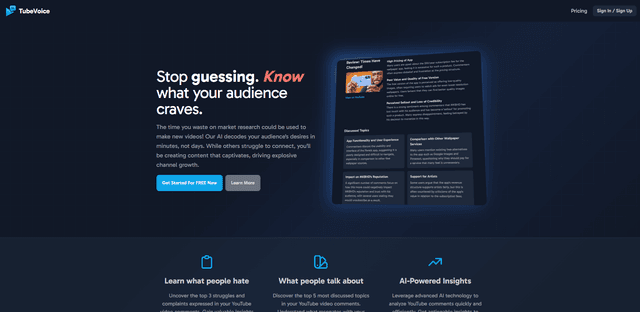
TubeVoice is an AI-powered YouTube comment analyzer that helps content creators understand their audience by providing insights from video comments through automated analysis.
ReviewPower
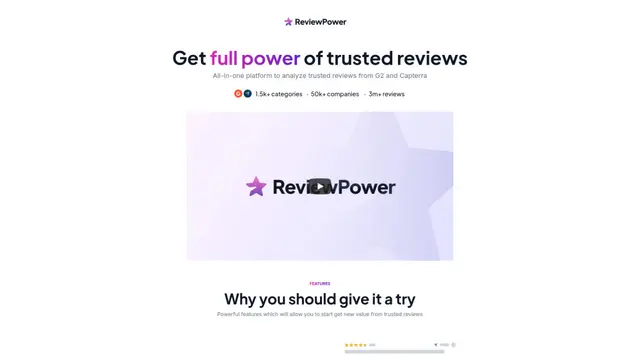
ReviewPower is an all-in-one platform that aggregates and analyzes trusted reviews from G2 and Capterra to help businesses gain valuable insights from customer feedback.

Insightfull
Insightfull is an AI-powered health tracking platform that helps users monitor symptoms, analyze health data, and receive personalized insights through symptom tracking, food logging, and medication management features.
SERPrecon
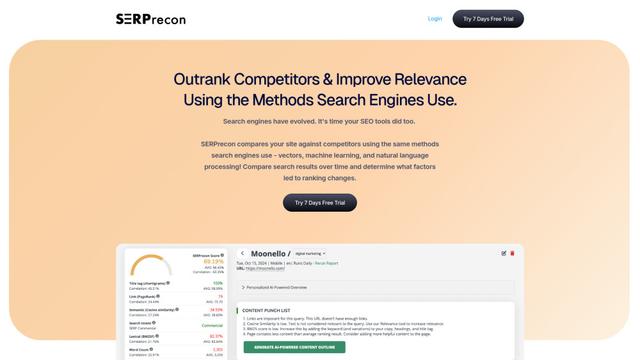
SERPrecon is an advanced SEO tool that leverages vectors, machine learning, and natural language processing to help users analyze and outrank competitors by using the same methods as modern search engines.
Popular AI Tools Like Domo
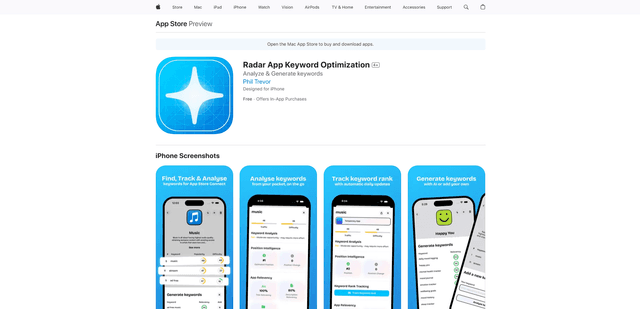
Radar
App Radar is a comprehensive app store optimization (ASO) tool that leverages AI-powered keyword research, competitor analysis, and automated tools to help improve app visibility and rankings across the Apple App Store and Google Play Store.
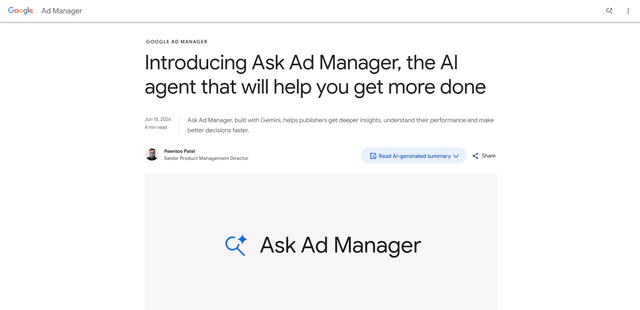
Ask Ad Manager by Google Ads
Ask Ad Manager is a Gemini-powered conversational agent inside Google Ad Manager that helps publishers troubleshoot issues in real time, generate custom performance reports from prompts, and navigate directly to the right settings using their own Ad Manager data.
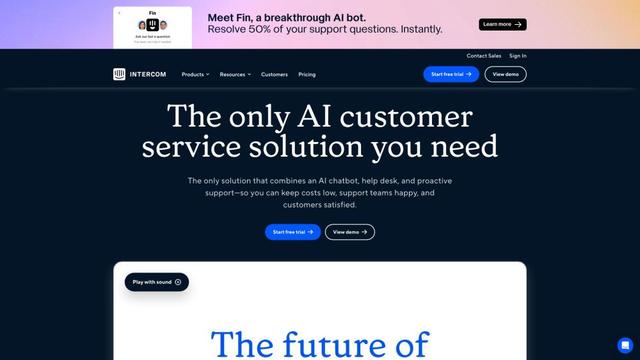
Intercom
Intercom is an AI-powered customer service platform that provides instant support, enhances agent productivity, and delivers insights to support leaders.
Branded
Branded is a market research company that uses AI and advanced sampling techniques to provide high-quality consumer insights and data.