Ask Ad Manager by Google Ads
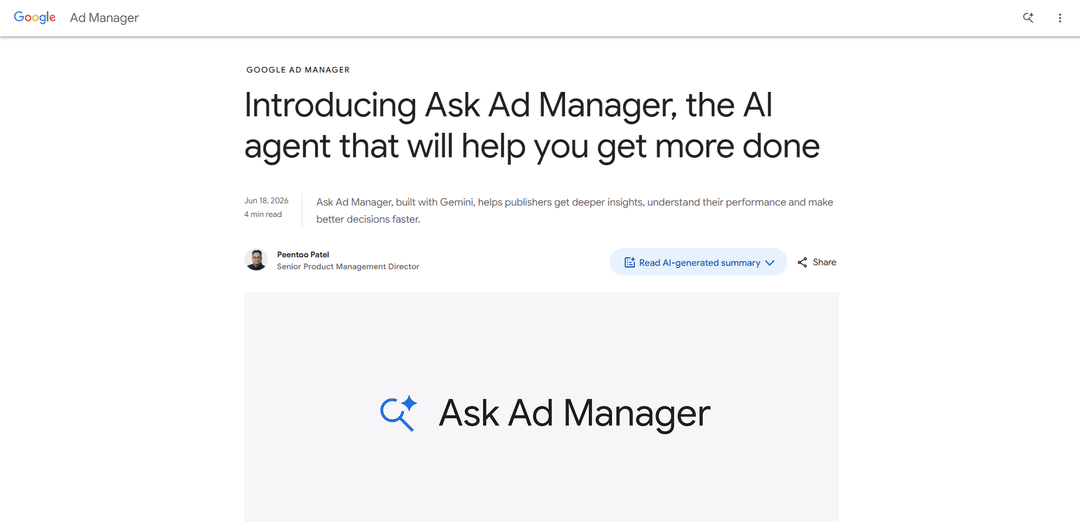
Ask Ad Manager is a Gemini-powered conversational agent inside Google Ad Manager that helps publishers troubleshoot issues in real time, generate custom performance reports from prompts, and navigate directly to the right settings using their own Ad Manager data.
https://blog.google/products/admanager/ask-ad-manager?ref=producthunt
Product Information
Updated:Jul 8, 2026
Ask Ad Manager by Google Ads Monthly Traffic Trends
Ask Ad Manager by Google Ads received 8.5m visits last month, demonstrating a Slight Decline of -12.1%. Based on our analysis, this trend aligns with typical market dynamics in the AI tools sector.
View history trafficWhat is Ask Ad Manager by Google Ads
Ask Ad Manager is Google’s new AI assistant embedded in Google Ad Manager, built with Gemini, designed specifically for publishers. It provides multi-turn, chat-based help to answer questions about inventory and performance, surface insights, and guide users to the right places in the platform. Because it’s tailored to each publisher and uses only their own Ad Manager data, it can deliver personalized recommendations and reporting while keeping publishers in control of their data. Google is rolling it out in beta, with more capabilities planned throughout the year.
Key Features of Ask Ad Manager by Google Ads
Ask Ad Manager is a Gemini-powered, multi-turn conversational AI agent embedded in Google Ad Manager that helps publishers work faster by troubleshooting delivery and setup issues in real time, generating custom performance reports and deeper insights from their own Ad Manager data, and guiding users directly to the right in-platform settings with contextual links and preloaded filters—while keeping publishers in control of what the agent can do and access.
Real-time troubleshooting assistant: Diagnoses why line items or campaigns aren’t delivering as expected and provides guided, follow-up Q&A to help unblock issues without manual report stitching.
Prompt-based custom reporting: Creates tailored reports, tables, and comparative benchmarks from natural-language prompts, reducing time spent building multiple reports and spreadsheets.
Publisher-specific insights and recommendations: Uses each publisher’s own Ad Manager data to provide personalized answers and optimization guidance rather than generic best practices.
Conversational navigation to settings: Generates strategically created links that take users to the right Ad Manager pages and loads relevant filters/settings based on conversation context.
Controlled, human-in-the-loop operation: Does not make autonomous changes; publishers retain control over which monetization features and tasks the agent is allowed to address.
Roadmap for agentic + developer integrations: Planned developer tools (including REST APIs and an MCP server) to support key trafficking workflows and enable integration into custom agents.
Use Cases of Ask Ad Manager by Google Ads
News & media publishers: Fix sudden revenue drops: Ad ops teams can ask why a line item or segment underperformed (e.g., delivery pacing, targeting, creative approvals) and get guided steps to resolve quickly.
CTV/OTT streaming: Inventory and performance diagnostics: Teams can generate prompt-based reports comparing fill rate, CPM, and delivery across devices/apps/regions to pinpoint under-monetized inventory.
Gaming apps: Rapid reporting for live events: During tournaments or seasonal events, publishers can request quick benchmarks and performance breakdowns without building complex custom reports.
E-commerce & marketplaces: Sponsored placements oversight: Operations teams can monitor campaign delivery and troubleshoot targeting/creative issues for direct-sold and programmatic demand in one workflow.
Agencies managing publisher portfolios: Faster Q&A and reporting: Agency ad ops can use natural language to pull consistent performance views and troubleshoot common delivery problems across managed accounts.
Enterprise publishers: Streamlined internal support: Instead of long email threads, internal teams can use the agent to answer “where is this setting?” or “what changed?” and jump directly to configured views.
Pros
Reduces manual effort by turning complex reporting and troubleshooting into natural-language prompts.
Contextual navigation links and preloaded filters speed up common Ad Manager workflows.
Personalized insights based on the publisher’s own data, with controls that keep users in charge.
Cons
Beta availability and capabilities may be limited or uneven at launch, with more features rolling out later.
Not fully autonomous—users must still implement changes, which may limit time savings for some workflows.
Effectiveness depends on data quality/configuration in Ad Manager; unclear or incomplete setups may reduce insight accuracy.
How to Use Ask Ad Manager by Google Ads
1) Confirm access to Ask Ad Manager (beta): Sign in to Google Ad Manager and look for the Ask Ad Manager chat experience (beta availability may roll out gradually). If you don’t see it, check with your Ad Manager admin or your Google account team about beta enablement.
2) Open Ask Ad Manager from within Google Ad Manager: From the Ad Manager UI, open the Ask Ad Manager conversational panel (the in-product chat). This is where you’ll type prompts and review generated links, reports, and guidance.
3) Start with a clear goal in your first prompt: Ask in natural language for what you need (e.g., troubleshooting, a performance report, or help finding a setting). Ask Ad Manager is multi-turn, so you can refine your request with follow-up questions.
4) Troubleshoot delivery or setup issues in real time: Describe the problem and the object you’re investigating (e.g., a specific line item or order). Example prompt: “Why isn’t line item X delivering today?” Review the diagnostic guidance, then ask follow-ups like “What changed compared to last week?” or “What should I check next?”
5) Use follow-up questions to narrow down the root cause: Iterate in the same chat thread to isolate the issue. Example follow-ups: “Is this pacing, targeting, or creative-related?” “Show me the most likely blockers.” “What’s the expected impact on revenue if this continues?”
6) Generate custom performance reports with a single prompt: Request a report/table/benchmark directly. Example prompts: “Create a report showing revenue, impressions, and eCPM by device for the last 30 days.” “Compare this week vs last week for my top 10 ad units.”
7) Refine the report by specifying filters and breakdowns: Ask for additional cuts without rebuilding reports manually. Example follow-ups: “Break that down by geography.” “Filter to only programmatic demand.” “Add viewability and fill rate columns.”
8) Ask for explanations of performance changes: Use diagnostic-style prompts to understand ‘why’ behind trends. Example prompts: “Why did performance increase yesterday?” “What inventory or demand sources drove the change?”
9) Navigate to the right place in Ad Manager via chat-generated links: Ask Ad Manager can guide you to specific settings and pages. Example prompt: “Take me to the settings for line item X” or “Where do I change targeting for this order?” Use the provided links to jump directly to the relevant UI destination.
10) Use context-aware navigation (auto-loaded filters/settings): When Ask Ad Manager provides a link, open it to view the relevant Ad Manager page with filters/settings preloaded based on your conversation context, so you can immediately see the details you asked about.
11) Turn insights into action in your workflow: After reviewing the guidance or report, proceed in Ad Manager to make the necessary changes (e.g., adjusting targeting, checking creatives, reviewing pacing). If you’re unsure, ask: “What’s the safest next change to test?”
12) Repeat for ongoing monitoring and optimization: Use Ask Ad Manager regularly to monitor key metrics, compare periods, and troubleshoot new issues quickly. Keep prompts specific (time range, objects like line items/ad units, and desired breakdowns) for faster, more actionable outputs.
Ask Ad Manager by Google Ads FAQs
Ask Ad Manager is a multi-turn, conversational AI agent in Google Ad Manager built with Gemini that helps publishers get deeper insights, understand performance, and make decisions faster using their own Ad Manager data.
Ask Ad Manager by Google Ads Video
Popular Articles

Vosko AI: Localize and Dub Videos for Global Audiences
Oct 15, 2026

Atoms: A Multi-Agent AI Platform That Transforms Ideas into Launch-Ready Products
Oct 13, 2026

Nano Banana SBTI: What It Is, How It Works, and How to Use It in 2026
Apr 15, 2026

Atoms Review — The AI Product Builder Redefining Digital Creation in 2026
Apr 10, 2026
Analytics of Ask Ad Manager by Google Ads Website
Ask Ad Manager by Google Ads Traffic & Rankings
8.5M
Monthly Visits
#8357
Global Rank
#353
Category Rank
Traffic Trends: Nov 2024-Jun 2025
Ask Ad Manager by Google Ads User Insights
00:00:53
Avg. Visit Duration
1.93
Pages Per Visit
55.03%
User Bounce Rate
Top Regions of Ask Ad Manager by Google Ads
US: 26.94%
IN: 8.76%
GB: 5.14%
JP: 4.24%
DE: 3.01%
Others: 51.91%
Latest AI Tools Similar to Ask Ad Manager by Google Ads
Bidinfluence
Bidinfluence is a cutting-edge supply-side platform (SSP) specializing in dynamic monetization through high-quality programmatic video advertising for publishers.

Omnitrain
Omnitrain is an AI-powered platform that creates high-converting social media ads in minutes without requiring design skills.
Ads Copilot
Ads Copilot is an AI-powered Chrome extension that assists marketers in planning, implementing, and optimizing ad campaigns across multiple platforms through real-time insights, report analysis, and image reading capabilities.
Fyx.ai
Fyx.ai is an AI-powered platform that enables advertisers to create virtual audiences, simulate ad campaigns, and optimize performance before real-world launch.
Popular AI Tools Like Ask Ad Manager by Google Ads
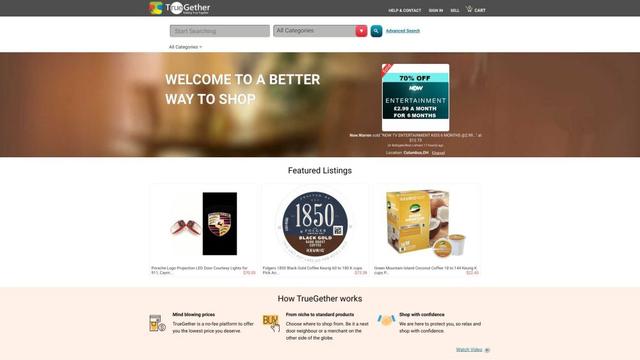
TrueGether
TrueGether is a no-fee, AI-powered e-commerce marketplace that offers buyers low prices and sellers an easy way to list products across multiple channels.
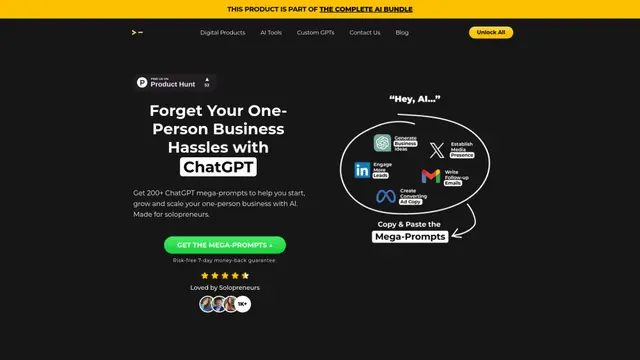
200+ ChatGPT Mega-Prompts for Solopreneurs
A curated collection of 200+ powerful ChatGPT mega-prompts designed to help solopreneurs streamline their business operations, boost productivity, and scale their ventures efficiently.
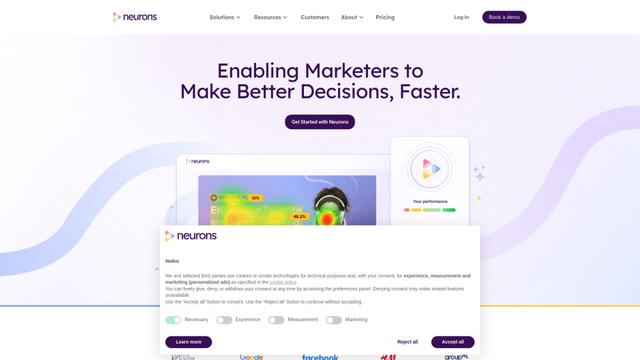
Neurons
Neurons is a consumer neuroscience company that uses AI and neuroscience to predict customer behavior and optimize marketing assets.
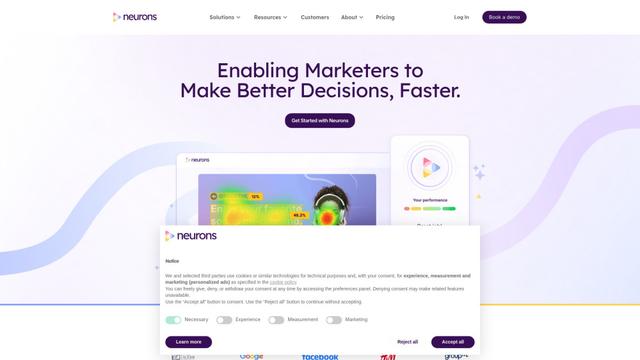
Neurons AI
Neurons AI is an AI-powered marketing tool that visualizes customer attention and provides instant feedback on visual assets to optimize advertising effectiveness.