
Clipto
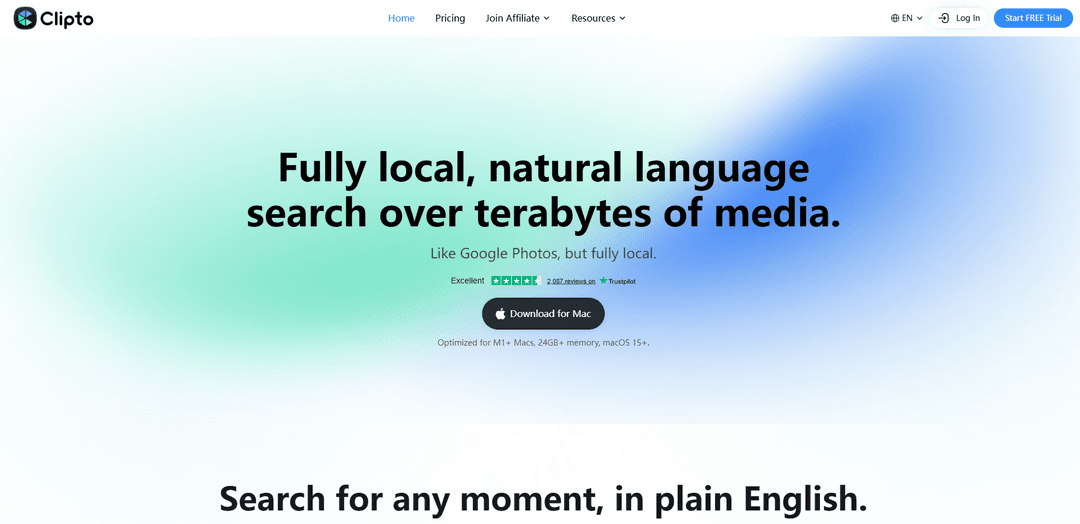
Clipto — это медиа-помощник на базе ИИ, ориентированный на конфиденциальность, который работает локально на вашем Mac для транскрибирования, автоматического тегирования и обеспечения поиска на естественном языке по терабайтам аудио и видео — по людям, диалогам, действиям и сценам.
https://clipto.com/?via=producthunt&ref=producthunt&utm_source=aipure
Информация о продукте
Обновлено:08/06/2026
Что такое Clipto
Clipto – это платформа для управления медиафайлами и транскрипции, разработанная для превращения больших библиотек аудио и видео в доступные для поиска, организованные знания. Позиционируемая как «Google Фото, но полностью локально», она помогает создателям, командам и профессионалам быстро находить конкретные моменты в отснятом материале без ручного ведения журналов файлов или перемотки временных шкал. Clipto поддерживает высокоточную транскрипцию (заявлено до 99%) на более чем 99 языках, идентификацию дикторов, сводки и экспорт в распространенных форматах (например, SRT, VTT, TXT, DOCX). Она также акцентирует внимание на хранении файлов там, где они уже находятся – в локальных папках и общих системах хранения – и интеграции в рабочие процессы редактирования, такие как Adobe Premiere.
Ключевые особенности Clipto
Clipto – это частный, преимущественно локальный инструмент управления медиафайлами и транскрибирования на основе ИИ, который превращает большие аудио/видео библиотеки в поисковый слой знаний. Он может транскрибировать записи с метками дикторов и временными метками, генерировать сводки/заметки и позволяет мгновенно находить моменты в терабайтах отснятого материала с помощью поиска на естественном языке (по людям, диалогам, действиям, сценам или описаниям) без ручной организации папок. Он также интегрируется в существующие рабочие процессы (например, Adobe Premiere) и может работать в автономном режиме, сохраняя данные локально, если вы не решите их загрузить.
Полностью локальный поиск медиафайлов на естественном языке: Ищите в локальных папках, NAS, Dropbox или Google Drive на простом английском языке и переходите к точным временным кодам – без прокрутки или ручного логирования.
Транскрибирование на основе ИИ с идентификацией диктора: Преобразует аудио/видео (и поддерживаемые ссылки, такие как YouTube) в текст с временными метками и диаризацией дикторов, чтобы сделать разговорный контент доступным для поиска и повторного использования.
Понимание людей, диалогов, действий и сцен: Находите клипы по тому, кто появляется, что было сказано, что произошло (например, "рукопожатие") или что/где показано (например, "город ночью").
Сводки и структурированные заметки: Генерирует несколько стилей сводок (краткие, подробные ключевые моменты, заметки о встречах с пунктами действий) для ускорения просмотра длинных записей.
Интеграции рабочих процессов (например, Premiere Pro): Доступ к поиску/транскрипциям внутри инструментов редактирования для быстрого поиска выбранных фрагментов и более быстрого перехода от необработанного материала к редактированию.
Обработка с приоритетом конфиденциальности, с возможностью работы в автономном режиме: Разработан для запуска ИИ на устройстве без обязательной загрузки, поддерживая конфиденциальный контент и работу в дороге без интернета.
Варианты использования Clipto
Редактирование видео и постпродакшн: Редакторы могут искать дубли по диалогам/действиям/сценам и сразу переходить к лучшим моментам, сокращая время, затрачиваемое на просмотр отснятого материала.
Маркетинговые команды и поиск активов кампаний: Команды могут быстро находить конкретные моменты бренда, появления представителей или звуковые фрагменты на разрозненных дисках и в проектах.
Встречи, интервью и анализ исследований: Транскрибируйте звонки и интервью с метками дикторов, затем запрашивайте транскрипции и генерируйте сводки/пункты действий для более быстрого синтеза.
Создатели контента и подкастеры: Превращайте длинные аудио/видеозаписи в доступные для поиска транскрипции, субтитры и многократно используемые сегменты для публикации и перепрофилирования.
Рабочие процессы для мероприятий, документальных фильмов и полевых работ: Организуйте и ищите большие архивы локально (включая автономные сценарии), чтобы быстро находить людей и моменты во время поездок или на съемочной площадке.
Преимущества
Дизайн с приоритетом конфиденциальности: обработка на устройстве без обязательной загрузки и поддержка автономной работы.
Быстрый поиск: поиск на естественном языке по людям/диалогам/действиям/сценам с точными переходами по временным кодам.
Удобство рабочего процесса: интегрируется с существующими хранилищами и инструментами (например, Premiere) вместо принудительного использования новой системы файлов.
Недостатки
Некоторые обзоры отмечают ограничения на максимальную продолжительность записи (например, до ~6 часов) в зависимости от плана/версии.
Не поддерживает функции преобразования изображения в текст/OCR (фокусируется на аудио/видео).
Бесплатная пробная версия может требовать кредитную карту, и может не быть полностью бесплатного плана (согласно сторонним обзорам).
Как использовать Clipto
1) Установите Clipto и настройте локальное индексирование: Загрузите и установите Clipto на свой компьютер. При первом запуске выберите, где хранятся ваши медиафайлы (локальные папки, внешние диски, NAS или подключенные хранилища, такие как Dropbox/Google Drive), чтобы Clipto мог понимать ваши файлы там, где они находятся, не перемещая их.
2) Добавьте источники медиафайлов (папки/диски/облачные хранилища): В Clipto добавьте папки или места хранения, содержащие ваши видео/аудио. Clipto создаст локальный слой знаний по этим местам, чтобы вы могли искать все из одного места.
3) Позвольте Clipto проанализировать вашу библиотеку (только локальная обработка): Разрешите Clipto обрабатывать ваши медиафайлы на устройстве. Он автоматически помечает и индексирует контент, чтобы его можно было искать по людям, действиям, диалогам и сценам. Это может работать даже без подключения к Интернету.
4) Ищите на простом английском языке, чтобы найти точные моменты: Используйте строку поиска, чтобы ввести то, что вы помните (например, имя человека, фразу, которую кто-то сказал, действие, такое как «рукопожатие», или сцену, такую как «город ночью»). Clipto возвращает соответствующие клипы и позволяет вам перейти непосредственно к точному таймкоду — без ручной перемотки.
5) Находите людей в своем контенте: Используйте поиск по людям, чтобы найти каждый момент, когда появляется конкретный человек. Ищите по имени (после того, как оно было помечено/распознано) и открывайте результаты, чтобы перейти к каждому появлению.
6) Находите действия и события: Ищите то, что происходит в отснятом материале (например, «празднование гола», «рукопожатие»). Clipto выводит соответствующие моменты, чтобы вы могли быстро просмотреть и выбрать нужный сегмент.
7) Ищите диалоги, чтобы найти произнесенные реплики: Ищите слова или фразы, произнесенные в ваших записях. Clipto сопоставляет диалоги и переносит вас прямо к моменту, когда они были произнесены.
8) Ищите сцены по месту, объектам или окружению: Используйте запросы в стиле сцены (например, «человек в белом», «город ночью», «интерьер офиса»), чтобы найти визуально похожие моменты в вашем архиве.
9) Используйте Clipto в своем рабочем процессе редактирования (интеграция с Premiere Pro): Если вы редактируете в Adobe Premiere Pro, включите и используйте интеграцию/плагин Clipto, чтобы вы могли получить доступ к поиску Clipto непосредственно в своем рабочем процессе редактирования и быстрее переходить к нужным моментам.
10) Продолжайте работать в автономном режиме и конфиденциально: Продолжайте использовать Clipto где угодно (в поездках/в поле/в автономном режиме). Clipto разработан для локальной обработки без загрузки, с акцентом на конфиденциальность, поэтому ваши медиафайлы остаются на вашем устройстве под вашим контролем.
Часто задаваемые вопросы о Clipto
Clipto — это инструмент, который позволяет искать аудио и видео на простом английском языке, чтобы с высокой точностью находить определенные моменты (людей, действия, диалоги, сцены).
Видео Clipto
Популярные статьи

Vosko AI: локализация и дубляж видео для мировой аудитории
Oct 15, 2026

Atoms: Мультиагентная ИИ-платформа, которая превращает идеи в готовые к запуску продукты
May 22, 2026

Nano Banana SBTI: Что это такое, как это работает и как это использовать в 2026 году
Apr 15, 2026

Обзор Atoms — AI Product Builder, переопределяющий цифровое творчество в 2026 году
Apr 10, 2026
Последние ИИ-инструменты, похожие на Clipto
Ticknotes
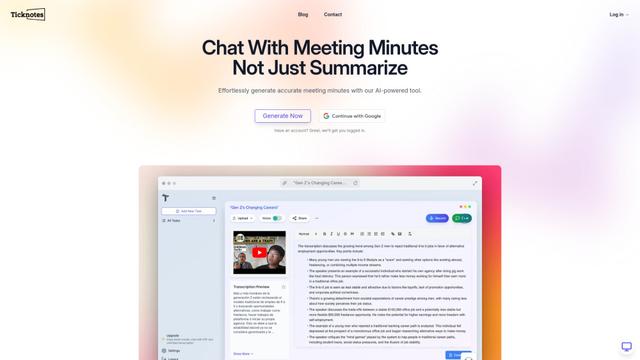
Ticknotes - это помощник для встреч на основе ИИ, который автоматически записывает, транскрибирует и генерирует персонализированные резюме встреч, действия и ключевые идеи из аудио, видео и текстового содержимого.

Feta
Feta — это ИИ-инструмент для собраний, который помогает командам по продукту и инженерии проводить эффективные собрания, записывая обсуждения, автоматизируя задачи и предоставляя практические инсайты через умные резюме и интеграции.
TranscriptionPlus
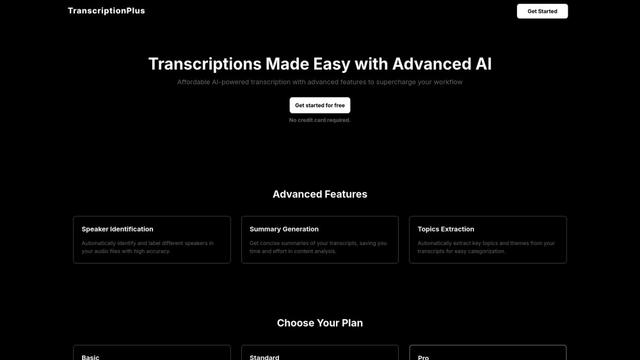
TranscriptionPlus — это услуга транскрибирования, управляемая ИИ, которая предлагает точное преобразование речи в текст с продвинутыми функциями, такими как идентификация говорящих, создание сводок и поддержка многоязычности, по доступным тарифным планам.
AudioScribe.io
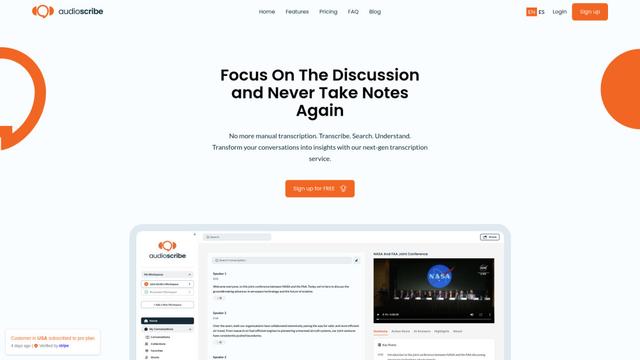
AudioScribe.io — это революционный ИИ-сервис для транскрипции, который преобразует аудио- и видео-контент в точный текст, предлагая продвинутые функции, такие как автоматическая запись встреч, полнотекстовый поиск и поддержка нескольких языков.
Популярные ИИ-инструменты, похожие на Clipto
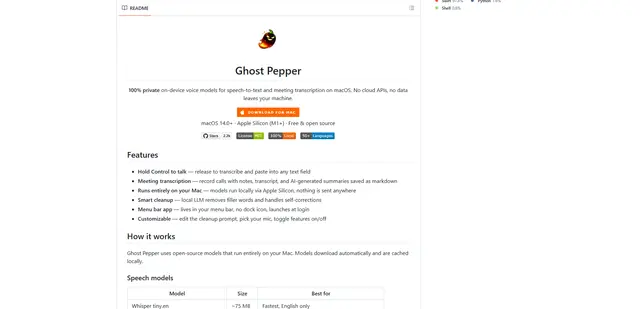
Ghost Pepper 🌶️
Ghost Pepper — это 100% локальное приложение для преобразования речи в текст и транскрипции совещаний, ориентированное на конфиденциальность, для macOS, которое работает полностью на вашем Mac с использованием AI-моделей с открытым исходным кодом, с записью с удержанием кнопки, интеллектуальной очисткой текста и многоязычной поддержкой без отправки каких-либо данных в облако.
Whisper AI
Whisper — это система автоматического распознавания речи с открытым исходным кодом от OpenAI, которая приближается к человеческой точности и устойчивости для транскрибирования и перевода речи на несколько языков.

Youtube to transcript
Youtube to Transcript — это расширение Chrome, которое позволяет пользователям легко преобразовывать видео YouTube в текстовые транскрипты с такими функциями, как поддержка нескольких языков, обобщение на основе искусственного интеллекта и загружаемые форматы.
inFin
inFin - это легкое, удобное приложение для голосовых заметок на основе ИИ, которое предлагает неограниченную запись, транскрипцию в реальном времени и перевод между китайским и английским языками, с оффлайн-возможностями и локальным хранилищем для повышения конфиденциальности.