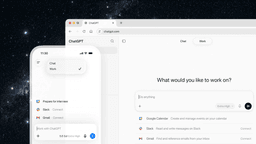
ChatGPT Work
ChatGPT Work is an agent mode inside ChatGPT that can run multi-step projects for hours, pull context from your connected apps and files, and produce finished outputs like docs, slides, sheets, and interactive Sites—while keeping you in control with approvals and enterprise governance.
https://openai.com/index/chatgpt-for-your-most-ambitious-work?ref=producthunt
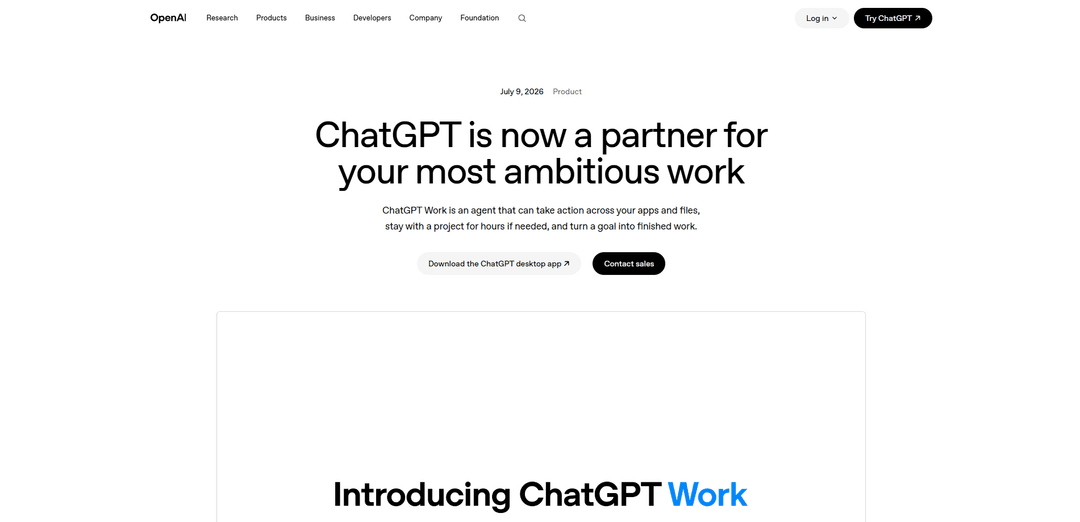
Product Information
Updated:Jul 15, 2026
ChatGPT Work Monthly Traffic Trends
ChatGPT Work received 373.8m visits last month, demonstrating a Slight Decline of -10.1%. Based on our analysis, this trend aligns with typical market dynamics in the AI tools sector.
View history trafficWhat is ChatGPT Work
ChatGPT Work is OpenAI’s productivity-focused agent within ChatGPT designed to move beyond Q&A and turn goals into completed deliverables. Powered by GPT‑5.6 and with Codex technology built in, it can gather information across your workflows—such as email, calendars, chat tools, drives, and internal systems—then synthesize that context into polished materials like spreadsheets, presentations, documents, reports, and even lightweight web apps (“Sites”). It’s built for longer, more involved work than a typical chat request, allowing you to delegate complex projects, monitor progress, answer clarifying questions, and approve important actions as it goes.
Key Features of ChatGPT Work
ChatGPT Work is an agent mode inside ChatGPT (powered by GPT‑5.6 with Codex technology built in) designed for longer, multi-step projects that produce finished outputs—not just answers. It can gather context across connected apps, files, and workflows, break complex goals into smaller steps, and work in the background for extended periods while you monitor progress, steer direction, and approve key actions. It supports creating and updating deliverables like docs, sheets, slides, reports, and interactive Sites, and can keep work moving via Scheduled Tasks that run once, on a schedule, or triggered by events, with enterprise governance controls for access, compliance, and approvals.
Agentic, long-running project execution: Stays on complex tasks for minutes to hours by decomposing goals into steps, executing independently, and returning polished deliverables while you can check status, answer questions, and redirect.
Cross-app context via plugins + “@” routing: Connects to workplace tools (e.g., Slack, Microsoft Teams, Google Drive, SharePoint, email, calendars, CRMs) and can automatically pull relevant context—or you can force a specific tool by typing “@AppName.”
Finished outputs: docs, sheets, slides, reports, and Sites: Generates and refines end products (spreadsheets, presentations, documents, analyses) and can build shareable interactive Sites (dashboards, trackers, internal portals, prototypes) that can be updated as information changes.
Scheduled Tasks for automation and monitoring: Runs actions once, on a recurring schedule, or when events occur—e.g., turning new messages into updated docs/slides, refreshing weekly agendas, or monitoring dashboards/websites and summarizing changes.
Desktop capabilities: built-in browser + Computer Use: On the desktop app, can use a built-in browser to gather web context and work in web tools, and can execute workflows across your apps by performing computer actions (clicking/typing/moving files) in the background.
Enterprise governance and safety controls: Admins can manage tool access, network/browser permissions, and sensitive actions; Compliance API provides visibility at scale; auto-review can add checks before important actions involving connected tools/APIs.
Use Cases of ChatGPT Work
Finance close & forecasting acceleration: Finds source data, moves it into Excel/Sheets, reconciles numbers, produces forecast narratives and slides, and helps teams spend more time on explaining drivers and advising leadership.
Sales account command centers & deal support: Synthesizes account activity signals from connected systems, updates account plans/next steps, and can turn discovery notes into tailored proof-of-concepts by coordinating inputs across stakeholders.
Marketing research-to-campaign production: Turns customer/market research into a campaign brief, generates multi-format assets, and adapts content for different regions/segments while maintaining consistent context end-to-end.
Operations weekly business reviews (WBR) automation: Pulls updates from tools, surfaces risks and next steps, and keeps recurring agendas and review decks current—reducing time spent chasing status across teams.
Product feedback monitoring and prioritization: Monitors incoming feedback (email, chat, dashboards), clusters recurring themes, and converts them into prioritized product ideas or roadmap inputs with supporting evidence.
Interactive internal dashboards and trackers (Sites): Builds shareable web apps such as launch calendars, project trackers, and live dashboards that can be refreshed as underlying data or connected sources change.
Pros
End-to-end outcomes: goes beyond Q&A to produce and iteratively refine finished deliverables (docs/sheets/slides/sites).
Deep workflow integration: plugins, “@” routing, built-in browser, and desktop Computer Use enable work across common enterprise tools.
Automation leverage: Scheduled Tasks reduce recurring busywork and keep artifacts continuously updated.
Governance options: admin controls, Compliance API visibility, and action review support enterprise oversight.
Cons
Usage can scale with task complexity: longer, more involved work may consume more of a plan’s included usage/credits.
Requires setup and permissions: value depends on connecting the right tools/data and granting appropriate access, which may be constrained by policy.
Autonomy needs supervision: important actions may require approvals and ongoing steering to ensure correctness and prevent unintended changes.
Availability varies by surface/plan: rollout differs across web/mobile plans, while the desktop app provides the broadest access.
How to Use ChatGPT Work
1) Confirm you have access to ChatGPT Work: On desktop, download/update the new ChatGPT desktop app (Mac/Windows) where Chat, Work, and Codex are available on every plan. On web/mobile, Work rolls out to eligible paid plans (starting with Pro, Enterprise, Edu; then Plus and Business). If you don’t see Work yet, your account may still be rolling out.
2) Open ChatGPT and switch to Work: In the ChatGPT desktop app, use the mode picker/menu and select “Work.” On web/mobile (when available), open ChatGPT and choose Work from the available modes/experience.
3) Start with a task you already know well: Pick a familiar workflow (e.g., month-end budget variance analysis, turning source materials into a campaign brief, preparing for a sales meeting). This helps you quickly evaluate quality and steer the agent effectively.
4) Describe the outcome, not just the question: Write a prompt that specifies the deliverable you want (e.g., “Create a slide deck,” “Build a spreadsheet,” “Draft a doc,” or “Create a Site/dashboard”) and include constraints like audience, format, and any templates to follow.
5) Connect your tools and context using plugins: Open the plugins directory and connect the apps where your work lives (e.g., Slack/Teams, Google Drive/SharePoint, email, calendars, CRMs, project trackers, PDFs). This lets Work gather information across your workflows to produce finished materials.
6) Pull context from a specific app with “@”: In your prompt, type “@” followed by the app name to direct Work to use or reference that source (e.g., “@Google Drive use the Q2 forecast sheet…”). ChatGPT may also suggest relevant plugins automatically.
7) Provide reference files, templates, and examples: Attach or point Work to the documents, spreadsheets, decks, or style guides you want it to follow. GPT‑5.6 is designed to better follow templates and reference files for multi-step work.
8) Let Work break the project into steps and run longer tasks: Work can stay with complex projects for hours by decomposing them into smaller steps and completing them independently. Monitor progress, and be ready to answer clarifying questions or adjust direction.
9) Review progress, steer, and approve important actions: As Work proceeds, check interim outputs, correct assumptions, and change priorities. You remain in control of what it can access, when it should check in, and when it needs approval before taking actions in connected tools.
10) Generate finished outputs (docs, sheets, slides, reports, Sites): Ask Work to produce the final artifacts you need—editable documents, spreadsheets, presentations, reports, or a Site (interactive website/web app) such as dashboards, trackers, calendars, prototypes, or internal portals.
11) Use the built-in browser for web-based research and updates (desktop): On desktop, use the built-in browser to gather fresh web context, compare sources, and refine web-based work in one place. Work can navigate pages and incorporate findings into your deliverables.
12) (Desktop) Enable Computer Use for tasks across local apps and files: If needed, grant permission for Work to use local files and desktop apps. Computer Use allows it to click, type, and move files across your apps and browser. Local files/outputs remain on that computer unless you explicitly move or share them.
13) Create a one-time Scheduled Task: Ask Work to perform an action once at a later time (e.g., “Tomorrow morning, summarize changes in these dashboards and draft a report”). You can start tasks from your phone and check status while away.
14) Create a recurring or event-triggered Scheduled Task: Set automations that repeat on a schedule or when an event occurs (e.g., weekly: review new Slack updates and refresh a meeting agenda; daily: check websites/dashboards and summarize changes; ongoing: monitor customer feedback and produce prioritized themes; when new email arrives: update a presentation).
15) Monitor tasks and check progress on the go: Use web/mobile to review drafts, check status, and keep work moving between meetings. Scheduled Tasks and longer-running Work projects can continue while you’re away, with check-ins based on your preferences.
16) Iterate and refine outputs with additional context: Ask Work to revise based on feedback, incorporate new messages/notes from connected tools, and keep artifacts current as underlying information changes (especially useful for recurring decks, trackers, and Sites).
17) Manage access, governance, and spend controls (orgs/admins): For Enterprise/Edu (and organizational setups), admins can manage who has access, which tools/plugins can be connected, browser/network access policies, and sensitive-action restrictions. Spend controls can be set in the Admin Console to manage usage as adoption grows.
ChatGPT Work FAQs
ChatGPT Work is an agent inside ChatGPT designed to help you take on more ambitious, longer-running tasks by breaking them into steps and completing them independently. It can gather information across your connected apps and workflows and produce finished outputs like sheets, slides, docs, and web apps.
ChatGPT Work Video
Popular Articles

Vosko AI: Localize and Dub Videos for Global Audiences
Oct 15, 2026

Atoms: A Multi-Agent AI Platform That Transforms Ideas into Launch-Ready Products
Oct 13, 2026

Nano Banana SBTI: What It Is, How It Works, and How to Use It in 2026
Apr 15, 2026

Atoms Review — The AI Product Builder Redefining Digital Creation in 2026
Apr 10, 2026
Analytics of ChatGPT Work Website
ChatGPT Work Traffic & Rankings
373.8M
Monthly Visits
#114
Global Rank
#3
Category Rank
Traffic Trends: Nov 2024-Oct 2025
ChatGPT Work User Insights
00:01:50
Avg. Visit Duration
2.31
Pages Per Visit
60.55%
User Bounce Rate
Top Regions of ChatGPT Work
US: 20.91%
IN: 7.6%
JP: 7.27%
BR: 4.74%
KR: 3.5%
Others: 55.98%
Latest AI Tools Similar to ChatGPT Work
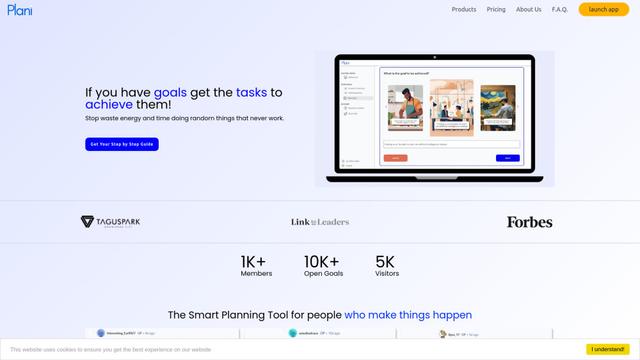
Plani.ai
Plani.ai is an AI-powered business planning tool that generates customized strategies, tasks, and actionable plans to help entrepreneurs, startups, and small businesses achieve their business goals.
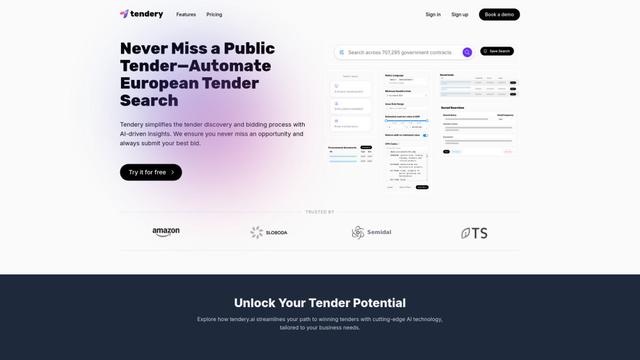
Tendery.ai
Tendery.ai is an AI-powered platform that transforms EU public procurement by providing automated tender discovery, intelligent matching, and enhanced proposal creation capabilities.
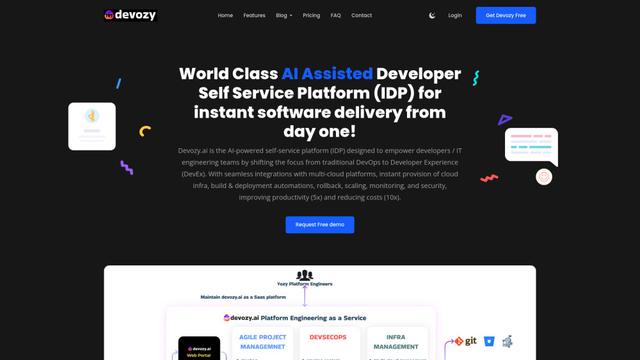
Devozy.ai
Devozy.ai is an AI-powered developer self-service platform that combines Agile project management, DevSecOps, multi-cloud infrastructure management, and IT service management into a unified solution for accelerating software delivery.
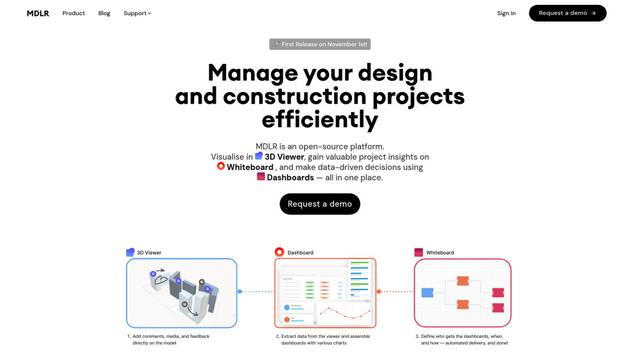
MDLR
MDLR is an open-source AI-powered platform that streamlines design and construction project management through integrated 3D viewing, real-time dashboards, and interactive whiteboards.
Popular AI Tools Like ChatGPT Work
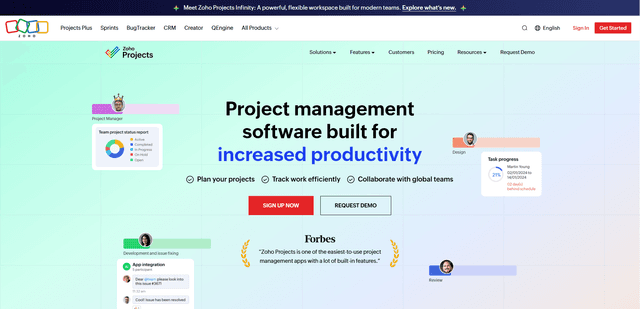
Zoho Projects
Zoho Projects is a cloud-based project management software that helps teams plan, track, and collaborate on projects with features like Gantt charts, task automation, time tracking, and comprehensive reporting tools.
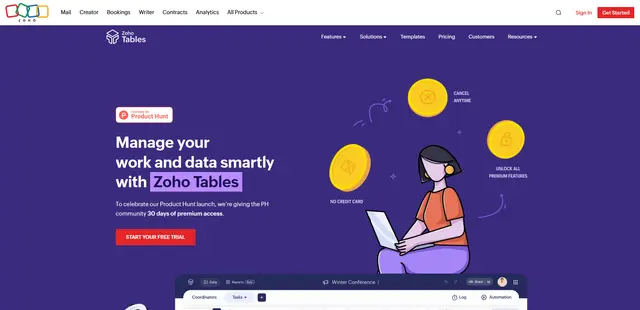
Zoho Tables
Zoho Tables is a modern spreadsheet-database hybrid that helps teams organize data with relational links, build views and dashboards, collaborate in real time, and automate workflows with no-code and AI assistance.
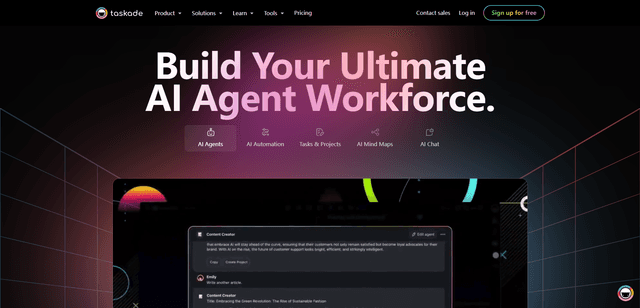
Taskade
Taskade is an AI-powered productivity platform that combines task management, real-time collaboration, and AI automation in one unified workspace for teams and individuals.
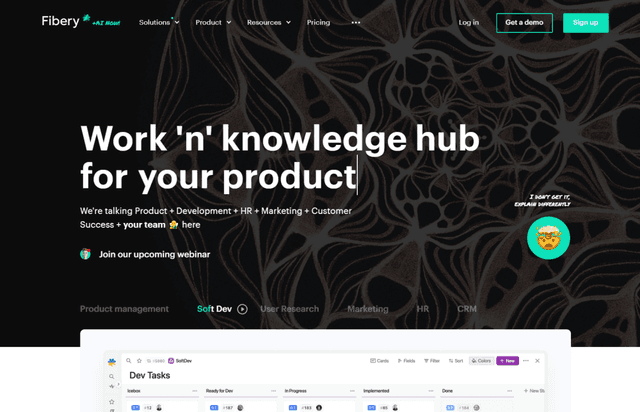
Fibery
Fibery is a product discovery and development platform that integrates AI to help teams analyze user feedback, manage projects, and prioritize features.