
Branda
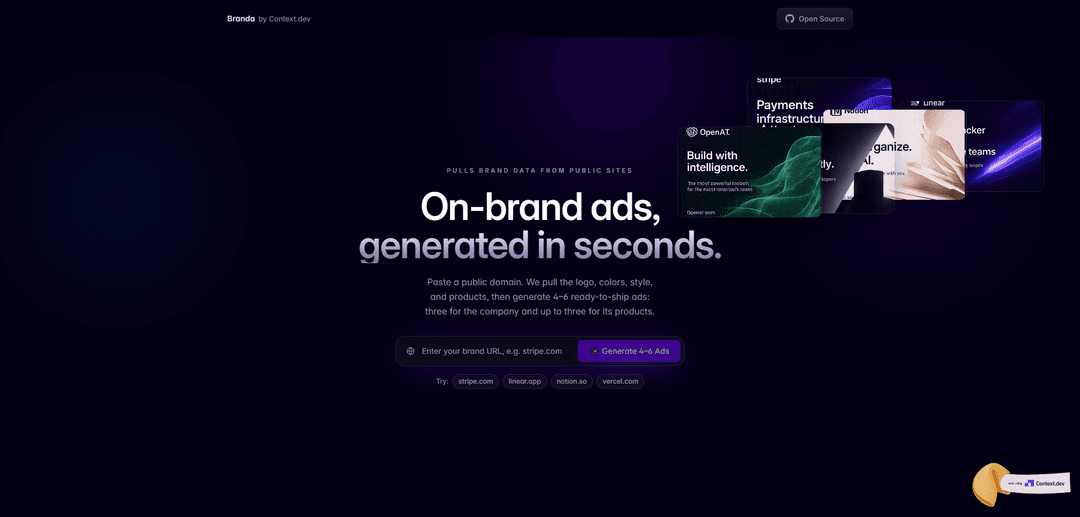
Branda is an AI branding platform that turns a one-sentence idea into a complete brand kit—strategy, name, logo, color palette, typography, and ready-to-use guidelines—within minutes.
https://creative.context.dev/?ref=producthunt
Product Information
Updated:Jul 16, 2026
What is Branda
Branda is a product designed to help founders and small teams create a cohesive brand identity quickly without needing a full agency process. It combines brand strategy and visual identity generation in a single workflow, producing practical outputs like a name, logo, palette, type choices, and a consolidated brand kit you can use across product, marketing, and launch assets. Positioned as a fast, accessible way to get from “idea” to “identity,” Branda is geared toward exploration and lightweight consistency rather than a complex, long-term design system.
Key Features of Branda
Branda is primarily a WordPress white-labeling and branding plugin (by WPMU DEV) that lets site owners and agencies rebrand key WordPress surfaces—login, admin/dashboard, system pages, and emails—so the experience looks and feels like their own product or a client’s brand. It provides modular controls for customizing visuals (logos/backgrounds), UI elements, help content, widgets, and email templates, with documented configuration guidance and free/pro tiers oriented toward fast setup and agency workflows.
White-label WordPress admin & UI: Remove or replace WordPress branding across the dashboard and other admin areas to present a fully client-branded experience.
Custom Login/Registration/Reset screens: Customize the default WordPress login screen (and related registration/password reset screens) using templates or custom designs, including logo and background controls.
Branded system & SMTP-style emails: Change the look and content of WordPress-generated emails by selecting templates and editing copy to match brand tone and identity.
Maintenance & error page branding: Create branded maintenance pages and customize error experiences (e.g., DB error pages), with options to copy settings from other Branda modules for consistency.
Help Content module for admin guidance: Add custom help tips and onboarding content inside the WordPress admin, including media, links, and lists—useful for client handoff and support reduction.
Widget visibility & dashboard customization: Adjust which dashboard widgets appear and tailor the admin dashboard layout to better fit team workflows or client reporting needs.
Use Cases of Branda
Agencies delivering white-labeled client sites: Rebrand the WordPress backend and login experience so clients see the agency’s or client’s identity, improving perceived polish and professionalism.
SaaS-like WordPress products and portals: Turn WordPress into a branded application experience by removing WordPress references and customizing admin UX, login, and emails.
Enterprise or franchise networks standardizing branding: Apply consistent login, email, and dashboard branding across multiple sites in a network to maintain uniform identity and governance.
Client onboarding and support reduction: Embed tailored admin help content and simplify the dashboard UI to guide non-technical users and reduce support tickets.
Marketing and communications consistency: Ensure all automated WordPress emails (notifications, password resets, etc.) match brand templates and messaging for a cohesive customer experience.
Pros
Broad coverage of WordPress rebranding (login, admin, emails, pages) via modular features.
Useful for agencies: speeds up client handoff with branded UI and embedded help content.
Documented feature set and available free version, lowering adoption friction.
Cons
Best fit is WordPress-specific; limited value if you don’t need white-labeling or admin UX customization.
Some users may dislike contextual promotions in the free version (as noted in reviews).
Advanced workflows (e.g., SMTP logs, client reporting/portal) may require the Pro tier.
How to Use Branda
1. Install and activate Branda: In your WordPress admin, go to Plugins → Add New, search for “Branda”, click Install Now, then Activate. If you’re using WPMU DEV hosting, Branda may already be available in your plugin list.
2. Open Branda and review available modules: Go to Branda in the WordPress admin menu. Branda is organized into modules (e.g., Login Screen, Emails, SMTP, Maintenance/Coming Soon, Dashboard Widgets). Each module can be activated and configured independently.
3. Customize the WordPress login screen: In Branda → Login Screen, click Activate. Choose a WPMU DEV template or start from scratch, then set your logo, background, colors, and layout options. Save changes and preview the login page to confirm the new branding.
4. Enable Maintenance Mode or Coming Soon mode: In Branda, open the Maintenance/Coming Soon module and activate it. Select whether you want a maintenance page (for temporary downtime) or a coming soon page (for pre-launch). Configure the page content and visibility rules, then save and test by viewing your site in an incognito window.
5. Configure SMTP for reliable email delivery: Open Branda → Emails/SMTP module and enable SMTP. Enter the Sender email address and set the SMTP Authentication username to the same email account. Add the SMTP host, port, encryption, and password. If your provider requires an app password, generate one (e.g., choose “Other (Custom name)” in your provider’s app-password flow), then paste the generated code into the SMTP password field. Save and send a test email if available.
6. Customize WordPress system email styling: In Branda’s email module, choose an email template (or create your own), then adjust header, colors, typography, and message text to match your brand. Save changes and verify by triggering a WordPress email (e.g., password reset) to confirm formatting.
7. White-label the WordPress admin experience: Use Branda’s branding/white-label modules to replace or hide WordPress/WPMU DEV branding in the admin area where supported. Apply your site/company name, icons, and labels as needed, then save and review the admin UI for consistency.
8. Adjust dashboard widgets for a cleaner admin: Open the Dashboard Widgets module (listed under widgets in Branda), then choose which widgets to show/hide and optionally reorder or tailor what users see on login. Save and confirm by reloading the WordPress Dashboard.
9. Control access by user roles (advanced): If you need to keep sensitive settings away from certain users, use Branda’s role-related controls (where available) to limit what different roles can access. Apply changes carefully and test with a non-admin account to ensure you didn’t block required capabilities.
10. Validate changes across the site and keep Branda updated: After configuring modules, test key flows: login, password reset emails, site front-end (maintenance/coming soon), and admin dashboard. Keep Branda updated via Plugins → Installed Plugins, and periodically re-check settings after WordPress theme/plugin changes.
Branda FAQs
Reach out via the contact form and share your idea. Branda will book an intro call so you can explain what you need and see if it’s a good fit.
Popular Articles

Vosko AI: Localize and Dub Videos for Global Audiences
Oct 15, 2026

Atoms: A Multi-Agent AI Platform That Transforms Ideas into Launch-Ready Products
Oct 13, 2026

Nano Banana SBTI: What It Is, How It Works, and How to Use It in 2026
Apr 15, 2026

Atoms Review — The AI Product Builder Redefining Digital Creation in 2026
Apr 10, 2026
Latest AI Tools Similar to Branda

Adlas
Adlas is a streamlined platform that automates the creation of tailor-made ad creatives for Google Ads campaigns while providing comprehensive campaign management capabilities.
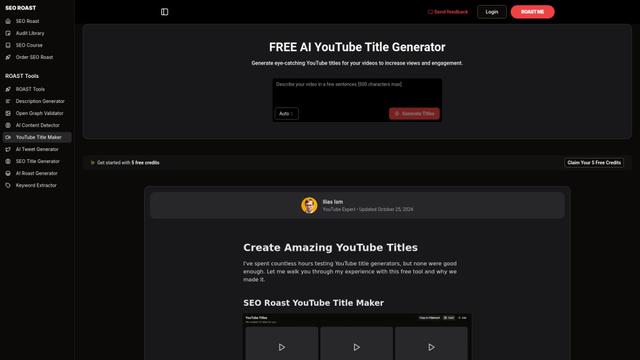
YouTube Title Generator
A free AI-powered tool that generates engaging, SEO-optimized YouTube video titles by analyzing trends, keywords, and competitor strategies to help content creators maximize their video visibility and click-through rates.
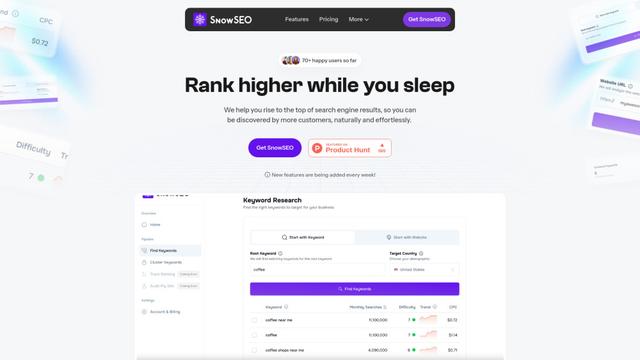
SnowSEO
SnowSEO is an all-in-one SEO platform that helps websites rank higher in search results by providing keyword research, clustering, rank tracking and optimization tools in an intuitive interface.
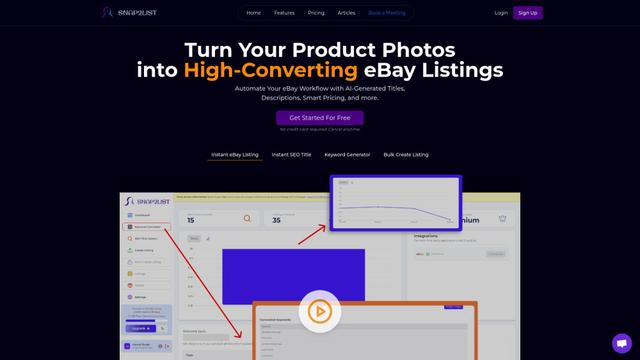
Snap2List
Snap2List is an AI-powered automation platform that helps sellers create optimized eBay listings by automatically generating titles, descriptions, and smart pricing from photos.
Popular AI Tools Like Branda

Jogg.ai
Jogg.ai is an AI-powered video ad generator that creates engaging video content from URLs using rich templates, diverse AI avatars, and fast response times.
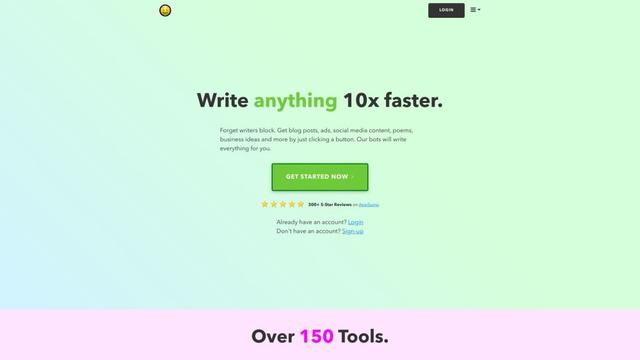
nichesss
Nichesss is an AI-powered content generation tool that creates blog posts, ads, social media content, business ideas and more in seconds.

AutoAE: Viral Hooks & YouTube Video Online Generator
AutoAE is an AI-powered online video creation platform that helps creators easily make viral hooks and engaging content for YouTube and social media.
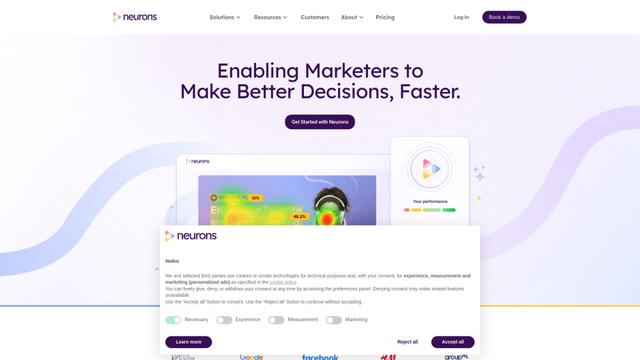
Neurons
Neurons is a consumer neuroscience company that uses AI and neuroscience to predict customer behavior and optimize marketing assets.