
AgentGrid
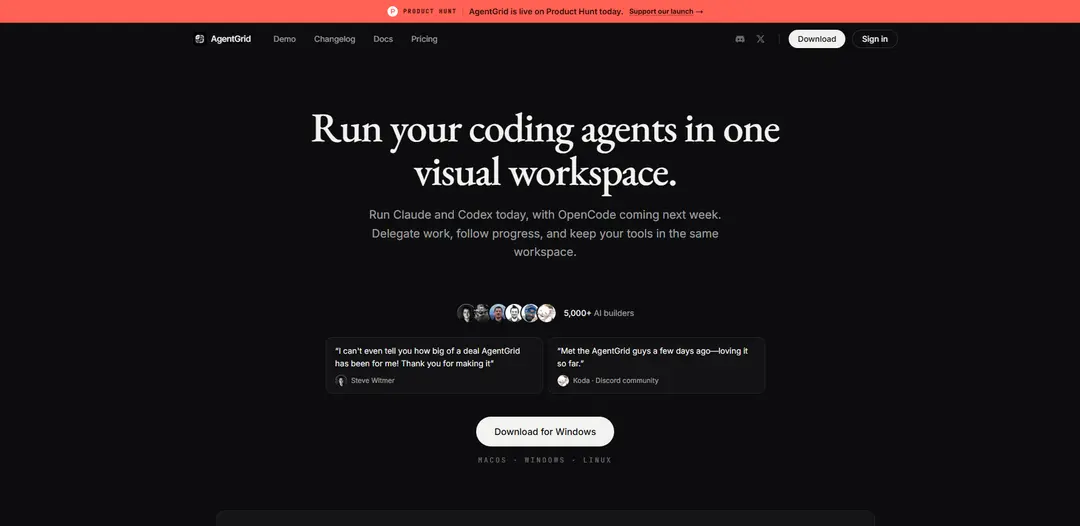
AgentGrid is an infinite-canvas workspace that lets you run multiple coding agents (Claude, Codex, and soon OpenCode) alongside terminals, VS Code, git, browsers, and notes—with persistent sessions, usage/limit visibility, and easy agent handoffs.
https://agentgrid.sh/?ref=producthunt
Product Information
Updated:Aug 8, 2026
What is AgentGrid
AgentGrid is a visual, project-based workspace designed to manage modern AI-assisted software development in one place. Instead of juggling separate tabs and tools, you organize everything—AI agent chats, real shell terminals, a code editor, source control, browsers, and notes—as panes on an infinite canvas you can pan, zoom, and rearrange. It runs on macOS, Windows, and Linux, and emphasizes a “smart workspace” where agents can see relevant context across the canvas, making it easier to delegate work and track progress.
Key Features of AgentGrid
AgentGrid is an infinite-canvas workspace for running and coordinating multiple AI coding agents (e.g., Claude and Codex) alongside real developer tools—terminal, code editor, Git, browser/DevTools, and notes—in a single persistent project layout. It’s designed to make agent delegation, progress tracking, and handoffs visible and low-friction, with sessions that restore after restarts, shared context across panes, and built-in awareness of provider usage limits so teams can switch agents and keep work moving.
Infinite canvas workspace: Organize a project as movable panes on an infinite canvas—pan/zoom, search, and use a minimap—so agents, terminals, notes, Git, and browsers stay visible and spatially structured.
Multi-agent side-by-side execution: Run multiple coding agents (Claude and Codex today, with additional agents planned) in parallel in the same project, enabling comparison, redundancy, and faster iteration.
Delegation and orchestration: Assign work to worker agents, keep every conversation visible, review full threads, and send follow-ups directly—supporting a plan → implement → review loop.
Persistent sessions and restart recovery: Automatically reopen the workspace after restarts/updates, saving sessions to disk (e.g., in a project folder) so you can resume agents and context mid-task.
Smart shared context across panes: Agents can reference the broader workspace—not only their own chat—by reading notes, terminal output, and other visible panes to reduce copy/paste and improve handoffs.
Integrated developer tooling: Use a real terminal session plus Git staging/diff/branch/history and a browser with DevTools next to agents, keeping the full development workflow in one place.
Use Cases of AgentGrid
Software feature delivery with parallel agents: A lead developer delegates implementation, tests, and refactors to different agents while reviewing diffs and terminal output in the same canvas to ship faster.
Agent handoff when provider limits hit: When one provider reaches a usage/session limit, open another agent in the same project and continue using the visible workspace context without rebuilding prompts.
Code review and release preparation: Use the Git pane to inspect diffs and history while an agent reviews changes, suggests fixes, and helps prepare a clean release workflow in one workspace.
Cross-device continuity for developers on the move: Start a project on desktop and continue on mobile with the same project and layout, useful for on-call debugging or quick follow-ups away from a workstation.
AI-assisted debugging with full tool context: Run repro steps in terminal and browser DevTools while an agent watches outputs and iterates on fixes, reducing context switching and speeding diagnosis.
Pros
Unifies agents and real dev tools in one visual workspace, reducing context switching.
Strong support for multi-agent delegation and transparent progress via visible conversations.
Persistence and restart recovery reduce lost work and make long-running tasks practical.
Provider usage visibility and agent switching helps keep work unblocked.
Cons
Effectiveness depends on supported agent/providers; gaps can limit workflows until integrations arrive.
Multi-pane, multi-agent canvases can introduce coordination overhead for small/simple tasks.
Cross-device/mobile and advanced orchestration features may require learning new workflow habits.
How to Use AgentGrid
1) Install and open AgentGrid: Download AgentGrid for your OS (macOS/Windows/Linux) from https://agentgrid.sh and launch the app.
2) Create a project workspace (a canvas): Create a new workspace for your project. AgentGrid uses one visual workspace per project where you can pan/zoom and arrange panes.
3) Create a new space/tab for the project: Use ⌘T to create a new space. Each space acts like a project workspace tab with its own layout.
4) Arrange your workspace on the infinite canvas: Pan and zoom to position panes. Use the minimap to navigate and use undo close if you accidentally close a pane.
5) Launch an AI coding agent (Claude or Codex): Start an agent pane on the canvas. Use keyboard shortcuts like ⌘1–9 to launch agents quickly (e.g., Claude or Codex).
6) Run multiple agents side-by-side: Open Claude and Codex in separate panes to compare approaches or split work. AgentGrid supports running them in the same project workspace.
7) Add developer tool panes next to your agents: Open the built-in panes you need beside the agent: a real terminal session, VS Code, a Git pane (stage/diff/commit), and Chromium with DevTools.
8) Use search to find anything on the canvas: Press ⌘F to search within your workspace so you can quickly jump to panes, notes, or relevant content.
9) Use the smart workspace context (agents can see the whole canvas): Keep notes, plans, and terminal output visible on the canvas. Agents can read notes, terminal output, and other panes—not just their own chat—so you can hand off work without copy-paste.
10) Delegate work using orchestration: Use a master agent (or your main agent pane) to split tasks and delegate to worker agents. Keep every worker visible, read full worker conversations, and send follow-ups directly from the canvas.
11) Follow an agentic SDLC loop (Plan → Implement → Review): Plan in a note or master conversation, delegate implementation to visible worker agents, then inspect results (e.g., diffs in the Git pane) and either approve or send follow-ups.
12) Monitor provider usage and limits: Open the usage indicator/panel to see each provider’s current limit, reset times, and low-usage warnings so you can avoid interruptions.
13) If you hit a provider limit, switch agents and continue: When Claude (or another provider) reaches a usage/session limit, open another agent in the same project, point it at the visible work on the canvas, and continue from where you left off.
14) Save and persist your workspace: Enable/keep persistence so everything reopens after restarts. AgentGrid saves sessions to disk in a .agent-grid folder so you can resume agents mid-task after an OS update or reboot.
15) Restart and resume without losing work: After restarting your computer or AgentGrid, reopen the same project. Your canvas layout and panes should restore so you can continue immediately.
16) Use voice mode to call an agent (optional): Start a live call from an agent pane to talk through the work while the agent continues in the same development conversation and context.
17) Continue on mobile with shared projects (optional): Use the cross-device/mobile beta to open the same shared project on desktop and iPhone/Android with the same canvas layout.
AgentGrid FAQs
AgentGrid is an “infinite canvas” visual workspace for running and managing coding agents (like Claude and Codex) alongside developer tools (terminal, code editor, git, browser, notes) in a single persistent project workspace.
AgentGrid Video
Popular Articles

Vosko AI: Localize and Dub Videos for Global Audiences
Oct 15, 2026

Atoms: A Multi-Agent AI Platform That Transforms Ideas into Launch-Ready Products
Oct 13, 2026

Nano Banana SBTI: What It Is, How It Works, and How to Use It in 2026
Apr 15, 2026

Atoms Review — The AI Product Builder Redefining Digital Creation in 2026
Apr 10, 2026
Latest AI Tools Similar to AgentGrid
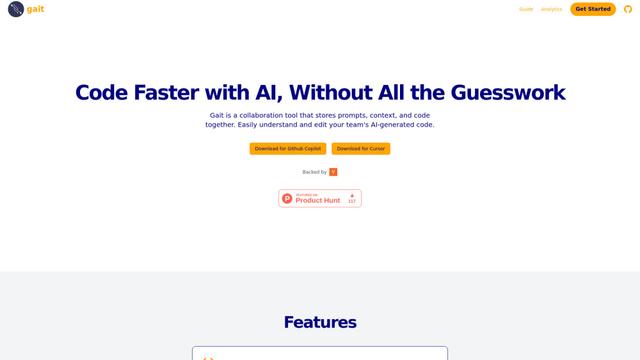
Gait
Gait is a collaboration tool that integrates AI-assisted code generation with version control, enabling teams to track, understand, and share AI-generated code context efficiently.
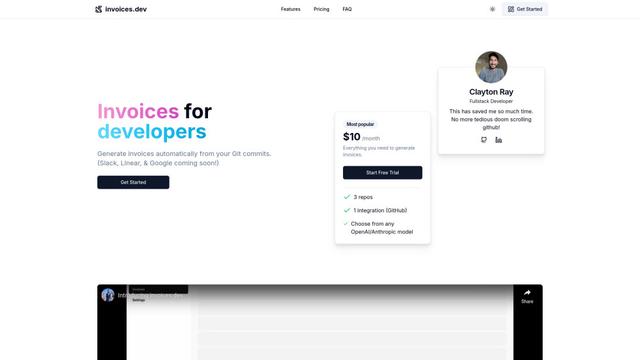
invoices.dev
invoices.dev is an automated invoicing platform that generates invoices directly from developers' Git commits, with integration capabilities for GitHub, Slack, Linear, and Google services.
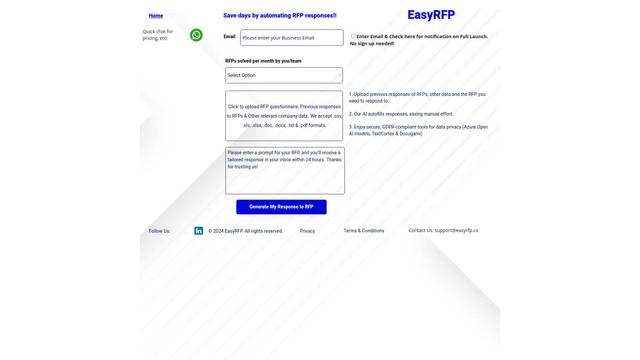
EasyRFP
EasyRFP is an AI-powered edge computing toolkit that streamlines RFP (Request for Proposal) responses and enables real-time field phenotyping through deep learning technology.

Cart.ai
Cart.ai is an AI-powered service platform that provides comprehensive business automation solutions including coding, customer relations management, video editing, e-commerce setup, and custom AI development with 24/7 support.
Popular AI Tools Like AgentGrid

GitHub Copilot Chat
GitHub Copilot Chat is an AI-powered coding assistant that provides natural language interactions, real-time code suggestions, and contextual support directly within supported IDEs and GitHub.com.
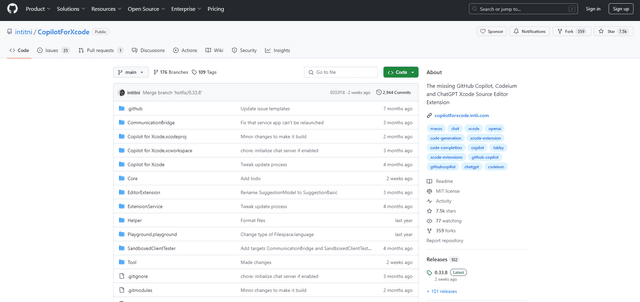
CopilotForXcode
CopilotForXcode is an Xcode Source Editor Extension that integrates GitHub Copilot, Codeium, and ChatGPT to provide AI-powered code suggestions, chat assistance, and prompt-to-code functionality within Xcode.

BrowserAI
BrowserAI is an open-source library that enables running local Large Language Models (LLMs) directly in web browsers with WebGPU acceleration, offering privacy-focused AI capabilities without requiring server infrastructure.
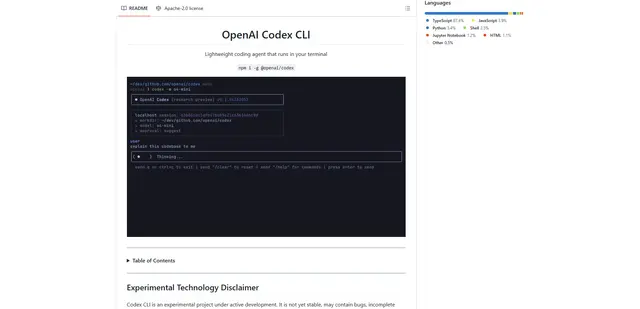
OpenAI Codex CLI
OpenAI Codex CLI is a lightweight, open-source coding agent that runs in your terminal, enabling developers to translate natural language into code execution while providing ChatGPT-level reasoning with the ability to run code, manipulate files, and iterate under version control.