
Wondershare Repairit
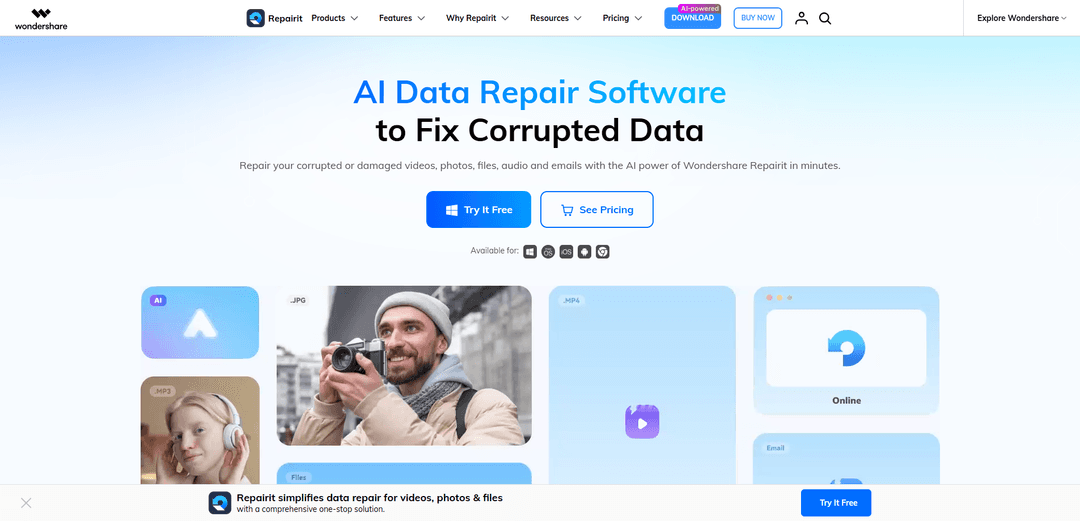
Wondershare Repairit 是一款 AI 驱动的数据修复工具,可快速修复设备上损坏或受损的视频、照片、音频、文档和其他文件。
https://repairit.wondershare.com/?utm_source=aipure
产品信息
更新于:2026年06月18日
什么是 Wondershare Repairit
Wondershare Repairit 是一款智能数据修复解决方案,旨在修复和增强您最重要的数字资产。它使用 AI 驱动的模型修复损坏或受损的视频、照片、音频、文档、ZIP 档案和其他文件,在保留原始内容的同时恢复质量。您可以修复各种格式和设备的文件,运行批量修复,在导出前预览结果,并为严重受损的媒体选择快速修复和高级修复模式。提供在线和桌面计划,包括 AI 照片修复、着色和增强功能,付费订阅起价约为每月 9.99 美元,并提供灵活的按使用量付费选项。
Wondershare Repairit 的主要功能
Wondershare Repairit 是一款由 AI 驱动的数据修复和增强工具,适用于 Windows 和 macOS,可修复损坏的视频、照片、文档、音频以及某些电子邮件/文件类型。它支持拖放导入、批量修复和保存前预览工作流程,并包含一个高级修复模式,可使用同一设备拍摄的健康样本文件修复严重损坏的视频。除了修复,它还提供 AI 增强实用程序(例如,视频放大/降噪、照片锐化/色彩改善、去噪、旧照片修复、着色和生成填充/扩展)以在恢复后提高媒体质量。
跨媒体和文档的一体化修复: 在一个工具包中修复损坏的视频、照片、文档(例如,PDF、Word/Excel/PowerPoint)和音频,以恢复可用性并减少因崩溃、传输中断或存储问题导致的数据丢失。
拖放工作流程的批量修复: 通过浏览或拖放一次添加多个损坏的文件,并批量修复它们,从而在处理大量恢复任务时节省时间。
保存前预览: 在导出之前预览修复后的输出,以便您可以验证质量并仅将成功的修复保存到选定的位置。
带样本文件重建的高级视频修复: 对于严重损坏的视频,高级修复会分析来自同一设备/设置的健康样本视频,以更有效地重建和恢复损坏的素材。
广泛的格式和设备兼容性: 支持许多主流和专业级格式(例如,MP4、MOV、AVI、MKV、MTS/M2TS 等),包括高分辨率工作流程(桌面高达 8K),适用于使用相机、无人机、手机和存储卡工作的创作者。
AI 增强和修复工具: 包括 AI 视频增强器(放大和降噪)和 AI 照片增强器功能,如去噪、锐化/色彩增强、旧照片修复、黑白着色和生成填充/扩展,以提高最终质量。
Wondershare Repairit 的使用场景
内容创作和后期制作恢复: 恢复无法播放或有故障的相机/无人机素材(黑屏、卡顿、同步问题、音频缺失),并在录制、编辑或转换过程中损坏后选择性地增强以进行交付。
摄影和档案修复: 修复相机/手机中损坏的图像文件,并使用旧照片修复、去噪和着色来恢复老旧或劣化的照片,用于个人档案或客户工作。
业务和办公文档连续性: 修复崩溃或中断传输后损坏的 PDF、DOCX、XLSX、PPTX、CSV/TXT,以避免返工并保护关键业务文档。
IT 支持和事件响应: 使用批量修复和预览工作流程快速分类和恢复因断电、系统错误、更新失败或存储设备问题导致的用户文件损坏。
工程/设计文件恢复: 修复损坏的项目资产(例如,PSD/AI 和某些提及的工程相关格式,如 SKP/SKB/DXF),以便在文件变得不可读时保持生产的进行。
数据恢复后续(“恢复后损坏”): 修复恢复尝试后(例如,从故障驱动器或存储卡)仍然无法使用的文件,通过重建文件结构使恢复的项目能够正常打开。
优点
简单、引导式工作流程(添加 → 修复 → 预览 → 保存),具有直观的用户界面,适合非专业人士
批量处理和广泛的格式支持提高了多文件修复任务的效率
使用样本文件的高级视频修复可以改善严重视频损坏的结果
除了基本修复之外,还包括 AI 增强工具(视频放大/降噪;照片修复/着色)
缺点
在线修复有大小限制(通常引用的限制如小于 3GB),因此大型或高比特率文件可能需要桌面应用程序
严重损坏的视频可能需要来自同一设备/设置的匹配样本文件,以最大限度地提高修复成功率
并非所有文件都可以修复;处理后不成功的文件可能无法导出
如何使用 Wondershare Repairit
步骤 1:安装或打开 Wondershare Repairit: 访问 https://repairit.wondershare.com/ 下载并安装桌面应用程序(Windows/Mac),如果您不想安装软件,也可以在浏览器中打开在线 Repairit 工具。
步骤 2:选择您需要的修复/增强功能: 从主界面/侧边栏中,选择与您的文件/任务匹配的模块(例如,视频修复、照片修复、文件/文档修复、音频修复、电子邮件修复,或 AI 工具,如 AI 视频增强器/AI 照片增强器/旧照片修复/AI 照片着色器/照片生成填充/AI 照片橡皮擦)。对于 Windows 上的照片修复,请转到“更多类型修复”>“照片修复”。
步骤 3:添加损坏的文件(或要增强的媒体): 点击“添加”/“选择文件”(或拖放)以导入一个或多个损坏的文件。Repairit 支持批量处理,因此您可以一次添加多个文件。
步骤 4:开始修复(或 AI 增强)过程: 点击“修复”/“开始”以启动。Repairit 将扫描并尝试修复文件结构并恢复可播放/可查看的内容;AI 模块将运行增强/恢复过程并显示进度。
步骤 5:如果需要,使用高级/专业修复(针对严重的视频损坏): 如果快速修复失败或结果不完整,请使用“高级修复”(和/或“专业模式”,如果可用)来处理严重损坏的视频、RAW/HDR/LOG 素材、高级编解码器和 4K+ 视频,以提高兼容性和输出质量。
步骤 6:预览修复/增强结果: 在 Repairit 中预览输出以在导出前确认质量。(某些模块/版本可能会限制试用版中的完整预览/导出。)
步骤 7:保存/导出修复的文件: 点击“保存”或“全部保存”,然后选择一个目标文件夹将修复/增强的文件导出到您的计算机。
步骤 8:如果修复仍然失败,请收集日志并联系支持: 如果 Repairit 无法修复文件(或缺少/失败“自动修复”选项),请收集 Repairit 日志文件和有问题的文件,然后将其发送给 Wondershare 支持以获得进一步帮助。
Wondershare Repairit 常见问题
Wondershare Repairit可以修复损坏的视频、照片、文件/文档、音频和电子邮件。




与 Wondershare Repairit 类似的最新 AI 工具

AiSource
AiSource是一个统一平台,允许用户在一个地方使用多个领先的AI文本到图像生成器生成和比较图像,而无需单独订阅。
SampleFaces
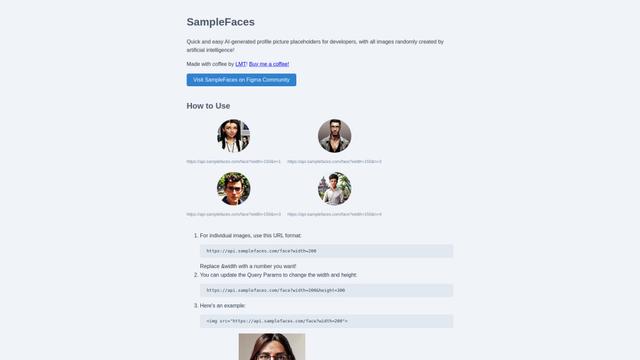
SampleFaces 是一个免费的网络服务,为开发者和设计师提供AI生成的头像,用于在他们的项目中作为占位符。
ImageKit.io
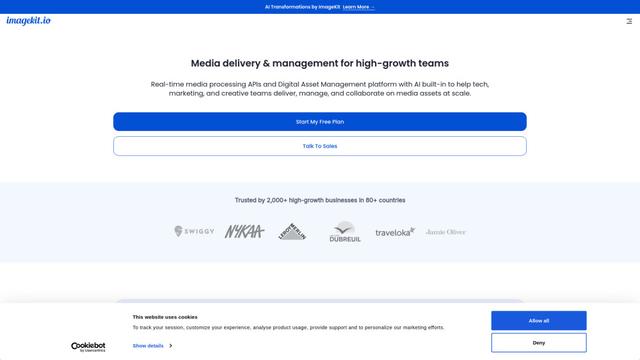
ImageKit.io is a comprehensive media management and delivery platform that provides real-time image and video optimization, processing APIs, and Digital Asset Management (DAM) solutions for delivering high-quality visual experiences on websites and apps.

FASHN
FASHN是一家自筹资金的AI优先公司,开发了专为时尚行业量身定制的尖端虚拟试穿技术和基于图像的生成模型。
类似 Wondershare Repairit 的热门 AI 工具
ChatGPT Images(GPT Image 1.5)
FreemiumAI Photo & Image Generator
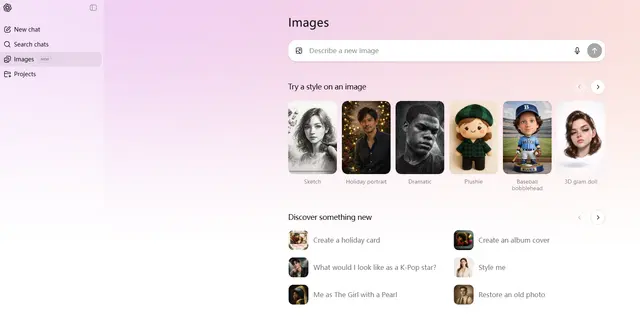
ChatGPT Images由GPT Image 1.5提供支持,是OpenAI的旗舰图像生成模型,它提供4倍更快的处理速度、更强的指令遵循能力、精确的编辑功能以及增强的细节保留能力,用于创建和编辑高质量的AI生成图像。
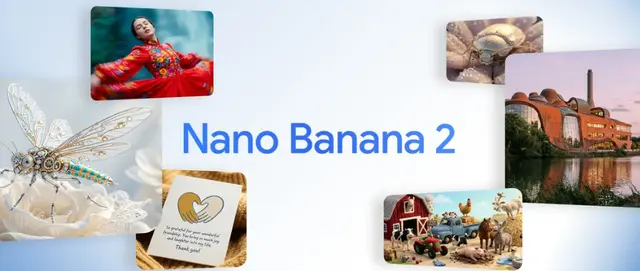
Nano Banana 2 (Gemini 3.1 Flash Image) - Official
FreemiumAI Photo & Image Generator
Nano Banana 2(Gemini 3.1 Flash Image)是 Google 最新的最先进的图像生成模型,它将 Pro 级质量与 Flash 速度性能相结合,提供增强的视觉保真度、真实世界知识集成和高级编辑功能。
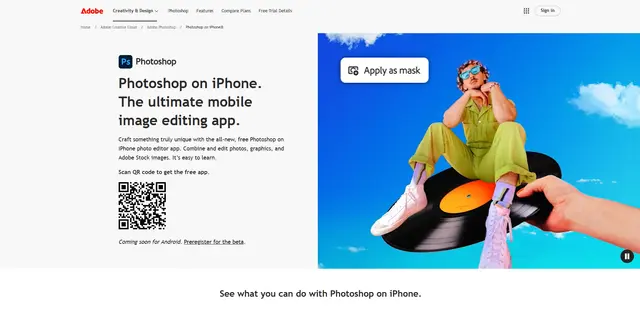
Adobe Photoshop App
Adobe Photoshop App 是一款免费、功能强大的移动照片编辑器,允许用户使用针对触摸设备优化的专业级工具和 AI 功能来组合和编辑照片、图形和 Adobe Stock 图像。
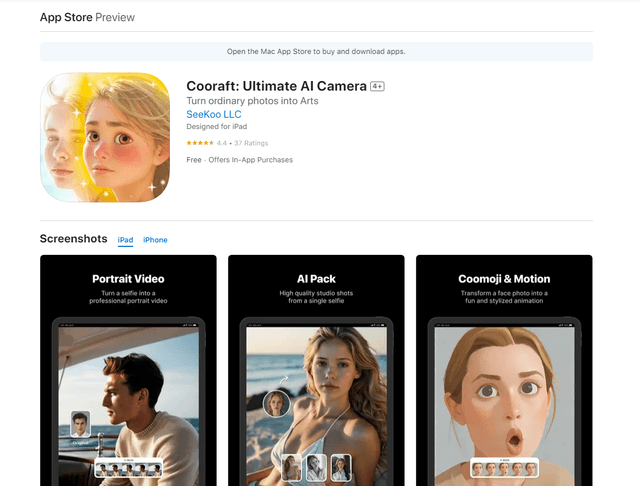
Cooraft: Ultimate AI Camera
Cooraft 是一款 AI 驱动的相机应用,只需轻轻一按,即可将自拍和照片转化为令人惊叹的演播室级视频、动画和艺术渲染。