Wondershare Dr.Fone
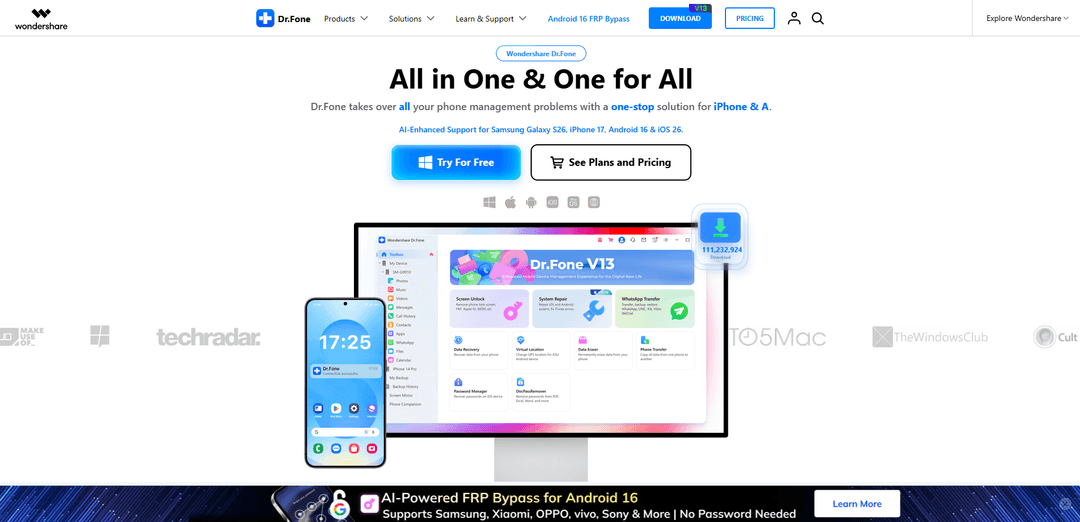
Wondershare Dr.Fone is an AI-enhanced mobile management solution designed for iOS and Android devices. With over 17 years of development and more than 50 million active users worldwide, Dr.Fone delivers reliable, production-ready tools rather than experimental AI features.
https://drfone.wondershare.com/?utm_source=aipure
Product Information
Updated:Jun 1, 2026
What is Wondershare Dr.Fone
Wondershare Dr.Fone is a comprehensive phone management and troubleshooting suite designed for iOS and Android users who want a single place to handle common device tasks—such as data recovery, system repair, phone-to-phone transfer, chat transfer (including WhatsApp), backup and restore, and privacy-focused data erasure. Offered as a multi-module toolkit (including Full Toolkit and more focused editions like Basic and Online), it aims to replace the need for multiple separate utilities by providing guided, step-by-step tools for everyday data management as well as more advanced recovery and repair scenarios. The platform also highlights security-oriented claims such as encryption, GDPR compliance, and a zero-data-retention approach for certain operations.
Key Features of Wondershare Dr.Fone
Wondershare Dr.Fone is an all-in-one mobile device toolkit for iOS and Android that centralizes common “phone problem” workflows—data recovery, system repair, screen/activation unlocking, cross-platform transfers (including WhatsApp), backup/restore, device management, and privacy tools—into a single dashboard. It also includes utilities like screen mirroring/recording, phone verification reports for used-device checks, and virtual location changes. The product is free to download with trial/limited free usage, but most advanced recovery/repair/unlock modules typically require a paid license; it is positioned as safe when obtained from official sources and highlights security measures like encryption and compliance claims.
All-in-one centralized dashboard: Access multiple modules (recovery, repair, transfer, unlock, backup, eraser, utilities) from one interface instead of installing separate apps for each task.
Screen Unlock & lock removal (incl. FRP/iCloud/Apple ID): Helps remove various lock screens and certain account/activation locks (e.g., Android FRP, iCloud activation/Apple ID scenarios) and includes online SIM unlock options for supported carriers/devices.
Data Recovery (device + app data where supported): Scans for and recovers lost/deleted data on supported devices, including Android files and WhatsApp data (with preview via trial in many cases); success can vary by device and situation.
System Repair for mobile OS issues: Targets common Android system problems and “stuck”/unstable states, aiming to restore device usability through guided repair flows.
Transfers & migration (Phone Transfer + WhatsApp Transfer): Moves data between iOS and Android, including dedicated WhatsApp chat/attachment transfer, plus backup/restore for messaging apps (also mentions Viber/LINE/WeChat support).
Backup, device management, and utilities: Offers wired/wireless and incremental backups (up to 24 data types cited), file management across photos/music/videos/messages/call history, screen mirroring/recording, virtual location changes, and permanent data erasure.
Use Cases of Wondershare Dr.Fone
Consumer phone-to-phone migration: When switching between Android and iPhone, users can transfer contacts, photos, and app data, including WhatsApp chats, with guided cross-platform transfer modules.
Repair after failed updates, crashes, or boot issues: Individuals or small IT teams can attempt system repair workflows to recover a device stuck in abnormal states (e.g., after OS upgrades/downgrades or repeated boot failures).
Data recovery for accidental deletion or damaged devices: Photographers, travelers, and everyday users can try recovering lost media/documents or WhatsApp data after deletion, corruption, or certain device failures (where supported).
Enterprise/IT device servicing and helpdesk workflows: Support staff handling mixed iOS/Android fleets can use one toolkit for backups, transfers, device checks, and remediation steps, reducing tool sprawl.
Used-device verification and resale operations: Second-hand sellers and refurbishers can generate phone verification reports (storage/battery/system details) to document device condition and increase buyer confidence.
Privacy and compliance cleanup before resale or redeployment: Individuals and organizations can permanently wipe data, remove clutter, and create backups before handing devices to new users or selling them.
Pros
Broad toolkit in one product: recovery, repair, transfer, unlock, backup, and utilities from a centralized dashboard.
Strong cross-platform transfer focus, especially WhatsApp transfer/backup/restore across iOS and Android.
Includes practical extras (wireless/incremental backup, screen mirroring/recording, phone verification, data eraser, virtual location).
Positioned as safe when downloaded from official sources and highlights security measures (e.g., encryption/compliance claims).
Cons
Most advanced modules (recovery/repair/unlock/transfer) typically require a paid license; free use is often limited to trial/preview.
Recovery success is not guaranteed and depends on device model, OS state, and overwrite conditions.
Can be resource-intensive during scans/operations (disk/CPU usage), potentially slowing older computers.
Unlock/lock-bypass features may be limited by device/region and can raise legal/eligibility constraints depending on ownership and local laws.
How to Use Wondershare Dr.Fone
1. Download Dr.Fone: Go to the official Dr.Fone website (https://drfone.wondershare.com/) and download the latest version for your computer (Windows or Mac).
2. Install Dr.Fone: Run the installer. Review the Privacy Policy and End-user License Agreement. Optionally choose Customize Install to set the language and installation path, then proceed with installation.
3. Launch Dr.Fone: When installation finishes, click Start Now (or open Dr.Fone from your Applications folder on Mac) to launch the program.
4. Log in to activate (if needed): On the Dr.Fone home screen, click Login (top-right). Sign in with your Wondershare ID to activate your license and access paid features.
5. Connect your mobile device: Connect your iPhone/iPad or Android device to the computer using a USB cable (or use wireless options where supported by the feature). Keep the device unlocked and follow any on-screen trust/permission prompts.
6. Ensure Android connection prerequisites (Android only): Enable USB debugging on your Android device. If you are using LG or Sony devices, select Send images (PTP) mode when connecting. Then reconnect so Dr.Fone can recognize the phone.
7. Choose the tool you need from the home screen: From the Dr.Fone toolkit, select the feature that matches your goal (e.g., Data Recovery, System Repair, Screen Unlock, WhatsApp Transfer, Phone Transfer, Data Eraser, Virtual Location, My Device, My Backup, Screen Mirror, Phone Verification).
8. Use Data Recovery (recover lost/deleted data): Open Toolbox > Data Recovery. Select the file types you want to recover, run a scan, preview found items (trial typically allows scanning/preview), then click Recover and choose a save location to export recovered data (recovery requires the full version).
9. Use System Repair (fix iOS/Android system issues): Open System Repair and follow the guided prompts to diagnose and repair system problems. Dr.Fone may instruct you to place the device into a special mode (e.g., DFU/recovery mode on iPhone) to complete repairs.
10. Use Screen Unlock (remove lock screens / account locks where supported): Open Screen Unlock and select your device type (iOS/Android). Follow the on-screen steps to remove supported lock screens and related locks (e.g., FRP/iCloud/Apple ID options shown in the toolkit).
11. Use WhatsApp Transfer (transfer/backup/restore chats): Open WhatsApp Transfer and choose Transfer, Backup, or Restore. Follow the guided workflow to move chats and attachments between iOS and Android or to back up and restore chat history (trial may allow backup/preview; full actions may require activation).
12. Use Phone Transfer (move data between phones): Open Phone Transfer and follow the one-click guided process to migrate data between iOS and Android devices (contacts, messages, photos, and more).
13. Use My Device (manage phone data in one place): Open My Device to view and organize phone content (photos, music, videos, messages, call history, etc.) on one surface. Use import/export/organize controls to manage files.
14. Use My Backup (wireless, incremental backups): Open My Backup to create backups (supports many data types). Choose wireless backup if available, select data categories, and run the backup. Use incremental backup to copy only newly added or recently changed data.
15. Use Screen Mirror (mirror and record your phone screen): Open Screen Mirror to mirror your phone to a PC/Mac. Use zoom, screenshots, and real-time recording features, and control the phone from your computer where supported.
16. Use Phone Verification (device health/report): Open Phone Verification to generate a report showing details like system version, storage condition, battery life, and an overall score—useful for understanding device status and used-device credibility.
17. Use Data Eraser (permanent wipe / cleanup): Open Data Eraser to permanently wipe selected data and free up space. Preview may be available in trial (notably on iOS), but completing erasure typically requires the full version.
18. Use Virtual Location (change GPS location): Open Virtual Location and follow the prompts to set a new GPS location on iOS or Android devices.
19. Understand trial limitations before purchasing: Dr.Fone is free to download and trial. Common limitations include: Data Recovery allows scan/preview but requires full version to recover; Phone Manager trial may limit transfers (e.g., 10 items); WhatsApp Transfer trial may allow backup/preview but not full restore/transfer; Data Eraser may allow preview but requires full version to erase.
20. Troubleshoot common issues: If the device is not recognized, re-check cables/ports, unlock the phone, accept trust prompts, and (Android) confirm USB debugging and correct USB mode (PTP for some LG/Sony). If activation errors mention internet requirements, ensure a stable connection and log in with your Wondershare ID.
Wondershare Dr.Fone FAQs
Windows: Launch Dr.Fone → click the Account/Login icon (top-right) → choose “Click here to login and activate the program” → enter your license email and registration code to activate. Mac: Launch Dr.Fone → click the Dr.Fone menu in the macOS menu bar → choose Register → enter your license email and registration code → click Sign in.
Popular Articles

Vosko AI: Localize and Dub Videos for Global Audiences
Oct 15, 2026

Atoms: A Multi-Agent AI Platform That Transforms Ideas into Launch-Ready Products
Oct 13, 2026

Nano Banana SBTI: What It Is, How It Works, and How to Use It in 2026
Apr 15, 2026

Atoms Review — The AI Product Builder Redefining Digital Creation in 2026
Apr 10, 2026
Latest AI Tools Similar to Wondershare Dr.Fone
Tomat
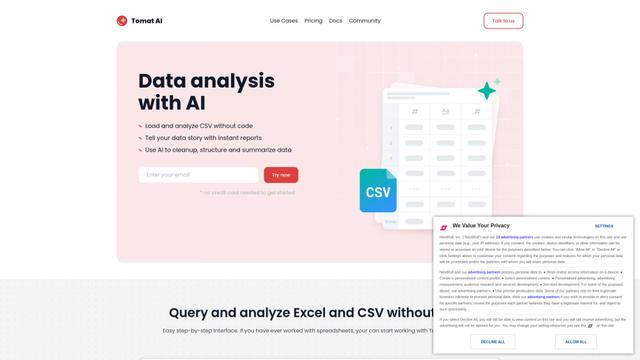
Tomat.AI is an AI-powered desktop application that enables users to easily explore, analyze, and automate large CSV and Excel files without coding, featuring local processing and advanced data manipulation capabilities.
Data Nuts
DataNuts is a comprehensive data management and analytics solutions provider that specializes in healthcare solutions, cloud migration, and AI-powered database querying capabilities.
CogniKeep AI
CogniKeep AI is a private, enterprise-grade AI solution that enables organizations to deploy secure, customizable AI capabilities within their own infrastructure while maintaining complete data privacy and security.
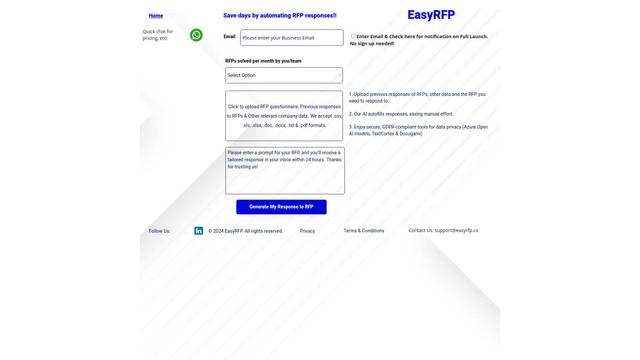
EasyRFP
EasyRFP is an AI-powered edge computing toolkit that streamlines RFP (Request for Proposal) responses and enables real-time field phenotyping through deep learning technology.
Popular AI Tools Like Wondershare Dr.Fone

Researcher & Analyst in M365 Copilot
Contact for PricingAI Data Mining
Researcher and Analyst are two first-of-their-kind AI reasoning agents in Microsoft 365 Copilot that help users tackle complex research and data analysis tasks by leveraging both enterprise and web data with advanced reasoning capabilities.
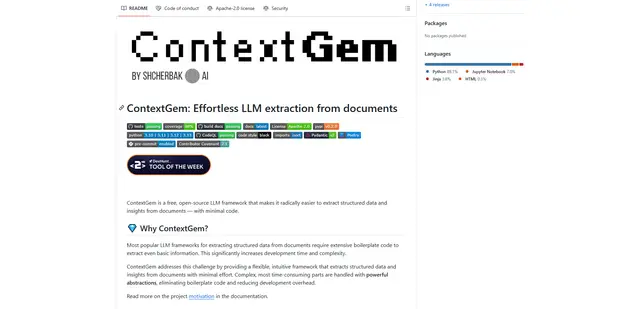
ContextGem
ContextGem is a free, open-source LLM framework that simplifies structured data and insights extraction from documents with minimal code through powerful built-in abstractions and automated features.
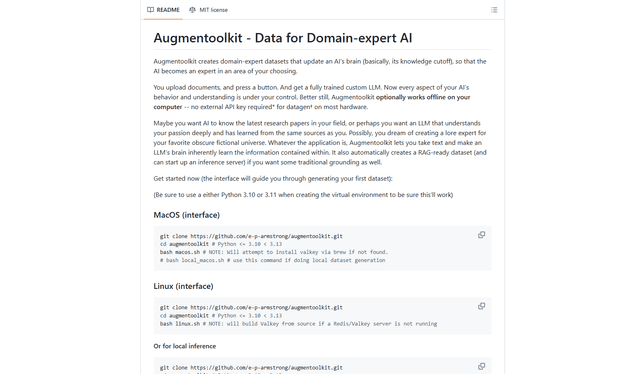
Augmentoolkit 3.0
Augmentoolkit 3.0 is a refined and battle-tested open-source tool that creates domain-expert datasets to train custom LLMs with your own data, featuring an intuitive interface, offline capability, and automatic dataset generation and training processes.
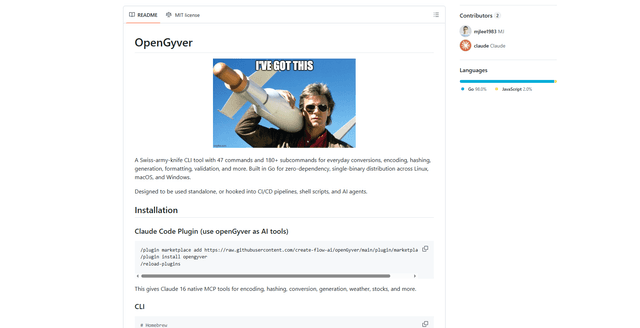
OpenGyver
OpenGyver is an open-source Swiss-army-knife CLI tool with 47 commands and 180+ subcommands for everyday conversions, encoding, hashing, generation, formatting, and validation, designed for standalone use or integration with CI/CD pipelines, shell scripts, and AI agents.