
Via 1.0
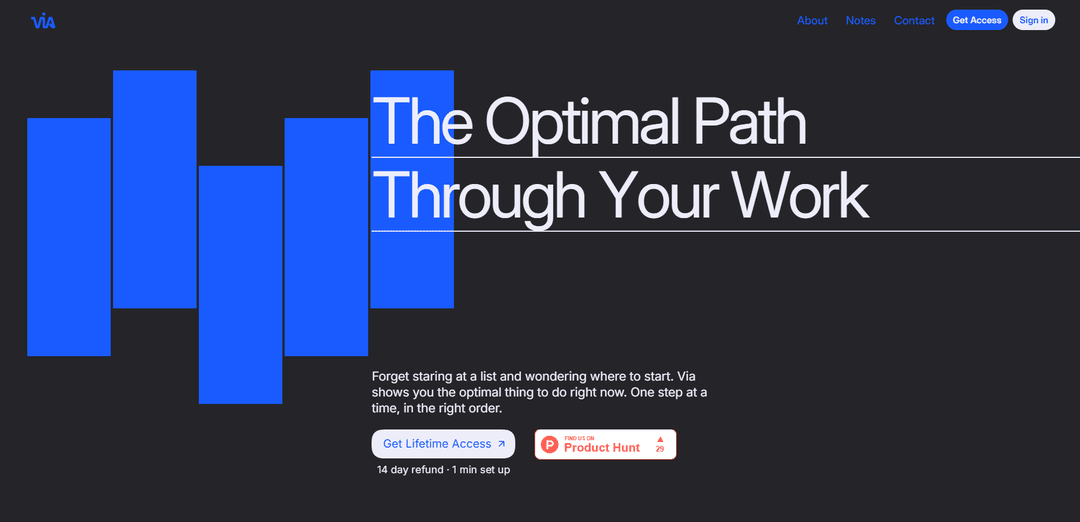
Via 1.0 ist ein KI-gestützter Produktivitätsplaner, der Sprach-/Text-/Foto-„Brain Dumps“ in strukturierte Arbeit umwandelt und automatisch einen energiebewussten, sich ständig aktualisierenden Zeitplan erstellt, der immer Ihren optimalen nächsten Schritt anzeigt.
https://www.usevia.io/?ref=producthunt&utm_source=aipure
Produktinformationen
Aktualisiert:Aug 8, 2026
Was ist Via 1.0
Via 1.0 ist ein Planungs- und Ausführungstool, das Ihnen hilft, von zerstreuten Gedanken zu erledigter Arbeit zu gelangen, ohne Aufgabenlisten manuell neu ordnen zu müssen. Es kombiniert Erfassung, Priorisierung und automatische Terminplanung in einem einzigen Arbeitsbereich, der Aufgaben, Ereignisse, Notizen und Routinen aufnehmen kann, und führt Sie dann Schritt für Schritt durch die nächsten Schritte. Entwickelt für Einzelpersonen (und in Stufen erhältlich, die erweiterte Funktionen wie Abhängigkeiten und Integrationen hinzufügen), konzentriert sich Via darauf, die Entscheidungsermüdung zu reduzieren, indem es Ihren Plan an die Veränderungen Ihres Tages anpasst.
Hauptfunktionen von Via 1.0
Via 1.0 ist ein Produktivitäts- und Planungstool, das unstrukturierte Eingaben (getippte Notizen, Sprache, Fotos, Dateien) erfasst und in strukturierte Arbeitselemente – Aufgaben, Ereignisse, Notizen und Routinen – umwandelt. Anschließend werden diese automatisch priorisiert und ein optimierter Zeitplan erstellt, der Ihre Verfügbarkeit, Energie, Ziele, Fristen und Abhängigkeiten berücksichtigt. Es passt sich kontinuierlich an, wenn sich Ihr Tag ändert (z. B. Besprechungen verschieben sich, Prioritäten ändern sich), und konzentriert die Ausführung, indem es die einzelne optimale „nächste Sache“ anzeigt, die jetzt zu tun ist. Es umfasst auch mehrere Möglichkeiten zur Visualisierung von Plänen (Kalender, Liste, Kanban), Tracking/Einblicke über einen Fokus-Timer, mehrsprachige Unterstützung, offlinefähige mobile/Desktop-Nutzung und Integrationen wie Google Kalender, mit erweiterten Optionen wie BYOK, API-Zugriff und MCP-Integration in höheren Stufen.
Multimodale Erfassung → strukturierte Arbeit: Erfassen Sie Arbeit durch Sprechen, Tippen, Fotografieren von Notizen oder Hochladen von Dateien; Via wandelt Eingaben in organisierte Aufgaben, Ereignisse, Notizen und Routinen um, sodass Ideen nicht als unstrukturierte „Brain-Dumps“ bleiben.
Logistikgerechte Auto-Planung & Neuplanung: Ein Auto-Planungsalgorithmus erstellt einen optimierten Plan um das Wesentliche und aktualisiert sich sofort, wenn sich Ihr Tag ändert – wodurch manuelles Umplanen reduziert wird, wenn Besprechungen sich verzögern oder Fristen sich verschieben.
Multifaktorielle Priorisierung (nächstbeste Aktion): Priorisiert unter Verwendung von Faktoren wie Aufwand, Wichtigkeit, Dauer, Fristen und Abhängigkeiten und zeigt dann die optimale Sache an, an der man gerade arbeiten sollte, um Entscheidungsermüdung zu reduzieren.
Energiebewusste Planungs-Profile: Pläne können durch Ihre Energie und Ziele mithilfe von Profilen geformt werden, was hilft, die Aufgabenauswahl und den Zeitpunkt an die Art und Weise anzupassen, wie Sie Ihren Tag/Ihre Woche gestalten möchten.
Vereinheitlichter Arbeitsbereich + Beziehungen/Abhängigkeiten: Hält Notizen, Aufgaben, Ereignisse und Routinen an einem Ort und verknüpft verwandte Elemente; höhere Stufen fügen Aufgabenabhängigkeiten und mehrere Arbeitsbereiche für eine komplexere Organisation hinzu.
Ausführungsunterstützung: Fokus-Timer, Tracking & Einblicke: Umfasst Fokusmodus und Zeiterfassung zur Analyse von Arbeitslasttrends und Schätzgenauigkeit; ein prädiktives Modell kann Aufgabendauerschätzungen anpassen, um Pläne realistischer zu gestalten.
Anwendungsfälle von Via 1.0
Workload-Management für Solo-Gründer / Betreiber: Erfassen Sie verstreute Ideen und Verpflichtungen und lassen Sie Via diese über Produkt, Vertrieb und Verwaltung hinweg priorisieren und automatisch planen – und sich anpassen, wenn dringende Kundenprobleme oder Besprechungen den Tag stören.
Kundenbetreuung & Beratungsleistungen: Verwandeln Sie Kunden-E-Mails/Notizen in Aufgaben und Ereignisse, planen Sie die Arbeit entsprechend der Verfügbarkeit und nutzen Sie Abhängigkeiten, um sicherzustellen, dass Lieferungen in der richtigen Reihenfolge erfolgen, während sich Kalender verschieben.
Kreative Produktion (Inhalt, Design, Schreiben): Brain-Dump-Konzepte per Sprache oder Fotos, wandeln Sie diese in umsetzbare Schritte um und verlassen Sie sich auf die Anleitung zur nächstbesten Aktion, um den Schwung ohne ständige Neuplanung aufrechtzuerhalten.
Projektausführung für kleine Teams: Nutzen Sie die Team-Stufe, um die Arbeitslast zu verteilen und die Zusammenarbeit zu koordinieren, während der Planer die Zeitpläne optimiert und Teams hilft, auf sich ändernde Prioritäten zu reagieren.
Persönliche Lebensverwaltung + Routinen: Kombinieren Sie Besorgungen, Termine und Routinen mit Arbeitsaufgaben in einem System, blocken Sie Zeit nach Kategorien und lassen Sie Via den Plan neu erstellen, wenn das reale Leben dazwischenkommt.
KI-integrierte Workflows (MCP / API / BYOK): Für technische Benutzer verbinden Sie Via mit externen Tools oder bevorzugten KI-Modellen mithilfe von MCP-Integration, API-Zugriff oder BYOK, um Erfassungs-, Anreicherungs- oder App-übergreifende Planungsworkflows zu automatisieren.
Vorteile
Reduziert Entscheidungsermüdung, indem kontinuierlich die optimale nächste Aufgabe anstelle einer statischen Liste präsentiert wird.
Die automatische Planung passt sich an reale Änderungen (Besprechungen/Fristen) ohne manuelles Umplanen an.
Flexible Erfassungsmethoden (Sprache/Foto/Datei/Text) helfen, unstrukturierte Eingaben schnell in strukturierte Arbeit umzuwandeln.
Unterstützt mehrere Planungsstile (Kalender/Liste/Kanban) sowie Tracking/Einblicke zur Verbesserung von Schätzungen.
Nachteile
Volle Funktionalität ist stufenabhängig (z. B. Abhängigkeiten, MCP, BYOK, API und Teamfunktionen erfordern höhere Stufen).
Stark abhängig von der Qualität der erfassten Eingaben und Schätzungen (Dauer/Wichtigkeit), um optimale Zeitpläne zu erstellen.
Benutzer, die eine vollständig manuelle Planung bevorzugen, könnten die algorithmusgesteuerte Priorisierung ohne Feinabstimmung als weniger kontrollierbar empfinden.
Wie verwendet man Via 1.0
1) Via 1.0 öffnen: Gehen Sie in einem Chromium-basierten Browser (Chrome, Edge, Brave, Opera) zur offiziellen VIA-Konfigurator-Web-App: https://usevia.app/ (kein Download erforderlich).
2) Tastatur anschließen (Kabelverbindung empfohlen): Schließen Sie Ihre VIA-kompatible Tastatur mit einem USB-Kabel an Ihren Computer an und stellen Sie die Tastatur in den kabelgebundenen Modus, falls sie einen Modusschalter hat. Bestätigen Sie die Funktion der Tastatur, indem Sie in einem beliebigen Texteditor tippen.
3) Gerätezugriff zulassen, damit VIA die Tastatur erkennen kann: Wenn der Browser nach HID-/Gerätezugriff fragt, erteilen Sie die Berechtigung und wählen Sie Ihre Tastatur aus. Wenn die Konfigurationsseite bei „Suche nach Geräten“ bleibt, versuchen Sie es erneut mit der Web-App unter https://usevia.app/ und stellen Sie sicher, dass Sie nicht Firefox verwenden (der den HID-Zugriff normalerweise blockiert).
4) (Falls erforderlich) JSON-Definition Ihrer Tastatur laden: Wenn VIA Ihr Board nicht automatisch erkennt, importieren Sie die richtige Tastatur-JSON-Datei (jede Tastatur hat ihre eigene JSON). Verwenden Sie die von Ihrer Tastaturmarke/-modell-Dokumentation bereitgestellte JSON und versuchen Sie die Erkennung erneut.
5) Registerkarte „Konfigurieren“ öffnen und Ebenen verstehen: Gehen Sie zum Bildschirm „Konfigurieren“, um Ihr Keymap zu sehen. Ebenen sind beginnend mit Ebene 0 (Ihrer Standard-/Basistippebene) nummeriert. Die aktuell ausgewählte Ebene wird in der Nähe der Ebenenanzeige angezeigt/hervorgehoben.
6) Eine Taste auf Ebene 0 neu belegen (einfache Neubelegung): Wählen Sie Ebene 0, klicken Sie auf die Taste, die Sie im Bildschirm-Layout ändern möchten, und klicken Sie dann auf den neuen Keycode/die Funktion, die Sie zuweisen möchten. Die Änderung wird sofort angewendet.
7) Eine „Fn“-Taste mit MO(n) (momentane Ebene) hinzufügen: Um eine Fn-ähnliche Taste zu erstellen, weisen Sie einer Taste MO(1) aus den Ebenen-Keycodes zu. Das Halten dieser Taste aktiviert vorübergehend Ebene 1; das Loslassen kehrt zu Ebene 0 zurück.
8) Alternative Funktionen auf Ebene 1 legen: Wechseln Sie im Ebenenwähler zu Ebene 1 und weisen Sie dann sekundäre Funktionen zu (z. B. Mediensteuerungen). Beispielverhalten: F8 auf Ebene 0 kann F8 bleiben, während Sie an derselben Position auf Ebene 1 Wiedergabe/Pause einstellen können – dann verwenden Sie Fn (MO(1)) + F8, um es auszulösen.
9) Andere gängige Ebenenverhaltensweisen verwenden (optional): Verwenden Sie LT(Ebene, kc) für eine Dual-Rollen-Taste (Tippen sendet kc, Halten wechselt zur Ebene). Verwenden Sie OSL(n) für den einmaligen Ebenenzugriff (Tippen, um Ebene n für einen Tastendruck zu aktivieren, dann kehrt es zu Ebene 0 zurück). Verwenden Sie TG(n), um eine Ebene ein-/auszuschalten (ein „permanenterer“ Schalter, bis er zurückgeschaltet wird).
10) Ein Makro aufnehmen: Gehen Sie zu MAKROS im Konfigurationsbereich. Ein Makro muss zuerst aufgenommen/erstellt werden, bevor es einer Taste zugewiesen wird. Geben Sie den Makroinhalt ein und speichern Sie ihn.
11) Makros mit QMK-Keycode-Aliasen erstellen (optional, fortgeschritten): Suchen Sie die benötigten Keycode-Aliase (z. B. aus der QMK-Keycodes-Dokumentation) und geben Sie sie im Makroformat von VIA ein. Beispiel in den Quellen gezeigt: {KC_LWIN,KC_LSFT,KC_S} und dann Speichern drücken.
12) Ein Makro einer Taste zuweisen: Kehren Sie zu KEYMAP zurück, wählen Sie die Zielebene, klicken Sie auf die Taste, die Sie zuweisen möchten, und wählen Sie dann den Makro-Slot (z. B. M0), den Sie erstellt haben, damit das Drücken dieser Taste das Makro auslöst.
13) Überprüfen und iterieren: Testen Sie die Neubelegungen, Ebenen und Makros in einem Texteditor oder der Ziel-App/dem Spiel. Passen Sie die Layouts von Ebene 0/1/2 nach Bedarf an (z. B. Ebene 1 für häufig verwendete Verknüpfungen beibehalten und weniger verwendete Steuerelemente auf eine andere Ebene verschieben).
Via 1.0 FAQs
Via 1.0 ist ein Produktivitäts- und Planungstool, das Ihre Arbeit (Notizen, Aufgaben, Ereignisse und Routinen) erfasst und einen optimierten Zeitplan basierend auf Ihren Prioritäten, Ihrer Energie und Ihrer Verfügbarkeit erstellt. Es zeigt Ihnen dann die optimale nächste Aufgabe an und passt Ihren Plan an, wenn sich Ihr Tag ändert.
Via 1.0 Video
Beliebte Artikel

Wie Sie virale sprechende Baby-Podcast-Videos mit KI erstellen: Schritt-für-Schritt-Anleitung
Nov 2, 2026

Proferex: Eine cloudbasierte Plattform für Werbetracking und Kampagnenoptimierung
Nov 2, 2026

Vosko AI: Videos für ein globales Publikum lokalisieren und synchronisieren
Oct 15, 2026

Atoms: Eine Multi-Agenten-KI-Plattform, die Ideen in startbereite Produkte verwandelt
May 22, 2026
Neueste KI-Tools ähnlich wie Via 1.0
Inbox AI
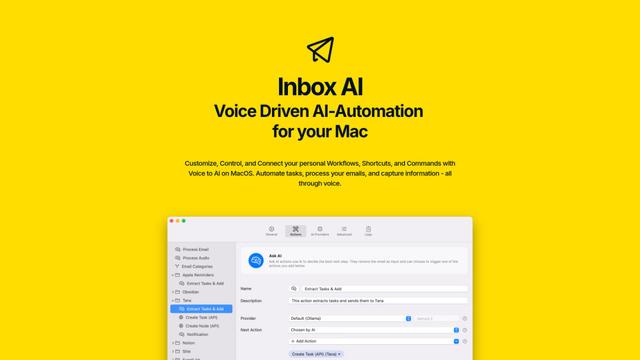
Inbox AI ist eine datenschutzorientierte MacOS-Produktivitäts-App, die sprachgesteuerte KI-Automatisierung mit E-Mail-Verwaltungsfunktionen kombiniert und es Benutzern ermöglicht, benutzerdefinierte Workflows und Befehle zu erstellen, während sowohl cloudbasierte als auch geräteinterne KI-Optionen angeboten werden.

Cart.ai
Cart.ai ist eine KI-gestützte Dienstleistungsplattform, die umfassende Lösungen zur Automatisierung von Geschäftsprozessen bietet, einschließlich Programmierung, Kundenbeziehungsmanagement, Videobearbeitung, E-Commerce-Setup und benutzerdefinierter KI-Entwicklung mit 24/7 Unterstützung.
Hiyllo Work
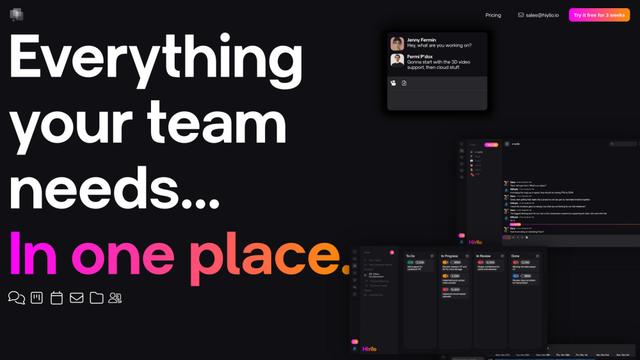
Hiyllo Work ist eine All-in-One-Teamarbeitsplatzplattform, die Chat, Projektmanagement, Kalender, E-Mail, Dateispeicherung und Videobesprechungen in einer einzigen integrierten Umgebung kombiniert.

MailSense
MailSense ist ein KI-gesteuerter E-Mail-Assistent, der E-Mails über eine Telegram-Bot-Schnittstelle filtert, zusammenfasst und Antworten generiert, um den Benutzern zu helfen, ihren Posteingang effizienter zu verwalten.
Beliebte KI-Tools wie Via 1.0
Magentic-UI
Magentic-UI ist ein Open-Source-, auf den Menschen ausgerichteter Web-Agent-Prototyp von Microsoft Research, der die kollaborative Planung und Ausf\u00fchrung komplexer webbasierter Aufgaben durch transparente Interaktion zwischen Menschen und KI-Agenten erm\u00f6glicht.
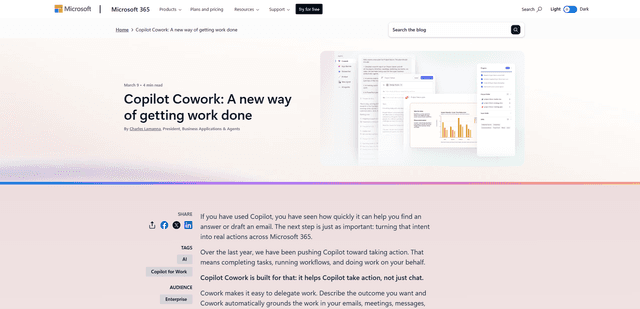
Microsoft Copilot Cowork
Microsoft Copilot Cowork ist ein KI-gestützter Assistent, der Benutzerabsichten in umsetzbare Pläne umwandelt und autonom mehrstufige Aufgaben über Microsoft 365-Apps hinweg ausführt, während die Benutzer durch Kontrollpunkte und Genehmigungen die Kontrolle behalten.
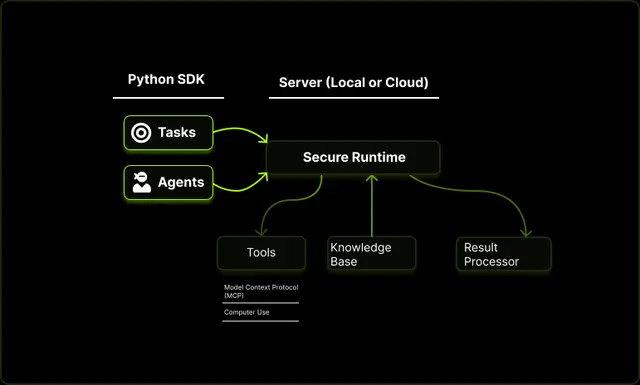
Upsonic
Upsonic ist ein zuverlässigkeitsorientiertes KI-Agenten-Framework mit dockerisierter Server-Client-Architektur, das vertrauenswürdige Agenten-Workflows durch fortschrittliche Funktionen wie Verifizierungsschichten, dreieckige Architektur und Model Context Protocol (MCP)-Integration ermöglicht.

CampEd Hire
CampEd Hire ist eine leistungsstarke Chrome-Erweiterung, die die Rekrutierung optimiert, indem sie automatisch Bewerberdaten aus LinkedIn-Jobangeboten sammelt und organisiert, mit Funktionen wie automatisierter Datensammlung, CSV-Export und Batch-Lebenslauf-Downloads.