Veo3 AI
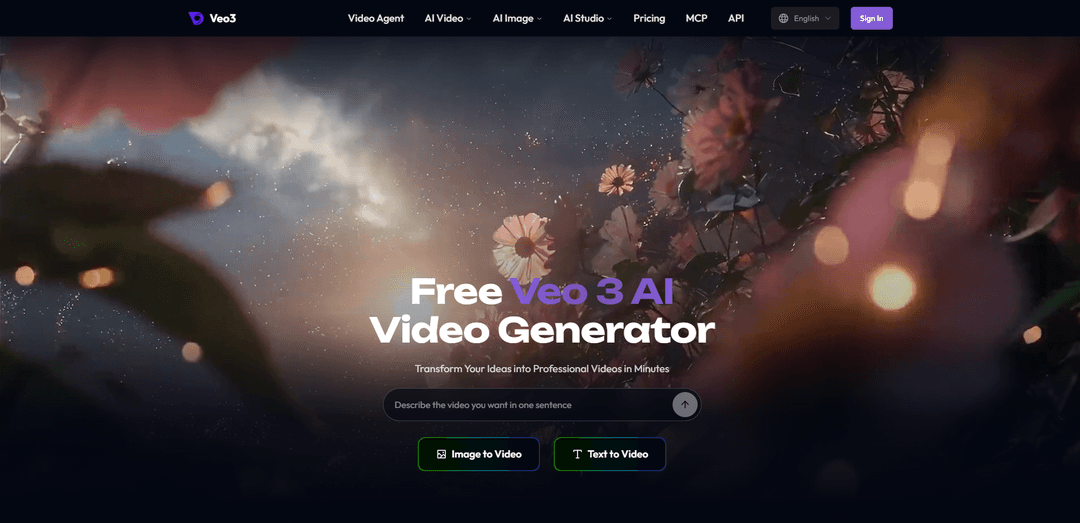
Veo3 AI is an independent, all-in-one AI creation platform that generates videos from text, images, and references using models such as Veo 3, Veo 3.1, Seedance, Kling, and MiniMax, with tools for synchronized audio, editing, motion control, and image and audio generation.
https://www.veo3ai.io/?utm_source=aipure
Product Information
Updated:Nov 3, 2026
What is Veo3 AI
Veo3 AI (veo3ai.io) is a browser-based AI video and image generation platform. It offers text-to-video, image-to-video, text/image-to-image, AI music generation and video/image effects, plus Product Ads and a conversational Video Agent that plans and assembles longer videos. Multiple video and image models (including Veo 3.1) are available under one account and credit balance, with free starter credits.
Key Features of Veo3 AI
Veo3 AI is an independent, all-in-one AI creative platform for generating and editing video, images, and audio from text prompts, still images, and reference material. It offers access to multiple video models—including Veo 3, Veo 3.1, Seedance, Kling, and MiniMax—and supports text-to-video, image-to-video, native synchronized audio, first-and-last-frame controls, upscaling, lip sync, motion control, and related image and audio tools. The platform is designed to help users create short cinematic clips, ads, social content, explainers, and animated content without managing separate generation tools.
Text-to-video generation: Creates AI video clips from written descriptions, enabling users to specify subjects, scenes, visual styles, camera movement, and actions.
Image and reference-to-video: Animates a single image or supplied reference images into video, supporting uses such as bringing portraits, artwork, products, and photos to life.
Native synchronized audio: Veo 3 generation supports synchronized sound, allowing clips to include ambient sound, sound effects, dialogue, and music-oriented audio as part of the video workflow.
Veo 3.1 creative controls: Offers up to 4K output and first-and-last-frame control, helping creators guide transitions, continuity, scene morphs, and intended opening or closing compositions.
Multi-model creative workspace: Provides access to several AI models, including Veo, Seedance, Kling, and MiniMax, so creators can choose tools suited to different styles and generation needs.
Integrated enhancement tools: Includes supporting tools such as video upscaling, lip sync, motion control, video-to-anime conversion, text-to-music, text-to-speech, object removal, and photo cartoonization.
Use Cases of Veo3 AI
Social media videos and reels: Produce short vertical-friendly clips, viral concepts, music-video snippets, animations, and engaging social posts from prompts or selfies.
Product advertising and e-commerce: Turn product photos into polished promotional videos, UGC-style ads, logo animations, and premium product showcases for online stores and campaigns.
Marketing and brand storytelling: Create cinematic brand clips, local-business promos, launch teasers, and campaign assets quickly without a traditional filming crew.
Education and explainers: Generate narrated explainers, visual lessons, and animated educational content that makes concepts more compelling and easier to understand.
Entertainment and storytelling: Develop short films, cartoon episodes, character-driven scenes, music videos, and imaginative visual narratives from a simple idea or set of images.
Personalized content and events: Animate family photos, create pet birthday messages, make custom greetings, or place a person into a stylized fairy-tale or performance video.
Pros
All-in-one workflow spanning video, image, and audio generation plus enhancement tools.
Supports both prompt-based and image-based creation, offering flexible starting points for creators.
Native synchronized audio and first/last-frame controls can improve immersion and creative direction.
Multi-model access reduces the need to switch among separate AI video platforms.
Cons
The service states that it is an independent product and is not affiliated with Google, despite offering Veo-related models.
AI video results can require iteration to achieve precise motion, character consistency, dialogue, or scene control.
Higher-end generation features and output quality may depend on credits or paid plans.
Short-form clip generation may require editing or multiple generations to build longer, coherent productions.
How to Use Veo3 AI
Open Veo3 AI: Go to https://www.veo3ai.io/ in a web browser. The platform is an independent product and is not affiliated with Google.
Choose a creation workflow: Select the option that fits your starting material: Text to Video for a written idea, Image to Video to animate an uploaded image, Reference to Video for reference-guided creation, or Flow AI Video/Video Agent for a broader guided workflow.
Sign in if required: Use the Sign In option if the selected tool asks you to log in, save projects, access credits, or use premium models and features.
Choose a video model: Select an available model based on your goal. The platform lists models such as Veo 3, Veo 3.1, Seedance, Kling, MiniMax, and others. Veo 3 supports native synchronized audio and clips up to 8 seconds; the site describes Veo 3.1 as offering up to 4K output plus first-and-last-frame control.
Provide your input: For text-to-video, enter a clear description of the video you want. For image-to-video, upload your source image first, then describe the motion, action, scene changes, and intended result.
Write a detailed prompt: Describe the subject, setting, time of day, visual style, lighting, action, camera framing or movement, and desired audio. For example: “Cinematic close-up of a steaming cup of black coffee in a white ceramic mug on a rustic wooden café table, soft morning window light, visible dust motes, slow zoom-in, quiet café ambience.”
Add references or frame controls when available: Upload supporting images or use reference-to-video controls to guide character, product, location, or style consistency. If using Veo 3.1, use first- and last-frame controls when you need a specific opening and ending composition.
Configure output settings: Set available options such as aspect ratio, duration, resolution, quality, style, and audio. Choose a format appropriate for the destination, such as vertical for TikTok or Reels and widescreen for YouTube.
Generate the video: Click the Create, Start, or Generate control in the selected tool. Wait for processing to finish; the site’s guidance indicates generation may take several minutes depending on the model and settings.
Review the result: Preview the generated video and check motion, subject consistency, visual quality, framing, dialogue or sound effects, and whether the output follows your prompt.
Iterate if needed: Refine the prompt or settings and generate again. Be more specific about camera movement, lighting, actions, scene details, and audio. You can also change models or provide stronger image references if the result does not match your intended look.
Download or continue editing: Download the finished video from the completed project. For additional processing, use available tools such as Video Upscaler, Lip Sync, Motion Control, Video to Anime, AI Music Generator, or AI Voice Generator.
Veo3 AI FAQs
Veo3 AI is an independent AI creation platform that offers text-to-video and image-to-video generation, along with image, audio, and video editing tools. It provides access to multiple video models, including Google Veo 3, Veo 3.1, Seedance, Kling, and MiniMax; it is not affiliated with Google.
Popular Articles
How to Create Viral Talking Baby Podcast Videos with AI: Step-by-Step Guide
Nov 2, 2026

Proferex: A Cloud-Based Ad Tracking and Campaign Optimization Platform
Nov 2, 2026
Vosko AI: Localize and Dub Videos for Global Audiences
Oct 15, 2026
Atoms: A Multi-Agent AI Platform That Transforms Ideas into Launch-Ready Products
Oct 13, 2026
Latest AI Tools Similar to Veo3 AI
Loud Fame
Loud Fame is an AI-powered video transformation tool that allows users to convert regular videos into anime-style animations and create AI-generated celebrity talking videos.
BizBoom.ai
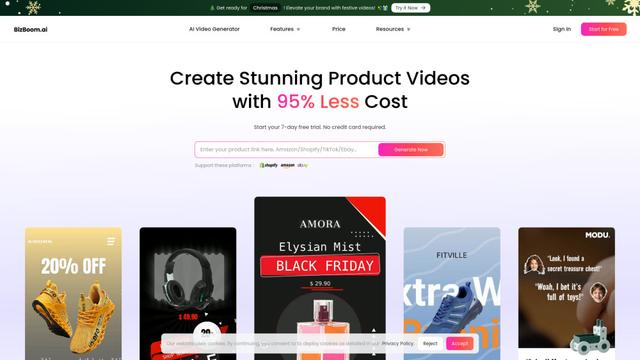
BizBoom.ai is an AI-powered platform that automatically generates professional product videos from product links and images with 95% less cost.
EzVideos
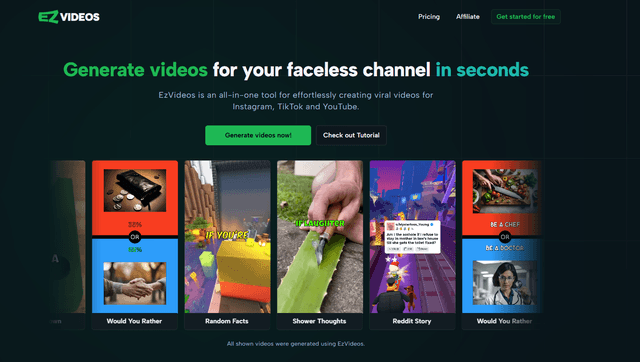
EzVideos is an all-in-one video creation tool that helps users generate viral videos for social media platforms like Instagram, TikTok, and YouTube with automated editing features and built-in resources.
Illuminix
Illuminix is an AI-powered platform that empowers businesses with autonomous hyper-experts and specialized tools for automated business processes, data management, and video content creation.
Popular AI Tools Like Veo3 AI
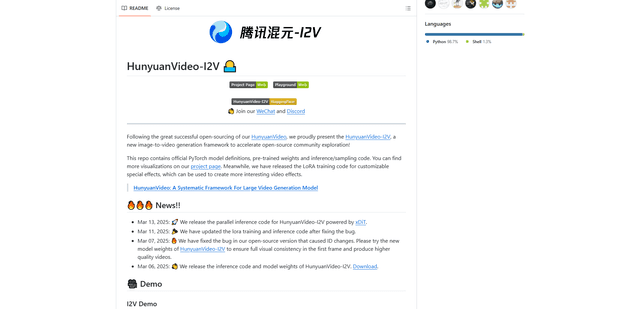
HunyuanVideo-I2V
HunyuanVideo-I2V is an open-source AI framework developed by Tencent that transforms static images into high-quality, dynamic videos with customizable motion effects and exceptional visual consistency.
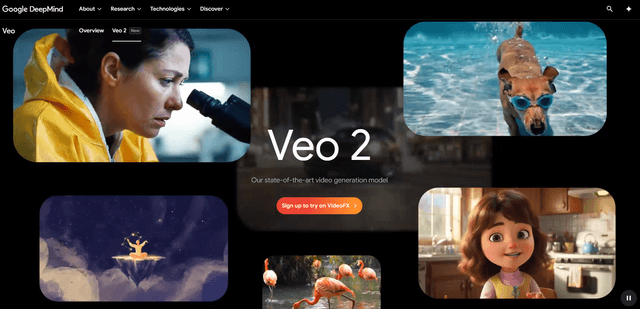
Google Veo 2
Veo 2 is Google DeepMind's state-of-the-art AI video generation model that can create high-quality videos up to 4K resolution with realistic motion, extensive camera controls, and improved physics simulation from text prompts.
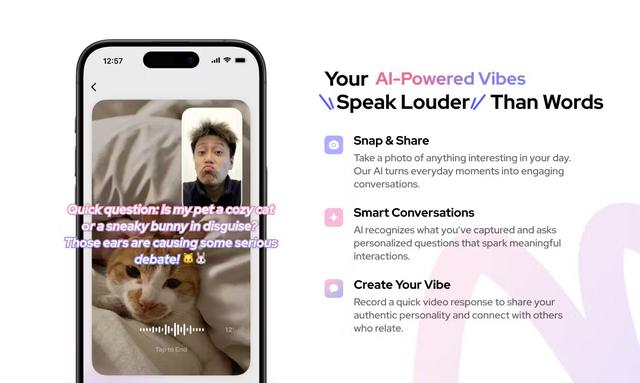
Vibing
Vibing is an AI-powered dating app that helps users share authentic moments through video stories and make genuine connections based on personality matching and interactive features.
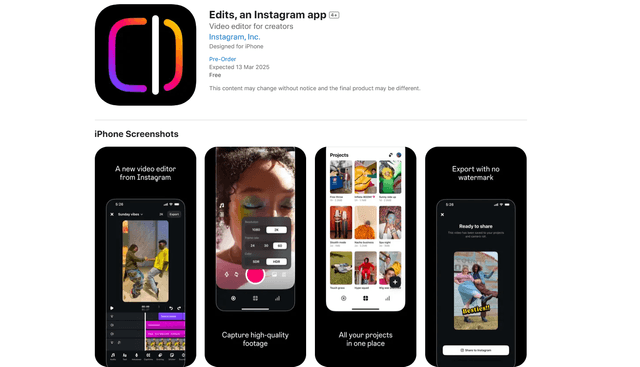
Edits, an Instagram app
Edits is Instagram's free video creation app that provides creators with professional editing tools, AI features, and analytics capabilities to create high-quality videos directly from their phones.