
Scarlett.
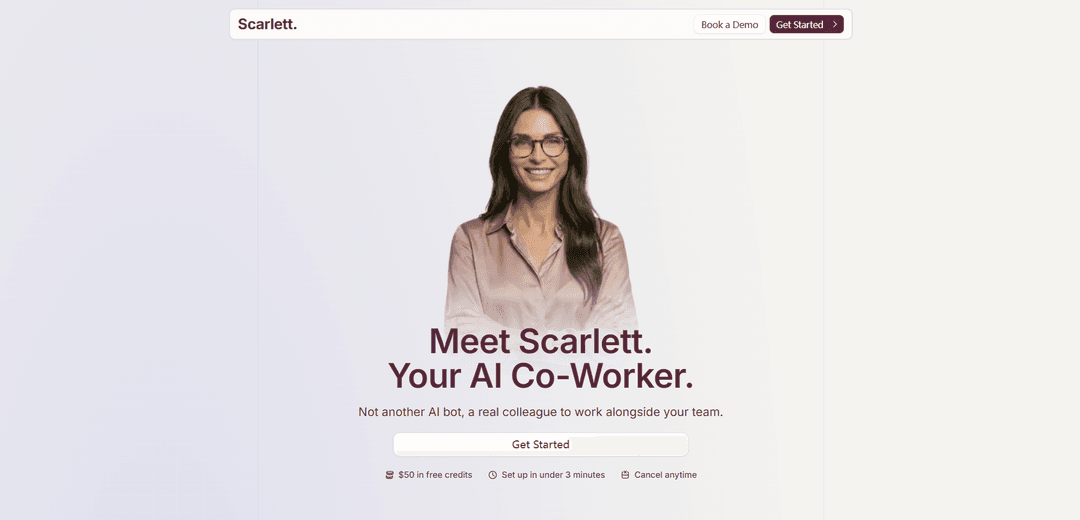
Scarlett is a Slack-native AI coworker with a persistent cloud workspace that connects to 3,000+ tools to execute end-to-end tasks—running code, generating real deliverables, and automating recurring workflows with approval gates for high-stakes actions.
https://tryscarlett.ai/?ref=producthunt
Product Information
Updated:Jul 15, 2026
What is Scarlett.
Scarlett is an AI co-worker that lives in Slack and works alongside your team as more than a chatbot. Instead of only generating text, Scarlett can carry tasks from request to completion by using her own cloud computer to write and run code, pull data from connected business tools, and produce concrete outputs like PDFs, dashboards, documents, reports, and even small apps. Designed for fast setup and easy adoption, teams can install Scarlett from the Slack App Directory, connect the tools they already use (e.g., Google Drive, Gmail, Notion, Linear, GitHub, Stripe, HubSpot, Jira, and many more), and start delegating work via simple Slack mentions and threads.
Key Features of Scarlett.
Scarlett is a Slack-native AI coworker designed to execute real work end-to-end (not just generate text). It runs tasks from a dedicated cloud computer with a persistent workspace, connects to 3,000+ tools (e.g., Google Drive, Gmail, Stripe, HubSpot, GitHub, Linear, Notion), and can automate recurring workflows like reports, triage, and digests. Scarlett can pull and analyze data across systems, create documents and PDFs, write and run code, browse the web for research, and take actions in connected apps, while using approvals for sensitive actions and offering security controls like isolated infrastructure, encryption, and optional full workspace data wipe.
Slack-native AI coworker: Lives in Slack threads and mentions, working alongside teams as a colleague rather than a standalone chatbot.
Executes tasks end-to-end from a cloud computer: Writes and runs code, builds outputs (e.g., PDFs, dashboards), and completes multi-step work beyond conversational responses.
3,000+ integrations: Connects across common business tools (CRM, calendar, project management, support, finance) and can support custom integrations when needed.
Scheduled and recurring automations: Runs daily/weekly routines like team briefs, business reports, triage queues, and follow-up sweeps automatically on a schedule.
Action-taking with human-in-the-loop safeguards: Can send emails or update systems, but is designed to double-check work and request confirmation before high-stakes actions.
Security and access controls: Uses isolated workspaces, encryption in transit/at rest, access only to explicitly connected tools and invited Slack channels, and supports full data wipe on request.
Use Cases of Scarlett.
Marketing & growth reporting: Automatically compiles recurring performance updates (e.g., paid social/CPC reports, audience changes) from connected tools and posts concise summaries to Slack.
Sales operations follow-up automation: Finds important Gmail threads without replies, drafts follow-ups, and creates reminders by syncing email and calendar context.
Customer support triage: Scans Zendesk/email queues daily, categorizes issues, summarizes recurring problems, and posts prioritized ticket snapshots to Slack.
Engineering release communications: Turns merged GitHub PRs and Linear issues into customer-facing release notes and internal changelog bullets, optionally saving to docs (e.g., Notion).
Finance/legal document monitoring: Watches Google Drive folders for contracts, proposals, or invoices and alerts Slack when review or approval is needed.
Meeting preparation and research: Before key meetings, pulls attendee context from calendar, recent email threads, Slack history (where invited), and web research into a single briefing.
Pros
Goes beyond chat: executes workflows end-to-end (code, docs, dashboards) from a persistent cloud workspace.
Broad integration coverage (3,000+ tools) enables cross-system automation and reporting.
Security posture includes isolated infrastructure, encryption, explicit access controls, and an option to wipe workspace data.
Cons
Not infallible: may make mistakes and requires confirmation for high-stakes actions, adding review overhead.
Requires connecting tools and inviting to channels; effectiveness depends on correct setup and available permissions.
Action-taking automation can introduce operational risk if approvals/guardrails are misconfigured.
How to Use Scarlett.
1) Install Scarlett in Slack: Go to Scarlett’s site and click “Get Started with Slack” (or install from the Slack App Directory). Approve the Slack installation so Scarlett is added to your workspace.
2) Invite Scarlett to the right channels: Add/invite Scarlett to the Slack channels where you want her to read and respond. Scarlett only sees channels she’s invited to, so choose team/project channels intentionally.
3) Connect the tools Scarlett should use: In Scarlett’s setup/onboarding, connect the apps you rely on (e.g., Google Drive, Gmail, Google Calendar, Notion, Linear, GitHub, Jira, Stripe, HubSpot, Zendesk, etc.). Scarlett can connect to 3,000+ tools, but she only accesses tools you explicitly connect.
4) Start with a simple ask in Slack: In any channel/thread where Scarlett is present, mention her and give a clear request, e.g., “@Scarlett pull our Stripe revenue for last month and summarize changes vs. the month before.” Scarlett works Slack-native via mentions and threads.
5) Provide context and inputs (links, docs, time ranges): If the task depends on specific sources, include them: a Google Drive link/folder, a Notion page, a Linear project, a date range, or the meeting notes. Scarlett can pull from connected tools and also browse the web when needed.
6) Review Scarlett’s output (reports, PDFs, dashboards, docs): Scarlett doesn’t just chat—she delivers real artifacts (e.g., a PDF strategy doc, a dashboard, a doc update, release notes). Read the result and ask for revisions like you would with a teammate.
7) Ask Scarlett to coordinate work across tools: Give end-to-end tasks that require multiple systems, e.g., “@Scarlett summarize Zendesk themes, draft follow-ups, and save the recommendations to Notion.” Scarlett can query multiple tools, analyze, and produce a consolidated deliverable.
8) Turn one-off work into a recurring workflow: Ask Scarlett to schedule repeating tasks, e.g., “@Scarlett post a weekly business report every Monday morning with Stripe revenue, HubSpot pipeline, Zendesk trends, and Mailchimp audience changes.” Scarlett supports scheduled and recurring tasks.
9) Use common workflow templates (examples): Request workflows like: Daily Team Brief (scheduled Slack summary), Meeting Prep Briefing (pull attendees + last email thread + context), Customer Support Triage (categorize tickets/emails and summarize issues), Engineering Release Notes (turn merged PRs + Linear issues into notes), Inbox Follow-up Sweeper (find threads needing replies and draft follow-ups), or Drive Contract Watcher (alert Slack when new contracts/invoices appear).
10) Confirm high-stakes actions before execution: For actions like sending emails or deploying changes, expect Scarlett to ask for confirmation. Provide explicit approval (or edits) before she proceeds.
11) Expand usage across the workspace: Once installed, anyone in your Slack workspace can mention @Scarlett. Standardize how your team requests work (what sources to use, where to post outputs, and what format you want).
12) Manage access, security, and data deletion: Keep Scarlett limited to necessary channels and only connect required tools. If needed, request a full workspace data wipe via account settings or by contacting support.
Scarlett. FAQs
Scarlett is an AI coworker that lives in Slack. She has her own computer in the cloud where she writes and runs code to complete tasks.
Scarlett. Video
Popular Articles

Vosko AI: Localize and Dub Videos for Global Audiences
Oct 15, 2026

Atoms: A Multi-Agent AI Platform That Transforms Ideas into Launch-Ready Products
Oct 13, 2026

Nano Banana SBTI: What It Is, How It Works, and How to Use It in 2026
Apr 15, 2026

Atoms Review — The AI Product Builder Redefining Digital Creation in 2026
Apr 10, 2026
Latest AI Tools Similar to Scarlett.
Inbox AI
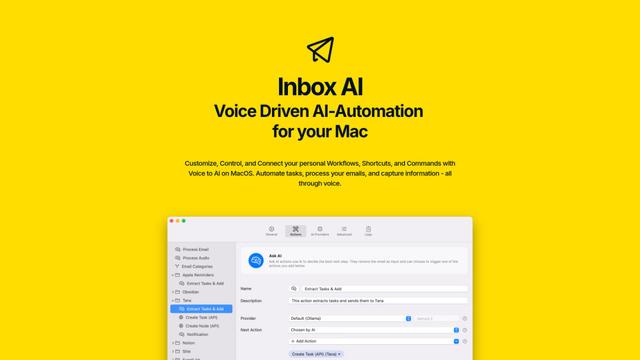
Inbox AI is a privacy-focused MacOS productivity app that combines voice-driven AI automation with email management capabilities, allowing users to create custom workflows and commands while offering both cloud-based and on-device AI options.

Cart.ai
Cart.ai is an AI-powered service platform that provides comprehensive business automation solutions including coding, customer relations management, video editing, e-commerce setup, and custom AI development with 24/7 support.
Hiyllo Work
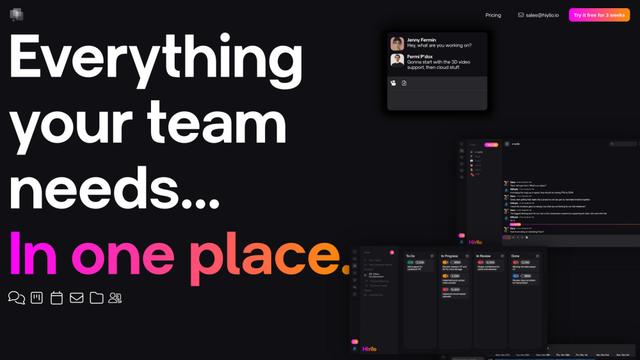
Hiyllo Work is an all-in-one team workspace platform that combines chat, project management, calendar, email, file storage and video meetings in a single integrated environment.

MailSense
MailSense is an AI-powered email assistant that filters, summarizes, and generates replies to emails through a Telegram bot interface to help users manage their inbox more efficiently.
Popular AI Tools Like Scarlett.
Magentic-UI
Magentic-UI is an open-source, human-centered web agent prototype by Microsoft Research that enables collaborative planning and execution of complex web-based tasks through transparent interaction between humans and AI agents.
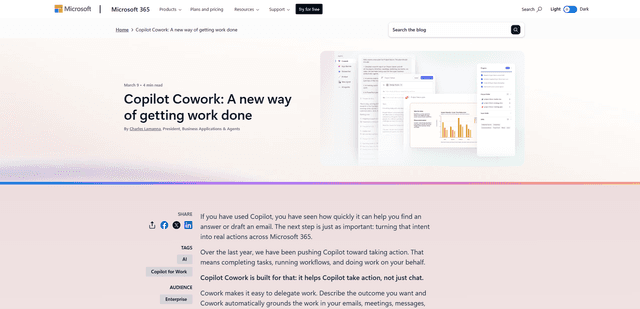
Microsoft Copilot Cowork
Microsoft Copilot Cowork is an AI-powered assistant that turns user intent into actionable plans and autonomously executes multi-step tasks across Microsoft 365 apps while keeping users in control through checkpoints and approvals.
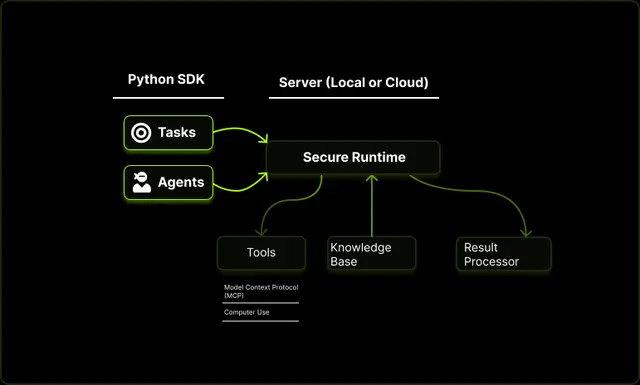
Upsonic
Upsonic is a reliability-focused AI agent framework with dockerized server-client architecture that enables trusted agent workflows through advanced features like verification layers, triangular architecture, and Model Context Protocol (MCP) integration.
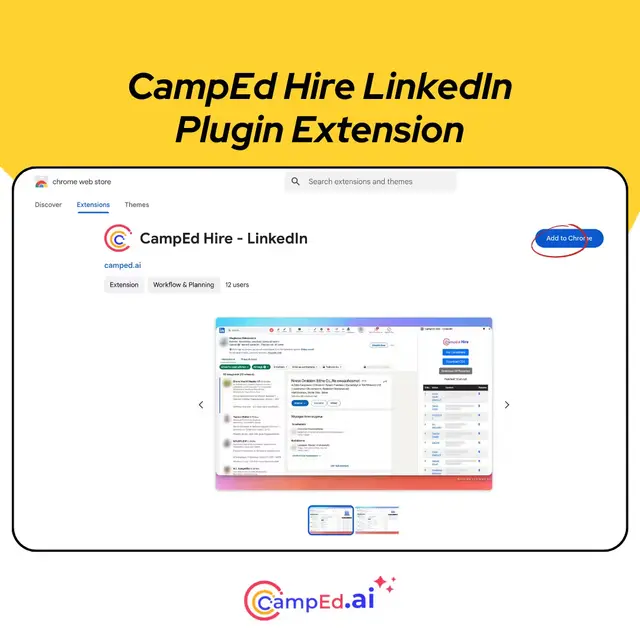
CampEd Hire
CampEd Hire is a powerful Chrome extension that streamlines recruitment by automatically collecting and organizing job applicant data from LinkedIn job posts, with features like automated data collection, CSV export, and batch resume downloads.