Google app for desktop
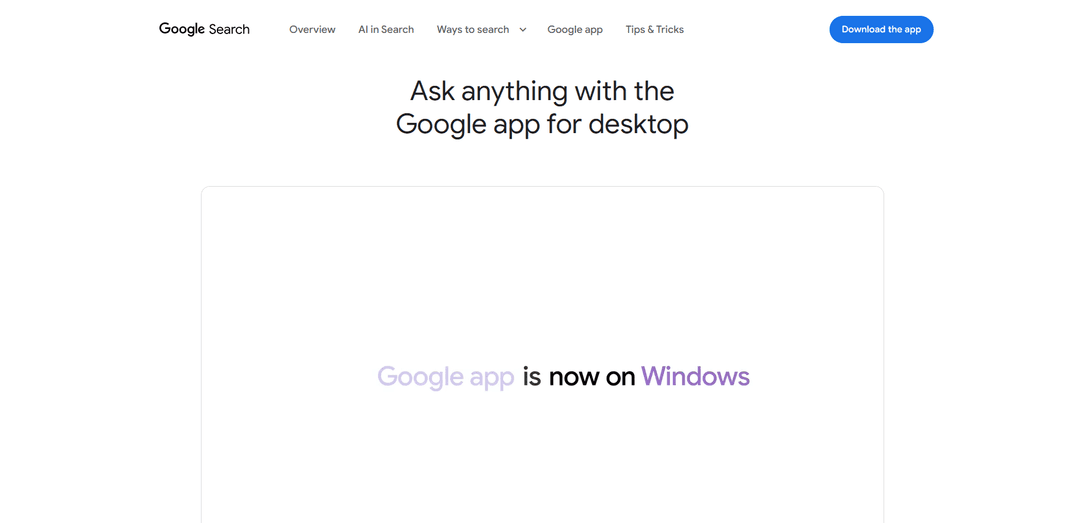
The Google app for desktop is a Windows application that brings unified search capabilities to your desktop through a simple keyboard shortcut, combining web search, local file search, Google Drive integration, AI-powered responses, and Google Lens visual search in one floating interface.
https://search.google/google-app/desktop?ref=producthunt
Product Information
Updated:Apr 16, 2026
What is Google app for desktop
The Google app for desktop is a desktop search application launched by Google for Windows 10+ users, designed to bring the best of Google Search directly to your Windows desktop. Available globally in English, this app functions similarly to macOS's Spotlight feature, providing a quick-access search bar that can be summoned instantly with the Alt + Space keyboard shortcut. The application allows users to search across multiple sources simultaneously—including the web, local computer files, installed applications, and Google Drive files—all from a single, floating search interface. With built-in AI Mode, Google Lens integration, and screen-sharing capabilities, the app represents Google's effort to create a unified search experience that bridges web content, cloud storage, and local desktop resources without requiring users to open a separate browser.
Key Features of Google app for desktop
The Google app for desktop is a Windows application that brings unified search functionality to your PC through a simple Alt + Space keyboard shortcut. It provides instant access to web searches, local files, installed apps, and Google Drive content from a floating search bar. The app integrates AI Mode for conversational queries, Google Lens for visual searches of anything on your screen, and screen sharing capabilities for contextual AI assistance. Available globally in English for Windows 10+ users aged 13 and older, it combines the familiar mobile Google Search experience with desktop-specific features like local file indexing and system-wide app launching.
Universal Search with Alt + Space Shortcut: Instantly access a floating search bar from anywhere on your desktop using the Alt + Space keyboard shortcut to search across the web, Google Drive files, local computer files, and installed applications in a single unified interface.
Google Lens Screen Search: Select and search anything visible on your screen using built-in Google Lens functionality, enabling instant translation of images or text, homework help, product identification, and visual information lookup without switching windows.
AI Mode with Follow-up Questions: Get AI-powered conversational responses to complex queries with the ability to ask follow-up questions and receive helpful links, all within a floating window that stays accessible while you work.
Screen Sharing for Contextual AI: Share your entire screen or specific windows with the AI to get tailored responses about what you're viewing, enabling contextual assistance for whatever task you're working on.
Integrated File and App Discovery: Quickly find and launch files from your computer and Google Drive, as well as installed applications, all from the same search interface without manually navigating through folders or menus.
Customizable and Non-Intrusive Interface: The app remains hidden in the background until summoned, with customizable keyboard shortcuts, resizable floating windows, and the ability to drag the search bar anywhere on your screen for optimal workflow integration.
Use Cases of Google app for desktop
Student Research and Homework Assistance: Students can quickly search for information while writing papers, use Google Lens to translate foreign language texts or solve math problems visible on their screen, and ask AI Mode follow-up questions to deepen their understanding without leaving their document.
Professional Workflow Enhancement: Office workers can instantly locate files across their local drive and Google Drive, search for relevant web information during meetings, and use screen sharing with AI to get contextual help on spreadsheets, presentations, or data analysis tasks.
Content Creation and Design Work: Designers and content creators can use Google Lens to identify fonts, colors, or design elements from their screen, quickly search for stock images or references, and access Drive assets without interrupting their creative flow in design applications.
Technical Support and Troubleshooting: IT professionals and users can take screenshots of error messages or system configurations and use AI Mode with screen sharing to get instant troubleshooting advice, search for technical documentation, and locate relevant system files or applications.
Multilingual Communication: Users working with international clients or content can instantly translate text visible anywhere on their screen using Google Lens, search for language-specific information, and get AI-powered explanations of cultural or linguistic nuances.
Quick Information Lookup During Gaming or Entertainment: Gamers and media consumers can press Alt + Space to quickly search for game guides, movie information, or product details without alt-tabbing out of their full-screen applications, maintaining immersion while accessing needed information.
Pros
Unified search experience that combines web, local files, Google Drive, and installed apps in one convenient interface accessible via keyboard shortcut
Advanced AI features including Google Lens screen search and conversational AI Mode with follow-up questions provide powerful assistance without switching applications
Non-intrusive design that stays hidden until needed and provides a floating, customizable interface that doesn't disrupt workflow
Significantly better than Windows' native search functionality with faster results and more comprehensive indexing across multiple sources
Cons
Currently only available in English and limited to Windows 10+ users, excluding macOS, Linux, and users of other languages
Local file search capabilities are limited compared to the discontinued Google Desktop, primarily searching file names rather than file contents
AI Mode is not yet supported for all accounts, countries, and languages, limiting access to key features for some users
Minimum window size is relatively large and cannot be made smaller, which may be inconvenient for users with limited screen space or those preferring more compact interfaces
How to Use Google app for desktop
1: Check eligibility requirements: Ensure you are 13 or older, have Windows 10 or newer, and can use the app in English. Note that AI Mode may not be available for all accounts, countries, and languages.
2: Download and install the app: Visit search.google/google-app/desktop to download the Google app for desktop. Follow the Chrome-like installation process and sign in with your Google account.
3: Launch the app: Press Alt + Space on your keyboard at any time to open the floating search bar. Alternatively, double-click the app icon on your desktop or search for 'Google' in the Windows search box.
4: Perform searches: Type your query in the search bar to find information from the web, your computer files, installed apps, and Google Drive files. Results appear instantly in a floating window.
5: Switch between search views: Click through different views like All, Images, and AI Mode to customize your search experience. AI Mode is enabled by default but can be toggled on or off.
6: Use Google Lens: Click the Lens icon in the search bar to select and search anything on your screen, translate images or text, or get help with visual content like homework problems.
7: Share your screen: Use the screen sharing feature to ask Google questions about what's displayed on your screen, whether a specific window or your entire screen.
8: Ask follow-up questions: In AI Mode, continue exploring topics by asking follow-up questions and clicking on helpful links provided in the results.
9: Customize settings: Click your profile picture in the app to access configurations. You can enable or disable AI Mode, change the keyboard shortcut, and adjust other preferences.
10: Minimize or close the app: Press Alt + Space again to minimize the search bar, or close it completely. The app is designed to appear when you need it and disappear when you don't.
Google app for desktop FAQs
The Google app for desktop brings the best of Google Search to your Windows desktop. It allows you to ask questions about what's on your screen, search the web, find Google Drive files, search installed apps and files on your computer, and get AI-powered responses with follow-up questions and helpful links.
Google app for desktop Video
Popular Articles

Vosko AI: Localize and Dub Videos for Global Audiences
Oct 14, 2026

Atoms: A Multi-Agent AI Platform That Transforms Ideas into Launch-Ready Products
Oct 13, 2026

Nano Banana SBTI: What It Is, How It Works, and How to Use It in 2026
Apr 15, 2026

Atoms Review — The AI Product Builder Redefining Digital Creation in 2026
Apr 10, 2026
Latest AI Tools Similar to Google app for desktop
Snapmark
Snapmark is an AI-powered search engine for bookmarks that allows users to save, search, and organize websites, images, and text without manual tagging or categorization.
Uměl.cz
Uměl.cz is a Czech AI-powered search engine that provides intelligent and contextual answers to user queries.
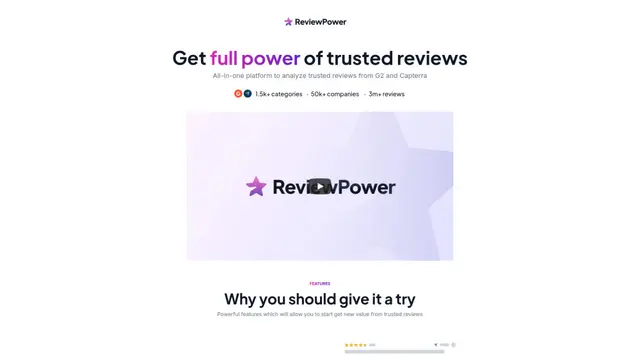
ReviewPower
ReviewPower is an all-in-one platform that aggregates and analyzes trusted reviews from G2 and Capterra to help businesses gain valuable insights from customer feedback.
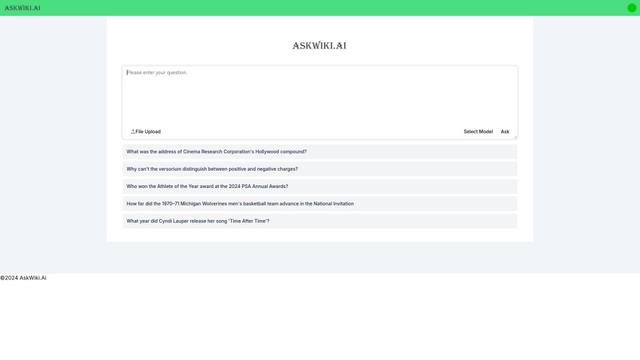
AskWiki
AskWiki is a semantic intelligence software and natural language search engine that enables users to query Wikipedia content through simple questions and receive specific, accurate answers.
Popular AI Tools Like Google app for desktop
SearchGPT
SearchGPT is an AI-powered search prototype by OpenAI that provides fast, conversational answers with clear sources using GPT models.
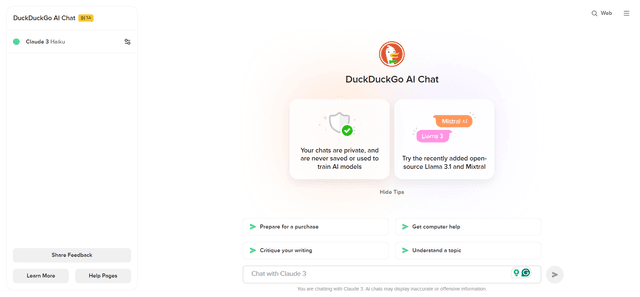
DuckDuckGo AI Chat
DuckDuckGo AI Chat is a free, anonymous way to access popular AI chatbots like GPT-3.5, Claude, and others while preserving user privacy.

R2R
R2R (Reason to Retrieve) is an advanced AI retrieval system that provides production-ready Retrieval-Augmented Generation (RAG) capabilities with multimodal content ingestion, hybrid search, knowledge graphs, and comprehensive document management through a RESTful API.
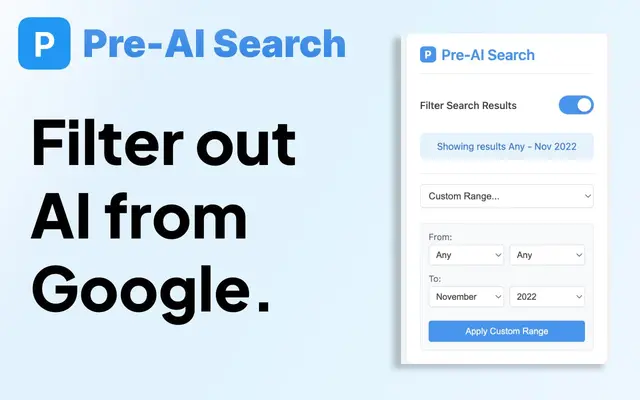
Pre-AI Search - Filter Google AI Content
Pre-AI Search is a Chrome extension that helps users filter out AI-generated content from Google search results by focusing on content published before the rise of AI content generation.