nocal
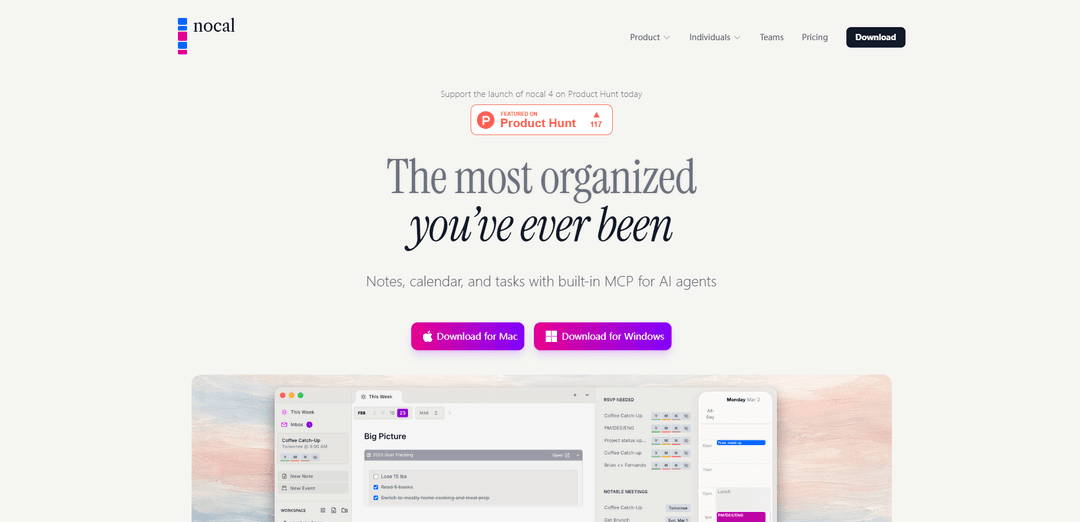
nocal is a minimalist calendar-and-notes workspace that syncs with Google Calendar and Outlook, lets you plan weeks in Markdown with tasks and rich components, and includes a built-in MCP server so AI agents can read context and write structured results back into your notes.
https://nocal.app/?ref=producthunt
Product Information
Updated:May 18, 2026
What is nocal
nocal is a productivity app that combines your calendar, notes, and tasks into one focused workspace designed for busy schedules. Instead of relying on a cluttered calendar grid, it turns each week into a calm, flexible planning canvas where meetings and execution live side by side—so you can prepare for events, capture ideas, and track action items in the same place. It integrates directly with Google Calendar and Microsoft Outlook (M365) for two-way sync, and is available across desktop and mobile (Mac, Windows, iOS, and Android), with the app free to download and a subscription required to use it.
Key Features of nocal
nocal is a minimalist calendar that turns your week into a focused workspace where calendar events, notes, and tasks live side by side. It syncs with Google Calendar and Outlook, offers a clean “what’s next” experience with fast hotkeys, and lets you capture meeting context directly in the calendar using Markdown and rich components (tables, task lists, collapsibles). It also includes a built-in MCP server so AI agents (e.g., Cursor, ChatGPT, Claude) can retrieve relevant context from your notes and write structured results back into nocal, preserving work beyond chat history across desktop and mobile devices.
Weekly workspace (“Every Week, A Fresh Canvas”): A weekly view designed like a project board/command center, where planning and execution happen in one place alongside your schedule.
Calendar + notes unified: Prepare for meetings, take meeting notes, and track action items directly from within the calendar—reducing app switching and keeping context tied to time.
Markdown + rich components: Write in Markdown and embed structured blocks like task lists, tables, code blocks, collapsibles, and nested notes to organize weekly plans and project context.
Google Calendar and Outlook (M365) sync: Works with Google Calendar and Outlook so events stay in sync; edits in nocal update your connected calendars automatically.
Unified calendar inbox: An “inbox zero” workflow for calendar invites across accounts, helping you triage what needs attention and keep multiple calendars organized.
Built-in MCP server for agent writeback: AI tools can pull real note/project history from nocal and write back structured outputs (summaries, plans, action items) using safe patch semantics.
Use Cases of nocal
Meeting-driven teams (product, engineering, ops): Attach agendas, decisions, and action items to recurring meetings; link notes across projects to build searchable institutional knowledge.
Consulting and client services: Unify multiple client calendars, keep prep notes and follow-ups tied to each appointment, and use AI writeback to produce structured deliverables after calls.
Executives and busy managers: Use the calm “what’s next” view and hotkeys to check the week quickly, capture quick notes during transitions, and keep personal/work calendars visible without clutter.
Students and academics: Track classes, office hours, and assignment tasks in the same weekly canvas; store lecture/meeting notes next to the events they came from.
Cross-platform personal planning: Plan routines and weekly goals with task lists and notes that sync across desktop and mobile, keeping a single system for time + execution.
Pros
Minimalist, distraction-reducing calendar experience that emphasizes “what’s next” and fast navigation (hotkeys).
Strong integration of calendar, notes, and tasks, keeping context attached to events and weeks.
Agent-friendly via built-in MCP: enables context retrieval and structured AI writeback into durable notes.
Cons
Calendar support is focused on Google Calendar and Outlook; other calendar providers may be limited/unsupported.
Some advanced capabilities (e.g., certain power-user features/mobile access depending on plan) may require paid access.
Best value depends on adopting its weekly-canvas workflow, which may differ from traditional grid-style calendar habits.
How to Use nocal
1) Install nocal on your device: Download and install nocal for your platform (Mac, Windows, iPhone, or Android). Launch the app after installation.
2) Connect your calendar account(s): Sign in and connect Google Calendar and/or Outlook so nocal can show your schedule. If you use multiple accounts (work + personal), authenticate each account directly to bring them into one unified view.
3) Choose which calendars to display: Configure which calendars are visible in your main view. Optionally set some calendars to be always visible or minimized into slim “contracted” bars so you can keep awareness without clutter.
4) Use the week view as your planning canvas: Open your weekly view and treat it like a project board for the week. This is where meetings, plans, and notes live side by side so you can see the entire week holistically.
5) Create and format weekly plans with Markdown: In your weekly note, write in Markdown and structure your plan using rich components such as bullet lists, numbered lists, task lists, tables, collapsible sections, code blocks, blockquotes, and nested notes.
6) Capture meeting notes directly on calendar events: Open a calendar event and take notes before/during/after the meeting. Keep action items and context attached to the event so it’s easy to find later.
7) Link notes and meetings to build a connected workspace: Reference meetings inside notes and link notes back to meetings. Use nesting and cross-links to create a growing knowledge graph you can navigate by following references.
8) Add events quickly with natural language: Create new calendar events using natural language scheduling (e.g., “Lunch with Alex tomorrow at noon”) to reduce friction when planning.
9) Triage your calendar with the unified inbox: Use nocal’s unified inbox to review personal and work events together, then triage and respond so you can see what needs attention for the week ahead.
10) Use hotkeys to look ahead without losing focus: Use nocal’s handy hotkeys to quickly peek forward in your week, then return to a clean, focused view so the calendar fades into the background when you’re done.
11) Enable and use the built-in MCP server (for AI agents): Turn on nocal’s built-in MCP support so tools like Cursor, ChatGPT, or Claude can retrieve real context (note history + project context) and write structured outputs back into your nocal notes.
12) Use nocal as the writeback layer in your AI workflow: Have your agent pull context from nocal, generate outputs (summaries, plans, action lists), and write results back into the correct note using structured writeback so work doesn’t disappear into chat history.
13) Access your schedule and notes on mobile (if enabled by your plan): Sign in on iOS/Android to view your unified calendar, review meeting notes, and keep your week on hand. Use mobile access and cross-device sync to keep notes and calendar consistent across devices.
14) Manage subscription or plan access if you hit a paywall: If prompted, subscribe via the App Store (monthly/yearly options may vary by region). Manage or cancel auto-renewal in your App Store account settings after purchase.
nocal FAQs
nocal is a calendar-and-notes workspace that combines your schedule with Markdown notes, tasks, and linked context so you can plan, take meeting notes, and track action items in one place.
Popular Articles

Atoms: A Multi-Agent AI Platform That Transforms Ideas into Launch-Ready Products
May 22, 2026

Nano Banana SBTI: What It Is, How It Works, and How to Use It in 2026
Apr 15, 2026

Atoms Review — The AI Product Builder Redefining Digital Creation in 2026
Apr 10, 2026

Kilo Claw: How to Deploy and Use a True "Do‑It‑For‑You" AI Agent(2026 Update)
Apr 3, 2026
Latest AI Tools Similar to nocal
Inbox AI
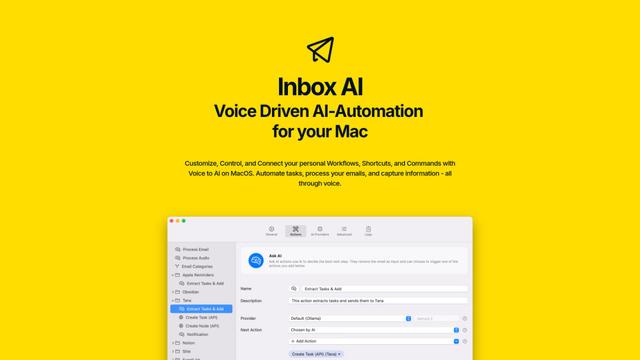
Inbox AI is a privacy-focused MacOS productivity app that combines voice-driven AI automation with email management capabilities, allowing users to create custom workflows and commands while offering both cloud-based and on-device AI options.

Cart.ai
Cart.ai is an AI-powered service platform that provides comprehensive business automation solutions including coding, customer relations management, video editing, e-commerce setup, and custom AI development with 24/7 support.
Hiyllo Work
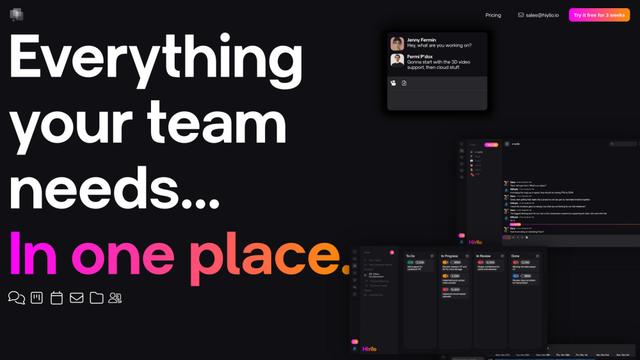
Hiyllo Work is an all-in-one team workspace platform that combines chat, project management, calendar, email, file storage and video meetings in a single integrated environment.

MailSense
MailSense is an AI-powered email assistant that filters, summarizes, and generates replies to emails through a Telegram bot interface to help users manage their inbox more efficiently.
Popular AI Tools Like nocal
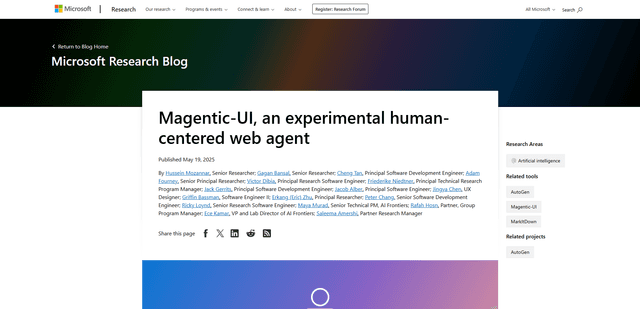
Magentic-UI
Magentic-UI is an open-source, human-centered web agent prototype by Microsoft Research that enables collaborative planning and execution of complex web-based tasks through transparent interaction between humans and AI agents.
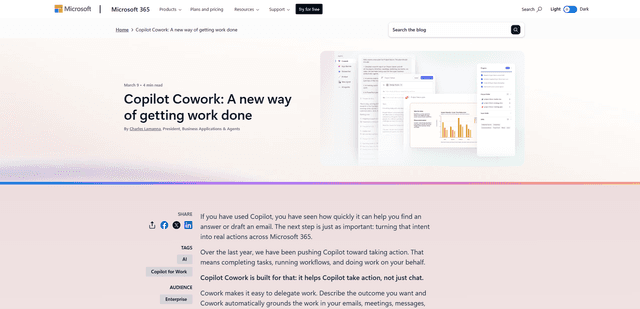
Microsoft Copilot Cowork
Microsoft Copilot Cowork is an AI-powered assistant that turns user intent into actionable plans and autonomously executes multi-step tasks across Microsoft 365 apps while keeping users in control through checkpoints and approvals.
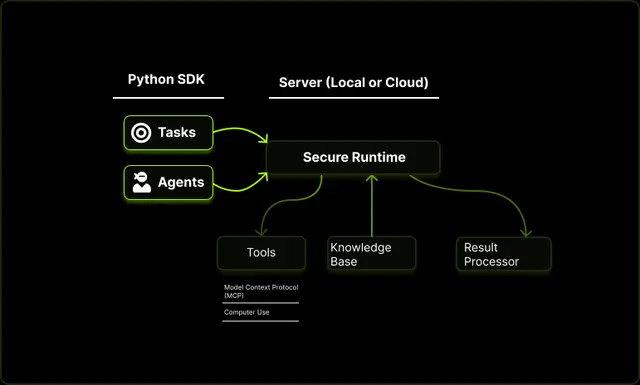
Upsonic
Upsonic is a reliability-focused AI agent framework with dockerized server-client architecture that enables trusted agent workflows through advanced features like verification layers, triangular architecture, and Model Context Protocol (MCP) integration.
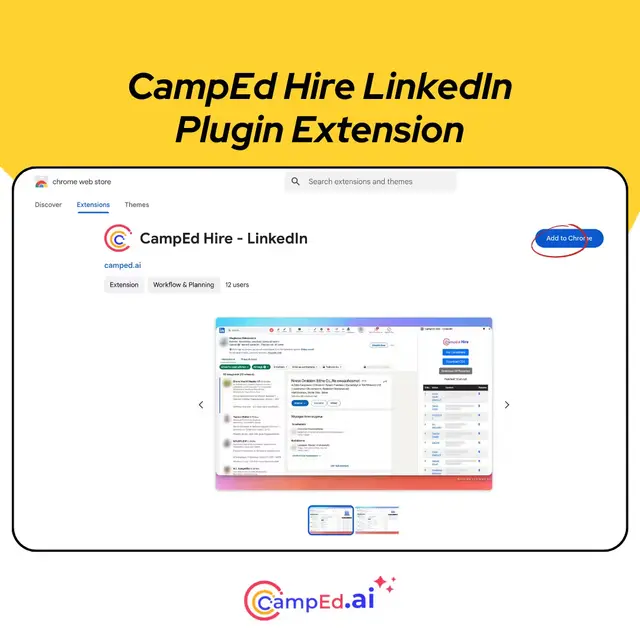
CampEd Hire
CampEd Hire is a powerful Chrome extension that streamlines recruitment by automatically collecting and organizing job applicant data from LinkedIn job posts, with features like automated data collection, CSV export, and batch resume downloads.