
Motion
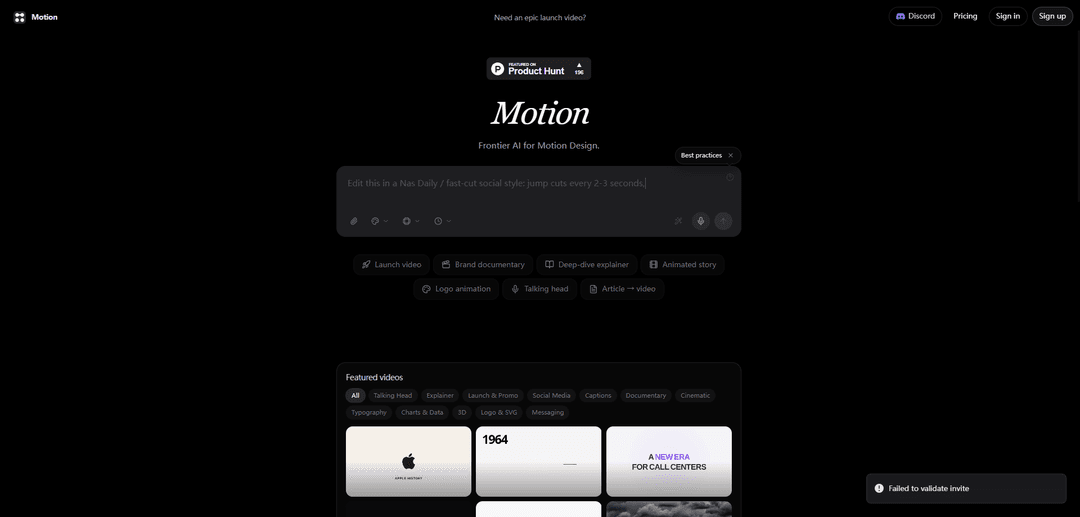
Motion is a frontier AI motion-design platform that turns prompts and source assets into polished, best-practice motion graphics and videos across formats like launch promos, explainers, documentaries, and social edits.
https://motion.so/?utm_campaign=producthunt&ref=producthunt
Product Information
Updated:Jun 8, 2026
What is Motion
Motion is an AI-powered motion design product focused on producing “tasteful” motion graphics quickly and iteratively. It’s positioned as a video agent for motion design, supporting a range of common content types—such as launch videos, deep-dive explainers, animated stories, logo animations, talking-head enhancements, charts-and-data visuals, and social media captions—so creators and teams can generate professional-looking videos without a traditional end-to-end animation workflow. The product presents example outputs and prompts, emphasizing smooth, premium animation and modern design sensibilities.
Key Features of Motion
Motion is an AI motion-design product ("Frontier AI for Motion Design") that generates polished motion-graphics videos from prompts and source materials. It supports multiple video formats and styles (e.g., launch videos, explainers, documentary/Vox-style edits, social clips, typography, charts/data visuals, 3D/logo/SVG animation), enabling fast iteration on creative ideas and producing smooth, premium motion with best-practice animation behaviors (easing, transitions, camera moves) and data/infographic-driven scenes.
Prompt-to-video motion design: Create full motion-graphics videos by describing what you want (style, pacing, typography, color, transitions), including detailed storyboards and timecoded direction.
Multi-format video templates and outputs: Generate content across common marketing/editorial formats such as launch videos, deep-dive explainers, animated stories, social captions, talking-head enhancements, and documentary-style pieces.
Charts, data, and infographic animation: Produce high-definition, graphic-intensive visuals like animated dashboards, network visualizations, timelines, and educational infographics (e.g., aviation/aerodynamics explainers).
Logo & brand animation (2D/3D, SVG): Animate logos and layered brand assets into reveal/end-cards (e.g., URL fade-in, hold, fade-to-black), and create product-style brand lockups.
Editing/enhancement of existing footage: Augment provided videos (e.g., talking heads) with Vox-style documentary motion graphics and edits that match what’s being spoken to make content more engaging.
Rapid iteration and creative exploration: Iterate quickly on concepts, styles, and scenes (typography studies, UI mock sequences, cinematic data visuals) to refine outputs in minutes rather than traditional timelines.
Use Cases of Motion
Product marketing launch videos: Create premium launch/promo videos for apps, hardware, or SaaS using brand assets and website references, including end-cards and feature callouts.
Editorial / Vox-style explainers: Turn complex topics or breaking stories into cinematic explainers with evidence-led typography, diagrams, and clean transitions (e.g., AI, climate, business process).
Social-first news and entertainment edits: Produce TikTok/short-form social edits from articles or story briefs with fast pacing, captions, and motion overlays to match platform-native styles.
Sales enablement & B2B process videos: Explain business workflows (funnels, questionnaires, qualification steps, ROI/time-cost visuals) with documentary-style motion graphics for lead-gen and training.
Customer support / ops visualization for AI platforms: Generate cinematic UI and dashboard sequences showing real-time conversations, counters, maps, and automation outcomes for call-center or messaging products.
Education and training content: Build clear instructional videos (sports, games, technical concepts) using animated diagrams, step-by-step typography, and visual metaphors.
Pros
Fast creation and iteration of motion-graphics videos from prompts and source inputs
Strong fit for polished explainer/documentary styles, typography, and data/infographic-heavy visuals
Supports a wide range of deliverables (launch, social, captions, charts/data, logo/SVG animation)
Cons
Output quality and factual accuracy can depend heavily on prompt specificity and provided assets (may require review/iteration)
Some concepts may involve copyrighted material (e.g., recreating movie scenes), requiring careful rights management by the user
How to Use Motion
1) Create your Motion account and open the web/desktop app: Go to Motion and sign up. Use the web/desktop app for setup and configuration (the mobile app is primarily a companion for viewing and quick capture).
2) Connect your calendar(s) so Motion can see your real availability: Link Google/Outlook/iCloud calendars so Motion can automatically schedule tasks into the time you actually have and adjust when meetings or events change.
3) Set up your working hours and scheduling preferences: Define your work hours, buffers, and any rules that affect when Motion can schedule tasks. This ensures the auto-scheduler produces a realistic plan.
4) Create Workspaces to organize your life and work: Create Workspaces as high-level categories (similar to GTD Areas). Motion recommends aligning Workspaces to departments or major areas of responsibility so tasks and projects stay organized.
5) Create Projects inside the right Workspace: Add Projects for outcomes you’re driving (e.g., 'Website Redesign', 'Client Onboarding'). Projects group tasks and make it easier to track progress and collaborate.
6) Add tasks with the inputs Motion needs to schedule correctly: For each task, enter: (a) deadline/due date, (b) priority, and (c) duration/estimate. Motion uses these inputs to place tasks into open calendar slots and keep your plan up to date.
7) Let Motion auto-schedule your day (and follow the 'what’s next' queue): Once tasks exist with deadlines/priorities/durations, Motion continuously plans your day by deciding what you should work on and when. Use the schedule as your execution list instead of manually time-blocking.
8) Respond to changes and let Motion re-plan automatically: When meetings move, new work appears, or priorities shift, update the task details (deadline/priority/duration). Motion will adjust the schedule in real time so the plan stays achievable.
9) Watch for at-risk warnings and fix them early: If Motion detects a task is at risk of missing its deadline, it can warn you days or weeks in advance. Use this to renegotiate deadlines, increase priority, or break work into smaller tasks.
10) Capture tasks from where work happens (email, chat, meetings, voice): Create tasks quickly by forwarding emails (Gmail/Outlook/iCloud), converting messages (Slack/Teams) or meetings (Zoom/Meet/Teams) into tasks, or using Siri voice capture to add tasks on the fly.
11) Use Motion AI Docs to draft an SOP (Standard Operating Procedure): Create a doc that explains a repeatable process (e.g., employee onboarding). Start with a clear title, purpose, scope, roles, and step-by-step instructions so it can be turned into a workflow.
12) Turn the SOP into a reusable workflow with Motion’s AI Project Manager: Convert the SOP into a step-by-step workflow template containing the projects and tasks required to execute the process consistently.
13) Instantiate the workflow as a real project and assign work with AI Task Planner: When you need to run the process (e.g., you hire someone), create a new project from the workflow. Motion can automatically create and assign tasks so execution starts immediately.
14) Use labels for additional filtering and reporting: Add labels to tasks/projects to slice views beyond Workspaces (e.g., 'Urgent', 'Client A', 'Deep Work'). This helps you filter and focus without changing the underlying structure.
15) Review your schedule daily and keep inputs accurate: Spend a few minutes each day ensuring task durations, deadlines, and priorities reflect reality. Motion’s scheduling quality depends on accurate inputs.
16) Learn in-app via Motion Tutorial Sessions: In the Calendar view, open the left sidebar and look for the tutorial section to follow guided lessons (e.g., resolving calendar sync conflicts and optimizing scheduling settings).
17) (Teams) Invite users and set permissions: If you’re using Motion with a team, add users, assign roles (admin vs guest), and configure access to Workspaces so collaboration and visibility match your organization.
18) (Meetings) Use the AI Notetaker for summaries and action items: Enable Motion’s Notetaker to capture meeting notes, generate a quick summary, and auto-create/assign action items. Optionally send a follow-up email with notes and tasks to attendees.
Motion FAQs
Motion is a creative analytics platform that helps teams understand what’s working in their ad creatives and what to make next by unlocking advanced analyses and reports.
Motion Video
Popular Articles

Atoms: A Multi-Agent AI Platform That Transforms Ideas into Launch-Ready Products
May 22, 2026

Nano Banana SBTI: What It Is, How It Works, and How to Use It in 2026
Apr 15, 2026

Atoms Review — The AI Product Builder Redefining Digital Creation in 2026
Apr 10, 2026

Kilo Claw: How to Deploy and Use a True "Do‑It‑For‑You" AI Agent(2026 Update)
Apr 3, 2026
Latest AI Tools Similar to Motion
Loud Fame
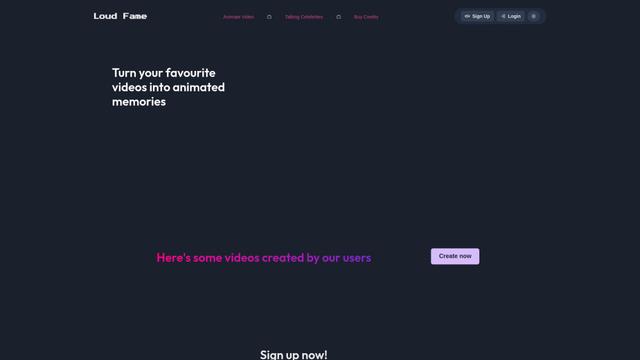
Loud Fame is an AI-powered video transformation tool that allows users to convert regular videos into anime-style animations and create AI-generated celebrity talking videos.
BizBoom.ai
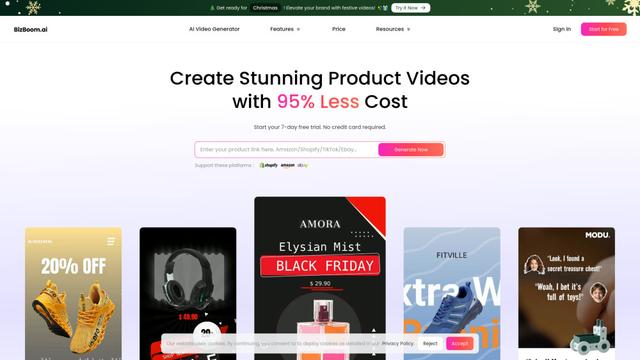
BizBoom.ai is an AI-powered platform that automatically generates professional product videos from product links and images with 95% less cost.
EzVideos
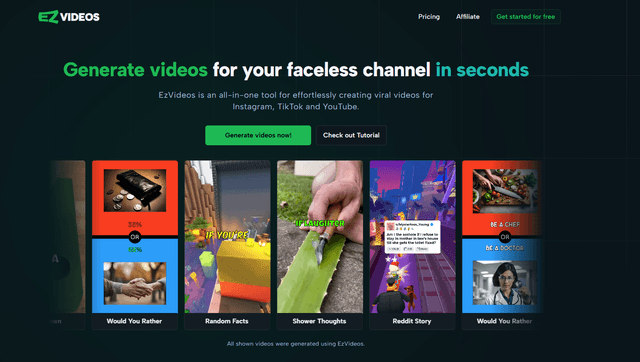
EzVideos is an all-in-one video creation tool that helps users generate viral videos for social media platforms like Instagram, TikTok, and YouTube with automated editing features and built-in resources.
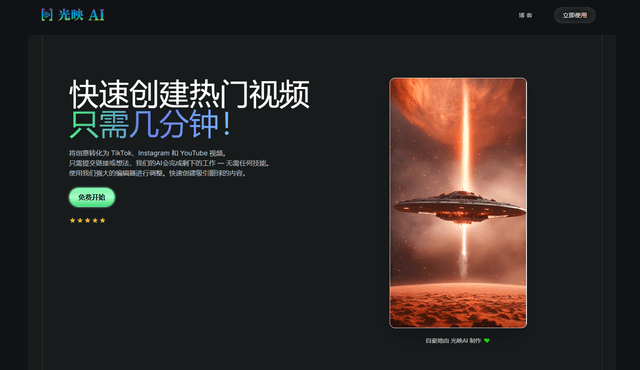
Illuminix
Illuminix is an AI-powered platform that empowers businesses with autonomous hyper-experts and specialized tools for automated business processes, data management, and video content creation.
Popular AI Tools Like Motion
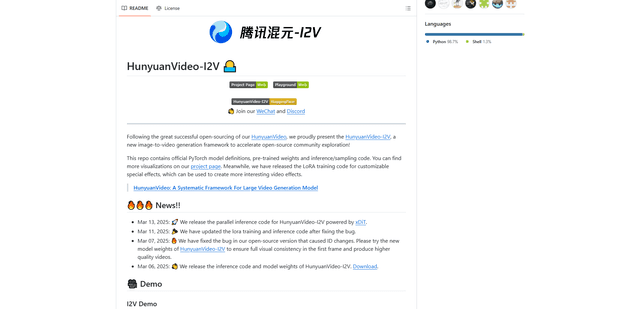
HunyuanVideo-I2V
HunyuanVideo-I2V is an open-source AI framework developed by Tencent that transforms static images into high-quality, dynamic videos with customizable motion effects and exceptional visual consistency.
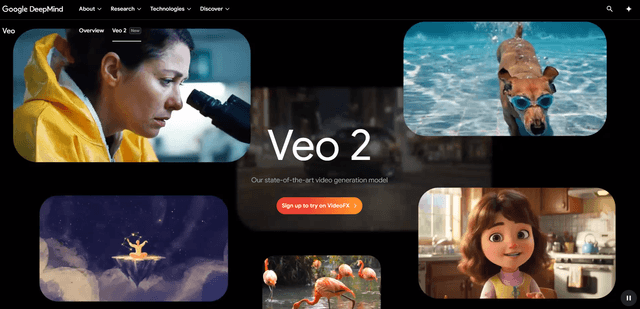
Google Veo 2
Veo 2 is Google DeepMind's state-of-the-art AI video generation model that can create high-quality videos up to 4K resolution with realistic motion, extensive camera controls, and improved physics simulation from text prompts.
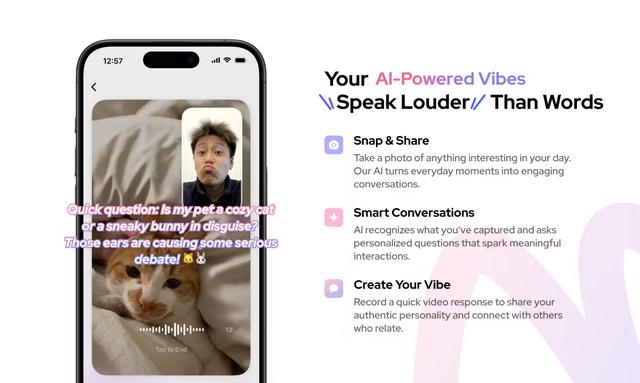
Vibing
Vibing is an AI-powered dating app that helps users share authentic moments through video stories and make genuine connections based on personality matching and interactive features.
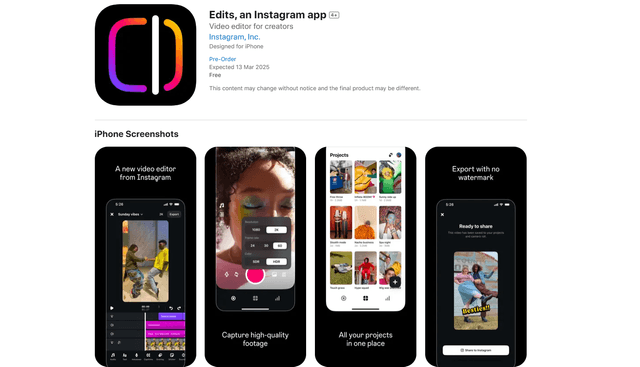
Edits, an Instagram app
Edits is Instagram's free video creation app that provides creators with professional editing tools, AI features, and analytics capabilities to create high-quality videos directly from their phones.