
Flowly
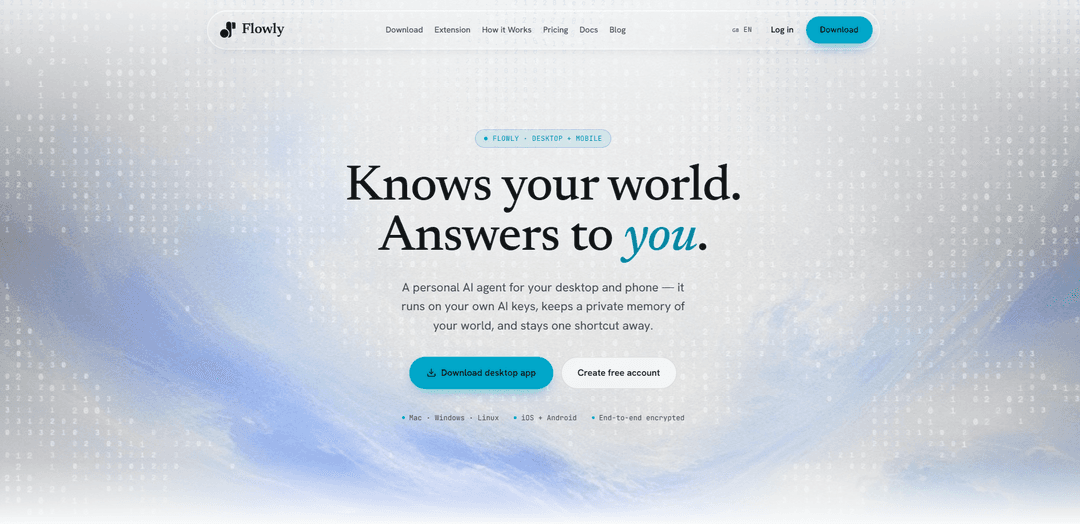
Flowly is a local-first personal AI assistant for desktop and mobile that runs on your own AI keys, keeps a private memory of your world with end-to-end encryption, and can optionally add managed always-on hosting for messaging integrations.
https://www.useflowlyapp.com/?ref=producthunt
Product Information
Updated:Jul 8, 2026
What is Flowly
Flowly is a personal AI agent designed to live on your desktop and follow you on your phone. It focuses on a local-first setup (macOS/Windows with iOS/Android companions) so your assistant is always one shortcut away while keeping your data private and under your control. You can chat naturally, use voice, and connect to popular AI models (Claude, GPT, Gemini and more) via Flowly plans or BYOK (Bring Your Own Key) to use your own OpenAI/Anthropic/OpenRouter-compatible credentials.
Key Features of Flowly
Flowly is a local-first personal AI assistant that runs primarily on your desktop (macOS/Windows, with Linux referenced) and mirrors to native iOS/Android apps, keeping your assistant one shortcut away while maintaining a private, persistent memory of your work. It supports multiple leading AI models (e.g., Claude, GPT, Gemini and more) and can run with your own API keys (BYOK) or via Flowly plans. Data is designed to stay on your devices with end-to-end encryption, and optional Flowly-managed hosting can be enabled when you need always-on messaging integrations (e.g., Telegram/WhatsApp/Discord) or 24/7 bot availability.
Desktop-first local runtime: Install Flowly Desktop to run assistants locally on your own machine and keep them accessible via quick shortcuts, without needing to start in the cloud.
Native mobile companions (iOS + Android) with sync: Use the same assistant across desktop and phone with mirrored controls and messaging-friendly layouts, enabling supervision and access wherever you are.
Private memory of your world: Maintains a persistent, evolving memory across chats (including artifacts like Markdown/JSON/HTML) to learn your context and improve over time.
End-to-end encryption & local-first privacy: Designed so conversations stay on hardware you own; cloud relay (when used) forwards encrypted traffic and Flowly states it doesn’t read chats for unrelated model training.
Multi-model support + BYOK: Choose from many models (e.g., Claude Sonnet 4.6, GPT-5.5 and others) or connect your own OpenAI/Anthropic/OpenRouter (OpenAI-compatible) keys to pay providers directly and bypass Flowly usage limits.
Optional managed hosting for always-on integrations: Provision isolated hosted infrastructure in minutes only when workflows require 24/7 availability—especially for messaging connectors like Telegram, WhatsApp, and Discord.
Use Cases of Flowly
Freelancer productivity cockpit: A single assistant to manage daily planning, reminders, and context across projects—available on desktop while staying synced on mobile for on-the-go check-ins.
Legal and professional services assistant: Helps lawyers and consultants draft and refine content, keep client/project context in memory, and maintain privacy by running local-first with encrypted sync.
Always-on customer or community messaging bot: Enable managed hosting to keep bots reachable 24/7 on channels like Telegram/WhatsApp/Discord while using Desktop as the control center.
Meeting prep, briefings, and proactive alerts: Use scheduled “works before you ask” behaviors (morning briefings, reminders, alerts) to stay ahead of tasks and commitments across devices.
Teams and power-user operations hub: Business plan users can standardize assistants, choose models centrally, and use integrations (email, calendars, productivity tools) while keeping a privacy-focused setup.
Pros
Local-first design with end-to-end encryption for stronger privacy and control.
Flexible model access (Claude/GPT/etc.) plus BYOK support to use your own provider keys.
Native desktop + mobile apps with sync, enabling consistent assistant access across devices.
Optional managed hosting only when needed for always-on messaging integrations.
Cons
Some messaging-style integrations may require enabling managed hosting for 24/7 availability (not purely local).
Full access to premium models depends on paid plans/credits unless you bring your own keys.
Feature set and privacy behavior can vary depending on which integrations and hosting options you enable.
How to Use Flowly
1) Create a Flowly account: Go to Flowly signup and create an account with email or Google. This is the same account you’ll use on Desktop and Mobile for syncing.
2) Install Flowly Desktop (local-first setup): Download and install Flowly Desktop for macOS or Windows (Linux is also supported per product description). Launch the app and sign in with your Flowly account to start running assistants locally on your computer.
3) Add your AI model access (choose plan or BYOK): Decide how you want to access models: (a) Free plan: use free OpenRouter models; (b) Paid plan: unlock premium models like Claude Sonnet 4.6, GPT-5.5, Gemini, Grok, etc.; or (c) BYOK: connect your own OpenAI/Anthropic/OpenRouter (or any OpenAI-compatible) API key so you pay the provider directly and bypass Flowly usage limits.
4) Start chatting from Desktop: Use Flowly Desktop as your main “cockpit” to chat naturally (no special commands required). Keep it one shortcut away for quick prompts and daily use.
5) Enable and use Memory (Artifacts): Use Flowly’s private memory to retain context across chats. Store and reference artifacts (e.g., Markdown, JSON, HTML) so the assistant can learn your preferences and correct itself over time.
6) Install Flowly Mobile and sync: Download Flowly on iOS or Android and sign in with the same account. Your assistant mirrors across devices so you can continue conversations and supervise assistants from your phone.
7) Use Flowly for proactive help (briefings, reminders, alerts): Set up your workflow so Flowly can reach out with morning briefings, reminders, and alerts. This is part of Flowly’s “works before you ask” capability via connected sync.
8) Keep data private with local-first + end-to-end encryption: Run assistants on your own hardware via Desktop for local-first privacy. Flowly uses end-to-end encryption; the cloud relay forwards encrypted traffic so Flowly does not read your conversations for unrelated model training.
9) Add integrations (Telegram/WhatsApp/Discord, Gmail, calendars, etc.): From Flowly, connect the integrations you need (messaging channels and productivity tools). Desktop remains the control center for supervising these connected assistants.
10) Turn on managed hosting only when you need always-on bots: If you want messaging integrations to stay reachable 24/7 (e.g., Telegram/WhatsApp/Discord bots), enable Flowly-managed hosting. In Flowly, go to Settings → Servers and follow the wizard to provision isolated infrastructure (typically ready in ~2 minutes).
11) Use Desktop as the authoring surface; Mobile for supervision: Create and manage assistants primarily on Desktop, then use the mobile apps for messaging-friendly layouts and on-the-go monitoring—especially for assistants that still run locally on Desktop or those using hosted capacity.
12) Manage subscription and scaling: Start on Free (no card required) and add pay-as-you-go credits or upgrade to Starter/Pro/Business as needed. You can cancel anytime; access remains until the end of the billing period.
Flowly FAQs
Install Flowly Desktop for macOS or Windows, sign in (or sign up during onboarding), and download the companion iOS/Android apps with the same account. This keeps assistants local-first; managed cloud provisioning is optional.
Flowly Video
Popular Articles

Atoms: A Multi-Agent AI Platform That Transforms Ideas into Launch-Ready Products
May 22, 2026

Nano Banana SBTI: What It Is, How It Works, and How to Use It in 2026
Apr 15, 2026

Atoms Review — The AI Product Builder Redefining Digital Creation in 2026
Apr 10, 2026

Kilo Claw: How to Deploy and Use a True "Do‑It‑For‑You" AI Agent(2026 Update)
Apr 3, 2026
Latest AI Tools Similar to Flowly
Folderr
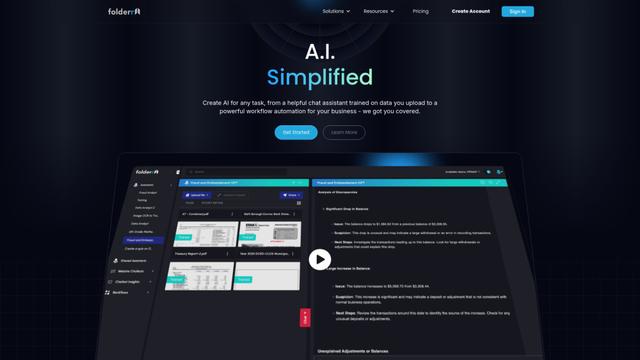
Folderr is a comprehensive AI platform that enables users to create custom AI assistants by uploading unlimited files, integrating with multiple language models, and automating workflows through a user-friendly interface.
Peache.ai
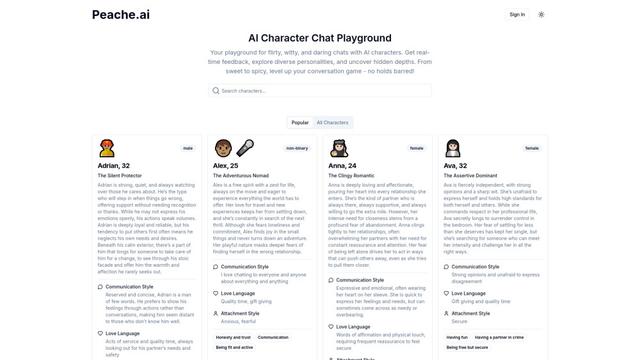
Peache.ai is an AI character chat playground that enables users to engage in flirty, witty, and daring conversations with diverse AI personalities through real-time interactions.
TalkPersona
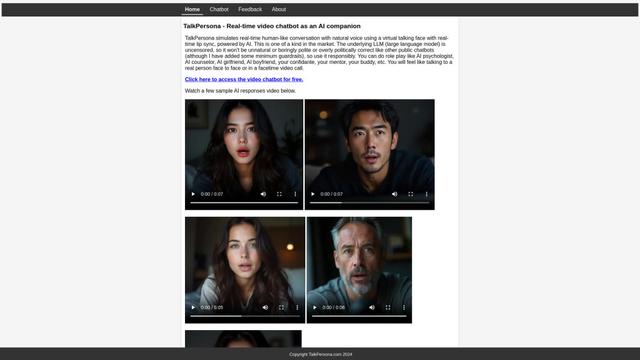
TalkPersona is an AI-powered video chatbot that provides real-time human-like conversation through a virtual talking face with natural voice and lip-sync capabilities.
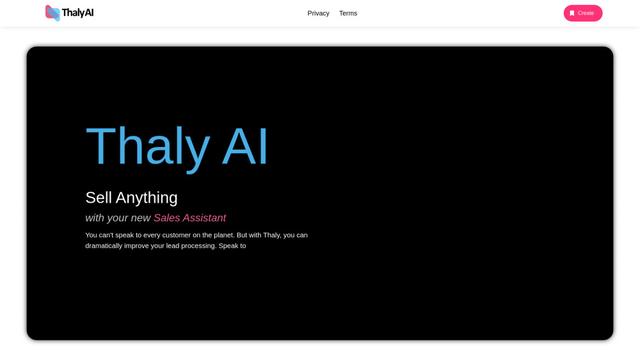
Thaly AI
Thaly AI is an AI-powered sales assistant that automates customer conversations and lead qualification to help businesses scale their sales operations while saving time.
Popular AI Tools Like Flowly
GPT‑5.5 | ChatGPT Official
GPT‑5.5 in ChatGPT is OpenAI’s latest work-focused model designed to understand complex goals, use tools effectively, check its work, and carry multi-step tasks (coding, research, documents, spreadsheets) through to completion with stronger safeguards.
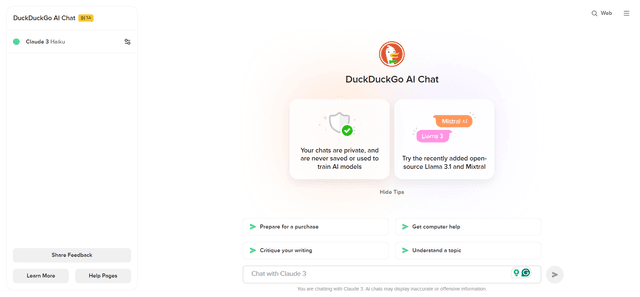
DuckDuckGo AI Chat
DuckDuckGo AI Chat is a free, anonymous way to access popular AI chatbots like GPT-3.5, Claude, and others while preserving user privacy.

Arch
Arch is an intelligent Layer 7 gateway built on Envoy Proxy that provides secure handling, robust observability, and seamless integration of prompts with APIs for building fast, robust, and personalized AI agents.
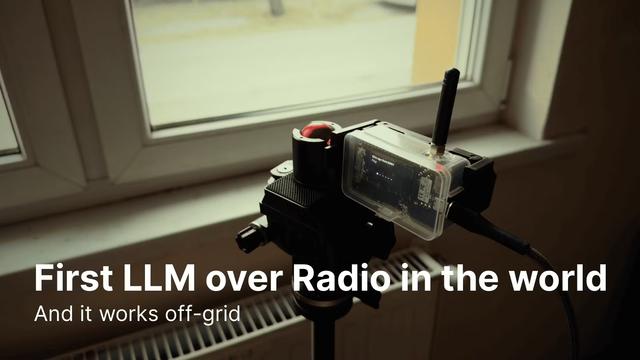
Off-grid LLM over Radio
A platform that integrates Large Language Models (LLMs) with Meshtastic mesh communication networks to enable off-grid AI interactions and automated task execution through radio communication.