Clearcan
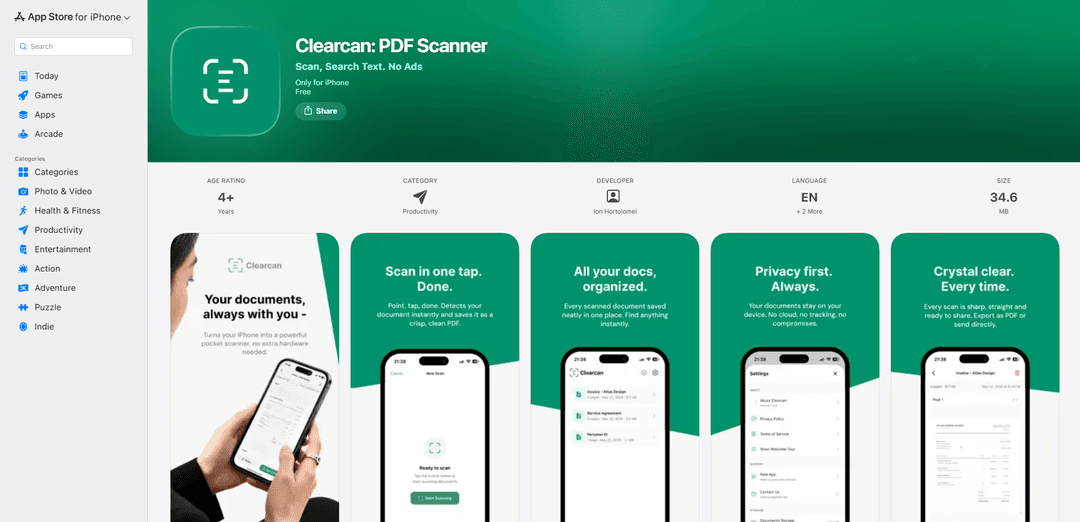
Clearcan is a free, iPhone-only PDF scanner that creates clean multi-page PDFs with automatic edge detection and on-device text recognition for offline search and copy—without ads, accounts, or subscriptions.
https://apps.apple.com/app/id6772304506?ref=producthunt
Product Information
Updated:Jul 15, 2026
What is Clearcan
Clearcan is a simple, fast document-scanning app for iPhone designed for people who want to digitize paper without clutter, paywalls, or tracking. It lets you scan receipts, notes, contracts, handouts, and photos into high-quality PDFs, then share them via Mail, Messages, AirDrop, or save them to Files. Built around privacy and ease of use, Clearcan works fully offline, keeps documents on your device, and does not require an account—positioning itself as a lightweight alternative to bloated scanner apps.
Key Features of Clearcan
Clearcan is a lightweight iPhone-only document scanning app focused on fast, high-quality PDF creation with a privacy-first approach. It uses Apple VisionKit for multi-page scanning, automatic edge detection, and perspective correction, then exports scans as PDFs you can share via Mail, Messages, AirDrop, or save to Files. Recent updates add fully on-device text recognition (OCR) so you can search inside scanned documents, copy recognized text, and get smart auto-generated document names—while staying offline with no ads, no accounts, and no subscriptions.
Multi-page scanning to a single PDF: Capture multiple pages in one session and export them as one PDF for easy submission, archiving, or sharing.
Automatic edge detection & perspective correction: Detects document boundaries and corrects skew to produce cleaner, more readable scans without manual editing.
Offline, on-device OCR (text recognition): Reads text directly on the iPhone so you can search by document content and copy text from any scanned page without uploading files to a server.
Content search & smart naming: Find documents by the words inside them (for scans created after the OCR update) and automatically name new scans based on recognized content.
Simple export and sharing options: Share PDFs via Mail, Messages, and AirDrop, or save them to the Files app for organization and syncing through your preferred storage workflow.
Privacy-first, no ads or subscriptions: No account required and the app states it does not collect data; documents remain on-device and the app is designed to work without internet.
Use Cases of Clearcan
Student coursework submission: Scan homework, worksheets, and handouts into a single PDF and share to teachers or upload to learning portals from the Files app.
Expense and receipt digitization (business & freelance): Quickly capture receipts and make them searchable by text for easier reimbursement, bookkeeping, and audit preparation.
Contract and form capture (professional services): Digitize signed documents, client forms, and agreements into clean PDFs and share them immediately via email or AirDrop.
Personal document archiving: Create a private, offline repository of IDs, letters, medical paperwork, warranties, and other household documents for later retrieval via content search.
On-the-go field documentation: Scan paper notes, checklists, or site paperwork in environments with limited connectivity, relying on offline operation and later sharing.
Pros
Privacy-focused design: works offline, no account required, and the listing indicates no data collection
Fast, clean workflow: multi-page scans with automatic edge detection/perspective correction and one-tap PDF export
On-device OCR enables content search and text copy without sending documents to external servers
Cons
iPhone-only (no iPad/Mac native version listed), limiting multi-device workflows
Content search is noted to work for documents scanned after the OCR update (older scans may not be searchable by content)
Accessibility features are not yet specified on the App Store listing
How to Use Clearcan
1. Install Clearcan: Open the App Store on your iPhone, search for “Clearcan: PDF Scanner”, then download and install it (requires iOS 15.1 or later).
2. Open the app (no account needed): Launch Clearcan. You can start scanning immediately—there’s no sign-in, subscription, or setup required.
3. Start a new scan: Tap the camera/scan button to enter scanning mode (powered by Apple VisionKit).
4. Capture the first page: Point your iPhone camera at the document. Clearcan will automatically detect edges and apply perspective correction. Capture the page when it’s framed correctly.
5. Add more pages (multi-page scan): After the first capture, continue scanning additional pages to build a multi-page document.
6. Review and adjust pages if needed: Check each page for clarity and correct framing. If necessary, rescan a page to improve the result.
7. Save the scan as a PDF: When finished, save/export the scan. Clearcan converts your scanned pages into a PDF instantly.
8. Share or export your PDF: Share the PDF via Mail, Messages, or AirDrop, or save it to the Files app.
9. Search inside your scanned documents (offline): Use the in-app search to find documents by their recognized text content (content search works for documents scanned after the update that added on-device text recognition).
10. Copy text from a scan (offline OCR): Open a scanned document/page and use the copy-text option to copy recognized text from the scan. All recognition happens on-device and works offline.
11. Use smart naming to organize scans: New scans can be automatically given smart names based on recognized content. You can also rename documents manually to keep things organized.
12. Add pages to an existing document: Open an existing scanned document and use the option to add new pages to append additional scans to that PDF.
13. Delete individual pages from a document: Open a multi-page document and remove any unwanted page using the delete-page option.
14. Keep your scans private (local-only storage): Your files stay on your device. To remove everything, delete the app—Clearcan states that all app data is removed with it.
15. Get support: If you have questions or feedback, email the developer at [email protected].
Clearcan FAQs
Clearcan is a simple iPhone document scanner app that lets you scan multi-page documents and convert them to PDF, then share or save them. It’s positioned as a clean, fast scanner with no ads.
Popular Articles

Vosko AI: Localize and Dub Videos for Global Audiences
Oct 15, 2026

Atoms: A Multi-Agent AI Platform That Transforms Ideas into Launch-Ready Products
Oct 13, 2026

Nano Banana SBTI: What It Is, How It Works, and How to Use It in 2026
Apr 15, 2026

Atoms Review — The AI Product Builder Redefining Digital Creation in 2026
Apr 10, 2026
Latest AI Tools Similar to Clearcan
AI Summarizer
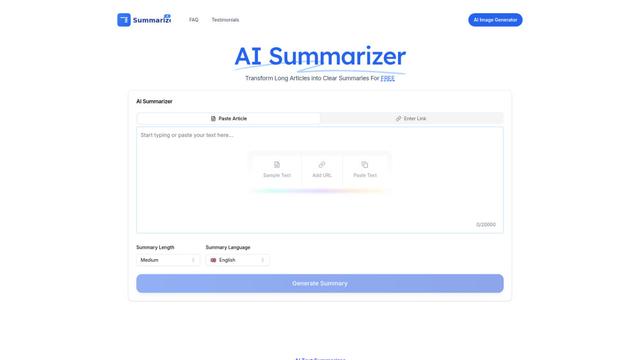
AI Summarizer is a free online tool that uses advanced AI algorithms to instantly summarize any text, article, or document while maintaining context and key information across multiple languages.
Gentables
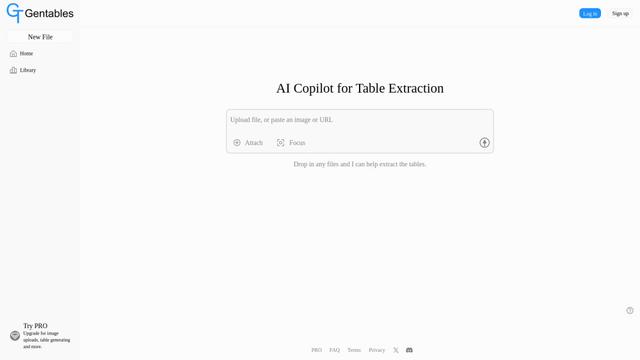
Gentables is an AI-powered tool for extracting and generating tables from various file formats with features like table editing, visualization and data processing capabilities.
PDF to LaTeX
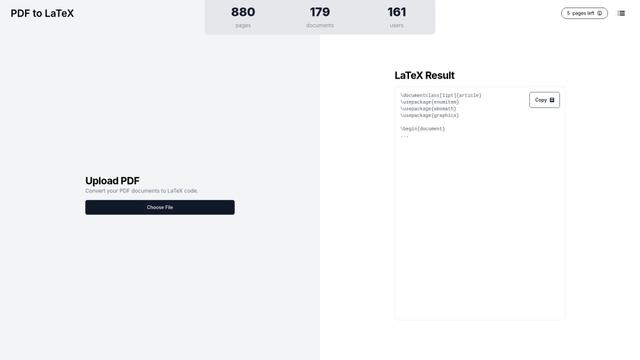
PDF to LaTeX is an AI-powered conversion tool that transforms PDF documents into editable LaTeX markup code while maintaining document integrity and formatting.
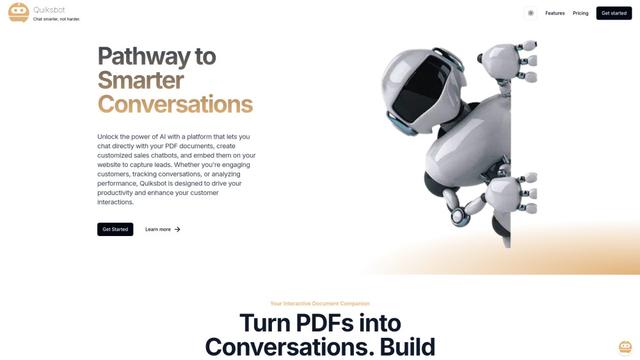
Quiksbot
Quiksbot is an AI-powered platform that enables users to create interactive chatbots for websites, chat directly with PDF documents, and analyze conversations through an intelligent automation system.
Popular AI Tools Like Clearcan
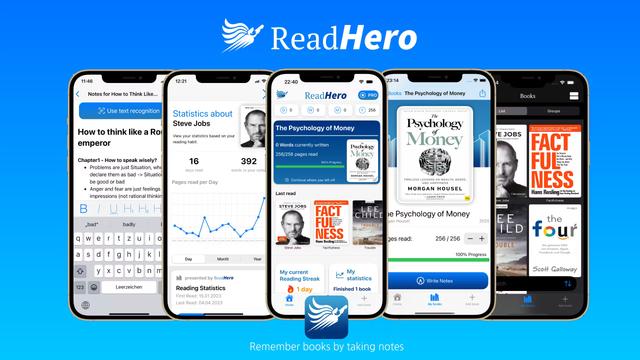
ReadHero
ReadHero is a comprehensive book tracking and note-taking app that helps readers remember and retain more of what they read by enabling progress tracking, note-taking, and book management all in one place.
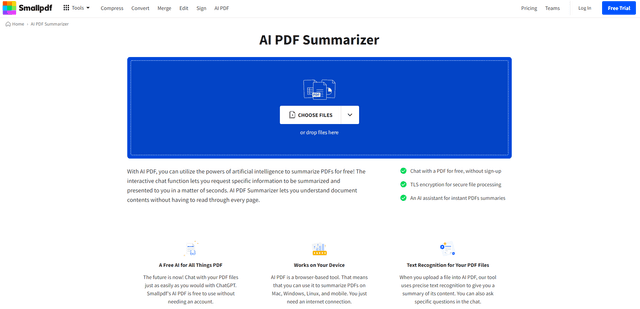
AI PDF Summarizer
AI PDF Summarizer is a free online tool that uses artificial intelligence to quickly generate concise summaries of PDF documents and allow interactive chatting with PDF content.
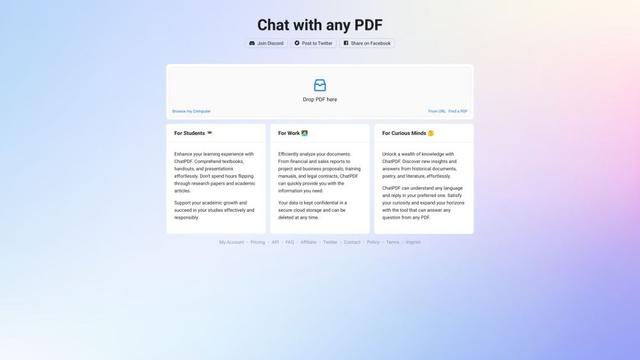
ChatPDF
ChatPDF is an AI-powered tool that allows users to chat with and extract information from PDF documents in multiple languages without sign-up.
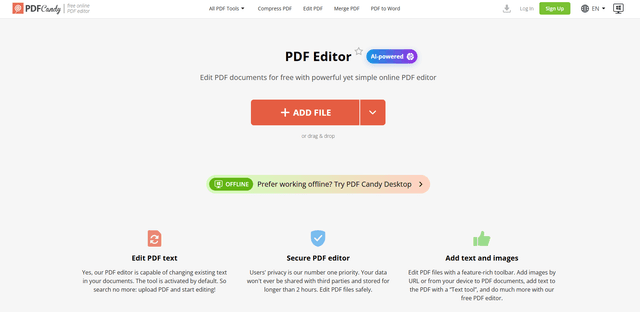
PDF Editor
PDF Candy is a comprehensive online PDF editor offering 44+ tools for creating, editing, converting and managing PDF files with features like text editing, image insertion, annotations, signatures and AI-powered capabilities.