
Chartbuilder
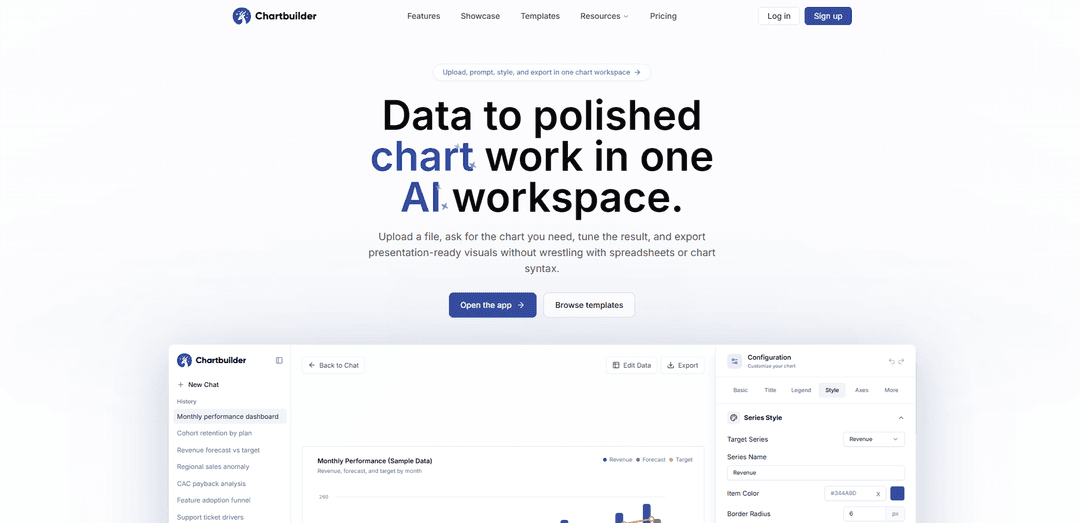
Chartbuilder is an AI chart workspace that turns uploaded data into polished, presentation-ready charts in seconds—letting you prompt, edit, style with brand colors, and export PNG/SVG without spreadsheets or coding.
https://chartbuilder.org/?ref=producthunt
Product Information
Updated:Jun 8, 2026
What is Chartbuilder
Chartbuilder is a web-based “upload to export” charting workspace designed to help teams quickly convert raw data into professional visuals. Instead of bouncing between spreadsheets, chart menus, and design tools, it keeps the data table, AI prompt, chart canvas, styling controls, and export options in one focused place. You can upload CSV/XLSX (or paste data), generate the chart you need via natural-language prompts, refine titles/axes/labels/colors, and export clean outputs for decks, reports, and updates.
Key Features of Chartbuilder
Chartbuilder is an AI chart workspace that turns raw data into polished, presentation-ready charts in one place. Users can upload spreadsheets/CSV (or paste rows), prompt the AI for the chart they need, refine results with focused style and chart settings (titles, axes, legends, colors, sizing), optionally edit the underlying data table, and export to PNG or SVG—without wrestling with spreadsheets, chart syntax, or manual formatting. It supports a free tier for trying the workflow and a pay-as-you-go model via non-expiring AI credits for watermark-free exports.
Upload-to-export AI workflow: Upload a file (CSV/XLSX), describe the chart you want in natural language, iterate in the same workspace, and export without jumping between tools.
Prompted chart generation & analysis: Generate charts from prompts (e.g., comparisons, stacked bars) with modes geared toward speed or deeper reasoning depending on dataset complexity and deadlines.
Editable data table: Inspect and adjust the underlying dataset inside the workspace before finalizing the chart output.
Chart settings in a focused control drawer: Tune titles, axes, legends, label cleanup, colors (including brand/presentation palettes), and export sizing from a single settings area.
Export formats for presentations and design: Export charts as PNG for docs/slides and SVG for editable vector workflows; includes common slide-friendly aspect ratios like 16:9 and 4:3.
Pay-as-you-go pricing with non-expiring credits: Start free (limited generations, watermark exports), then buy one-time AI credit packs for ongoing chart generation and watermark-free PNG/SVG exports—no subscription required.
Use Cases of Chartbuilder
Business reporting & KPI updates: Turn monthly revenue/forecast/target tables into clean comparison charts for leadership decks and weekly business reviews.
Marketing & product performance storytelling: Quickly visualize campaign results, funnel metrics, or feature adoption trends and export SVGs for brand-consistent design polish.
Finance & operations analysis: Create charts for budgets vs. actuals, cost breakdowns, or operational throughput, iterating rapidly as stakeholders request tweaks.
Data journalism & research communication: Convert raw datasets into publication-ready visuals with cleaned labels and consistent styling, then export for embedding or layout.
Education & training materials: Produce clear charts for lessons, assignments, and presentations from class datasets without requiring spreadsheet expertise.
Pros
Fast, end-to-end workflow (data + prompt + styling + export) in one workspace
No spreadsheet/chart-syntax expertise required; natural-language prompting
SVG export enables high-quality, editable visuals for professional design workflows
No subscription required; credits are one-time purchase and do not expire
Cons
Free tier is limited (few generation messages) and exports include a watermark
Advanced usage requires purchasing AI credits
Output quality and correctness may still require user review and iteration, especially on messy datasets
How to Use Chartbuilder
1) Open Chartbuilder: Go to https://chartbuilder.org/ and open the Chartbuilder workspace (the app).
2) Create an account (optional but recommended): Use the Start free flow to sign up so you can save chats/projects and reuse them later.
3) Start a new chart workspace: From the app, begin a new chart so your data, prompt, chart canvas, styling, and export stay in one place.
4) Upload or paste your data: Upload a spreadsheet file (e.g., .xlsx) or a CSV, paste rows directly, or choose a template if you already know the chart shape you want.
5) Confirm the data table looks correct: Review the detected columns/rows in the editable data table and fix obvious issues (missing headers, wrong types, extra rows) before generating the chart.
6) Prompt Chartbuilder with what you want to see: In the prompt box, describe the chart you need (e.g., “Compare monthly revenue vs forecast and target as a line chart” or “Show a stacked bar by quarter”).
7) Choose a generation mode (if available): Select Fast for quick results, Smart for a balanced approach, or a deeper reasoning mode when the dataset or chart logic is more complex.
8) Generate the chart: Run the generation so Chartbuilder produces an initial visualization from your data and prompt.
9) Iterate using follow-up prompts: Refine the output by prompting changes such as “make labels cleaner,” “use brand colors,” “change to stacked bar,” “sort descending,” or “add a title and subtitle.”
10) Adjust chart settings in the style/config controls: Use the chart settings drawer/panel to tune titles, axes, legend behavior, colors, and sizing without leaving the workspace.
11) Inspect and edit underlying data if needed: Open the data table to correct values, rename columns, or remove outliers/extra rows, then re-render so the chart reflects the cleaned data.
12) Set export size for your destination: Choose an aspect ratio like 16:9 for slides or 4:3 for compact reports so the exported chart fits your deck/doc layout.
13) Export the chart: Export as PNG for quick sharing in docs/slides, or SVG for editable vector output in design tools and high-resolution reports.
14) Understand free vs paid export behavior: On the Free plan, exports include a watermark and you get a limited number of chart-generation messages; upgrading via a one-time AI credit pack enables watermark-free PNG/SVG exports and more generations (credits do not expire).
15) Save and reuse your work: Keep the saved chat/workspace so you can return later, regenerate variations, and export updated visuals without rebuilding the chart from scratch.
Chartbuilder FAQs
Chartbuilder is an AI chart workspace that lets you upload data, prompt for the chart you need, style it, and export presentation-ready visuals in one place.
Popular Articles

Vosko AI: Localize and Dub Videos for Global Audiences
Oct 15, 2026

Atoms: A Multi-Agent AI Platform That Transforms Ideas into Launch-Ready Products
Oct 13, 2026

Nano Banana SBTI: What It Is, How It Works, and How to Use It in 2026
Apr 15, 2026

Atoms Review — The AI Product Builder Redefining Digital Creation in 2026
Apr 10, 2026
Latest AI Tools Similar to Chartbuilder

CalcGen AI
CalcGen AI is an AI-powered platform that enables users to effortlessly create and embed interactive data visualizations, charts, graphs, and calculators through simple prompts.

Capital Companion
Capital Companion is an AI-powered trading assistant that provides 24/7 market insights, personalized recommendations, and advanced analytics to give traders a competitive edge.

MarketAlerts.ai
MarketAlerts.ai is an AI-powered stock analysis platform that provides personalized watchlists, smart screening, technical pattern recognition, and custom alerts to help investors make informed trading decisions.
FxChartAI
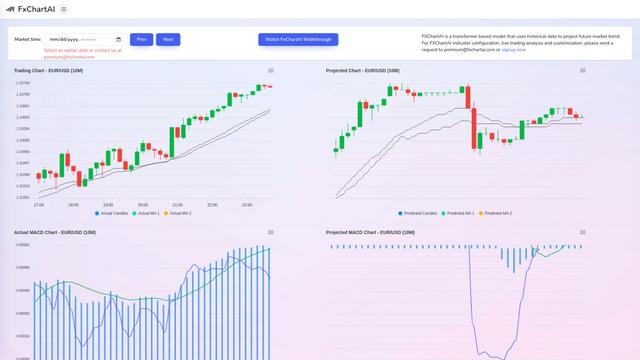
FxChartAI is an advanced AI-powered Forex prediction and analysis tool that uses transformer models to project future market trends.
Popular AI Tools Like Chartbuilder
Microsoft Excel: Spreadsheets
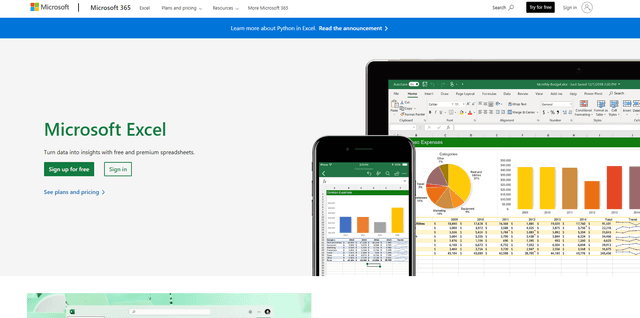
Microsoft Excel is the industry-leading spreadsheet software that allows users to organize, analyze, and visualize data through powerful features like formulas, charts, and AI-powered insights.
Metabase
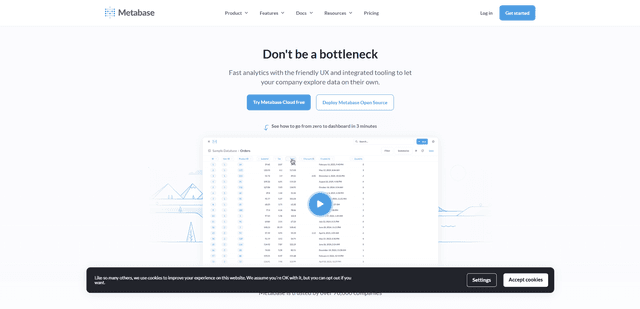
Metabase is an open-source business intelligence and data visualization platform that enables users to query, analyze and share data insights through an intuitive interface without requiring SQL knowledge.
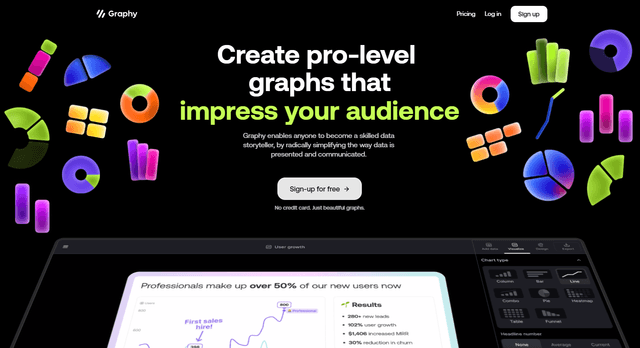
Graphy AI
Graphy AI is an AI-powered data visualization tool that creates charts, generates insights, and simplifies data storytelling.
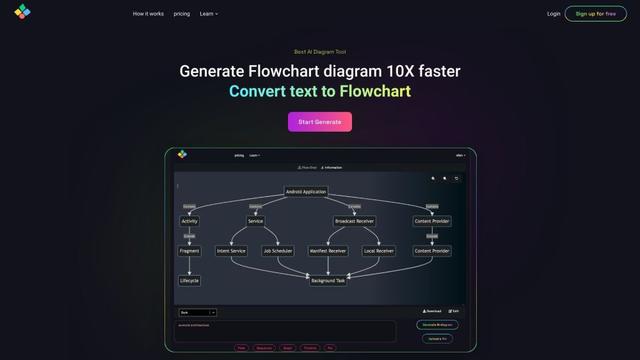
AIFlowChart.io
AIFlowChart.io is an AI-powered online tool that generates flowcharts, diagrams, and visual representations from text, PDFs, or images using ChatGPT technology.