
Photoroom
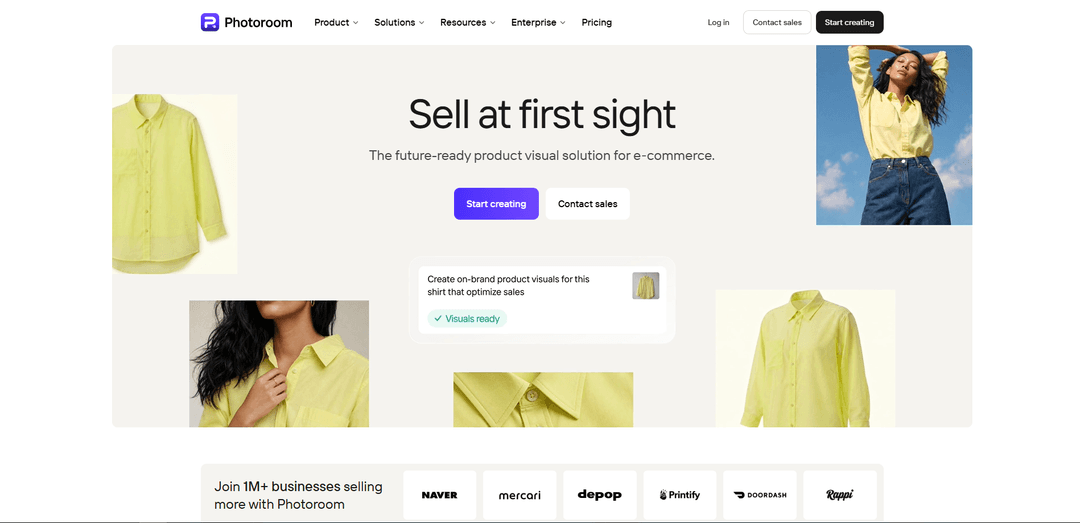
Photoroom is an AI-powered photo editor for e-commerce that quickly removes and generates backgrounds, creates studio-quality product visuals, and scales from single edits to batch processing and API automation.
https://photoroom.com/?ref=producthunt
Product Information
Updated:Jul 8, 2026
What is Photoroom
Photoroom is a visual creation and editing platform designed to help individuals and businesses produce professional-looking product and marketing images without a studio or advanced design skills. Available as mobile apps (iOS and Android) and a web app (app.photoroom.com), it focuses on common e-commerce workflows such as background removal, generating new backdrops, adding realistic shadows, resizing for marketplaces and social platforms, and keeping designs consistent with templates and Brand Kit settings. It also supports higher-volume production needs through batch editing and enterprise capabilities.
Key Features of Photoroom
Photoroom is an AI-powered photo editing and visual production platform built for e-commerce, offering fast background removal, AI-generated product scenes, and tools to keep visuals consistent and marketplace-ready. It supports batch processing via web app or API for high-volume catalogs, plus brand controls (Brand Kit), resizing for multiple channels, and templates (including video templates) to turn a single product shot into ads and listings quickly. It scales from solo sellers to enterprise teams with automation, usage/credit tracking, and enterprise-grade security options.
Background Remover: AI cutouts for clean product listings (white or transparent backgrounds) with a focus on speed and precision.
AI Product Photography / Product Staging: Generates studio-style visuals and lifestyle scenes from a product photo while keeping the product accurate; useful for seasonal or contextual backgrounds.
Batch Processing (Web + API): Apply edits (background removal, resizing, brand rules, etc.) across large sets of images in one pass to accelerate catalog workflows.
Brand Kit & Templates: Lock in brand colors, logos, fonts, and layouts so outputs stay consistent across channels; includes ready-made templates for common marketing formats.
Instant Resize & Multichannel Formatting: Resize and format a single asset for platforms like Shopify, Amazon, Instagram, and other marketplace requirements.
AI Shadows & Recolor: Add realistic shadows for more natural product presentation and change product colors quickly for variant imagery.
Use Cases of Photoroom
E-commerce product listing creation: Turn phone photos into marketplace-ready images with background removal, white/transparent exports, shadows, and consistent sizing.
Catalog-scale automation for marketplaces: Batch edit thousands of SKUs via the web app or API, applying brand rules and exporting consistent assets faster than manual workflows.
Social ads and promotional creatives: Use templates, AI backgrounds, and resizing to produce on-brand creatives for Instagram, TikTok/Reels, and paid campaigns.
Fashion & apparel merchandising: Create consistent visuals for clothing (e.g., virtual model/ghost mannequin-style outputs noted as available tools) and generate variants efficiently.
Food, beauty, jewelry, and home goods visuals: Stage products in realistic scenes, enhance presentation with shadows/lighting adjustments, and produce cohesive imagery across product categories.
Pros
Strong e-commerce focus: tools like background removal, staging, resizing, and brand controls are designed for listings and ads.
Scales well: batch processing and API support enable high-volume workflows; enterprise options include dedicated capacity and SOC 2 Type 2 claims.
Fast time-to-output: templates and AI features reduce the need for manual editing or expensive photoshoots.
Cons
Free plan limitations: restricted AI generation/export capabilities and typically includes constraints (e.g., watermark/usage limits mentioned in sources).
Edge cases in cutouts: complex details (e.g., loose hair or sheer fabrics) may require manual cleanup per user reviews.
Costs can add up for frequent, high-volume or advanced AI usage due to credit-based limits on AI features.
How to Use Photoroom
1. Access Photoroom (web or mobile): On desktop, go to https://photoroom.com and open the web app at https://app.photoroom.com/. On mobile, install Photoroom from the App Store or Google Play.
2. Sign up or log in: Create a new Photoroom account or log in (including via supported login services). Once logged in, you’ll land on the Create screen (also called Home).
3. Understand the Create (Home) screen: Use the Create screen to: view/switch your Space (workspace), start a new design by uploading a photo, search templates by name, use shortcuts to features/new features, and access tools from the sidebar.
4. Start a new design from a photo: On Create/Home, choose Start from Photo (or upload/drag-and-drop on web). Select an image from your device to begin.
5. (Optional) Take a photo inside the app (mobile): On Create/Home, select Start from Photo → Camera, take the photo, and Photoroom will import it (and typically remove the background automatically).
6. Let Photoroom remove the background (recommended): After import, Photoroom can remove the background automatically to create a clean cutout for product or portrait edits.
7. Choose a template (optional): Pick a template category (e.g., Classics, Listing essentials, Social essentials, or recent team templates) to quickly set a background/layout.
8. Use the main editor for manual, precise edits: Open the design in the editor to make detailed adjustments (positioning, layout, and other manual changes). Use this when you need precision beyond quick AI tools.
9. Use AI Tools for fast generation or transformations: Open the AI Tools menu and select a tool (examples mentioned: Virtual Model, Flat Lay, Ironing/Unwrinkle, Recolor, Product Staging, Video Generator, Create any image).
10. Generate with an AI Tool (general workflow): Select an AI tool → upload or choose an image if required (not all tools need a starting image) → adjust settings or describe what you want (prompt) → generate results.
11. Continue editing AI results in the main editor (optional): If you generated an image with an AI Tool, open the result in the main editor to refine it with manual controls or additional edits.
12. Use Edit with AI (optional): While editing, you can use Edit with AI to describe changes you want, combining AI guidance with manual editing workflows.
13. Save your design to a Space: Exit the editor and save your project so it’s stored in Photoroom (cloud) and organized within your Space/workspace.
14. Re-open and edit an existing design: To edit a saved design: Space → Content → Designs → select the design → open in editor → make changes → Save/Export.
15. Export/download your final output: Download/export the image to store it offline and use it on your channels (e.g., marketplaces, websites, or social media).
16. (Optional) Work across devices: You can start on mobile and continue on desktop (or vice versa). Platforms are described as synced in real time for seamless editing.
17. (Optional) Use Batch editing for scale: For many images, use Batch Edit in the web app (or API) to apply AI edits across large sets of images in one pass.
18. (Optional) Upgrade to Pro for advanced features: Consider Photoroom Pro for higher-quality exports and access to more AI features (sources mention items like HD quality, watermark removal, resizing/batch, and additional templates).
Photoroom FAQs
Photoroom is an AI photo editor and product-visual solution built for e-commerce. It helps create listing-ready visuals using tools like background removal, AI product photography, templates/brand kit, resizing, shadows, recolor, and batch processing.
Photoroom Video
Popular Articles

Vosko AI: Localize and Dub Videos for Global Audiences
Oct 15, 2026

Atoms: A Multi-Agent AI Platform That Transforms Ideas into Launch-Ready Products
Oct 13, 2026

Nano Banana SBTI: What It Is, How It Works, and How to Use It in 2026
Apr 15, 2026

Atoms Review — The AI Product Builder Redefining Digital Creation in 2026
Apr 10, 2026
Latest AI Tools Similar to Photoroom
Erase BG
Erase BG is a free, AI-powered online tool that automatically removes backgrounds from images with support for up to 4K resolution, requiring no account or special skills.
ImageKit.io
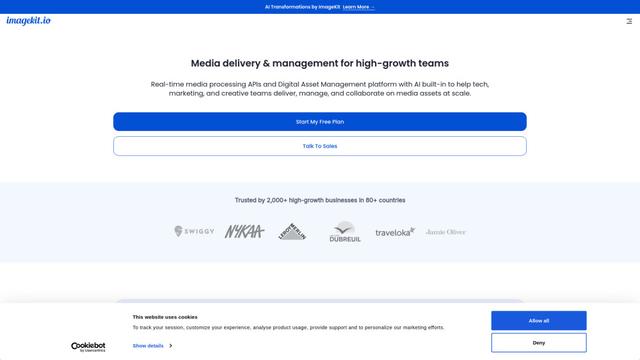
ImageKit.io is a comprehensive media management and delivery platform that provides real-time image and video optimization, processing APIs, and Digital Asset Management (DAM) solutions for delivering high-quality visual experiences on websites and apps.
Pixmaker
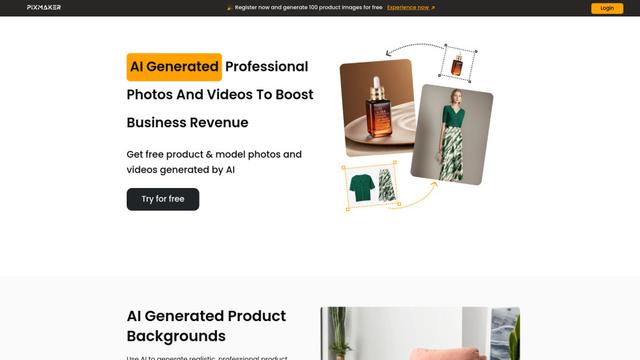
Pixmaker is an AI-powered image generation and editing platform that helps businesses create high-quality product photos, model displays, and marketing visuals through advanced AI algorithms.
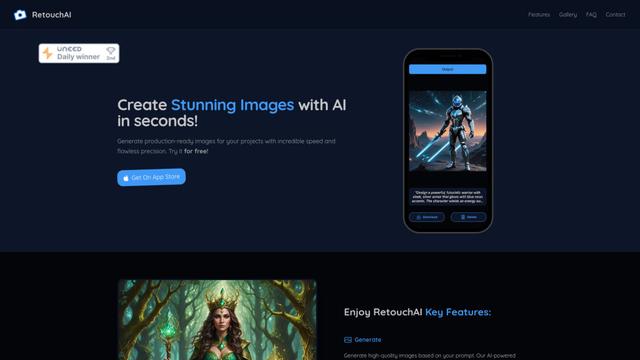
RetouchAI
RetouchAI is an iOS app that leverages AI technology to create, enhance, and edit high-quality images through features like image generation, outpainting, inpainting, and object removal.
Popular AI Tools Like Photoroom
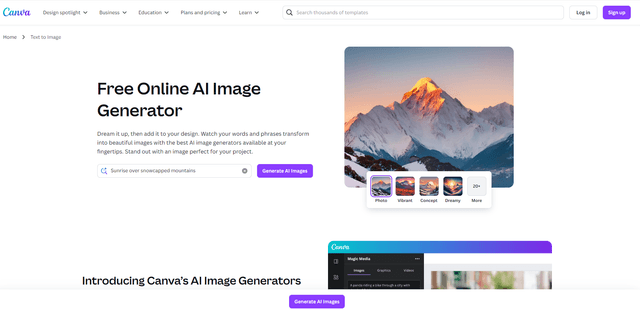
Canva AI
Canva AI is an advanced suite of AI-powered design tools integrated into Canva's platform, offering features like text-to-image generation, background removal, and content creation assistance to streamline the design process.
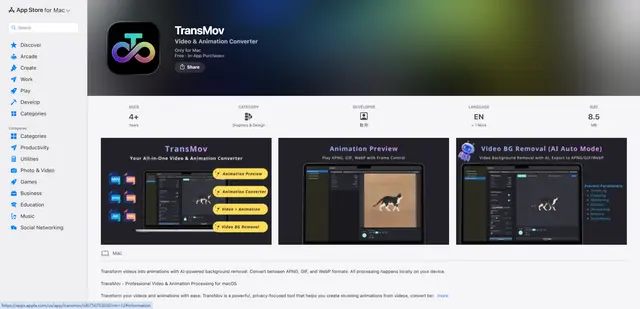
TransMov
TransMov is a powerful, privacy-focused macOS app that helps users create stunning animations from videos, remove backgrounds using AI, and convert between popular animation formats like APNG, GIF, and WebP - all processed locally on your device.

Remove Image Background
Remove.bg is an AI-powered online tool that automatically removes image backgrounds in seconds with just one click.

Vecteezy Background Remover
Vecteezy Background Remover is a free AI-powered tool that automatically removes backgrounds from images with just a few clicks, producing high-quality transparent PNG files.