
AI Mode in Chrome
AI Mode in Chrome is Google's conversational AI search experience that enables side-by-side web browsing with AI assistance, multi-tab context searching, and seamless exploration without constant tab switching.
https://blog.google/products-and-platforms/products/search/ai-mode-chrome/?linkId=61441897&ref=producthunt
Product Information
Updated:May 8, 2026
AI Mode in Chrome Monthly Traffic Trends
AI Mode in Chrome received 8.5m visits last month, demonstrating a Slight Decline of -12.1%. Based on our analysis, this trend aligns with typical market dynamics in the AI tools sector.
View history trafficWhat is AI Mode in Chrome
AI Mode in Chrome represents Google's most powerful AI search experience integrated directly into the Chrome browser, launched in April 2026. This feature transforms how users interact with the web by eliminating the traditional 'tab hopping' problem that occurs during online research. Built on a custom version of Gemini 2.0, AI Mode brings advanced conversational AI capabilities into the browser through multiple access points including the address bar (omnibox), New Tab page, and as a persistent side panel. Available initially in the U.S. with plans to expand to 160+ countries and multiple languages including Hindi, Indonesian, Japanese, Korean, and Portuguese, AI Mode is designed to help users ask complex questions, get contextual answers, and dive deeper into topics while maintaining their browsing flow across desktop and mobile devices.
Key Features of AI Mode in Chrome
AI Mode in Chrome is Google's most powerful AI search experience integrated directly into the Chrome browser, allowing users to ask complex, multi-part questions and get AI-powered responses without leaving their browsing context. Key features include side-by-side webpage viewing with AI Mode, the ability to search across multiple open tabs, files, and images simultaneously, and access to advanced tools like Canvas and image creation. Available through the Chrome address bar (omnibox) and New Tab page, AI Mode provides contextual suggestions, follow-up question capabilities, and seamless integration with Google apps like Calendar and YouTube, all while maintaining Chrome's security and privacy standards.
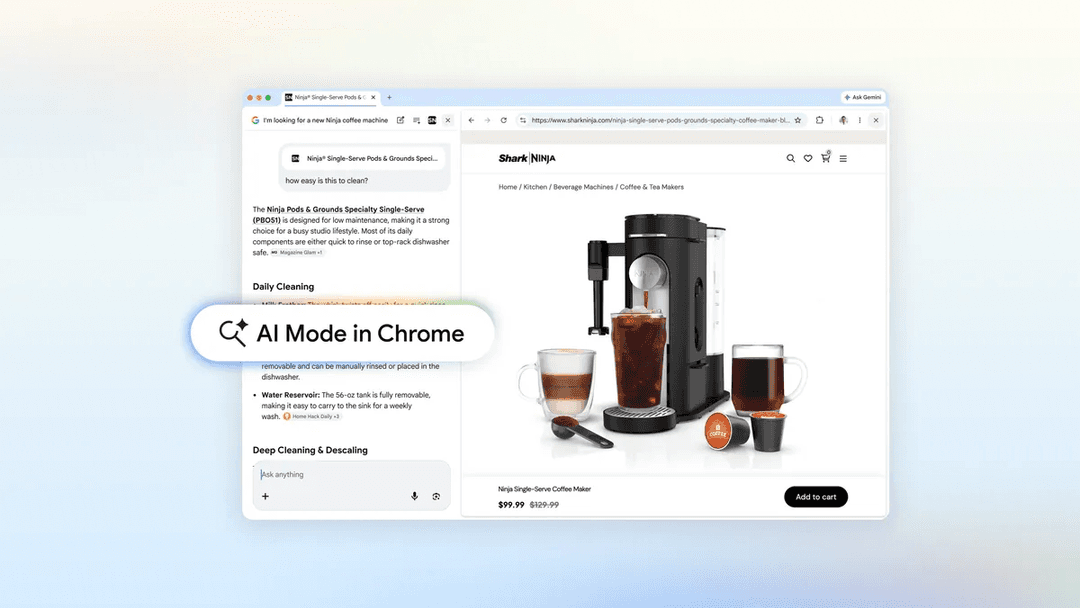
Side-by-Side Exploration Mode: When clicking links in AI Mode on desktop, webpages open alongside the AI chat panel rather than in separate tabs, allowing users to ask follow-up questions about page content while maintaining search context without constant tab switching.
Multi-Input Search Across Tabs: Users can select multiple recent Chrome tabs, images, or PDF files through the plus menu and add them as context to AI Mode searches, enabling comprehensive queries that synthesize information from various sources simultaneously.
Contextual Address Bar Integration: AI Mode is accessible directly from Chrome's omnibox (address bar), providing contextual search suggestions based on the current webpage and allowing complex questions to be asked from the same place users browse and search.
Advanced Tool Access: Integrated access to powerful AI tools including Canvas for writing and coding, image creation capabilities, Deep Search, and the ability to switch between Gemini models, all available through the plus menu wherever AI Mode appears.
Google App Integration: Seamless integration with Google products like Calendar for event creation and YouTube for video summarization, with user control over activity, access permissions, and history deletion.
Skills in Chrome: Ability to discover, save, and remix AI workflows as one-click 'Skills' that can be customized and reused for personalized tasks, building on Chrome's security and privacy foundation.
Use Cases of AI Mode in Chrome
E-commerce Product Research: Shoppers can describe specific product requirements (e.g., compact coffee maker for small apartments that makes lattes) and receive tailored recommendations, then open retailer sites side-by-side to ask detailed questions like ease of cleaning or warranty policies without losing search context.
Academic Study and Research: Students can add multiple tabs containing class notes, lecture slides, and academic papers to AI Mode searches to get tailored explanations of complex concepts, request additional examples, or synthesize information across sources for exam preparation.
Travel Planning: Travelers can research destinations by adding multiple tabs about local attractions, accommodations, and activities, then ask AI Mode for personalized recommendations like kid-friendly hiking trails in specific locations based on compiled research.
Health and Wellness Management: Users can quickly calculate protein macros for recipes, analyze nutritional information across multiple product pages, or compare health-related specifications without manually switching between tabs and calculators.
Professional Productivity: Workers can scan lengthy documents and PDFs for important information, generate side-by-side spec comparisons across multiple tabs, or create custom Skills for repetitive workflows like budget analysis or gift selection.
Content Learning and Comprehension: Users exploring complex topics like McLaren Racing teams can seamlessly navigate between official sites and AI Mode to ask follow-up questions in real-time, helping digest information more effectively without breaking flow.
Pros
Eliminates constant tab switching and maintains search context, creating a more fluid browsing and research experience
Supports multiple input types (tabs, images, PDFs) simultaneously for comprehensive contextual searches
Built on Chrome's security and privacy foundation with user controls over activity, access, and data deletion
Integrated with Google ecosystem (Calendar, YouTube, etc.) for enhanced productivity across platforms
Cons
Currently limited availability (initially US-only with gradual expansion to other countries and languages)
AI summaries may not always be as accurate or reliable as reading original website content directly
Increased interaction with Google's AI tools may reduce direct traffic to publisher and content creator websites
Features are experimental and generative AI outputs can be inconsistent or require verification
How to Use AI Mode in Chrome
1. Access AI Mode from the New Tab page: Open Chrome and create a new tab. You'll see an AI Mode button under the search bar on the New Tab page. Click this button to launch AI Mode.
2. Access AI Mode from the address bar (omnibox): Alternatively, you can access AI Mode directly from Chrome's address bar. Type your query or use the AI Mode option that appears when you start typing complex questions.
3. Enter your search query: Describe what you're looking for in natural language. AI Mode allows you to ask longer, more complex questions compared to regular search. For example, ask for product recommendations with specific criteria or research questions.
4. Review AI-generated results: AI Mode will divide your question into subtopics and search for each one simultaneously, providing an AI-powered summary with helpful links and sources.
5. Open links in side-by-side view: When you click on a link in AI Mode results on desktop, the webpage will open side-by-side with AI Mode rather than in a new tab. This allows you to view both the AI conversation and the webpage simultaneously.
6. Ask follow-up questions about the page: While viewing a webpage alongside AI Mode, you can ask specific follow-up questions about the content. For example, 'How easy is this to clean?' when viewing a product page. AI Mode will use context from both the page and the broader web to answer.
7. Search across your open tabs: Click the plus (+) menu in the search box on the New Tab page or within AI Mode. Select recent tabs from the list to add them to your search context. You can select multiple tabs to include in your query.
8. Add images or files to your search: Using the same plus (+) menu, you can also add images or files (like PDFs) to your AI Mode search. Mix and match tabs, images, and files to provide comprehensive context for your question.
9. Use advanced features like Canvas: Access powerful tools like Canvas for writing and coding, or image creation features through the plus (+) menu wherever it appears in Chrome.
10. Enable Web & App Activity for best experience: For optimal functionality, go to your Google 'My Activity' page and turn on Web & App Activity. This allows you to pick up where you left off with previous AI Mode searches.
AI Mode in Chrome FAQs
AI Mode is a new Search experience integrated into the Chrome browser that allows users to ask questions and get AI-powered assistance while browsing the web. It helps users explore content, ask follow-up questions, and dive deeper into topics without constantly switching tabs or losing their place.
AI Mode in Chrome Video
Popular Articles

Vosko AI: Localize and Dub Videos for Global Audiences
Oct 15, 2026

Atoms: A Multi-Agent AI Platform That Transforms Ideas into Launch-Ready Products
Oct 13, 2026

Nano Banana SBTI: What It Is, How It Works, and How to Use It in 2026
Apr 15, 2026

Atoms Review — The AI Product Builder Redefining Digital Creation in 2026
Apr 10, 2026
Analytics of AI Mode in Chrome Website
AI Mode in Chrome Traffic & Rankings
8.5M
Monthly Visits
#8357
Global Rank
#353
Category Rank
Traffic Trends: Nov 2024-Jun 2025
AI Mode in Chrome User Insights
00:00:53
Avg. Visit Duration
1.93
Pages Per Visit
55.03%
User Bounce Rate
Top Regions of AI Mode in Chrome
US: 26.94%
IN: 8.76%
GB: 5.14%
JP: 4.24%
DE: 3.01%
Others: 51.91%
Latest AI Tools Similar to AI Mode in Chrome
Snapmark
Snapmark is an AI-powered search engine for bookmarks that allows users to save, search, and organize websites, images, and text without manual tagging or categorization.
Uměl.cz
Uměl.cz is a Czech AI-powered search engine that provides intelligent and contextual answers to user queries.
ReviewPower
ReviewPower is an all-in-one platform that aggregates and analyzes trusted reviews from G2 and Capterra to help businesses gain valuable insights from customer feedback.
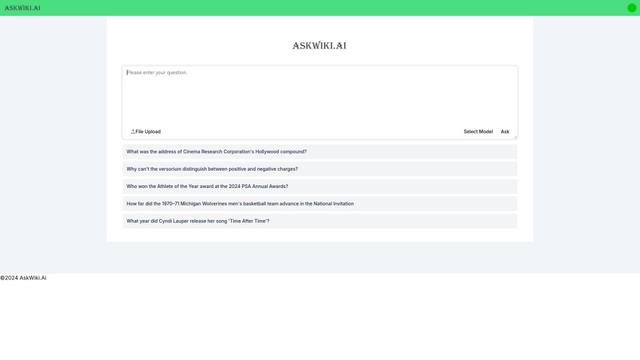
AskWiki
AskWiki is a semantic intelligence software and natural language search engine that enables users to query Wikipedia content through simple questions and receive specific, accurate answers.
Popular AI Tools Like AI Mode in Chrome
SearchGPT
SearchGPT is an AI-powered search prototype by OpenAI that provides fast, conversational answers with clear sources using GPT models.
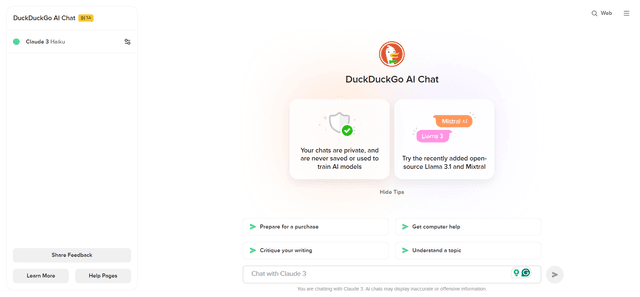
DuckDuckGo AI Chat
DuckDuckGo AI Chat is a free, anonymous way to access popular AI chatbots like GPT-3.5, Claude, and others while preserving user privacy.
R2R
R2R (Reason to Retrieve) is an advanced AI retrieval system that provides production-ready Retrieval-Augmented Generation (RAG) capabilities with multimodal content ingestion, hybrid search, knowledge graphs, and comprehensive document management through a RESTful API.
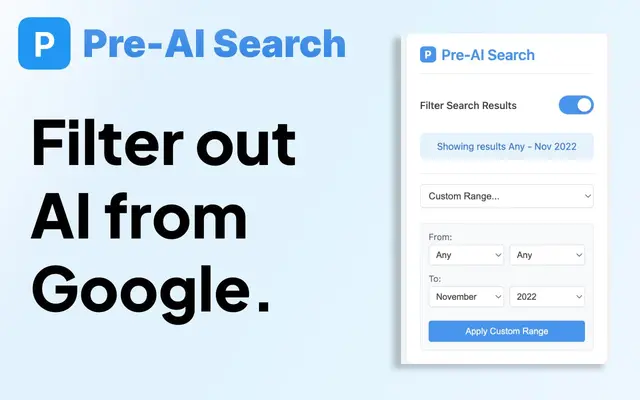
Pre-AI Search - Filter Google AI Content
Pre-AI Search is a Chrome extension that helps users filter out AI-generated content from Google search results by focusing on content published before the rise of AI content generation.