Vmaker AI
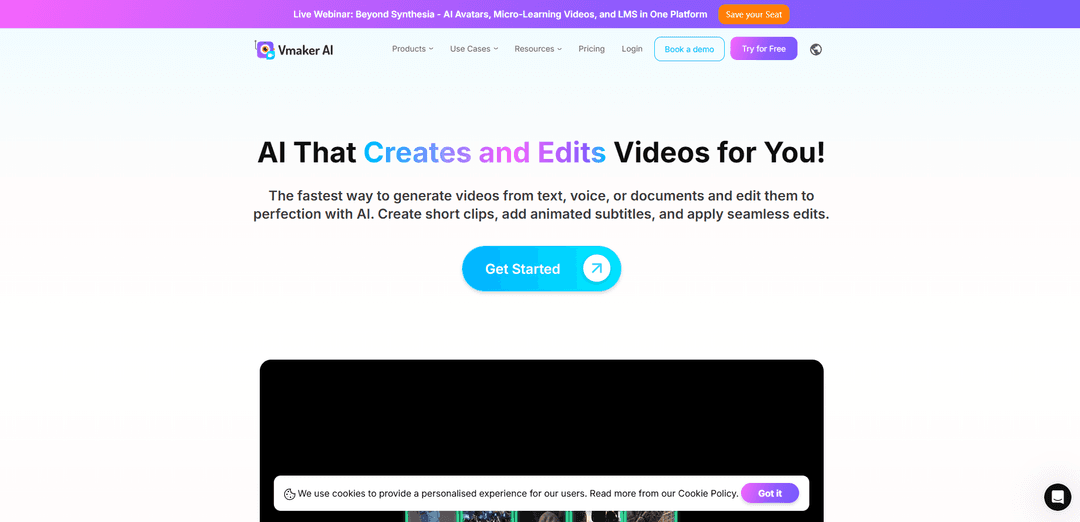
Vmaker AI is an AI video editor that converts long videos into short clips. It is designed to help creators and teams quickly extract high-performing short clips from longer videos without requiring manual scrubbing or traditional editing workflows.
https://www.vmaker.com/?utm_source=aipure
Product Information
Updated:May 12, 2026
What is Vmaker AI
Vmaker AI (from the makers of Animaker) is a DIY video creation and editing platform designed to help creators and teams produce polished videos quickly in the browser. It combines recording (screen + webcam), AI-assisted editing, and generative workflows so users can go from an idea or raw footage to a ready-to-post video in minutes. The product is positioned for use cases such as YouTube content, marketing videos, training/tutorials, and business communication, with features spanning AI video generation, long-to-short repurposing, subtitles, and a full editing suite.
Key Features of Vmaker AI
Vmaker AI is a web-based, AI-powered video creation and editing platform that helps users go from text, audio, documents, or raw footage to publish-ready videos quickly. It combines automated “creative editing” (like adding subtitles, B-roll, transitions, music, and effects) with a full manual, timeline-style editor, plus tools for repurposing long videos into shorts and highlights. It also includes screen + webcam recording (up to 4K), multilingual subtitle generation with animated styles, and enterprise-grade security positioning (GDPR compliance, ISO 27001 certification).
AI video editor (raw-to-publish automation): Analyzes uploaded footage and auto-applies creative edits such as B-roll, intro cards, transitions, animations, text effects, background music, and subtitles to speed up production.
Long-to-short repurposing & highlights generation: Converts long-form content (podcasts, webinars, interviews, educational/gaming videos) into multiple short clips with smart reframing and subtitle styling for platforms like YouTube, TikTok, and Instagram.
Turn Anything into Videos (Text/Audio/Doc/Video → video): Creates videos from text prompts, voice/audio, and documents (including PDF/PPT/Doc flows), often using AI human avatars for talking-head style outputs.
AI subtitles & translation: Automatically generates subtitles in 35+ languages, offers 10+ animation styles, and supports broad subtitle translation options for global content distribution.
Built-in screen + webcam recorder (4K): Records screen, webcam, or both in up to 4K and lets you bring recordings directly into the editor for polishing and publishing.
Manual editing suite in the browser: Provides timeline-based controls and common editing tools (cut/merge/resize, audio enhancement, noise removal, color adjustments) for users who want more precision beyond one-click AI edits.
Use Cases of Vmaker AI
YouTube & creator workflows: Speed up editing, add animated subtitles and effects, and repurpose long videos into Shorts/Reels/TikToks to grow reach across platforms.
Marketing & product promotion: Create ads, product demos, and branded social clips using AI-assisted edits, intros/outros, and quick resizing/reformatting for different channels.
L&D and corporate training: Turn scripts or documents into micro-learning videos, add subtitles for accessibility, and produce training content faster with automated editing.
Sales, customer success, and async communication: Record screen + webcam walkthroughs, polish them quickly, and share via links/messages for demos, onboarding, and support explanations.
Podcast/webinar repurposing: Automatically identify and generate short, shareable clips and highlights from long recordings, optimized for vertical social formats.
Pros
All-in-one workflow: recording, AI editing, manual editing, and export in a single browser-based tool.
Strong repurposing capabilities (long-to-short, highlights) plus animated multilingual subtitles for social distribution.
Supports multiple creation inputs (text/audio/docs) and includes AI avatar-based video generation options.
Cons
Free plan limitations (e.g., watermark on exports and restricted access to explore advanced features).
Some users report slow generation/rendering/export performance and occasional bugs or stability issues, especially on longer recordings.
Pricing may feel high relative to feature depth for power users seeking more advanced controls.
How to Use Vmaker AI
1) Create an account and open Vmaker AI: Go to https://www.vmaker.com/ and click “Get Started” (or “Try for Free”), then sign up/log in to access the web-based workspace.
2) Choose what you want to do (Record, Edit, Create, or Convert): From the product/tools menu, pick the workflow that matches your goal: record a screen/webcam video, edit an existing video, generate a video from text/audio/docs, or convert/repurpose content (e.g., long video to shorts).
3) Record a video (optional): If you’re starting from scratch, open “Screen Recorder” or “Webcam Recorder” and record your screen and/or webcam (Vmaker supports up to 4K recording). When done, save the recording so you can import it into the editor.
4) Import footage into the editor: Upload your existing video (or your new recording) into Vmaker AI’s editor so you can turn raw footage into a publish-ready video.
5) Use the AI Video Editor to auto-polish your video: Run the AI editing flow to automatically enhance your raw video into a more finished output (Vmaker AI is designed to quickly make videos “publish-ready”).
6) Generate short clips from a long video (Long-to-Short / Repurpose): Open “AI Clip Maker” (Long Video to Short Video AI) or “Repurpose Video AI,” upload your long-form video (podcast, webinar, interview, educational, gaming, etc.), then generate multiple short clips with AI.
7) Set clip duration and aspect ratio for each platform: Before or after upload (depending on the tool flow), choose an aspect ratio (16:9, 9:16, or 1:1) and set a target duration using presets (e.g., 20–40s, 40–60s, 60–120s) or your own custom duration.
8) Add AI subtitles (captions): Open “AI Subtitle Generator,” then generate subtitles automatically (supported in 35+ languages). Choose from 10+ animation styles and apply translations (100+ translation languages) if needed.
9) Create videos from text, audio, or documents (Turn Anything into Videos): Use the “AI Video Generator” options to create content from: Text to Video, Audio to Video, or Doc to Video (including PDF to Video and PPT to Video). Follow the tool prompts to provide your input and generate a video.
10) Use AI avatars (optional): If you want a talking-head style output, use “AI Avatar Generator” (or text/audio-to-avatar flows) to generate videos with AI human avatars.
11) Enhance or clean up your video (optional tools): Depending on your needs, apply tools like “Video Enhancer AI,” “AI Video BG Remover,” “Video Speed Changer,” “Online Video Resizer,” “Online Video Cutter,” or “Online Video Merger” to refine the final output.
12) Finalize with manual editing controls: After AI automation, use the built-in editing suite to make any final adjustments (timing, layout, subtitles styling, resizing, and other creative tweaks) before export.
13) Export and publish: Export your finished video(s) and publish them to your target platforms (e.g., YouTube, TikTok, Instagram Reels) using the aspect ratio and clip lengths you prepared.
Vmaker AI FAQs
Vmaker AI is an all-in-one AI video platform for creating and editing videos. It can generate videos from text, voice, or documents and includes a full editing suite to turn raw footage into publish-ready videos.
Popular Articles

Vosko AI: Localize and Dub Videos for Global Audiences
Oct 15, 2026

Atoms: A Multi-Agent AI Platform That Transforms Ideas into Launch-Ready Products
Oct 13, 2026

Nano Banana SBTI: What It Is, How It Works, and How to Use It in 2026
Apr 15, 2026

Atoms Review — The AI Product Builder Redefining Digital Creation in 2026
Apr 10, 2026
Latest AI Tools Similar to Vmaker AI
Loud Fame
Loud Fame is an AI-powered video transformation tool that allows users to convert regular videos into anime-style animations and create AI-generated celebrity talking videos.
BizBoom.ai
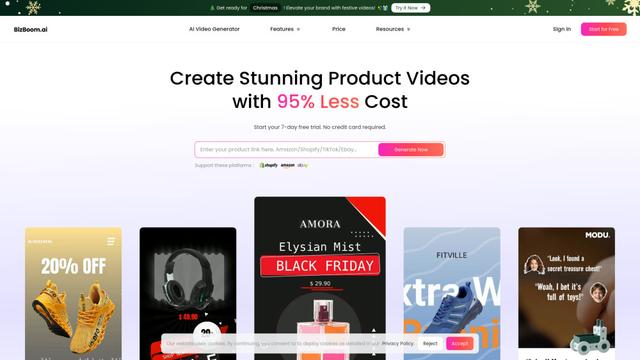
BizBoom.ai is an AI-powered platform that automatically generates professional product videos from product links and images with 95% less cost.
EzVideos
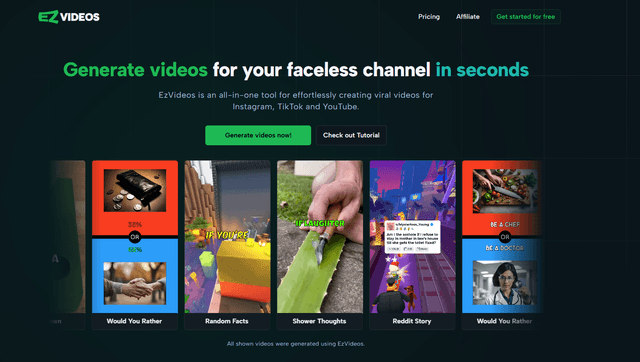
EzVideos is an all-in-one video creation tool that helps users generate viral videos for social media platforms like Instagram, TikTok, and YouTube with automated editing features and built-in resources.
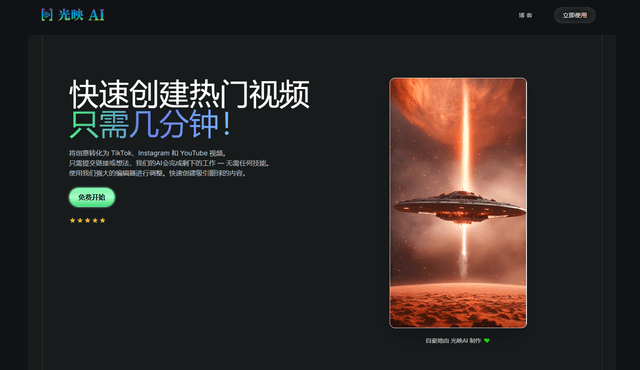
Illuminix
Illuminix is an AI-powered platform that empowers businesses with autonomous hyper-experts and specialized tools for automated business processes, data management, and video content creation.
Popular AI Tools Like Vmaker AI
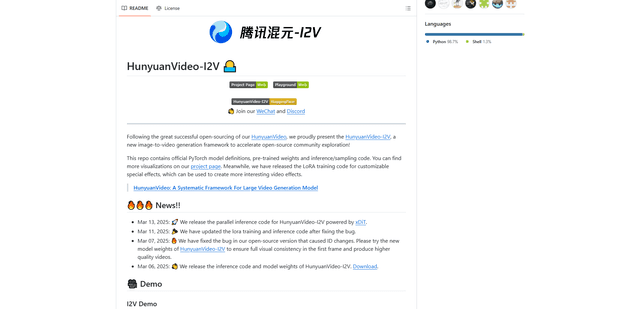
HunyuanVideo-I2V
HunyuanVideo-I2V is an open-source AI framework developed by Tencent that transforms static images into high-quality, dynamic videos with customizable motion effects and exceptional visual consistency.
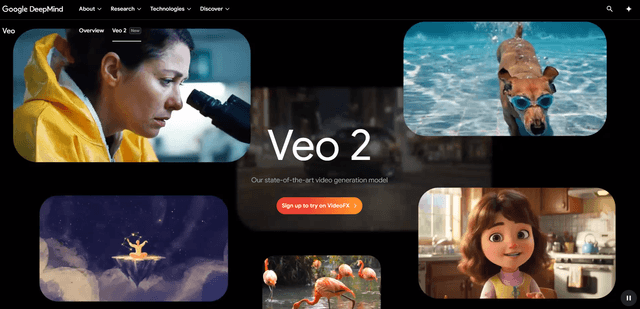
Google Veo 2
Veo 2 is Google DeepMind's state-of-the-art AI video generation model that can create high-quality videos up to 4K resolution with realistic motion, extensive camera controls, and improved physics simulation from text prompts.
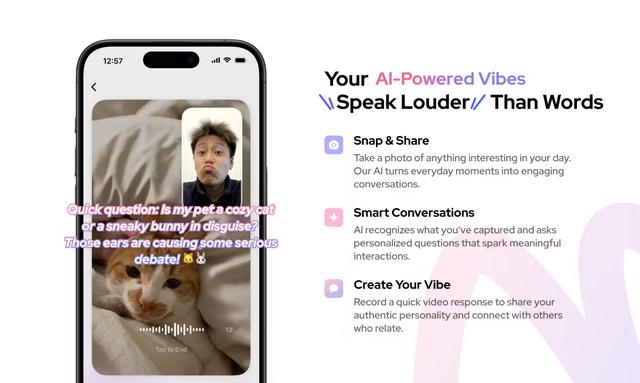
Vibing
Vibing is an AI-powered dating app that helps users share authentic moments through video stories and make genuine connections based on personality matching and interactive features.
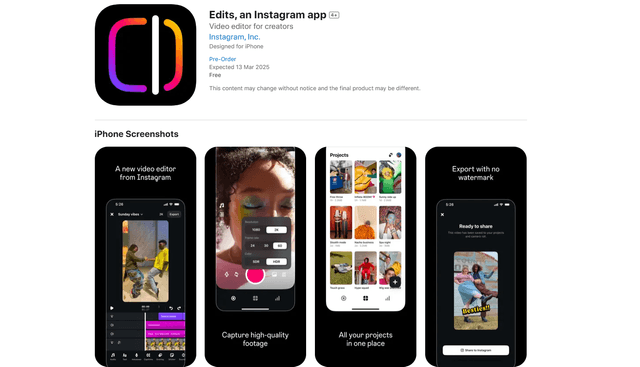
Edits, an Instagram app
Edits is Instagram's free video creation app that provides creators with professional editing tools, AI features, and analytics capabilities to create high-quality videos directly from their phones.