Unbound AI
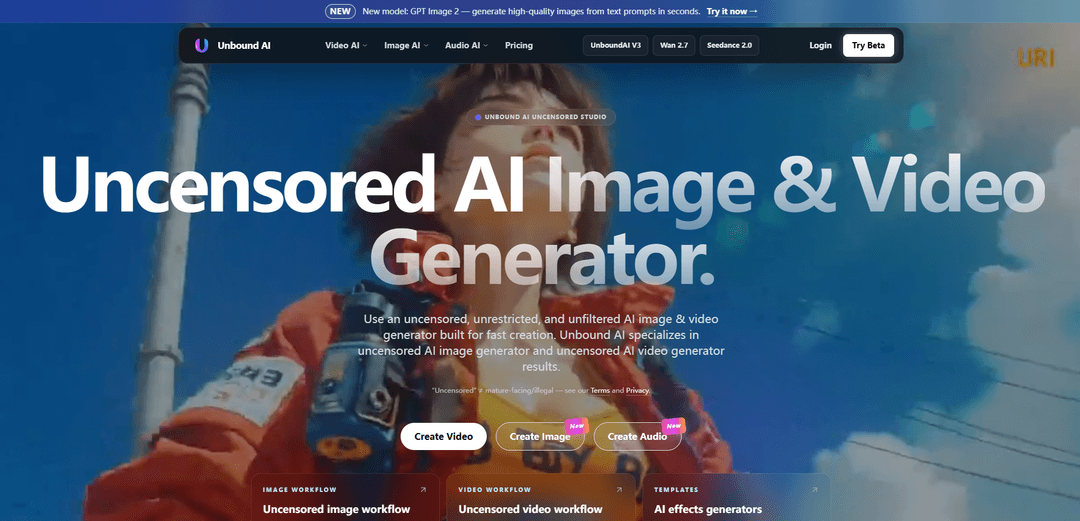
Unbound AI is an uncensored, unrestricted AI studio for fast text/image-to-image and text/image-to-video generation, with optional audio tools and multiple model choices for creator-ready outputs.
https://unboundai.net/?utm_source=aipure
Product Information
Updated:Jul 1, 2026
What is Unbound AI
Unbound AI is a web-based generative creation platform focused on producing AI images and short videos with fewer unnecessary prompt blocks, while still prohibiting illegal content under its Terms. It offers a unified “studio” experience where users can generate visuals from text prompts or reference images, iterate quickly, and optionally add audio elements such as music, voice, and sound effects. The product positions itself as an all-in-one replacement for parts of a typical creator stack by combining image generation, video generation, effects-style templates, and audio tooling behind a credit-based workflow (including free starter credits and purchasable credit packs that do not expire).
Key Features of Unbound AI
Unbound AI is a creator-focused platform for generating and editing “uncensored/unrestricted” AI visual content, offering end-to-end workflows across text-to-image, image-to-image, image-to-video, text-to-video, video-to-video, plus audio generation (music/voice/SFX) and template-style video effects. It emphasizes fast creation with multiple model options (including first-party and third-party models with differing policies), provides free daily/first-login credits with purchasable credit packs, and supports commercial use under its terms and input-rights requirements, with encrypted uploads in transit and user control over what gets published or shared.
Multi-modal generation studio (image, video, audio): Create content across Text-to-Image, Image-to-Image, Image-to-Video, Text-to-Video, Video-to-Video, and add audio via Text-to-Music and Video-to-Audio/Image-to-Audio tools in one platform.
Model selection for different quality and motion needs: Provides a catalog of models (e.g., Seedance 2.0, Wan 2.7, UnboundAI V3, Kling, Vidu, Sora 2, GPT Image 2, Flux2 Pro) to prioritize face consistency, prompt fidelity, smoother motion, or high-quality images depending on the task.
“Uncensored/unrestricted” creative workflow with clear boundaries: Designed to reduce unnecessary prompt blocks for broader style control while still prohibiting illegal content and requiring users to have rights to uploaded materials; third-party models may apply additional safety filtering.
Template-based AI video effects: Includes ready-made effect generators (e.g., kissing/hugging and other motion templates) to produce short clips with less prompt engineering.
Credit-based usage with free starter access: Offers free credits on first login plus daily login credits; paid credit packs unlock higher volume, higher resolution, batch processing, and priority queues, with purchased credits that do not expire.
Data handling and sharing controls: Uploads are encrypted in transit, and users control what they publish or share, with data handling described in the platform’s privacy policy.
Use Cases of Unbound AI
Social content and creator marketing: Generate eye-catching images and short videos for TikTok/Reels/Shorts, iterate quickly on styles, then add music/SFX for finished posts.
Advertising and brand creative prototyping: Rapidly storyboard campaigns using text-to-image and image-to-video, testing multiple concepts and motions before committing to full production.
Entertainment and music visuals: Create music visualizers, lyric-video backdrops, or cinematic image-to-video clips, then produce supporting audio elements (music/SFX) for edits.
E-commerce and product promotion visuals: Produce product-style hero images or promotional video snippets from prompts or reference images to support listings, landing pages, and ads.
Concept art and pre-visualization for film/game: Explore visual directions with text/image generation and convert keyframes into motion clips to communicate mood, lighting, and scene beats.
Community-driven content publishing: Create and optionally share outputs to a community feed for discovery, inspiration, and iteration on popular visual trends.
Pros
Broad end-to-end workflow: image, video, and audio tools plus effects templates in one place.
Multiple model options enable tuning for motion quality, face consistency, and prompt fidelity.
Accessible pricing entry with free starter/daily credits and non-expiring purchased credit packs.
Cons
“Uncensored” is not universal—third-party models may still apply extra safety filtering and policies vary by model.
Generation speed/quality depends on workload, queue, and model choice; videos can take minutes.
Commercial use is conditional on purchased credits/terms and requires proper rights to any uploaded inputs.
How to Use Unbound AI
1) Open Unbound AI and sign in: Go to https://unboundai.net/ and click “Login” (or “Try Beta”). After your first login, you should receive initial free credits (the site notes 3 free credits on first login plus 1 daily login credit).
2) Check your credits and decide whether to stay on free credits or buy a pack: Review your available credit balance before generating. If you need higher volume, higher resolution, batch processing, or priority queues, open “Pricing” and purchase a one-time credit pack (the site states purchased credits never expire).
3) Choose what you want to create: Image, Video, or Audio: From the homepage, pick the workflow you need: “Create Image,” “Create Video,” or “Create Audio.” Unbound AI is organized into three main labs: Image AI, Video AI, and Audio AI.
4) Create an image from text (Text to Image): Navigate to Image AI → “Text to Image.” Enter a text prompt describing the image you want, select an image model if prompted (e.g., GPT Image 2, Flux2 Pro, Seedream 5.0, Wan 2.7 image), then run generation. Images typically generate in seconds (timing varies by model and queue).
5) Create an image from an existing image (Image to Image): Navigate to Image AI → “Image to Image.” Upload a reference image you have rights to use, add a prompt describing how you want it transformed, choose a model if available, then generate.
6) Create a video from an image (Image to Video): Navigate to Video AI → “Image to Video.” Upload or select an image, choose a video model (the site lists options such as Seedance 2.0, Wan 2.7 video, Kling 3.0, Vidu Q3, Sora 2), describe the motion/style in your prompt, then generate. Videos typically take minutes depending on workload and model.
7) Create a video from text (Text to Video): Navigate to Video AI → “Text to Video.” Write a prompt describing the scene, style, and motion, select a model if prompted, then generate.
8) Transform an existing video (Video to Video): Navigate to Video AI → “Video to Video.” Upload a source video you have rights to use, describe the transformation you want (style, look, effects), select a model if available, then generate the transformed output.
9) Extend a video clip (AI Video Extender): Navigate to Video AI → “AI Video Extender.” Provide the clip to extend and any guidance prompt (what should happen next), then run the extender to lengthen the video.
10) Apply ready-made motion templates (AI Video Effects): Navigate to “Effects” and choose a preset effect (examples shown include AI Kissing Generator, AI Hugging Generator, Bullet Time). Upload required inputs (often an image), follow the template’s fields, then generate to reduce prompt work.
11) Add or generate audio for your project (Audio AI tools): Use Audio AI options such as “Text to Music,” “Video to Audio,” “Image to Audio,” or “Text to Audio.” Provide the required input (text prompt, video, or image), select an audio model if prompted (e.g., Suno, ElevenLabs Music, MMAudio), then generate. Audio is typically produced in under a minute depending on queue/model.
12) Review outputs and iterate: Preview the generated image/video/audio. If the result isn’t right, adjust your prompt, switch models, or rerun generation. Unbound AI emphasizes fast iteration and using one balance across image, video, audio, and effects.
13) Keep usage compliant with rights and Terms: Before uploading any material, ensure you have permission/rights to use it. For commercial use, follow the platform’s Terms and note that commercial use depends on your purchased credits, your input rights, and the applicable terms.
14) Manage privacy and sharing: Uploads are encrypted in transit per the site’s FAQ. Use the Privacy page to understand data handling, and only publish/share outputs you intend to make public.
15) Get help if needed: If you run into issues, use the site’s “Guides”/“Blog” (if relevant) or contact support via the provided email link: [email protected].
Unbound AI FAQs
Unbound AI is an AI image and video generation platform positioned as “uncensored, unrestricted, and unfiltered” for fast creative production. It supports workflows like text-to-image, image-to-image, text-to-video, image-to-video, video-to-video, and related effects and audio tools, while still prohibiting illegal content under its Terms.
Popular Articles

Vosko AI: Localize and Dub Videos for Global Audiences
Oct 15, 2026

Atoms: A Multi-Agent AI Platform That Transforms Ideas into Launch-Ready Products
Oct 13, 2026

Nano Banana SBTI: What It Is, How It Works, and How to Use It in 2026
Apr 15, 2026

Atoms Review — The AI Product Builder Redefining Digital Creation in 2026
Apr 10, 2026
Latest AI Tools Similar to Unbound AI
Loud Fame
Loud Fame is an AI-powered video transformation tool that allows users to convert regular videos into anime-style animations and create AI-generated celebrity talking videos.
BizBoom.ai
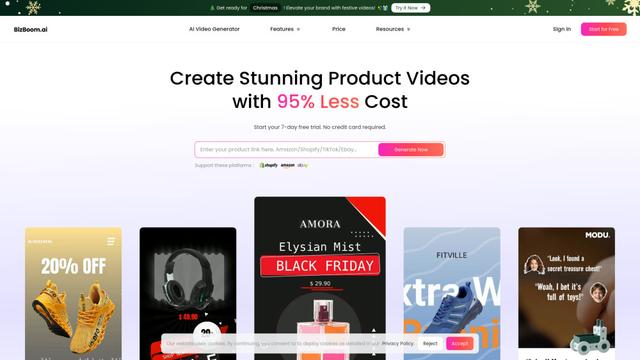
BizBoom.ai is an AI-powered platform that automatically generates professional product videos from product links and images with 95% less cost.
EzVideos
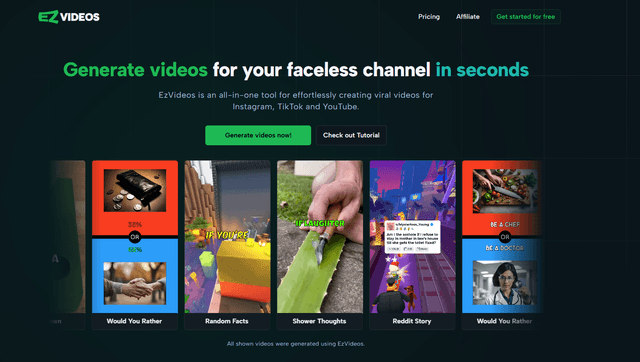
EzVideos is an all-in-one video creation tool that helps users generate viral videos for social media platforms like Instagram, TikTok, and YouTube with automated editing features and built-in resources.
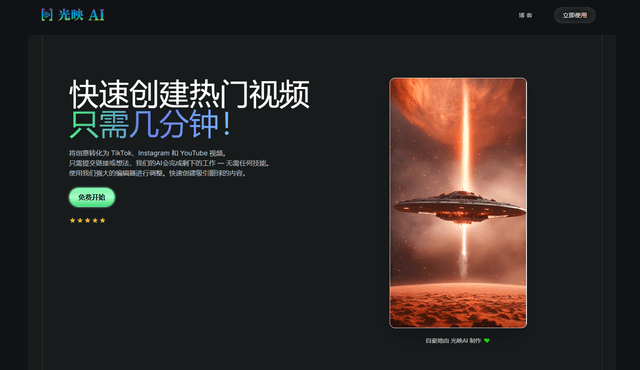
Illuminix
Illuminix is an AI-powered platform that empowers businesses with autonomous hyper-experts and specialized tools for automated business processes, data management, and video content creation.
Popular AI Tools Like Unbound AI
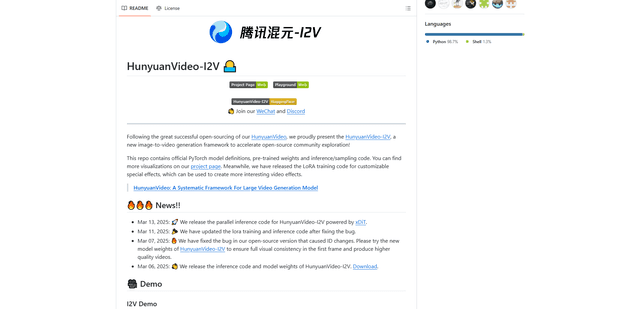
HunyuanVideo-I2V
HunyuanVideo-I2V is an open-source AI framework developed by Tencent that transforms static images into high-quality, dynamic videos with customizable motion effects and exceptional visual consistency.
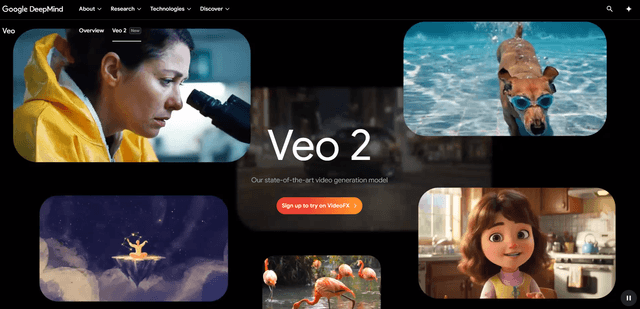
Google Veo 2
Veo 2 is Google DeepMind's state-of-the-art AI video generation model that can create high-quality videos up to 4K resolution with realistic motion, extensive camera controls, and improved physics simulation from text prompts.
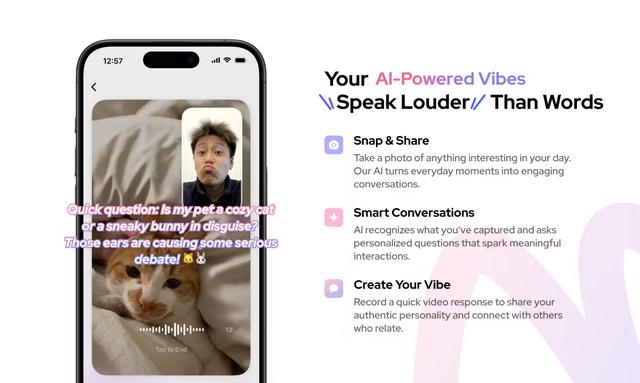
Vibing
Vibing is an AI-powered dating app that helps users share authentic moments through video stories and make genuine connections based on personality matching and interactive features.
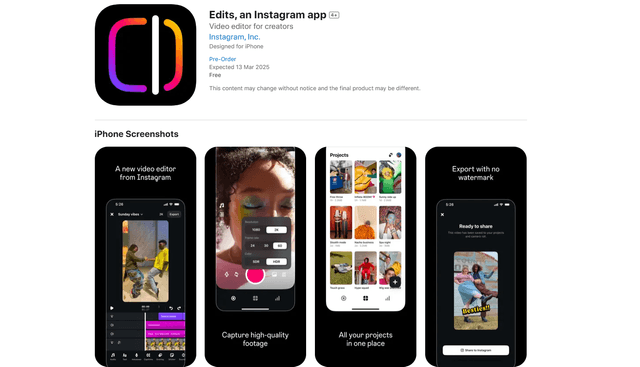
Edits, an Instagram app
Edits is Instagram's free video creation app that provides creators with professional editing tools, AI features, and analytics capabilities to create high-quality videos directly from their phones.