
SUB/WAVE
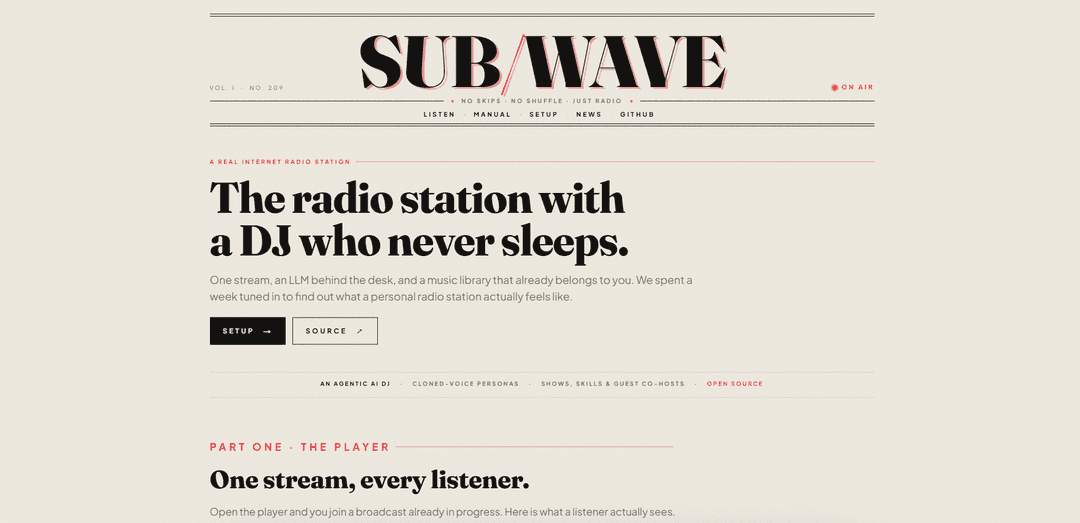
SUB/WAVE is a self-hosted, open-source internet radio station that turns your own Navidrome/Subsonic music library into a single shared live broadcast, with an LLM-powered DJ that picks tracks, takes natural-language requests, and speaks between songs using swappable (even cloned) voices.
https://www.getsubwave.com/?ref=producthunt
Product Information
Updated:Aug 8, 2026
What is SUB/WAVE
SUB/WAVE is “radio, but personal”: one continuous stream where every listener hears the same song at the same moment, with a DJ voice that makes the station feel alive. Instead of generating music or relying on a platform catalog, it connects to your existing music library (typically via Navidrome and the Subsonic API) and runs as a full station stack you control—complete with web, iOS, Android, and desktop players, plus classic tuning options like M3U/PLS for VLC and other devices. It’s designed to bring back the shared experience of radio while keeping the system private, operator-owned, and customizable.
Key Features of SUB/WAVE
SUB/WAVE is a self-hosted “real radio” internet station: one continuous Icecast broadcast that every listener hears at the same moment, mixed and announced by software running on your own machine. It connects to your existing music library via Navidrome (or any Subsonic-API compatible server), while an LLM-driven DJ persona chooses tracks, speaks between songs (IDs, time checks, weather, banter), and handles listener requests. The stack (Controller, Liquidsoap mixer, Icecast, TTS/voice engines, and edge proxy) is open source, runs locally, and lets you swap LLM and voice providers at runtime—including local options for privacy and resilience.
One-stream broadcast radio: A single Icecast stream where all listeners share the same live sequence—no per-user queue, no skip button—capturing the classic “tune in to what’s on” radio feel.
Bring-your-own music library (Subsonic/Navidrome): Plays from your own collection served by Navidrome or any Subsonic-compatible server (Subsonic, Airsonic, Gonic, Funkwhale, etc.), so the catalog and tags stay under your control.
LLM-driven DJ with personas and skills: An LLM picks what plays next and generates live spoken segments (intros, station IDs, time/weather, commentary), driven by configurable personas and optional “skills” you can enable or author.
Swappable LLM + TTS engines (local or cloud): Change language model providers (e.g., Ollama, OpenAI, Anthropic, Google, OpenRouter, OpenAI-compatible) and voice engines (e.g., Piper, Kokoro, PocketTTS, ElevenLabs, OpenAI) without redeploy; set token budgets so music continues even if chatter is capped.
Live mixing pipeline (Liquidsoap + Icecast): Liquidsoap handles crossfades, ducking DJ voice over music/beds, and rotating jingles/SFX; Icecast distributes mounts such as MP3 (and optional Opus/AAC/FLAC).
Listener requests with on-air acknowledgement: Listeners can request by song/artist/vibe; the system matches against the library and the DJ can introduce the request on air, like calling a radio station.
Use Cases of SUB/WAVE
Personal or household “always-on” radio: Run a station at home from your own library for background listening on phones, desktops, VLC/Sonos/internet radios—everyone in the house hears the same broadcast.
Community micro-station for a niche scene: Curate a genre- or city-themed station (e.g., local electronic, jazz nights) with scheduled shows and distinct DJ personas, shared publicly as a single stream.
Workplace or studio soundtrack: Provide a consistent, centrally controlled stream for offices, coworking spaces, gyms, or creative studios—no individual playlists, just a shared vibe and time-based programming.
Event and venue programming: Use scheduled shows, moods, jingles, and DJ voice links for pop-ups, galleries, cafés, or festivals—creating a branded “station” experience without hiring live talent.
Homelab / open-source radio experimentation: A practical playground for self-hosters to combine Navidrome, Icecast, Liquidsoap, and local LLM/TTS—customizing personas, skills, and automation end-to-end.
Pros
Self-hosted and open source: runs on one box, no mandatory cloud subscription, and the stack is auditable/customizable.
Uses your own library: avoids dependence on third-party catalogs and keeps metadata/private collection in your control.
Swappable AI components: switch LLM/TTS providers at runtime; local options enable privacy and offline-friendly operation.
Cons
Operational complexity: requires running and maintaining multiple services (Navidrome/Subsonic server, Icecast, Liquidsoap, controller, TTS/LLM).
Radio-style constraints: listeners can’t skip tracks; this is intentional but may frustrate users expecting on-demand playback.
Licensing/legal risk if streamed publicly: broadcasting copyrighted works beyond private listening can require public performance licenses in many jurisdictions.
How to Use SUB/WAVE
1) Tune in to a station (web): Open https://getsubwave.com/listen in a browser. The station is already mid-broadcast; press play to join what’s on air right now (everyone hears the same stream).
2) Install the web player as an app (PWA): In your mobile/desktop browser, use “Add to Home Screen” / “Install” to install SUB/WAVE as a web app. It will run like a native app with its own icon.
3) Use native apps (iOS/Android) or desktop player: Install the official apps from the App Store / Google Play, or download the desktop player from https://github.com/getsubwave/subwave-desktop/releases/latest. These integrate with OS media controls (lock screen, headphones, car displays).
4) Understand radio-style playback (no resume, no skip): SUB/WAVE is a single live Icecast stream. If you pause and press play again, you rejoin the live broadcast at the current moment (it won’t resume where you left off). Listener skip is intentionally not available so one person can’t change the song for everyone.
5) Navigate the player: Now Playing: On the main player screen, view the current track’s title/artist/album and cover art (pulled from the station’s library). A waveform/visualizer tracks the live audio.
6) Open the Timeline drawer: Open the Timeline to see what recently played and what’s queued in the broadcast flow (station-level queue, not your personal queue).
7) Open the Booth drawer: Open the Booth to see a live log of what the DJ has said (station IDs, time checks, weather reads, transitions between songs).
8) Send a listener request (phone-the-station style): Open the Request drawer/panel and type a song title, artist, or vibe (optionally add your name). You’ll get an immediate acknowledgement while matching happens. The system finds a real track from the station’s library and queues it into the shared broadcast.
9) Tune in with other players (M3U/PLS): For hardware or third-party players (e.g., VLC, Sonos, internet radios), use the station’s playlist endpoints: /listen.m3u or /listen.pls on the station’s domain.
10) Run your own station: prerequisites: Have a Subsonic-API compatible music server running (Navidrome recommended; also works with Subsonic/Airsonic/Gonic/Funkwhale/Nextcloud Music). Prepare a Linux host capable of running Docker Compose (optionally behind Cloudflare for TLS).
11) Run your own station: quick install (compose + .env): On your host: create a folder, download docker-compose.yml and .env.example from the repo, rename to .env, then set the three required values: ADMIN_USER, ADMIN_PASS (required; station won’t start without it), and PUBLIC_ORIGIN. Then start with: docker compose up -d.
12) Complete first-run onboarding in the browser: After containers start, open the onboarding wizard at /onboarding on your station’s origin. Enter your Navidrome URL + username + password (saved to station state). The wizard performs health checks before tuning the station.
13) Choose and swap the LLM provider (DJ brain): In the admin console, select the LLM provider used to pick tracks and write spoken segments. Providers are swappable at runtime (e.g., local Ollama by default, or hosted providers like Anthropic/OpenAI/Google/OpenRouter, or any OpenAI-compatible endpoint) without redeploy.
14) Choose and swap the TTS/voice engine (DJ voice): Configure the speech engine in settings (local engines like Piper/Kokoro, or cloud voices like OpenAI/ElevenLabs, or any HTTP endpoint). Voices are per-persona and can be changed live.
15) Create and manage DJ personas: In the admin console, define personas (name, style/soul, talk frequency, voice engine/voice). You can maintain a roster (up to 24) and schedule different hosts for different times.
16) Enable and run “skills” (autonomous segments): In the Skills panel, toggle segments like weather checks, time checks, station IDs, commentary, etc. You can assign skills to personas and trigger a skill immediately to put it on air.
17) Program shows on the weekly schedule: Use the 24×7 schedule grid to assign a persona, mood, and topic brief to time slots. You can also anchor a show to a Navidrome playlist so the DJ draws from that selection.
18) Manage the station from the Dash: Use the Dash to monitor live status (who’s on air, mood, listener count, weather), view the queue and booth log, and perform operator actions like skipping a track (admin-only) or sending custom words to air.
19) Add voice cloning (optional): Drop a short WAV reference clip into the station’s voices folder, then point a persona at that clip. Supported engines (per sources) include Chatterbox (zero-shot from a single WAV) and PocketTTS (clones from a WAV). If a clone fails, PocketTTS can fall back to a built-in voice so the segment still airs.
20) Share your station address and let others tune in: Once your station is running, share its public URL. Listeners can paste the address during onboarding/station switching and join the same live broadcast stream.
SUB/WAVE FAQs
SUB/WAVE is a self-hosted “internet radio station” stack: one continuous broadcast stream where an LLM-driven DJ picks tracks from your own music library, speaks between songs, and the system mixes and streams everything like real radio.
Popular Articles

Vosko AI: Localize and Dub Videos for Global Audiences
Oct 15, 2026

Atoms: A Multi-Agent AI Platform That Transforms Ideas into Launch-Ready Products
Oct 13, 2026

Nano Banana SBTI: What It Is, How It Works, and How to Use It in 2026
Apr 15, 2026

Atoms Review — The AI Product Builder Redefining Digital Creation in 2026
Apr 10, 2026
Latest AI Tools Similar to SUB/WAVE
Peache.ai
Peache.ai is an AI character chat playground that enables users to engage in flirty, witty, and daring conversations with diverse AI personalities through real-time interactions.
Simba
Simba is an iconic animated lion character and protagonist of Disney's The Lion King, who grows from a carefree cub to the rightful king of Pride Rock after overcoming challenges and embracing his responsibilities.
NSFWChatAI
NSFWChatAI is an uncensored AI chat platform that enables users to engage in immersive, unrestricted conversations with diverse NSFW characters.
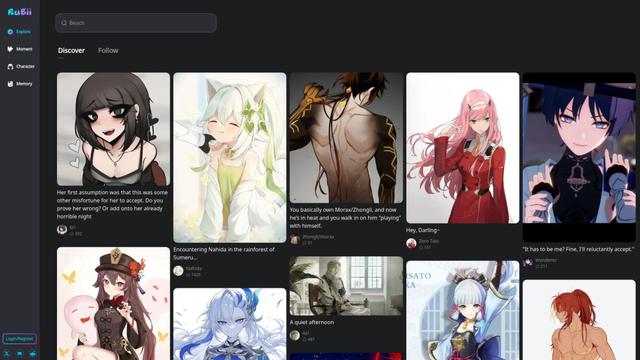
Rubii
Rubii is an AI-powered platform for creating and interacting with virtual characters, generating content, and exploring fan-made stories and artwork.
Popular AI Tools Like SUB/WAVE
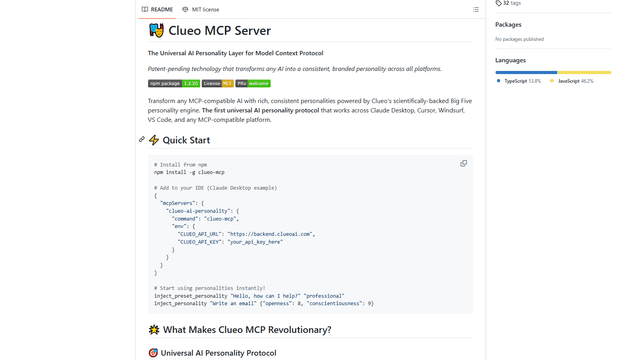
ClueoMCP
ClueoMCP is a universal AI personality layer that transforms any AI into a consistent, branded personality across all platforms using patent-pending technology and scientifically-backed Big Five personality traits.
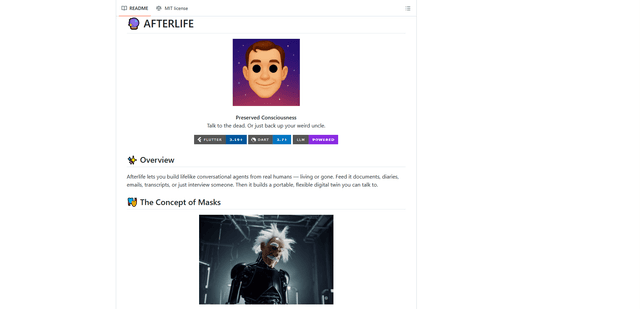
Afterlife AI
Afterlife is an open-source platform that creates personalized AI avatars through an interview process, allowing users to chat with digital twins of historical figures or preserve the communication patterns of loved ones through an ethical and transparent approach.
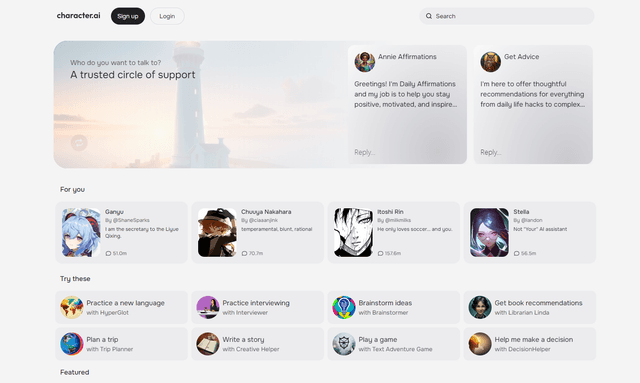
Character.ai
Character.ai is an innovative AI chatbot platform that allows users to create, customize, and interact with a wide variety of AI characters for entertainment, learning, and creative purposes.
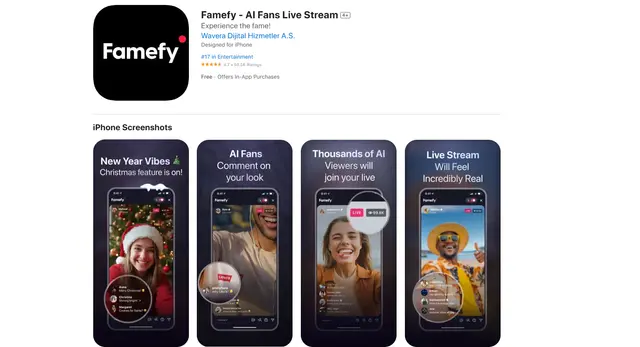
Famefy
Famefy is an AI-powered live streaming platform that lets users experience virtual stardom by interacting with AI-generated fans who provide real-time engagement and feedback.