Pixelate Image
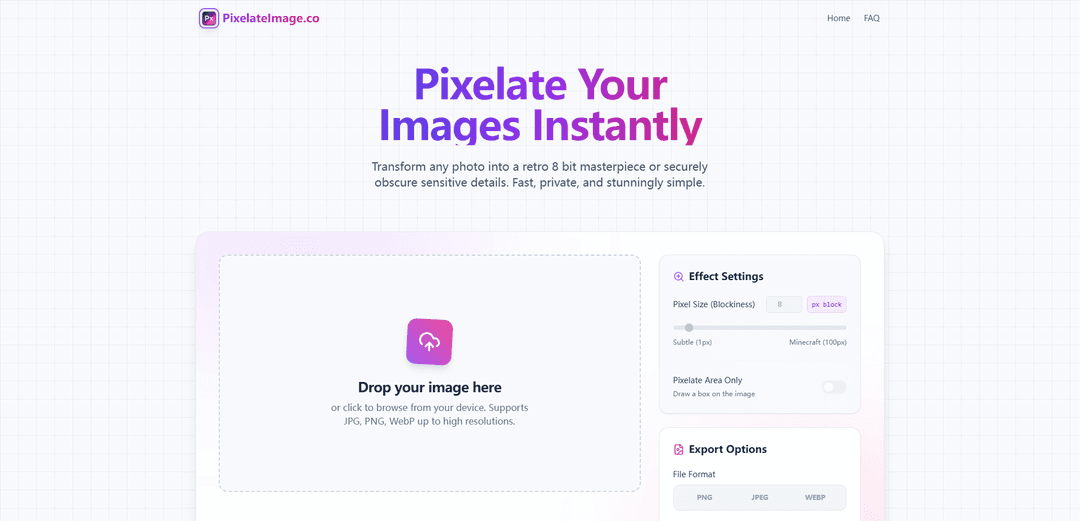
Pixelate Image is a free online tool that allows users to transform photos into pixel art or censor sensitive information through customizable pixelation effects, all while maintaining complete privacy with browser-based processing.
https://www.pixelateimage.co/?ref=producthunt
Product Information
Updated:Mar 16, 2026
What is Pixelate Image
Pixelate Image is a professional-grade online image editing tool designed to convert regular photos into pixelated versions, either for artistic purposes or privacy protection. It offers users the ability to apply pixelation effects to entire images or specific areas, with adjustable pixel sizes ranging from 2 to 50 pixels. The tool supports multiple popular image formats including PNG, JPG, JPEG, WebP, BMP, GIF, TIFF, SVG, ICO, AVIF, and HEIC, making it versatile for various use cases from creating retro-style artwork to securing sensitive visual information.
Key Features of Pixelate Image
Pixelate Image is a free online tool that allows users to transform photos by converting them into pixel art or selectively obscuring areas. It processes images directly in the browser with no server uploads, offering precise control over pixel size (2-100px), multiple output formats (PNG, JPG, WebP), and real-time preview capabilities. The tool combines privacy-focused design with artistic functionality, enabling both practical censorship and creative pixel art creation.
Browser-based Processing: All image processing happens locally in your browser without server uploads, ensuring complete privacy and security of your images
Precision Control: Adjustable pixel size, selective area targeting, and multiple overlay options with precise coordinate and dimension settings
Multiple Export Formats: Support for various output formats including PNG, JPG, WebP, BMP, TIFF, and AVIF with quality control options
Inverse Pixelation: Option to blur everything outside the selected area while keeping the chosen region sharp and clear
Use Cases of Pixelate Image
Privacy Protection: Obscuring sensitive information like faces, license plates, or personal data in photos and screenshots
Retro Art Creation: Creating 8-bit style artwork for gaming, social media, or nostalgic design projects
Educational Materials: Creating pixel-styled instructional illustrations or hiding answers in teaching materials
Brand Design: Developing unique pixel-driven brand elements for a techy or retro aesthetic in marketing materials
Pros
Complete privacy with client-side processing
No registration or software installation required
Extensive format support and export options
Real-time preview and adjustments
Cons
5MB file size limitation
Processing speed depends on device performance
Limited to basic pixelation effects compared to professional software
How to Use Pixelate Image
Upload Image: Drag and drop an image onto the upload area, click to browse and select a file, or paste from clipboard using Ctrl+V. Supports common formats like JPG, PNG, and WebP.
Adjust Pixel Size: Use the slider or input exact pixel values to control the pixelation intensity. Default is 8px for retro look. 2-10px for subtle blur, 10-30px for stylized art, 30-50px for privacy masking.
Select Area (Optional): Enable 'Pixelate Area Only' to draw a resizable box over specific parts you want to pixelate. You can move and resize the selection area using handles. For precise control, enter exact coordinates in the options.
Customize Effects (Optional): Apply additional effects like grayscale, custom color palettes, edge highlighting, or grid lines to enhance the pixelated look.
Preview Changes: Review the pixelation effect in real-time preview. Adjust settings as needed until you achieve desired result.
Export Image: Click the Download button to save the processed image. Choose output format between PNG (recommended for sharp pixels), JPG, or WebP. No watermarks or quality limits applied.
Pixelate Image FAQs
Pixelation is an image processing technique that converts groups of individual pixels into larger single-colored blocks. The tool groups pixels based on your selected pixelation level, and each block is filled with a single color representing the average of the original pixels in that area.
Popular Articles

Atoms: A Multi-Agent AI Platform That Transforms Ideas into Launch-Ready Products
May 22, 2026

Nano Banana SBTI: What It Is, How It Works, and How to Use It in 2026
Apr 15, 2026

Atoms Review — The AI Product Builder Redefining Digital Creation in 2026
Apr 10, 2026

Kilo Claw: How to Deploy and Use a True "Do‑It‑For‑You" AI Agent(2026 Update)
Apr 3, 2026
Latest AI Tools Similar to Pixelate Image
IMG Processing
IMG Processing is a powerful API service that enables fast and reliable image processing capabilities including uploading, transforming, and watermarking through simple integration.
Wink Mody
Wink Mody is a modified version of the Wink video editing app that offers premium features like AI-powered retouching, 4K exports, and watermark-free editing completely free of charge.
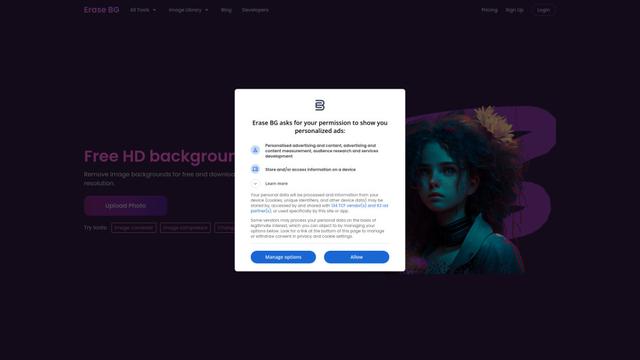
Erase BG
Erase BG is a free, AI-powered online tool that automatically removes backgrounds from images with support for up to 4K resolution, requiring no account or special skills.
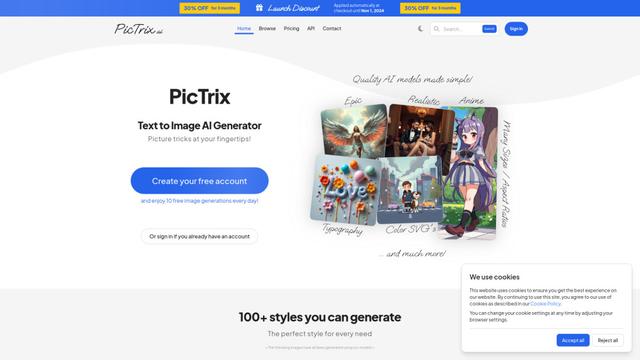
PicTrix AI
PicTrix AI is an advanced AI-powered platform that transforms text prompts and images into high-quality visuals across multiple styles, formats and sizes while offering features like image restoration, enhancement and SVG generation.
Popular AI Tools Like Pixelate Image
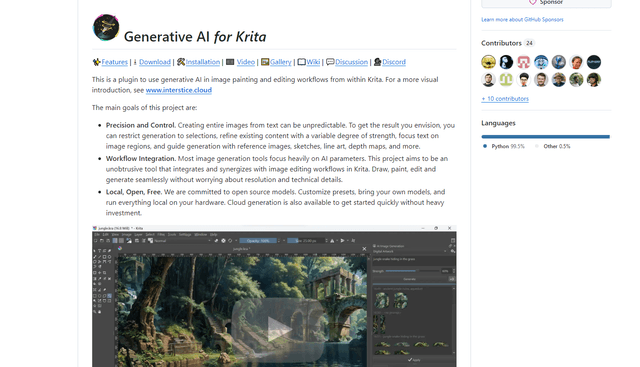
Krita
Krita is a free and open-source digital painting and illustration software that offers a wide range of professional-grade tools for artists and designers.
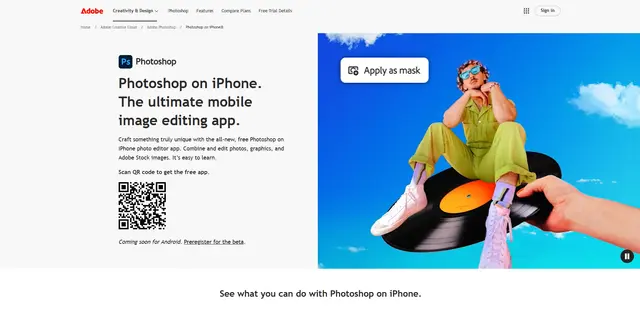
Adobe Photoshop App
Adobe Photoshop App is a free, powerful mobile photo editor that allows users to combine and edit photos, graphics, and Adobe Stock images with professional-grade tools and AI features optimized for touch devices.
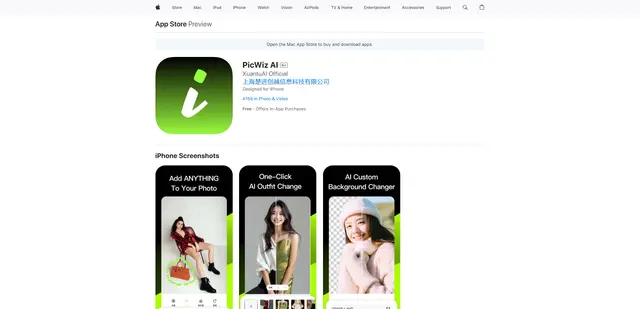
PicWiz AI
PicWiz AI is a comprehensive AI-powered photo editing and image generation tool that offers over 100 photo styles and multiple AI processing capabilities including object addition, removal, background manipulation, and image enhancement.

Remove Image Background
Remove.bg is an AI-powered online tool that automatically removes image backgrounds in seconds with just one click.