Omni Video
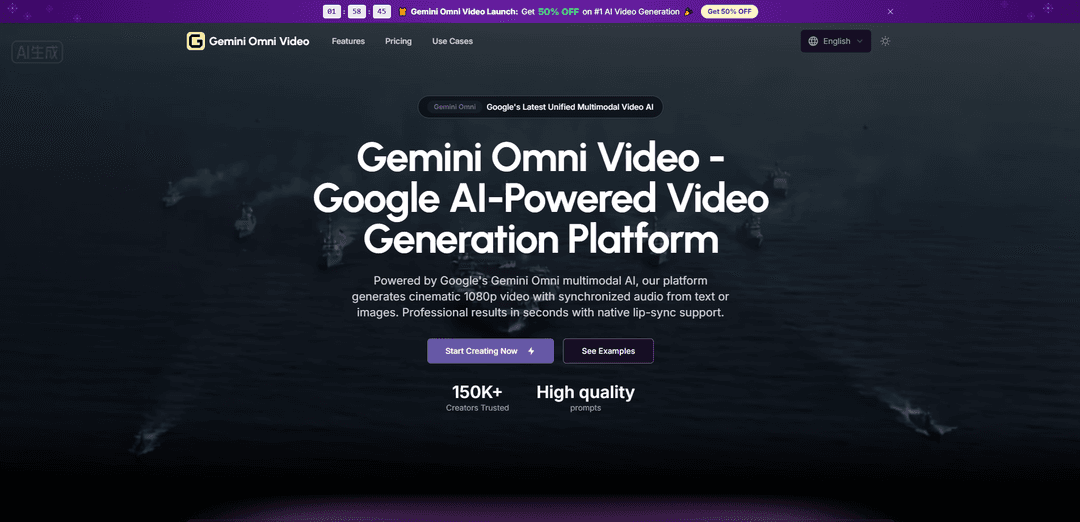
Omni Video is a Google Gemini-powered AI video generation platform that transforms text prompts and reference images into cinematic 1080p video with synchronized audio, native multilingual lip-sync in 6 languages, all generated in a single unified pass without separate audio post-production.
https://omnivideo.me/?utm_source=aipure
Product Information
Updated:May 12, 2026
What is Omni Video
Omni Video (branded on its site as “Gemini Omni Video”) is a web-based AI video creation tool designed to help creators and teams produce polished video content quickly from natural-language prompts. Users can describe a scene (including style, characters, and action) and optionally upload a reference image to guide the look, then choose generation settings such as duration, resolution, and aspect ratio. The platform emphasizes production-ready outputs and ease of use—no local GPU setup or advanced editing skills required—making it suitable for marketing, social content, and rapid creative iteration.
Key Features of Omni Video
Omni Video is a web-based AI video (and often image) generation platform that lets creators and businesses produce short, marketing-ready clips from text prompts and optional reference images. It emphasizes fast iteration, multiple output formats for social platforms, and (in some versions) native, synchronized audio generation, while also offering tiers from free/basic access to paid plans with higher limits and commercial-use licensing.
Text-to-video generation: Create cinematic short clips from a written prompt, with controls like duration and resolution (commonly up to 1080p, depending on the model/version).
Image-to-video with reference images: Upload a reference image (e.g., JPG/PNG/WebP) to guide style and subject consistency while animating the scene into video.
Native synchronized audio (optional): Some Omni Video experiences generate dialogue/ambient sound/Foley in the same pass as video for tighter sync and less post-production.
Multiple aspect ratios & export-ready outputs: Generate videos in common formats (e.g., 16:9, 9:16, 1:1) suitable for TikTok, Instagram Reels, YouTube, and ads.
Web-based, no install workflow: Runs entirely in the browser on most devices—no local GPU setup or software installation required.
Commercial usage options & tiered plans: Often provides a free tier for exploration and paid plans for higher usage limits; commercial use is supported (notably for paid/pro tiers, depending on the specific Omni Video product).
Use Cases of Omni Video
Social media marketing creatives: Generate short promotional videos for product launches, seasonal campaigns, and rapid A/B testing of hooks, visuals, and styles.
SMB advertising and promo assets: Create budget-friendly ad variants (different offers, scenes, and aspect ratios) without a full production crew.
Content creator video production: Turn scripts or concepts into quick visual drafts, b-roll alternatives, or stylized clips for channels and newsletters.
Product demos and explainers: Produce lightweight demo scenes and feature highlights from prompts and reference images for landing pages and app promos.
Multilingual campaign variants (where supported): Create localized versions of the same concept—potentially including lip-sync in multiple languages in versions that offer it.
Pros
Fast, browser-based creation—no local setup needed.
Flexible generation modes (text-to-video and often image-to-video) with social-ready aspect ratios.
Can reduce cost/time for producing marketing and promotional video variants.
Cons
“Omni Video/OmniVideo” refers to multiple different products/projects; capabilities and licensing can vary by site/version.
Commercial-use rights may depend on subscription tier (e.g., pro/enterprise) rather than universally applying to all users.
Output length/quality and audio availability can be constrained by the underlying model and plan limits.
How to Use Omni Video
1. Open Omni Video in your browser: Go to https://omnivideo.me/ to access the web-based Omni Video generation interface (no local installation required).
2. Choose a generation model: In the “Model” setting, select the AI model option you want to use for generation (the platform provides model choices in the settings panel).
3. Write your text prompt: In “Text Prompt”, describe the scene in detail (characters, actions, style, camera feel, dialogue/ambience if desired). The UI shows a character limit (e.g., up to 2000).
4. (Optional) Upload a reference image: Use “Reference Image (Optional)” to upload a JPG/PNG/WebP (recommended under 35MB). This enables image-to-video animation while preserving key visual details.
5. Set duration: In “Duration”, choose the clip length (e.g., 5s or 15s) based on your needs.
6. Set video resolution: In “Video Resolution”, select your target output quality (the platform highlights cinematic 1080p capability).
7. Choose an aspect ratio: In “Video Aspect Ratio”, pick the format you need for your platform (e.g., 16:9 for YouTube, 9:16 for TikTok/Reels, 1:1 for feeds).
8. Configure advanced options (if needed): Open “Advanced Options” to adjust any extra generation settings available for finer control over the output.
9. Enable audio generation (optional but recommended): Toggle “Generate Audio” to auto-generate synchronized audio (dialogue/ambient/Foley) together with the video in one pass.
10. Generate the video: Click the generate action in the interface to start creation. The platform indicates it uses a distilled pipeline (8 denoising steps) for fast generation.
11. Preview the result: Watch the output in “Video Preview” to check motion, visuals, and (if enabled) audio sync.
12. Iterate by refining your prompt/settings: If the result isn’t ideal, adjust the prompt (more specific actions/style), swap model, change duration/resolution/aspect ratio, and generate again.
13. Download and share: When satisfied, download the production-ready file and publish it to your target channel (TikTok/YouTube/Instagram) using the aspect ratio you selected.
14. Commercial usage check (subscription-dependent): If you plan to use outputs commercially, note the FAQ states Professional and Enterprise subscribers receive a commercial use license.
Omni Video FAQs
Gemini Omni Video is an AI video generation platform powered by Google’s Gemini Omni model. It generates 1080p video and synchronized audio from a text prompt or an optional reference image in a single unified denoising pass.
Popular Articles

Vosko AI: Localize and Dub Videos for Global Audiences
Oct 15, 2026

Atoms: A Multi-Agent AI Platform That Transforms Ideas into Launch-Ready Products
Oct 13, 2026

Nano Banana SBTI: What It Is, How It Works, and How to Use It in 2026
Apr 15, 2026

Atoms Review — The AI Product Builder Redefining Digital Creation in 2026
Apr 10, 2026
Latest AI Tools Similar to Omni Video
Loud Fame
Loud Fame is an AI-powered video transformation tool that allows users to convert regular videos into anime-style animations and create AI-generated celebrity talking videos.
BizBoom.ai
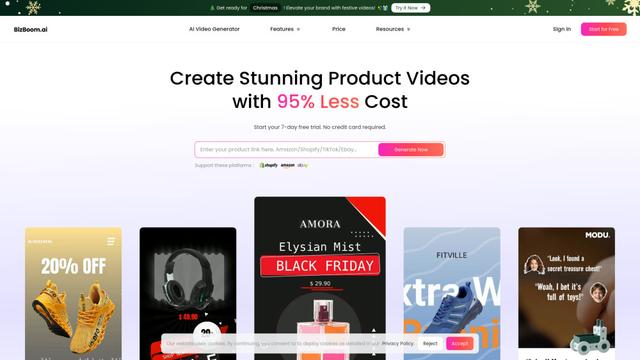
BizBoom.ai is an AI-powered platform that automatically generates professional product videos from product links and images with 95% less cost.
EzVideos
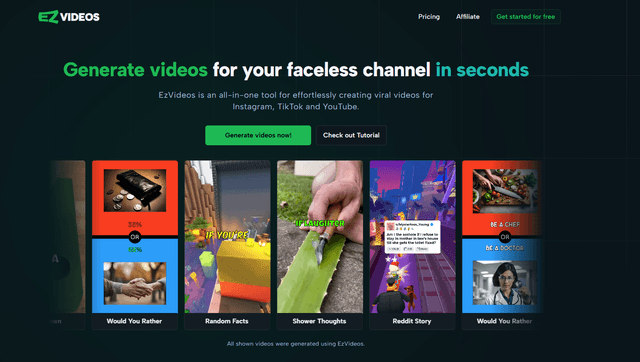
EzVideos is an all-in-one video creation tool that helps users generate viral videos for social media platforms like Instagram, TikTok, and YouTube with automated editing features and built-in resources.
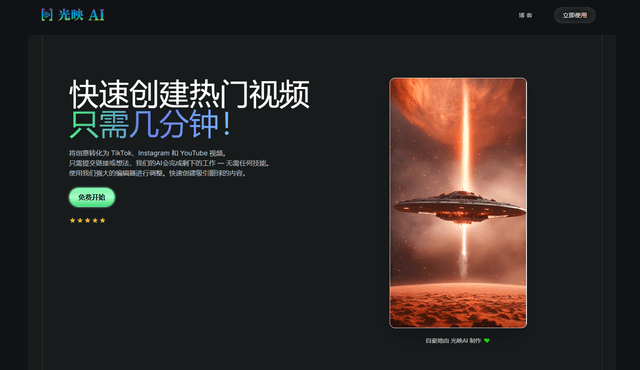
Illuminix
Illuminix is an AI-powered platform that empowers businesses with autonomous hyper-experts and specialized tools for automated business processes, data management, and video content creation.
Popular AI Tools Like Omni Video
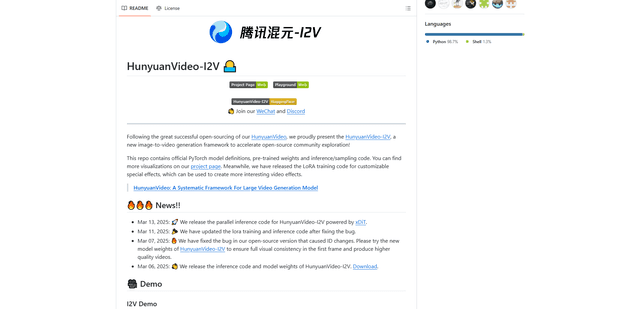
HunyuanVideo-I2V
HunyuanVideo-I2V is an open-source AI framework developed by Tencent that transforms static images into high-quality, dynamic videos with customizable motion effects and exceptional visual consistency.
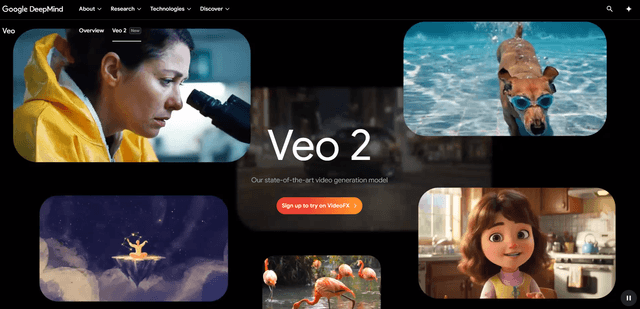
Google Veo 2
Veo 2 is Google DeepMind's state-of-the-art AI video generation model that can create high-quality videos up to 4K resolution with realistic motion, extensive camera controls, and improved physics simulation from text prompts.
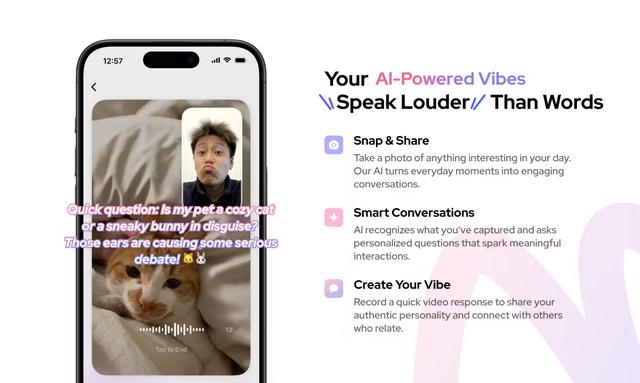
Vibing
Vibing is an AI-powered dating app that helps users share authentic moments through video stories and make genuine connections based on personality matching and interactive features.
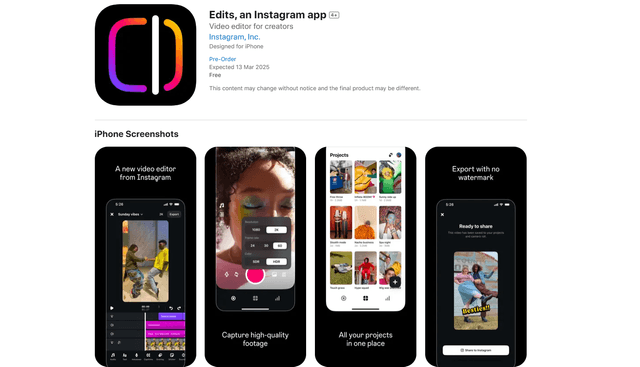
Edits, an Instagram app
Edits is Instagram's free video creation app that provides creators with professional editing tools, AI features, and analytics capabilities to create high-quality videos directly from their phones.