LocalClicky
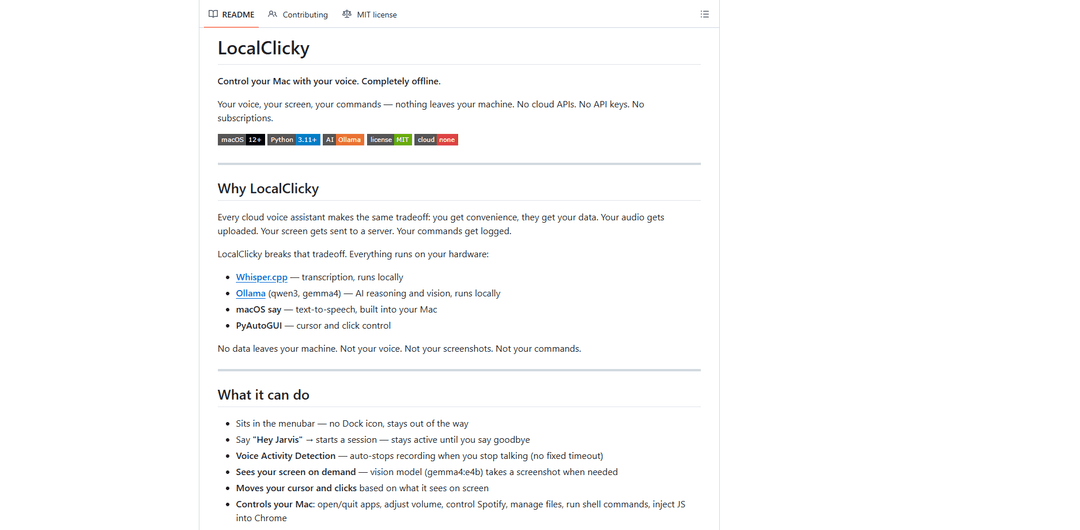
LocalClicky is a completely offline macOS voice assistant that uses local Whisper transcription, local Ollama LLMs (including vision), and PyAutoGUI to control your Mac, move/click the cursor, and run commands without sending your data to the cloud.
https://github.com/dikshantrajput/LocalClicky?ref=producthunt
Product Information
Updated:Jun 8, 2026
What is LocalClicky
LocalClicky is an open-source menubar app for macOS that lets you control your computer with your voice while keeping your voice, screenshots, and commands entirely on-device. It’s designed as a privacy-first alternative to cloud voice assistants: no API keys, no subscriptions, and no external cloud processing for transcription or reasoning. You can use it to open and quit apps, adjust system settings, control Spotify, manage files, run shell commands, create Reminders, and even interact with on-screen UI elements via vision-based clicking—all from a lightweight menubar presence that stays out of the way.
Key Features of LocalClicky
LocalClicky is an offline-first macOS menubar voice assistant that lets you control your Mac with spoken commands while keeping voice, screenshots, and command context on-device. It uses whisper.cpp for local transcription, Ollama (e.g., qwen3 for tool-calling and gemma4 for vision) for reasoning and screen understanding, and macOS/Python automation (AppleScript, shell, PyAutoGUI) to execute actions like opening apps, managing files, controlling Spotify, creating reminders, and clicking UI elements based on what’s on your screen. It supports session-based, multi-step workflows with voice activity detection, optional on-demand screen “vision,” and short-term conversational memory.
Fully local processing (privacy-first): Transcription (whisper.cpp), reasoning/vision (Ollama models), and execution happen on your machine—no cloud APIs, no API keys, and no subscriptions for core functionality.
Menubar companion with session mode: Runs quietly as a menubar app (no Dock icon) and supports a wake phrase (“Computer”) to start a session, then accepts back-to-back commands until you dismiss it or it times out.
Voice Activity Detection (VAD) recording: Automatically stops recording when you stop speaking (with webrtcvad), avoiding fixed-duration recordings and speeding up command turnarounds.
On-demand screen vision + UI clicking: When needed, it captures a screenshot, uses a vision model to locate UI elements, and moves/clicks the cursor using bounding boxes for actions like “click the notification bell.”
Tool-based Mac automation: Can run shell commands, query system state, automate apps via AppleScript (e.g., Spotify/Chrome), manage files, and create Reminders from natural language.
Multi-round tool calling with verification: Performs multi-step workflows (up to several tool rounds), checks results, and can confirm or retry actions to complete tasks more reliably.
Use Cases of LocalClicky
Hands-free productivity for knowledge workers: Open/quit apps, manage tabs, adjust system settings, create reminders, and run quick workflows by voice while staying focused on the current task.
Accessibility and reduced-mouse interaction: Helps users who benefit from voice-driven control by enabling cursor movement/clicking and common OS/app actions without constant manual navigation.
Developer and IT automation on a workstation: Trigger shell commands, query system info, manage files, and orchestrate routine setup/diagnostics via voice, all locally for sensitive environments.
Creative software guidance and UI navigation: Use screen-aware pointing/clicking to navigate complex UIs (e.g., design/video tools) and execute repetitive interface actions more quickly.
Privacy-sensitive workflows (regulated or confidential): Suitable for scenarios where screen/audio data must not leave the device, since transcription and vision can run locally and no cloud keys are required.
Pros
Privacy-forward: voice, screenshots, and commands are designed to stay on-device (no cloud APIs for core pipeline).
Broad Mac control: combines voice transcription, local LLM tool-calling, and automation (shell/AppleScript/PyAutoGUI) for practical tasks.
Session-based interaction: supports chained commands without repeating the wake word, improving usability for multi-step work.
Cons
Wake word detection requires internet (uses Google Speech Recognition), so it’s not fully offline end-to-end by default.
macOS permissions are required (Microphone, Screen Recording, Accessibility), which can be a setup hurdle in managed environments.
Vision-based clicking can be imprecise depending on the model/UI, and complex tasks may hit tool-round limits.
How to Use LocalClicky
1) Confirm requirements: Use macOS 12+, Python 3.11+, Homebrew, and enough free RAM (~8GB+). You also need Ollama running locally. Note: the default wake word detection uses Google Speech Recognition, so an internet connection is required for the wake word feature.
2) Install Whisper.cpp (local transcription): Run: `brew install whisper-cpp`
3) Download a Whisper model file: Run:
`mkdir -p /opt/homebrew/share/whisper-cpp/models`
`curl -L -o /opt/homebrew/share/whisper-cpp/models/ggml-base.en.bin "https://huggingface.co/ggerganov/whisper.cpp/resolve/main/ggml-base.en.bin"`
4) Install Ollama (local LLM + vision): Run: `brew install ollama`
5) Start the Ollama server: Run: `ollama serve` (leave it running).
6) Pull the default LocalClicky models: Run:
`ollama pull qwen3:8b` (command/tool-calling model)
`ollama pull gemma4:e4b` (vision model used for screen understanding)
7) Set up the Python environment: From the repo, go into the app folder and create a venv:
`cd PyClicky`
`python3 -m venv venv`
`source venv/bin/activate`
`pip install -r requirements.txt`
8) (Optional) Install silence detection for better recording stop behavior: Install VAD so recording auto-stops when you stop speaking:
`pip install webrtcvad-wheels`
Without this, recording falls back to a 30-second hard cap.
9) Run LocalClicky: From `PyClicky/` with the venv active:
`source venv/bin/activate`
If needed, start Ollama in the background: `ollama serve &`
Then run: `python main.py`
LocalClicky appears in the macOS menu bar (no Dock icon).
10) Grant macOS permissions (one-time): Grant permissions to the venv Python binary (`/path/to/PyClicky/venv/bin/python3`) or to Terminal (so Python inherits them):
- Microphone: prompted on first run
- Screen Recording: System Settings → Privacy & Security → Screen Recording
- Accessibility: System Settings → Privacy & Security → Accessibility
These are required for voice input, screenshots for vision, and cursor/click control.
11) Start a voice session (wake word): Say “Computer” to start a session. LocalClicky begins recording, then auto-stops when you stop talking (if VAD is installed), transcribes locally, and responds.
12) Continue issuing commands without repeating the wake word: After it responds, LocalClicky stays in an active session and listens for your next command immediately (you don’t need to say “Computer” again).
13) Use screen-aware commands (vision + cursor control): Ask it to interact with UI elements, e.g. “Click the notification bell.” LocalClicky will take a screenshot (via `screencapture`), send it to the local vision model, receive a bounding box, and click the center using PyAutoGUI.
14) Try common example commands: Examples from the project:
- “Open Spotify and play hip hop”
- “Set volume to 50 percent”
- “Open a new tab in Chrome”
- “Make a folder called Projects on my Desktop”
- “What’s on my screen?”
- “Create a reminder to call John tomorrow at 9am”
15) End the session: Say “bye”, “goodbye”, “stop listening”, “go to sleep”, or “that’s all”. The session also auto-expires after ~25 seconds of silence (default).
16) (Optional) Customize models: Edit `PyClicky/ollama_client.py`:
- `COMMAND_MODEL = "qwen3:8b"`
- `VISION_MODEL = "gemma4:e4b"`
Then pull any new model you choose via `ollama pull ...`.
17) (Optional) Customize wake word and timeouts: Edit:
- `PyClicky/wake_word.py` → `WAKE_PHRASES = [...]`
- `PyClicky/companion.py` → `SESSION_IDLE_TIMEOUT = 25.0`
18) Troubleshoot quickly if something fails: Common fixes:
- Wake word never triggers: wake word uses Google Speech Recognition; ensure internet and check logs for `heard:`.
- Screenshot fails: grant Screen Recording; test `screencapture -x -t jpg /tmp/test.jpg`.
- Cursor doesn’t move: grant Accessibility.
- Recording never stops: install `webrtcvad-wheels`.
- Ollama errors: confirm models exist with `ollama list`, restart `ollama serve`.
LocalClicky FAQs
LocalClicky is a macOS menubar app that lets you control your Mac with your voice while keeping everything offline. It uses local transcription (Whisper.cpp), local AI reasoning/vision (Ollama models like qwen3 and gemma4), macOS built-in text-to-speech (`say`), and PyAutoGUI for cursor/click control.
LocalClicky Video
Popular Articles

Vosko AI: Localize and Dub Videos for Global Audiences
Oct 15, 2026

Atoms: A Multi-Agent AI Platform That Transforms Ideas into Launch-Ready Products
Oct 13, 2026

Nano Banana SBTI: What It Is, How It Works, and How to Use It in 2026
Apr 15, 2026

Atoms Review — The AI Product Builder Redefining Digital Creation in 2026
Apr 10, 2026
Latest AI Tools Similar to LocalClicky
Advanced Voice
Advanced Voice is ChatGPT's cutting-edge voice interaction feature that enables real-time, natural voice conversations with custom instructions, multiple voice options, and improved accents for seamless human-AI communication.
Vagent
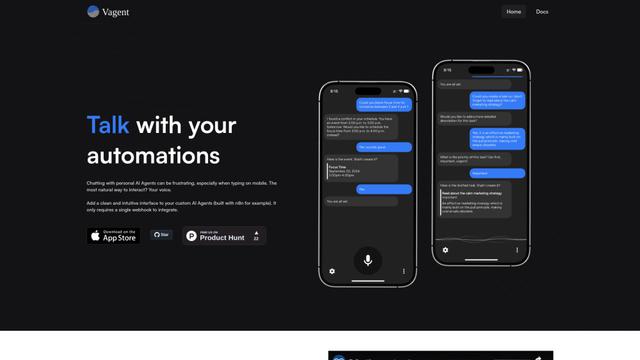
Vagent is a lightweight voice interface that enables users to interact with custom AI agents through voice commands, providing a natural and intuitive way to control automations with support for 60+ languages.
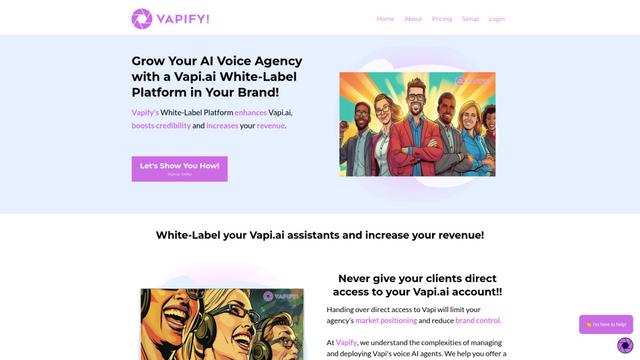
Vapify
Vapify is a white-label platform that enables agencies to offer Vapi.ai's voice AI solutions under their own brand while maintaining control over client relationships and maximizing revenue.
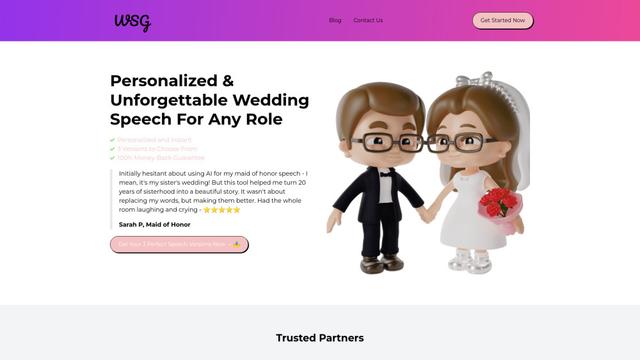
Wedding Speech Genie
Wedding Speech Genie is an AI-powered platform that crafts personalized wedding speeches in minutes by generating 3 custom versions based on your input, helping speakers deliver memorable toasts for any wedding role.
Popular AI Tools Like LocalClicky
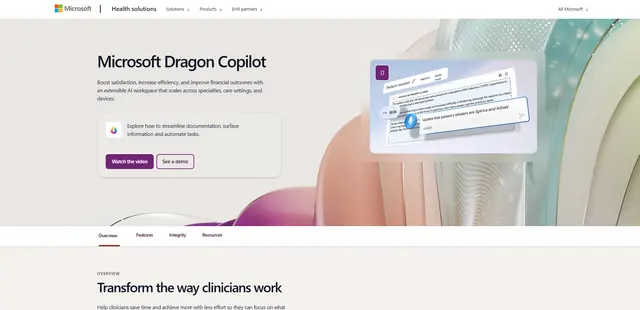
Microsoft Dragon Copilot
Microsoft Dragon Copilot is an AI-powered clinical workflow assistant that combines natural language voice dictation, ambient listening capabilities, and generative AI to streamline documentation, surface information, and automate tasks across healthcare settings.
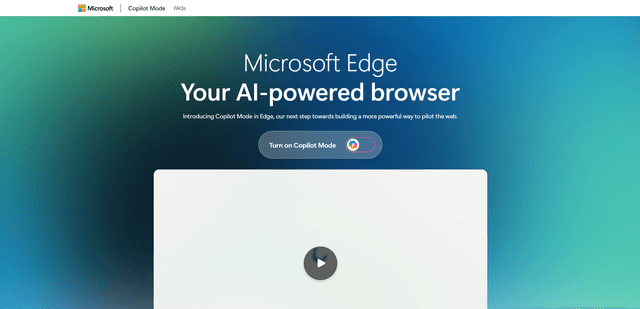
Edge Copilot Mode
Edge Copilot Mode is Microsoft's experimental AI-powered browser feature that combines search, chat, and web navigation into a single interface, enabling users to browse smarter with AI assistance while maintaining privacy and control.
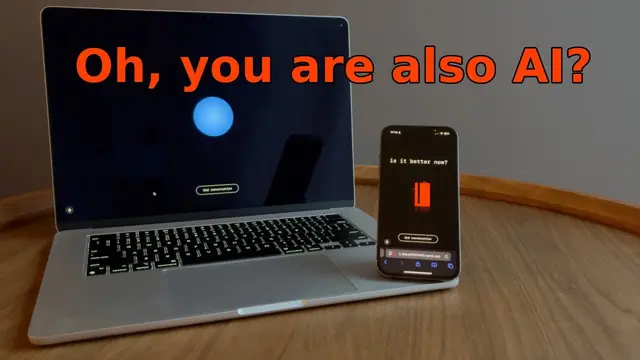
GibberLink
GibberLink is an open-source project that enables two AI agents to efficiently communicate by switching from human language to a sound-level protocol after recognizing each other, powered by ggwave technology.
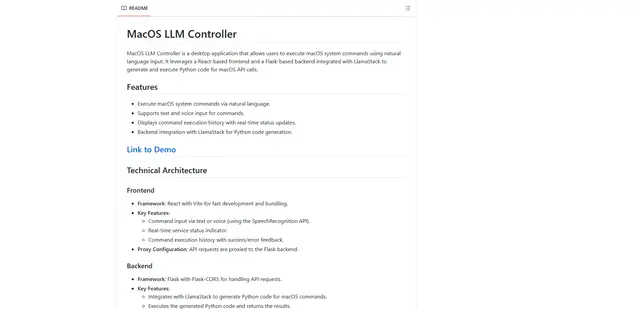
Llama MacOS Desktop Controller
Llama MacOS Desktop Controller is a React and Flask-based application that enables users to control macOS system actions through natural language commands using LLM-generated Python code.