
iMessage Hermes on a Raspberry Pi
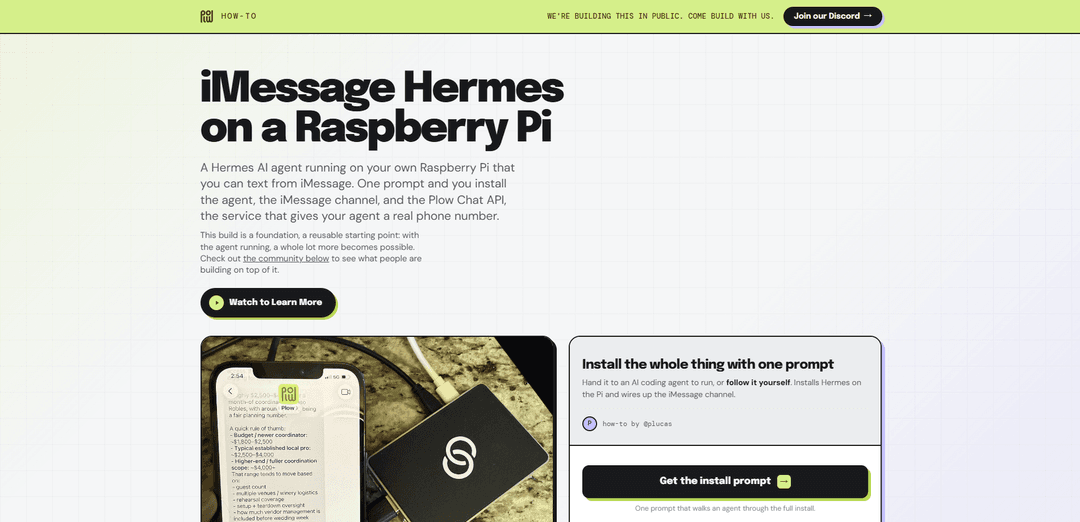
iMessage Hermes on a Raspberry Pi is an always-on, low-power home AI agent you can text via iMessage or SMS that can plan multi-step tasks, run commands and APIs, and power always-on household dashboards like calendars and recipes.
https://howto.plow.co/hermes?ref=producthunt
Product Information
Updated:Aug 8, 2026
What is iMessage Hermes on a Raspberry Pi
iMessage Hermes on a Raspberry Pi is a setup that gives your home its own “resident” AI assistant: a Hermes Agent instance running 24/7 on an inexpensive Raspberry Pi, reachable from anywhere through a real messaging channel (iMessage/SMS). Instead of relying on a laptop that’s often asleep or a separate app you don’t open, you interact with the agent the same way you text a person—asking questions, adding events, and triggering workflows that can update shared screens in the kitchen or on the fridge. It’s designed as a foundation you can build on, with the community already creating practical home projects like family schedule dashboards, meal planning displays, and event planning assistants.
Key Features of iMessage Hermes on a Raspberry Pi
iMessage Hermes on a Raspberry Pi is an always-on, local-first AI agent setup where the Hermes open-source agent runs 24/7 on an inexpensive Raspberry Pi and can be reached from anywhere via familiar messaging (notably iMessage/SMS, and also options like Telegram/Discord/Slack). It’s designed to be a foundation for home and personal workflows: it can plan multi-step tasks, execute commands on the Pi, call APIs, and maintain long-term memory/skills that improve over time. The Pi can live headless in a drawer while you “drive” it from your phone, enabling practical automations like shared family dashboards, calendar updates, recipe guidance, and operational coordination that stay available even when your laptop is off or you’re traveling.
Always-on home agent: Runs continuously on a low-power Raspberry Pi so your assistant is reachable anytime without relying on your personal laptop being online.
iMessage/SMS-style access (plus other channels): Interact through a real, familiar text thread (iMessage/SMS) and optionally configure other gateways like Telegram, Discord, or Slack.
Agentic automation on the Pi: Hermes can plan multi-step workflows, execute shell commands locally, call external APIs, and return structured results from a single message.
Self-improving skills + persistent memory: Includes a learning loop that creates/refines skills from usage and keeps long-term memory across conversations (often backed by local storage such as SQLite/FTS).
Headless, reversible install approach: Common setup patterns emphasize a clean 64-bit OS, SSH-based installation, and user-space installs (e.g., under nvm) to avoid system-Python friction and keep rollback simple.
Dashboard-friendly foundation: Designed to power always-on household screens (kitchen/fridge) that show calendars, meal plans, weather, digests, and other live-updating views driven by text commands.
Use Cases of iMessage Hermes on a Raspberry Pi
Family ops: shared calendar and reminders: A kitchen dashboard shows everyone’s upcoming commitments; family members can text the agent to add events (“dinner Friday at 7”) or ask questions (“when’s the recital?”).
Hospitality: short-term rental message coordinator: An Airbnb manager workflow can triage guest messages, consult your team via iMessage, and request approval before sending replies—reducing response time and errors.
Food & home: recipe + meal planning assistant: A fridge/kitchen screen can display step-by-step recipes, weekly meal plans, and grocery lists that update as you text changes while cooking or planning.
Event planning: wedding planning dashboard: Text-driven updates to a planning dashboard for vendor research, budgets, timelines, and tasks—keeping stakeholders aligned without a dedicated app.
Personal automation: daily digests and monitoring: Run scheduled briefings (email summaries, morning digest, system health checks) and deliver results back to your phone via messaging.
Pros
Low-cost, low-power always-on setup (one-time Pi hardware; minimal ongoing electricity) with no need to keep a laptop running.
Familiar UX: controlling the agent through normal text threads (iMessage/SMS) lowers friction versus a dedicated bot app.
Local-first control plane: the agent can run tools/commands on your own device and maintain persistent memory/skills across sessions.
Cons
Hardware/OS constraints: requires a 64-bit Linux install (aarch64) and can be sensitive to common Pi issues (ARM wheels, PATH, storage/SD reliability).
Messaging setup can be the hardest part; iMessage-style integrations may add extra moving pieces compared with simpler channels like Telegram/Discord.
Ongoing maintenance: upgrades and gateway/plugin environments can occasionally require troubleshooting to keep everything stable.
How to Use iMessage Hermes on a Raspberry Pi
1) Get the required hardware and accounts: Use a Raspberry Pi 4 or 5 (Pi 5 recommended; 4 GB+ RAM, 8 GB comfortable), reliable power, and ideally Ethernet. You’ll also need: (a) a 64-bit OS image (Raspberry Pi OS Lite 64-bit / Ubuntu Server arm64 / Debian arm64), (b) an LLM provider account (Nous Portal, OpenRouter, Anthropic, etc.—the model runs remotely; the Pi orchestrates), and (c) a Claw Messenger account + API key if you want iMessage/SMS/RCS via a real phone number.
2) Flash a 64-bit headless OS to the SD card (or NVMe on Pi 5): In Raspberry Pi Imager: select your Pi model, choose Raspberry Pi OS Lite (64-bit) under Raspberry Pi OS (other), and enable SSH + set hostname/user/password in the Imager’s advanced settings. 64-bit is mandatory (aarch64); 32-bit (armhf) will not work.
3) Boot the Pi and find its IP address: Connect the Pi to Ethernet and power it on. Find its IP via your router’s DHCP client list (look for the hostname you set, e.g., “hermespi”), or scan your LAN (e.g., nmap -sn 192.168.1.0/24).
4) SSH into the Pi: From your computer: ssh <user>@<pi-ip> (or ssh <user>@hermespi.local if mDNS works). If you reinstalled and get a host key warning, clear the stale key: ssh-keygen -R hermespi.local and/or ssh-keygen -R <pi-ip>, then reconnect.
5) (Recommended) Make the Pi’s IP stable: Best practice is a DHCP reservation in your router (pin the Pi’s MAC to a fixed IP). This keeps your always-on agent reachable after reboots.
6) Install Hermes Agent on the Pi (official curl installer): Run the one-command installer (no sudo required): curl -fsSL https://hermes-agent.nousresearch.com/install.sh | bash. This sets up Hermes using uv (Python manager), installs Python 3.11, clones Hermes, and creates a uv-managed virtual environment under ~/.hermes/.
7) Start Hermes and verify the base agent works locally: Use the Hermes CLI to confirm it runs and can chat. If you’re following a minimal approach, first ensure the CLI chat works before adding messaging gateways. (Exact CLI commands vary by Hermes version; the goal is: agent runs, you can send a prompt, and it returns a response.)
8) Choose and configure an LLM provider: Hermes on the Pi typically uses a hosted LLM provider (Nous Portal/OpenRouter/Anthropic/etc.). Configure the provider in Hermes’ config (commonly via a Hermes config command or by editing ~/.hermes/config.yaml and/or ~/.hermes/.env depending on your setup). Confirm the agent can respond using the selected provider.
9) Install the iMessage integration plugin into the Hermes venv: Install the Hermes iMessage plugin into the uv-managed Hermes virtual environment (do not use system pip): uv pip install --python ~/.hermes/hermes-agent/venv hermes-imessage. This is the most common failure point—installing into the wrong Python environment prevents Hermes from loading the plugin.
10) Enable the iMessage/Claw Messenger platform in Hermes config: Edit ~/.hermes/config.yaml to enable the Claw Messenger platform and the iMessage plugin (ensure you merge with existing config rather than overwriting). You want the claw_messenger platform enabled and its plugins list to include imessage, and the platform toolsets mapping to include the Claw Messenger toolset when needed.
11) Add your Claw Messenger API key to Hermes environment: Get your API key from the Claw Messenger dashboard, then add it to Hermes’ env file: echo 'CLAW_MESSENGER_API_KEY=cm_live_…' >> ~/.hermes/.env. Restart Hermes after changing env/config so it reloads the plugin and credentials.
12) Enable the Claw Messenger toolset in Hermes (so it can create groups when needed): Enable the toolset that exposes Claw Messenger tools to Hermes: hermes tools enable hermes-claw-messenger. Then ensure your config maps that toolset onto the claw_messenger platform (platform_toolsets: claw_messenger: - hermes-claw-messenger).
13) Start the Hermes gateway and connect the messaging channel: Run Hermes’ gateway setup/runner so it can receive and send messages through the configured platform. In Hermes UI (or gateway setup flow), connect/enable the Claw Messenger channel and restrict allowed users if the UI supports it (recommended).
14) Create or identify the iMessage/SMS thread Hermes should use: To get a chat_id for a new group, create a new iMessage/RCS/SMS group with two or more E.164 phone numbers and send the first message; the integration returns the chat_id for follow-up sends. For outbound DMs and replies to existing groups, Hermes can typically route through the normal messaging flow without needing the group-creation tool.
15) Send a test message from your phone number and confirm Hermes replies: Text the agent something simple (e.g., “ping” or “what’s on my calendar today?”). Confirm: (a) the inbound message reaches Hermes, (b) Hermes produces a response, and (c) the response is delivered back to the same iMessage/SMS thread.
16) Make it always-on and reboot-safe: Run Hermes as a background service/daemon (or via Docker with --restart unless-stopped if you chose the Docker route). Verify it survives reboots and that the gateway comes back up automatically.
17) (Optional) Add a dashboard screen in the kitchen/fridge: Use the Pi as the always-on agent and mount a separate always-on screen/tablet to show a “Life Dashboard” (calendar, weather, meal plan, digests). You then update it by texting Hermes (“dinner with the Kims Friday at 7”, “when’s the recital?”) and the agent keeps the dashboard current.
18) (Optional) Automate daily workflows with cron: Set up Hermes cron jobs for recurring tasks (e.g., daily morning digest). When hermes cron run executes separately from the gateway, the iMessage plugin can open a one-shot WebSocket connection to deliver outbound messages and then close.
19) Troubleshoot common iMessage plugin issues: If iMessage doesn’t work: (a) confirm hermes-imessage is installed in the Hermes venv: uv pip list --python ~/.hermes/hermes-agent/venv | grep hermes-imessage; (b) confirm ~/.hermes/config.yaml includes the correct plugin enablement and platform_toolsets mapping; (c) confirm ~/.hermes/.env contains a valid CLAW_MESSENGER_API_KEY; (d) restart Hermes/gateway after changes; (e) if needed, provide support with the exact failing command, the first error block, the uv pip list output, and the relevant (redacted) config sections: plugins, platform_toolsets, and gateway.platforms.claw_messenger.plugins.
20) Extend your agent with custom skills and community examples: Build on the foundation: family calendar management, meal planning + grocery lists, Airbnb guest messaging with approval loops, wedding planning dashboards, etc. Share and learn from others in the community Discord linked in the official how-to page.
iMessage Hermes on a Raspberry Pi FAQs
Yes. A Raspberry Pi 4 or 5 with 4 GB+ RAM runs Hermes comfortably when you use a hosted LLM provider, because the model runs in the cloud and the Pi runs the agent loop, SQLite/FTS5 memory, and the messaging channel. A Pi 5 (8 GB) is a common “comfortable” choice for always-on use.
iMessage Hermes on a Raspberry Pi Video
Popular Articles

Proferex: A Cloud-Based Ad Tracking and Campaign Optimization Platform
Nov 4, 2026

How to Create Viral Talking Baby Podcast Videos with AI: Step-by-Step Guide
Nov 2, 2026

Vosko AI: Localize and Dub Videos for Global Audiences
Oct 15, 2026

Atoms: A Multi-Agent AI Platform That Transforms Ideas into Launch-Ready Products
Oct 13, 2026
Latest AI Tools Similar to iMessage Hermes on a Raspberry Pi
Folderr
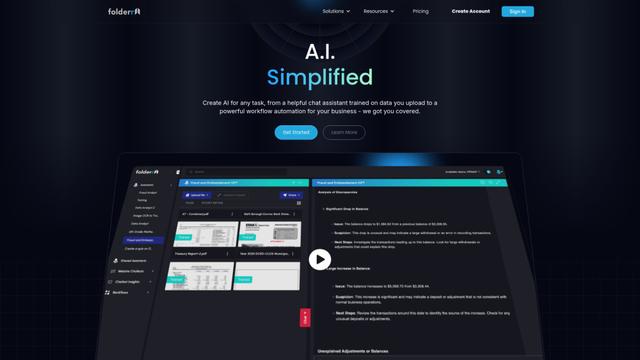
Folderr is a comprehensive AI platform that enables users to create custom AI assistants by uploading unlimited files, integrating with multiple language models, and automating workflows through a user-friendly interface.
Peache.ai
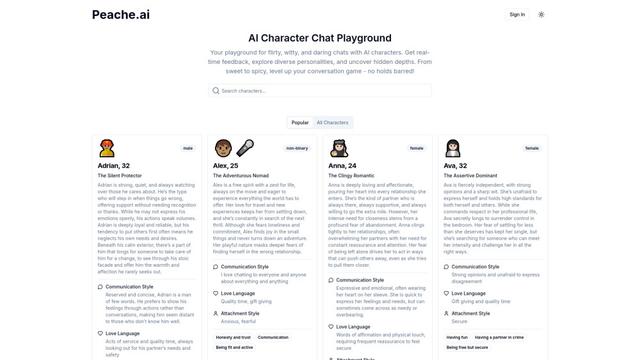
Peache.ai is an AI character chat playground that enables users to engage in flirty, witty, and daring conversations with diverse AI personalities through real-time interactions.

TalkPersona
TalkPersona is an AI-powered video chatbot that provides real-time human-like conversation through a virtual talking face with natural voice and lip-sync capabilities.
Thaly AI
Thaly AI is an AI-powered sales assistant that automates customer conversations and lead qualification to help businesses scale their sales operations while saving time.
Popular AI Tools Like iMessage Hermes on a Raspberry Pi

GPT‑5.5 | ChatGPT Official
GPT‑5.5 in ChatGPT is OpenAI’s latest work-focused model designed to understand complex goals, use tools effectively, check its work, and carry multi-step tasks (coding, research, documents, spreadsheets) through to completion with stronger safeguards.
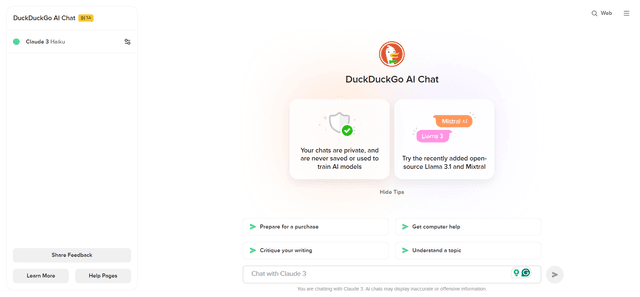
DuckDuckGo AI Chat
DuckDuckGo AI Chat is a free, anonymous way to access popular AI chatbots like GPT-3.5, Claude, and others while preserving user privacy.

Arch
Arch is an intelligent Layer 7 gateway built on Envoy Proxy that provides secure handling, robust observability, and seamless integration of prompts with APIs for building fast, robust, and personalized AI agents.

Off-grid LLM over Radio
A platform that integrates Large Language Models (LLMs) with Meshtastic mesh communication networks to enable off-grid AI interactions and automated task execution through radio communication.