Gemini Omni
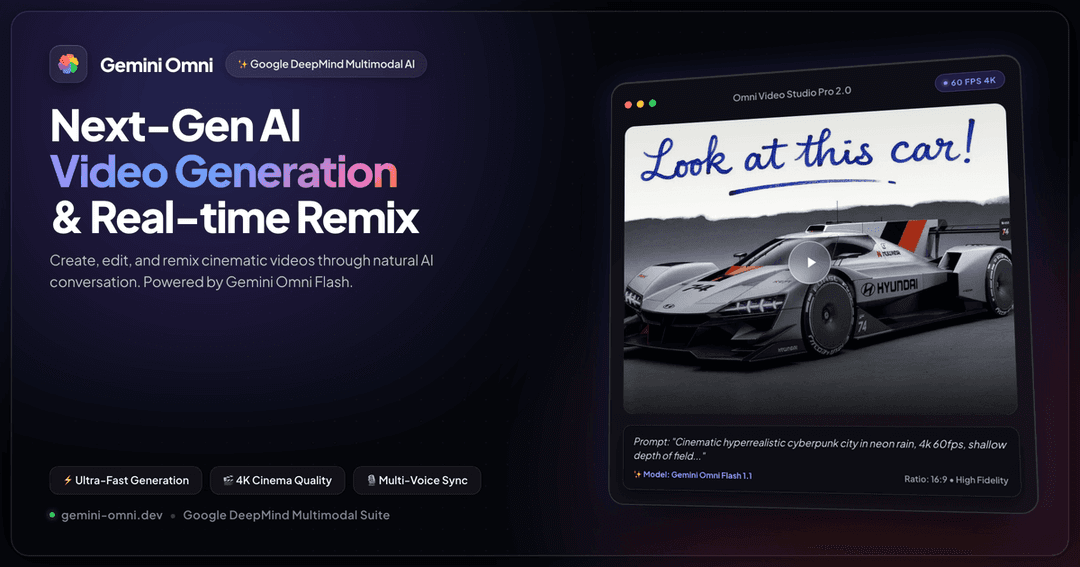
Gemini Omni is a cutting-edge multimodal AI creative platform that unifies photorealistic image generation, context-aware editing, multi-image character fusion, and cinema-grade AI video creation into a single seamless studio.
https://gemini-omni.dev/?utm_source=aipure
Product Information
Updated:Oct 6, 2026
What is Gemini Omni
Gemini Omni is an advanced, natively multimodal AI system designed to create and edit videos through conversation rather than traditional timeline-based tools. Positioned as an “any-input to video” model, it can take combinations of text prompts, reference images, existing video clips, and audio to generate studio-style video outputs grounded in Gemini’s broader world knowledge (e.g., physics, cultural context, and real-world details). Instead of requiring complex editing software, Gemini Omni emphasizes a chat-native workflow where creators iterate on a clip by describing changes in plain language—such as adjusting lighting, swapping backgrounds, changing camera moves, or remixing variations—making video production more accessible and faster to iterate.
Key Features of Gemini Omni
Gemini Omni is a Google DeepMind–powered multimodal AI video generator and editor designed to turn text prompts and mixed references (images, video, and audio) into cohesive, cinematic video outputs through natural chat-based direction. It emphasizes conversational iteration (edit, refine, remix), character/scene consistency across shots, strong world/physics understanding for realistic motion, and native audio generation (dialogue/music) with safety controls and SynthID watermarking. It’s positioned as an end-to-end creative studio alternative to timeline-based editing, enabling fast drafts, keyframe-like start/end control, camera movement direction, and rapid variations for creators and teams.
Any-input video creation (multimodal unification): Accepts text, images, audio, and video together in a single prompt to generate one cohesive video grounded in the combined context—useful for turning references into a unified scene rather than stitching tools together.
Chat-native editing & Remix variations: Supports iterative, conversational edits like changing backgrounds, adjusting camera angles, altering actions, or creating instant variations of an existing clip via simple text instructions—no timeline editing required.
Character & scene consistency: Maintains stable character identity and coherent scene details across multiple shots/scenes within a session, improving continuity for narrative content, training videos, and serialized formats.
Cinematic camera control & keyframe endpoints: Enables natural-language direction of camera motion (e.g., push-ins, whip-pans, handheld feel) plus start/end keyframe-style control and continuous scene extension (as described for Omni Flash) for more directed storytelling.
Native audio generation & lip-sync: Generates synchronized audio natively (dialogue, voice, background music) and supports audio-driven scenes and character speech/lip-sync, reducing the need for separate voiceover and sound design workflows.
Safety, provenance, and responsible access: Applies content safety filtering to prompts/outputs and includes imperceptible SynthID watermarking; certain avatar/personal likeness features include added verification friction to reduce deepfake abuse.
Use Cases of Gemini Omni
Marketing & advertising creatives: Rapidly produce product demos, brand stories, and campaign variants by generating cinematic clips from scripts and reference assets, then iterating via chat to match brand tone, camera style, and messaging.
E-learning and educational explainers: Create short instructional videos with clear on-screen typography/equations, narrated segments, and synchronized visuals—useful for lessons, training modules, and microlearning content.
Social media short-form production: Generate attention-grabbing Shorts/TikTok-style clips quickly, remixing multiple versions for A/B testing hooks, pacing, captions, and visual styles without traditional editing software.
Film/creative pre-visualization: Prototype scenes, camera moves, transitions, and mood boards from text plus reference images/video, enabling faster ideation and pitch development before committing to full production.
Product photography & catalog asset editing: Create consistent visual assets by editing backgrounds and styling while preserving product details, then extend into short product motion clips for storefronts and ads.
Corporate communications & presenter/avatar videos: Generate presenter-led updates or internal comms videos with consistent on-screen personas and native voice, while leveraging safety controls and watermarking for provenance.
Pros
End-to-end multimodal workflow: combines text/image/audio/video inputs with conversational editing, reducing tool switching and manual timelines.
Strong continuity and direction: character consistency plus camera-motion control improves usability for narrative and branded series.
Native audio and clear typography: supports dialogue/music and readable on-screen text, which many video generators handle weakly.
Cons
Access and capability availability can vary by tier, region, and surface (Gemini app/Flow/YouTube), with developer API rollout described as pending/limited in sources.
Short clip constraints and quality tradeoffs: fast-draft modes and short duration limits (e.g., ~10s referenced for Flash) may require stitching multiple generations.
Safety filters can block certain prompts/edits and reduce creative freedom; policies differ by region and are enforced on both prompts and outputs.
Some advanced features (e.g., avatar/lifelike editing of speech) may include extra verification steps or be restricted to mitigate deepfake risks.
How to Use Gemini Omni
1) Choose where you’ll use Gemini Omni: Pick the surface that matches your goal: (a) YouTube Shorts or YouTube Create for free/casual creation, (b) Gemini app (web/iOS/Android) for chat-first creation and iterative edits (typically requires a Google AI subscription), or (c) Google Flow for a more production/finishing-oriented workflow (typically requires a subscription).
2) Sign in with your Google account (and confirm eligibility): Log in on the chosen surface with a Google account in good standing. Omni Flash may be age-gated (18+). If you can’t see Omni in Gemini/Flow, you may need an eligible plan or region access; free access is commonly available via YouTube Shorts/Create.
3) Start a new creation and select the Omni model: Open a new prompt/chat/project and select Gemini Omni (commonly Gemini Omni Flash / gemini-omni-1.1-flash) from the model picker if available in that UI.
4) Decide your starting mode: Text-to-Video, Image-to-Video, or Video Editing: Choose one: (a) Text-to-video to generate from a written prompt, (b) Image-to-video to animate a still image, or (c) Video-to-video editing to upload an existing clip and modify it conversationally.
5) Provide your inputs (multimodal if needed): Attach any baseline assets using the upload/attachment control: images, a reference video clip, and/or audio (if supported in your surface). Omni is designed to combine text + images + video + audio into one coherent output.
6) Write a strong prompt (subject + action + camera + style + timing): Describe: (1) what’s in the scene, (2) what happens, (3) camera framing/motion (e.g., handheld push-in, dolly, whip-pan), (4) mood/style (cinematic, documentary, animation), and (5) any timing notes (slow motion, beat-synced changes).
7) (Optional) Use image-to-image interpolation with first/last frames: For smooth transitions between two states, provide two images in the input list: the first image as the starting frame and the second image as the ending frame. In the prompt, explicitly describe the desired transition (e.g., lighting shift, object morph, camera move) so Omni interpolates between them.
8) Generate the first draft clip: Run generation. Treat the result as a draft (often around ~8–10 seconds depending on the surface/model defaults).
9) Refine via conversational editing (multi-turn): Iterate in chat with precise change requests while asking to preserve what you like. Examples: “Change the background to night, keep the character the same,” “Pull the camera back,” “Make the product label readable,” “Add dramatic zoom,” “Slow the motion by 20%.” Omni applies edits while maintaining scene consistency.
10) Use reference images for character/scene consistency: If you need consistent characters or wardrobe, attach reference photos and instruct Omni to match them (e.g., “Use the person from image 1 as the main character; keep outfit and face consistent across the clip”).
11) Add or refine on-screen text and typography (if needed): Ask for titles, captions, labels, equations, or overlays directly in the prompt. Specify placement, font vibe, size, and readability constraints (e.g., “Large high-contrast subtitle at bottom, safe margins, no stylized distortion”).
12) Add or refine audio (if available in your surface): Request native audio such as dialogue, background music, and sound effects, or provide an audio reference where supported. You can also ask for beat-synced visuals (e.g., “Apartment lights turn on in sync with the music”).
13) Export/download and publish: When satisfied, download/export the video. If you used YouTube Shorts/Create, publish directly from the app. Note: Omni outputs may include SynthID watermarking for provenance.
Gemini Omni FAQs
Yes. Google announced the Omni family at I/O 2026 on May 19, 2026, rolled it out in the Gemini app the same day, opened developer access via the Gemini API on June 30, 2026 (public preview), and reached general availability on August 27, 2026. The GA model ID is gemini-omni-1.1-flash.
Official Posts
Loading...Popular Articles

Atoms: A Multi-Agent AI Platform That Transforms Ideas into Launch-Ready Products
May 22, 2026

Nano Banana SBTI: What It Is, How It Works, and How to Use It in 2026
Apr 15, 2026

Atoms Review — The AI Product Builder Redefining Digital Creation in 2026
Apr 10, 2026

Kilo Claw: How to Deploy and Use a True "Do‑It‑For‑You" AI Agent(2026 Update)
Apr 3, 2026